
Missing an important email because Outlook mobile not receiving notifications is a common problem, especially after an app update or a phone restart. The good news is that this issue almost always comes down to a handful of settings that got switched off somewhere along the way. This guide walks through exactly how to get those alerts flowing again.
Key Takeaways
- Most notification issues stem from either phone-level permissions or an in-app setting being disabled.
- Battery optimization and ‘Focus’ or ‘Do Not Disturb’ modes are frequent culprits on Android and iOS.
- Checking notification settings inside Outlook itself is just as important as checking the phone’s system settings.
- A quick sign-out and sign-back-in often resolves sync issues tied to notifications.
- Keeping the app updated prevents many of these problems from happening again.
Step-by-Step Guide to Fix Outlook Mobile Not Receiving Notifications
Check Notification Permissions on the Phone
- Step 1: Open the phone’s main Settings app, not the Outlook app itself.
- Step 2: Tap Apps (or Application Manager on some Android phones), then find and select Outlook.
- Step 3: Tap Notifications and make sure the toggle is switched on. On iPhone, this is under Settings > Outlook > Notifications, with ‘Allow Notifications’ enabled.
- Step 4: Confirm that alert styles (banners, sounds, badges) are also turned on, since some phones allow notifications but silence the alert style by default.
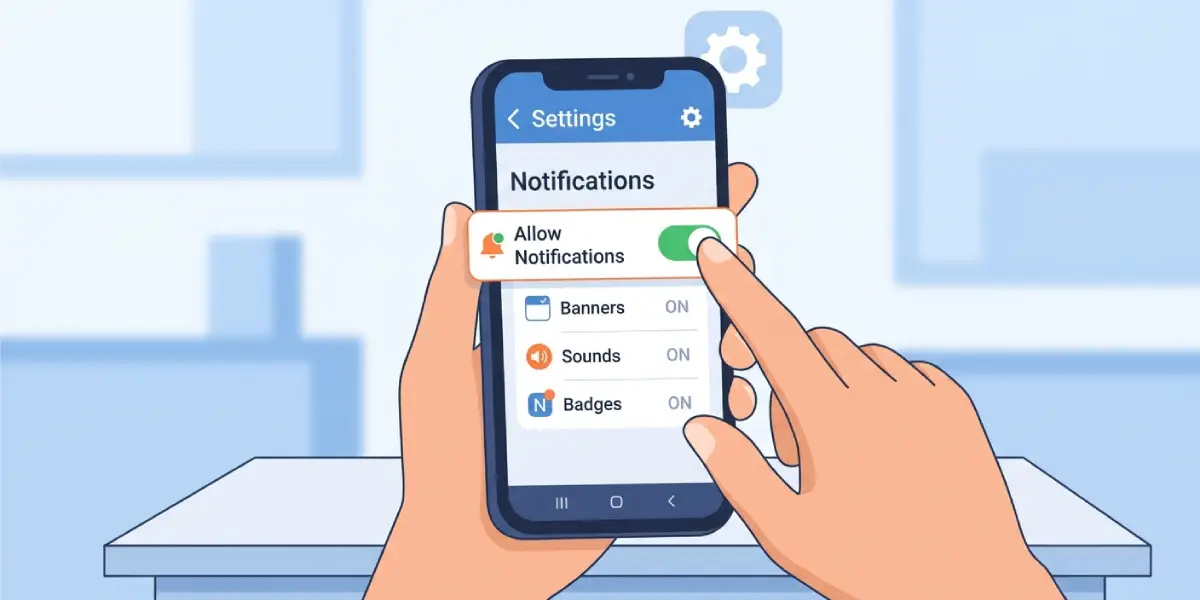
Tip: If the Outlook entry does not appear under Notifications settings at all, the app may need to be reinstalled, since that usually means the phone never properly registered it for push alerts.
Check Notification Settings Inside the Outlook App
- Step 5: Open Outlook and tap the profile icon or menu icon in the top corner.
- Step 6: Go to Settings, then select Notifications.
- Step 7: Make sure notifications are enabled for the correct account, since Outlook lets each connected inbox have its own notification settings.
- Step 8: Check the ‘Focused Inbox’ notification setting. If it is set to only alert for Focused emails and important mail keeps landing in Other, notifications will seem to stop working even though the app is functioning normally.
Disable Battery Optimization and Background Restrictions
- Step 9: On Android, go to Settings > Battery > Battery Optimization, find Outlook, and set it to ‘Don’t optimize’ or ‘Unrestricted.’
- Step 10: Still on Android, check Settings > Apps > Outlook > Mobile Data & Wi-Fi and make sure background data usage is allowed.
- Step 11: On iPhone, go to Settings > General > Background App Refresh and confirm it is turned on for Outlook.
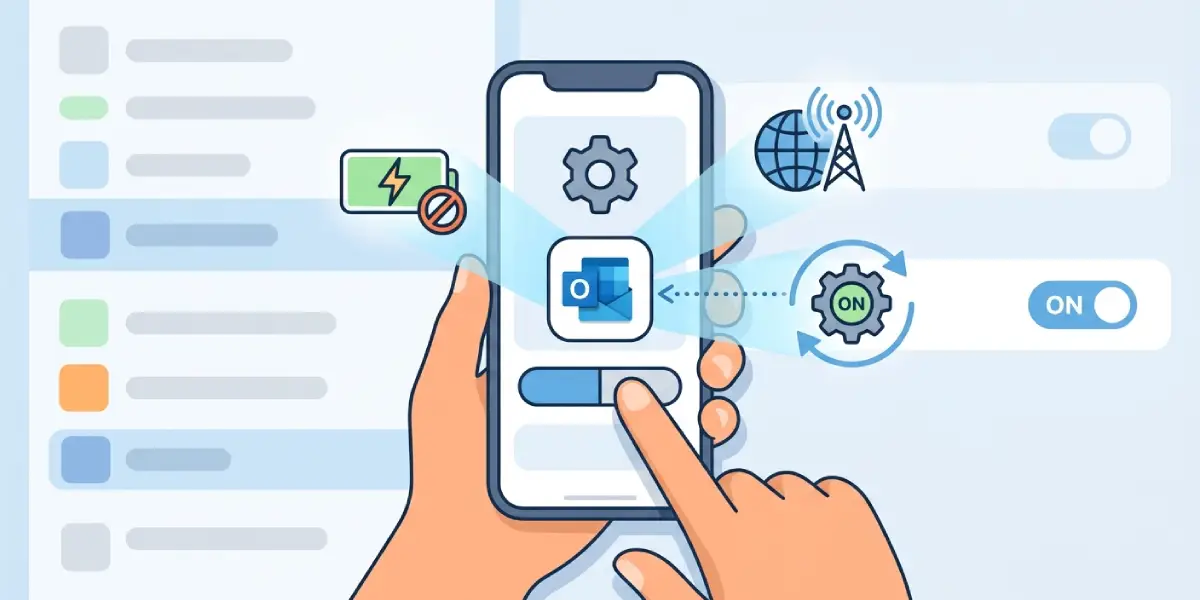
Tip: Phones with aggressive battery-saving modes, particularly some Samsung and Xiaomi devices, tend to kill background apps automatically. Adding Outlook to any ‘protected apps’ or ‘never sleeping apps’ list on those devices makes a real difference.
Check Do Not Disturb and Focus Modes
- Step 12: Check whether Do Not Disturb (Android) or Focus mode (iPhone) is currently active, since either one can silence notifications without any obvious warning.
- Step 13: If a Focus mode is on, tap it and either turn it off or add Outlook to the list of allowed apps.
Sign Out and Sign Back Into the Account
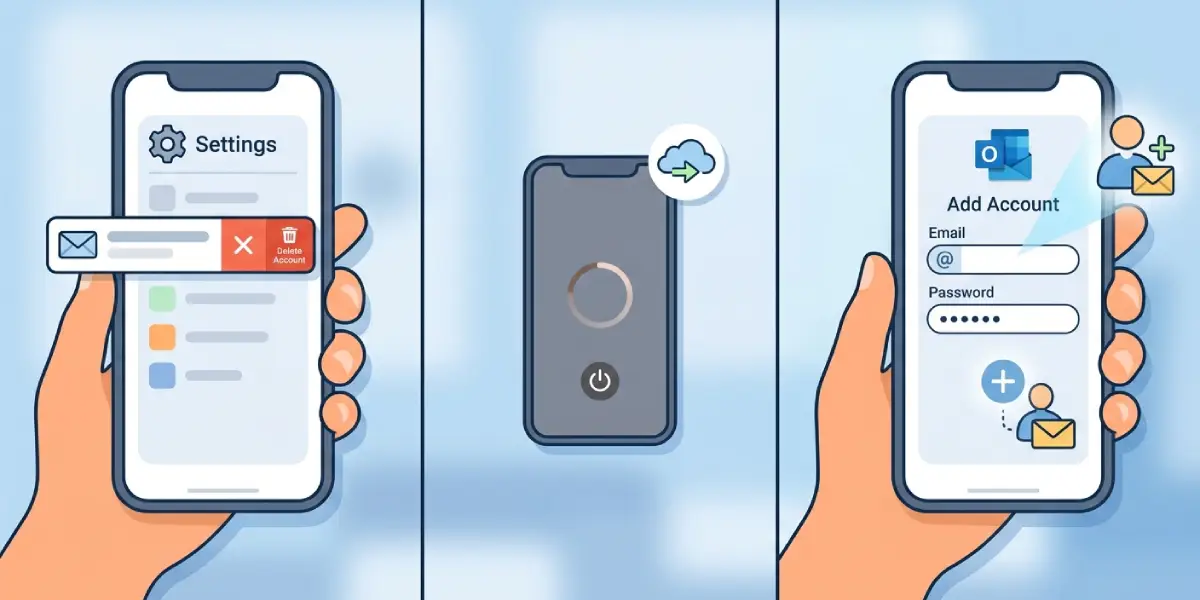
- Step 14: In Outlook, open Settings, tap the account that is not sending alerts, and select Delete Account (this only removes it from the app, not the actual mailbox).
- Step 15: Restart the phone.
- Step 16: Reopen Outlook and add the account back in using the usual email and password.
Update the App
- Step 17: Open the phone’s app store (App Store or Google Play).
- Step 18: Search for Outlook and tap Update if one is available.
- Step 19: Restart the phone once the update finishes to let the new version fully register with the operating system.
Common Problems and Fixes
- Notifications work on Wi-Fi but not on mobile data: This usually points to background data being restricted for Outlook. Revisit the mobile data settings covered in Step 10 and make sure background usage is allowed.
- Notifications stopped after switching phones: Push notification tokens do not always transfer between devices. Signing out and back in, as shown in Steps 14 through 16, typically resets this.
- Only some emails trigger a notification: This is almost always the Focused Inbox filter mentioned in Step 8, not a bug. Adjusting which folder gets alerts fixes it.
- Notifications worked yesterday but stopped today with no changes made: A background app refresh or battery optimization setting can silently reset after a system update. It is worth rechecking Steps 9 through 11 after any phone software update.
- Sound is missing but the banner still shows up: This points to the phone’s notification sound setting for Outlook specifically, not a Do Not Disturb issue. Check the alert style settings mentioned in Step 4.
Frequently Asked Questions
Why is Outlook mobile not showing notifications even though the app is open?
When the app is actively open, Outlook relies on in-app alerts rather than push notifications, so this is normal behavior and not a sign of a problem.
Does closing Outlook completely stop notifications from working?
No. Outlook uses push notifications sent through Microsoft’s servers, so alerts should still arrive even when the app is fully closed, as long as background permissions are enabled.
Why are notifications delayed instead of missing entirely?
Delayed notifications are usually caused by battery optimization settings limiting how often the app can check for new mail in the background. Adjusting the battery settings in Step 9 typically resolves the delay.
Will reinstalling Outlook fix a notification problem?
It can help, particularly if the app never registered properly with the phone’s notification system, but it is worth trying the sign-out and settings checks first since reinstalling means setting up preferences again.
Do Focused Inbox settings affect which emails send a notification?
Yes. If notifications are set to Focused Inbox only, emails landing in the Other tab will not trigger an alert, which often looks like a notification failure.
Can a VPN interfere with Outlook mobile notifications?
Some VPN apps restrict background data or block certain connections, which can delay or block push notifications. Temporarily disabling the VPN helps confirm whether it is the cause.
Why do notifications work for one email account but not another in the same app?
Each connected account has its own notification toggle inside Outlook’s settings. Checking Step 7 for the specific account having trouble usually reveals the setting has been turned off.
Does updating the phone’s operating system affect Outlook notifications?
Yes, major OS updates sometimes reset app permissions, including notification and battery settings, so it is worth rechecking those settings after any operating system update.
Is there a way to test if notifications are working correctly?
Sending a test email from a different account to the affected inbox and waiting a minute or two is the simplest way to confirm whether push alerts are arriving as expected.
