
Adding a Zoho Mail account in Outlook on the Web lets someone read and send Zoho messages right alongside an existing Outlook.com inbox, without opening a second browser tab. The process relies on Outlook’s Sync email feature, which pulls messages in over IMAP. It takes about five minutes once IMAP access is switched on inside Zoho Mail.
Key Takeaways
- Zoho’s IMAP access has to be turned on inside Zoho Mail settings before Outlook can connect to it.
- Accounts with two-step verification enabled need an app-specific password, not the regular Zoho login password.
- The connection is made through Outlook on the Web’s Settings > Sync email > Connected accounts menu.
- Zoho’s IMAP server is imap.zoho.com on port 993, and its SMTP server is smtp.zoho.com on port 465, both using SSL.
- Once connected, new Zoho mail lands in Outlook automatically at regular sync intervals rather than instantly.
Step-by-Step Guide to Add a Zoho Mail Account in Outlook on the Web
Before Starting: Turn On IMAP Access in Zoho Mail
Outlook cannot see a Zoho inbox until Zoho itself allows outside apps to fetch mail. This is a one-time setup that happens on Zoho’s side, not Outlook’s.
- Step 1: Sign in to Zoho Mail directly in a browser and open Settings, then go to Mail Accounts.
- Step 2: Select the account to be connected and click POP/IMAP Access.
- Step 3: Turn on IMAP Access and save the change.
- Step 4: If two-step verification is active on the Zoho account, go to the Zoho Accounts security page, generate an App Password, and copy it somewhere safe. This app password stands in for the regular password during setup.
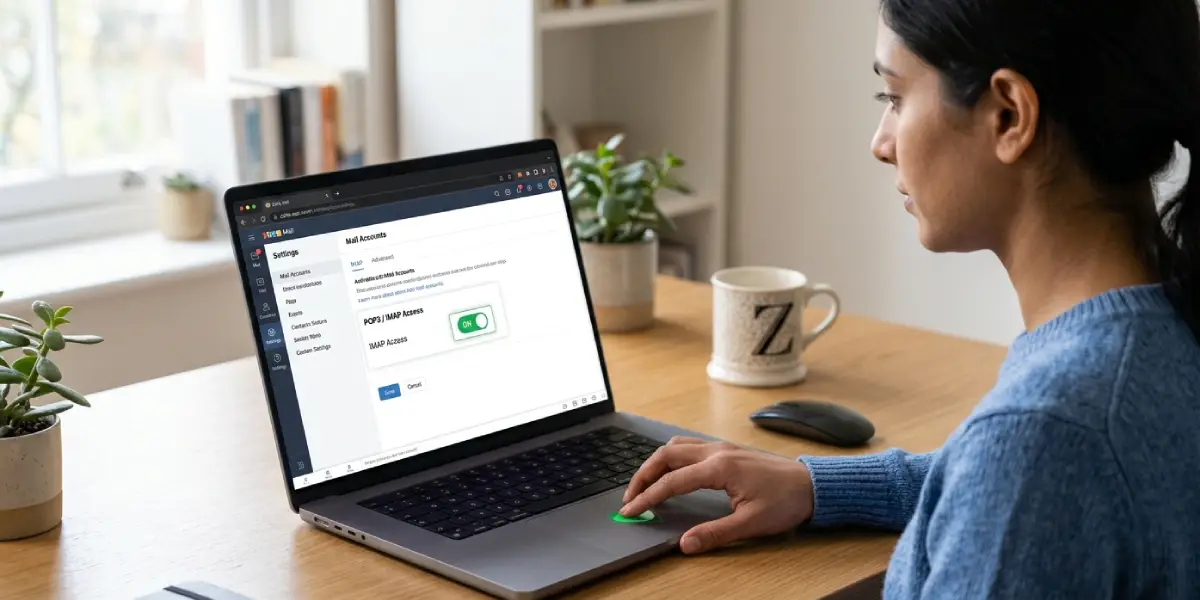
Tip: Skipping this step is the single most common reason a Zoho connection fails on the first try, so it is worth confirming IMAP is switched on before moving over to Outlook.
Connecting the Account Inside Outlook on the Web
With IMAP enabled, the rest of the process happens entirely inside Outlook’s own settings panel.
- Step 5: Sign in to Outlook on the Web at outlook.com and select the gear icon in the top-right corner.
- Step 6: Choose View all Outlook settings at the bottom of the panel that opens.
- Step 7: Go to Mail, then select Sync email.
- Step 8: Under Connected accounts, select Other email accounts.
- Step 9: Enter a display name, the full Zoho email address, and the password (or the app password created earlier), then select OK.
- Step 10: Wait for Outlook to confirm the connection. A short sync usually runs right away, and older messages continue filling in over the next several minutes.
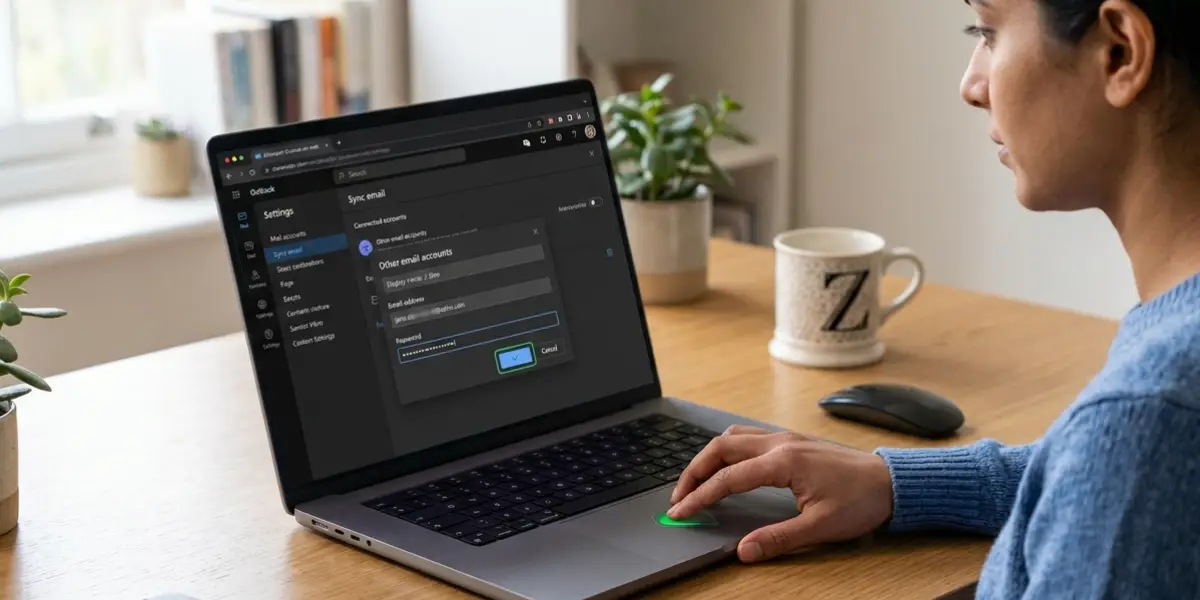
Entering Manual IMAP and SMTP Settings, If Needed
Most of the time Outlook connects automatically once the email and password are entered. If it does not, a manual setup option appears, asking for server details.
- Step 11: For the incoming server, enter imap.zoho.com and use port 993 with SSL enabled.
- Step 12: For the outgoing server, enter smtp.zoho.com and use port 465 with SSL enabled.
- Step 13: Set the username to the full Zoho email address on both incoming and outgoing fields, then save.
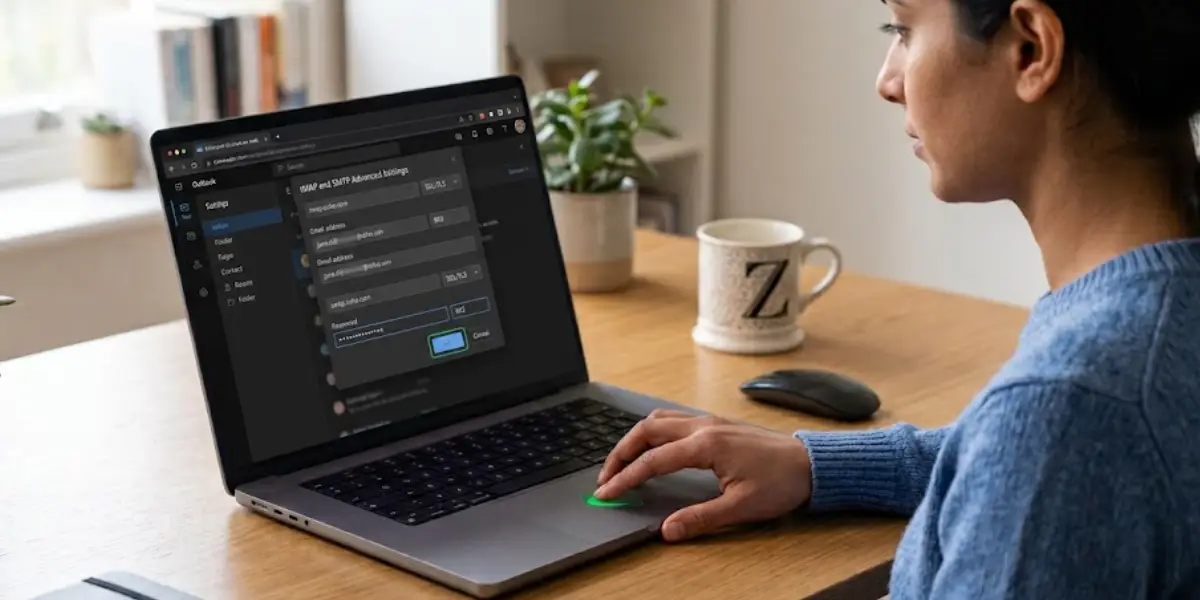
Tip: Accounts on Zoho’s paid or organization plans sometimes route through imappro.zoho.com and smtppro.zoho.com instead of the standard servers, so it is worth checking the account’s Mail Accounts page in Zoho if the standard servers get rejected.
Common Problems and Fixes
- Outlook rejects the password: This almost always means two-step verification is on in Zoho and the account needs an app-specific password rather than the everyday login password.
- Outlook says it cannot connect to the server: IMAP access is likely still turned off in Zoho Mail settings. Turn it on under Mail Accounts > POP/IMAP Access and try adding the account again.
- The connection succeeds but no messages appear: Give it a few minutes. The first sync pulls in recent mail gradually rather than all at once, and a large inbox takes longer to populate.
- New Zoho mail shows up late in Outlook: Connected accounts sync on a periodic schedule rather than instantly, so a short delay between an email arriving in Zoho and appearing in Outlook is normal.
- Manual setup asks for a server and the standard one fails: Domain-based or organization Zoho accounts sometimes use imappro.zoho.com and smtppro.zoho.com. Check the exact server names on the account’s Mail Accounts page in Zoho.
Frequently Asked Questions
Does Zoho Mail need to be set up before adding it to Outlook on the Web?
Yes. IMAP access must be turned on inside Zoho Mail settings first, since Outlook connects to Zoho over IMAP and cannot fetch messages if that access is disabled.
Why does Outlook keep asking for a password that should be correct?
This usually happens when two-step verification is enabled on the Zoho account. Outlook needs an app-specific password generated from the Zoho Accounts security page instead of the normal login password.
Can a free Zoho Mail account be added the same way as a paid one?
Yes, the same IMAP and SMTP settings and the same Outlook steps apply to free Zoho Mail accounts, as long as IMAP access has been turned on.
Will replies sent from Outlook show the Zoho address as the sender?
Yes, once the account is connected, Outlook allows sending from the Zoho address, and recipients see the Zoho email address in the From field.
How long does the first sync take after connecting Zoho Mail?
A basic connection confirms within a minute or two, but older messages continue to load gradually afterward, especially for inboxes with a large amount of existing mail.
Is it possible to connect more than one Zoho Mail account to the same Outlook inbox?
Yes, Outlook on the Web supports adding several connected accounts through the same Sync email menu, so multiple Zoho addresses can be linked if needed.
What port and security settings does Zoho Mail use for IMAP?
Zoho’s IMAP server is imap.zoho.com on port 993 with SSL encryption enabled.
What port and security settings does Zoho Mail use for SMTP?
Zoho’s SMTP server is smtp.zoho.com on port 465 with SSL encryption enabled.
Why does the connection fail even after entering the correct IMAP and SMTP details?
This is often caused by IMAP access still being switched off in Zoho, or by using a domain-based Zoho account that requires the imappro and smtppro servers instead of the standard ones.
