
A PC randomly restarting due to RAM is one of the most frustrating hardware issues to chase down, mainly because the symptoms look identical to a power supply fault, a driver conflict, or overheating. Once the memory subsystem is confirmed as the culprit, though, the fix is usually straightforward and does not require replacing the whole system. This guide walks through the real causes and the exact steps to stop the restarts for good.
Key Takeaways
- Random restarts tied to RAM are usually caused by loose seating, an unstable XMP or EXPO overclock profile, a failing module, or an incompatible kit.
- Disabling any memory overclock profile in the BIOS is the fastest first test, since it costs nothing and often resolves the issue immediately.
- Testing sticks one at a time in a single slot is the most reliable way to isolate a faulty module or a bad motherboard slot.
- Free tools like Windows Memory Diagnostic or MemTest86 confirm whether the memory itself is actually failing.
- A stubborn case that survives reseating, testing, and a BIOS update usually points to a genuinely defective stick that needs replacing.
Common Causes of a PC Randomly Restarting Due to RAM
Before jumping into fixes, it helps to understand why memory triggers a restart in the first place. Modern systems are built to reboot rather than run on corrupted data, so a restart is often the motherboard protecting itself the moment it detects an unstable memory read or write.
Loose or Poorly Seated Modules
Vibration during shipping, a case that gets moved around, or a module that was never fully clicked into place can cause intermittent contact. The system may boot fine and then randomly restart under load once the connection shifts even slightly.
Unstable XMP, DOCP, or EXPO Profile
High-speed memory kits rely on an overclock profile to hit their rated speed. That profile is not guaranteed to be stable on every motherboard and CPU combination. When the timings or voltage are pushed slightly beyond what the system can reliably handle, random restarts under moderate load are a classic symptom.
A Genuinely Faulty Module
Memory chips do fail, whether from manufacturing defects, electrical damage, or age. A failing module often produces restarts that get worse over time or that appear more often during memory-intensive tasks like gaming, video editing, or large file transfers.
Mismatched or Incompatible Kits
Mixing modules from different kits, or combining sticks with different speeds, timings, or densities, can create instability even if each stick works fine on its own. This is common when a PC has been upgraded piecemeal over the years rather than built with a matched kit from day one.
Outdated BIOS or UEFI Firmware
Motherboard manufacturers regularly release firmware updates that improve memory compatibility and stability, especially for newer or higher-speed RAM kits. Running an old BIOS version against a newer memory kit is a surprisingly common source of restarts.
Dust, Corrosion, or Debris on the Contacts
Dirty or oxidized gold contacts on the RAM stick, or a dusty slot, can create a weak electrical connection that behaves exactly like a seating problem.
Before You Start
Working inside the case is simple, but a few basics protect both the hardware and the person doing the work.
- Power down the PC completely and unplug it from the wall outlet.
- Press the power button once after unplugging to drain any residual charge from the system.
- Touch a bare metal part of the case, or use an anti-static wrist strap, to discharge static before touching any component.
- Let the system cool for a few minutes if it was recently in use.
- Have the motherboard manual or its support page handy for BIOS navigation and memory slot layout.
Opening a desktop case generally does not affect warranty coverage, but on laptops and prebuilt systems, check the manufacturer’s policy first. If the restarts continue after every step below, or if there are visible signs of damage on the module or slot, it is time to let a qualified repair technician take over rather than risk further troubleshooting.
Tools and Materials Needed
- Compressed air or a soft brush for dust removal
- A lint-free or microfiber cloth
- 90 percent or higher isopropyl alcohol for cleaning contacts
- An anti-static wrist strap, optional but recommended

How to Fix a PC That Randomly Restarts Due to RAM
Work through these steps in order. Each one rules out a specific cause, so skipping ahead can waste time chasing the wrong fix.
- Step 1: Enter the BIOS or UEFI setup by restarting the PC and pressing the designated key, commonly Delete or F2, during startup. Navigate to the memory or overclocking section and disable any XMP, DOCP, or EXPO profile so the RAM runs at its default, non-overclocked speed. Save changes, restart, and monitor whether the random restarts stop.
- Step 2: If the restarts continue, power down and unplug the system, then open the case and remove each RAM module. Inspect the gold contacts for dust or discoloration, wipe them gently with a lint-free cloth lightly dampened with isopropyl alcohol, and let them dry fully before reinstalling.
- Step 3: Reseat each module firmly into its slot until both side clips click into place. An improperly seated stick is one of the most common and easiest fixes for this exact problem.
- Step 4: If the system has more than one RAM stick, remove all but one and boot with just that single module installed in the primary slot listed in the motherboard manual. Use the PC normally for a while to see if the restarts persist.
- Step 5: Power down, swap in the next stick alone, and repeat the same test. This process of elimination identifies whether one specific module or one specific slot is the source of the problem.
- Step 6: Run Windows Memory Diagnostic by typing ‘Windows Memory Diagnostic’ into the Start menu search bar and selecting the option to restart and check for problems. For a more thorough check, download MemTest86 from its official website, create a bootable USB drive, and let it run several full passes overnight.
- Step 7: Check the motherboard manufacturer’s support page for the latest BIOS or UEFI update, since newer firmware often includes improved memory compatibility. Update the BIOS carefully following the manufacturer’s exact instructions, as an interrupted update can cause serious problems.
- Step 8: Confirm the RAM kit is listed on the motherboard’s Qualified Vendor List, usually found on the manufacturer’s product page, to rule out a fundamental compatibility mismatch.
- Step 9: If one module consistently fails testing or triggers restarts no matter which slot it occupies, that stick is likely defective and should be replaced, ideally with a matching module from the same kit or a full new matched pair.
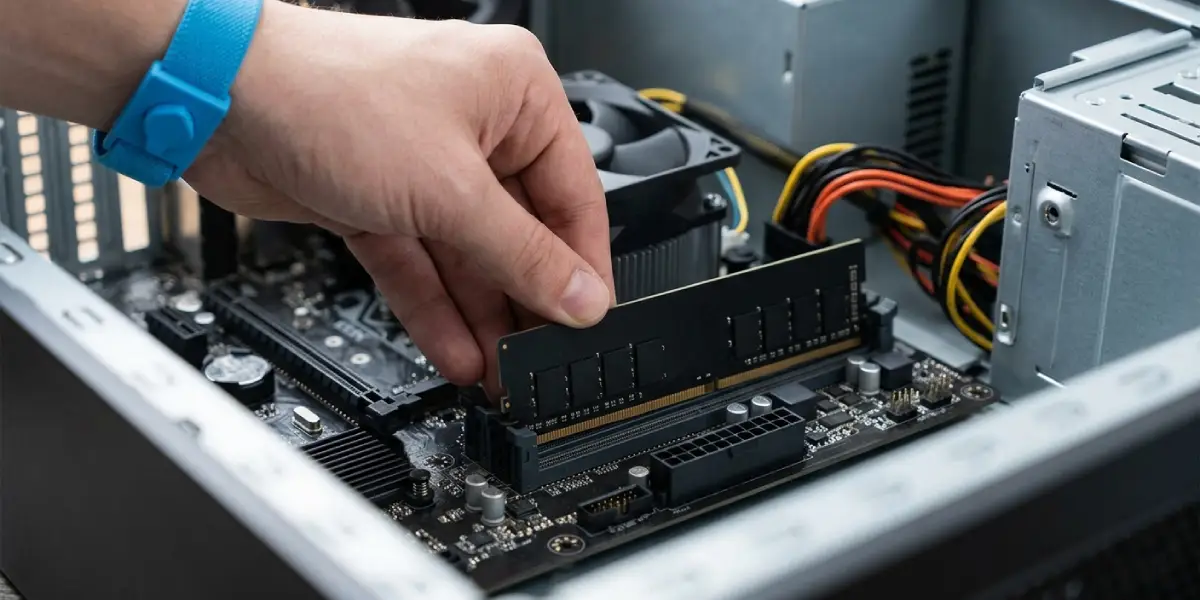
Tip: When testing sticks individually, always use the exact slot recommended in the motherboard manual for single-stick operation. Using the wrong slot can produce restarts that look like a bad module when the real issue is simply how the board was populated.
Common Problems and Fixes
Restarts continue even with a single stick installed
This points away from the RAM itself and toward the slot, the motherboard, or the power supply. Try the same single stick in a different slot before assuming the module is bad. If every slot produces the same result with a known-good stick, the motherboard may need professional inspection.
MemTest86 shows no errors but restarts still happen
A clean memory test does not fully rule out RAM, since some instability only shows up under real-world load rather than a synthetic test. In this case, revisit the XMP or EXPO profile and try manually lowering the memory speed one step at a time to find a stable configuration.
Restarts started right after installing new RAM
This almost always traces back to an overclock profile pushing beyond what the board or CPU memory controller can handle, or a kit that is not on the motherboard’s compatibility list. Disabling the XMP profile and testing at default speed usually confirms this quickly.
PC will not boot at all after reseating RAM
A stick that is not fully clicked into place, or seated in the wrong slot for a single-module configuration, can prevent boot entirely. Power down, remove the module, and reinstall it carefully, listening and feeling for both clips locking in.
Restarts happen only under heavy gaming or rendering loads
Memory instability tends to surface exactly when the system is working hardest. If lowering the memory speed or disabling the overclock profile resolves it, the original settings were simply too aggressive for that particular combination of parts.
Frequently Asked Questions
How can it be confirmed that RAM is actually causing the random restarts?
Running Windows Memory Diagnostic or MemTest86 and watching for reported errors is the clearest confirmation. Disabling any XMP or EXPO profile and seeing whether the restarts stop is also a strong indicator that memory settings were the trigger.
Can bad RAM cause a computer to restart without any warning or error message?
Yes. Many memory errors cause an immediate, silent reboot rather than a visible error message or blue screen, since the system detects invalid data and restarts as a protective response.
Is it safe to keep using a PC that restarts randomly due to RAM?
It is generally safe short term, but random restarts can cause unsaved work loss and, in rare cases, file corruption if a restart happens during a write operation. It is worth addressing sooner rather than later.
Does mixing RAM brands or sizes cause random restarts?
It can, especially when the modules have different speeds, timings, or voltage requirements. The system will typically run at the specification of the slowest or most restrictive module, and mismatched kits are more prone to instability.
Will disabling XMP or EXPO permanently slow down the computer?
It will lower memory speed to the default JEDEC specification, which reduces performance somewhat in memory-sensitive tasks. Many users find a stable, slightly lower memory speed through manual tuning rather than running at default speed indefinitely.
How long should MemTest86 run to trust the results?
At least one full pass is a baseline check, but several passes, ideally run overnight, give a much more reliable picture since some memory errors only appear after extended testing.
Can a laptop’s soldered RAM also cause random restarts?
Yes, soldered memory can fail or become unstable just like removable modules, though it cannot be reseated or swapped. In that case, BIOS updates and running diagnostic software are the main available troubleshooting steps before professional repair becomes necessary.
Should all RAM slots be tested if there are more than two on the motherboard?
Yes. Testing a single known-good stick across every available slot helps rule out a specific slot as the source of the problem rather than the memory module itself.
Does updating the BIOS erase any saved settings?
Most BIOS updates reset settings to default, including any custom overclock profiles, so it is worth noting current settings beforehand if they need to be reapplied afterward.
When is it time to just replace the RAM instead of continuing to troubleshoot?
Once a module fails a memory diagnostic test, or consistently causes restarts across multiple slots and at default speed, replacing it is the most reliable path forward rather than continuing to chase settings.
