
Setting up an Exchange account in the Outlook mobile app takes just a few minutes once the right menu is found. This guide walks through the exact steps for both iPhone and Android, so mail, calendar, and contacts start syncing right away.
Key Takeaways
- Adding an Exchange account works the same way on both iPhone and Android inside the Outlook app.
- Server details are rarely needed since Outlook detects most Exchange and Microsoft 365 accounts automatically.
- Work or school accounts may prompt for extra sign-in steps set by an IT admin.
- A stable internet connection speeds up account detection and initial sync.
- Older devices may need an ActiveSync update to keep connecting to Exchange servers.
How to Add an Exchange Account in the Outlook Mobile App
The process below applies to the Outlook app on both iOS and Android devices, since the layout is nearly identical across platforms.
Step-by-Step Instructions
- Step 1: Open the Outlook app on the mobile device. If an account is already set up, tap the profile icon or the Home icon in the upper-left corner, then select the menu (gear or plus icon) to reach account settings.
- Step 2: Tap Settings, then select Add Account, followed by Add Email Account.
- Step 3: Enter the Exchange email address in full, then tap Continue.
- Step 4: Enter the account password when prompted, then tap Sign In. For a work or school account, a company sign-in page may appear instead – simply follow the on-screen prompts from the organization’s identity provider.
- Step 5: If Outlook does not detect the account type automatically, look for an option to Set Up Account Manually, then choose Exchange from the list of provider options.
- Step 6: Wait while Outlook verifies the credentials and connects to the Exchange server. This step can take a moment on a slower connection.
- Step 7: Once the account is added, choose to add another account or tap Maybe Later / Skip to head straight to the inbox.
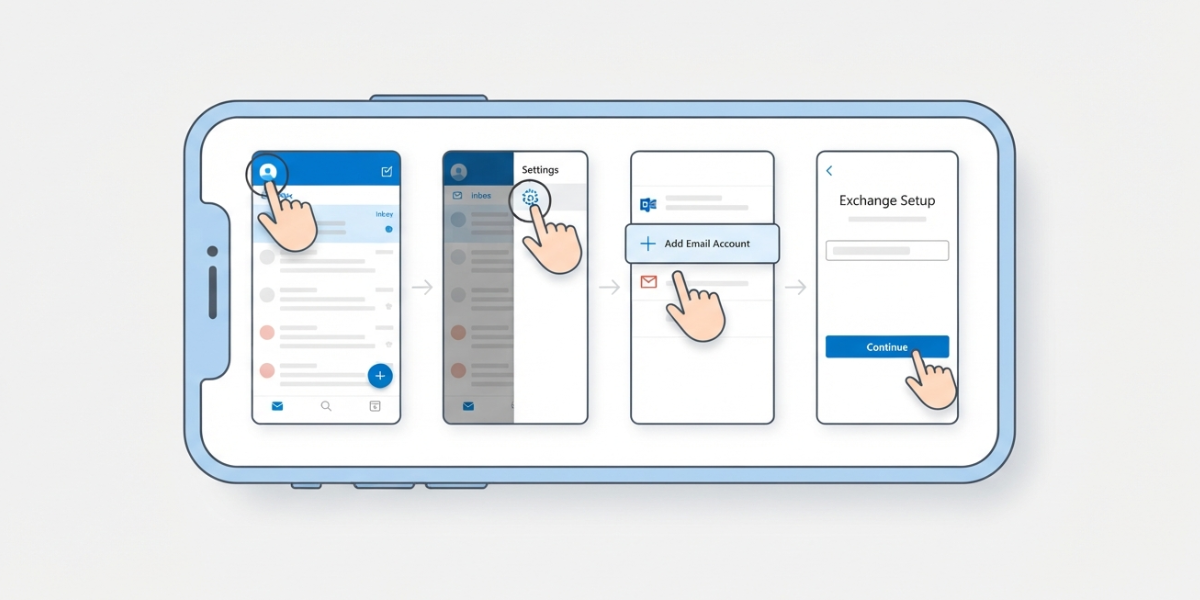
Tip: Typing the full email address carefully on the first attempt saves time, since a small typo is one of the most common reasons Outlook fails to detect the correct Exchange server.
Setting Up Advanced or On-Premises Exchange Details
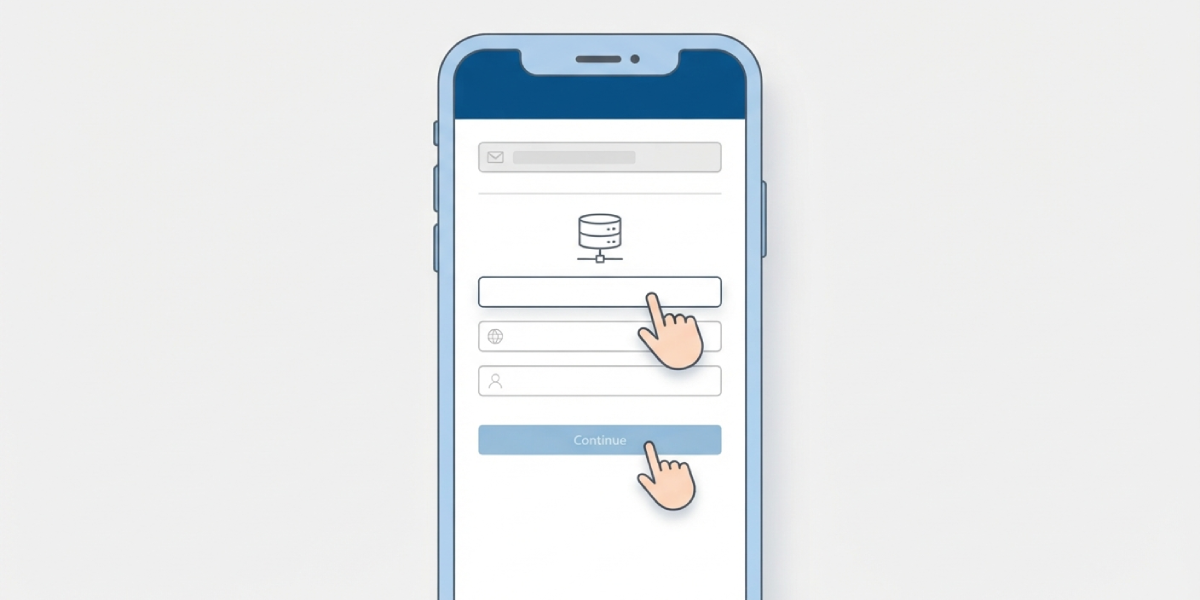
Some organizations run an on-premises Exchange server rather than a cloud-based Microsoft 365 mailbox. In that case, Outlook may present an Exchange server field after the email address is entered. This is where a server address supplied by an IT department gets typed in, along with a domain and username if requested. Most cloud-based Microsoft 365 accounts skip this screen entirely, since Outlook resolves the server automatically.
Common Problems and Fixes
Outlook Cannot Find the Server Settings
This usually means the account needs manual setup. Selecting Exchange from the provider list and entering the server address from an IT administrator resolves it.
Sign-In Loops Back to the Password Screen
Double-check that the password is current and that any multi-factor authentication prompt on a separate device or app has been approved. An expired password is the most frequent cause.
Account Gets Stuck on a Loading Screen
Switching from Wi-Fi to mobile data (or the reverse) often clears this. Restarting the app, or the device itself, also tends to resolve a stuck sync.
Login Address and Email Address Do Not Match
Some Exchange environments use a login name (UPN) that differs from the visible email address. Entering the UPN in the username field instead of the standard email address usually fixes the sign-in error.
Device Cannot Connect Due to an Outdated App
Exchange servers periodically require newer ActiveSync versions for security reasons. Updating the Outlook app from the App Store or Google Play before retrying the setup usually clears this issue.
Frequently Asked Questions
Does adding an Exchange account in Outlook mobile also sync calendar and contacts?
Yes. An Exchange account set up in the Outlook app automatically syncs mail, calendar, and contacts, unlike IMAP or POP setups which only sync email.
Is a server address required to add an Exchange account?
Not usually. Outlook detects most Exchange and Microsoft 365 servers automatically. A server address is only needed for certain on-premises setups when manual configuration is required.
Can more than one Exchange account be added to the Outlook app?
Yes. Multiple Exchange accounts can be added by repeating the same steps and choosing Add Account again from Settings.
Why does the app ask for a company sign-in page instead of a normal password field?
Work or school accounts often use single sign-on or multi-factor authentication set up by an IT administrator, which redirects to a company-branded login page during setup.
What should be entered if Outlook does not recognize the email domain?
Selecting Set Up Account Manually and choosing Exchange from the list allows a server address and login details to be entered directly.
Does adding an Exchange account require an app password?
Most modern Exchange and Microsoft 365 accounts use the normal account password combined with multi-factor authentication rather than a separate app password, though this depends on organizational policy.
Why does setup fail on an older phone?
Exchange servers require a minimum ActiveSync version for security compliance. Updating the Outlook app, or in some cases the device’s operating system, resolves connection failures tied to outdated protocol versions.
How long does it take for email to appear after adding the account?
Initial sync is often instant, though large mailboxes with years of history may take several minutes to fully populate.
Can an Exchange account be removed later without affecting other accounts?
Yes. Each account added to Outlook can be removed individually from the Accounts section in Settings without disturbing any other accounts on the same device.
