
Outlook categories not syncing across devices is a common annoyance for anyone who colour-codes email on a phone, then opens a laptop to find the labels missing. This guide walks through the exact settings and steps needed to get categories syncing properly again, without touching unrelated Outlook features.
Key Takeaways
- Category sync issues almost always come down to account type – IMAP accounts do not sync categories the same way Exchange or Microsoft 365 accounts do.
- The Master Category List lives in the mailbox, so it needs to be uploaded and refreshed on each device.
- Cached Exchange Mode settings and Send/Receive intervals can delay or block category updates.
- Outlook mobile and Outlook on the web each have their own category display settings that must be enabled separately.
- Signing out and back into an account often forces a clean resync when categories get stuck.
Step-by-Step Guide to Fix Outlook Categories Not Syncing Across Devices
Follow these steps in order. Most people find that the fix happens within the first three steps, but the later ones matter for accounts that still will not sync after a basic refresh.
Step 1: Confirm the Account Type Supports Category Sync
- Open Outlook on the desktop, go to File, then Account Settings, then Account Settings again. Check whether the account is listed as Exchange, Microsoft 365, or Outlook.com. Category syncing across devices works reliably on these account types. IMAP accounts store categories locally only, so an IMAP-based Gmail or Yahoo account added to Outlook will never sync categories to other devices, no matter what else gets adjusted.

Step 2: Upload the Master Category List
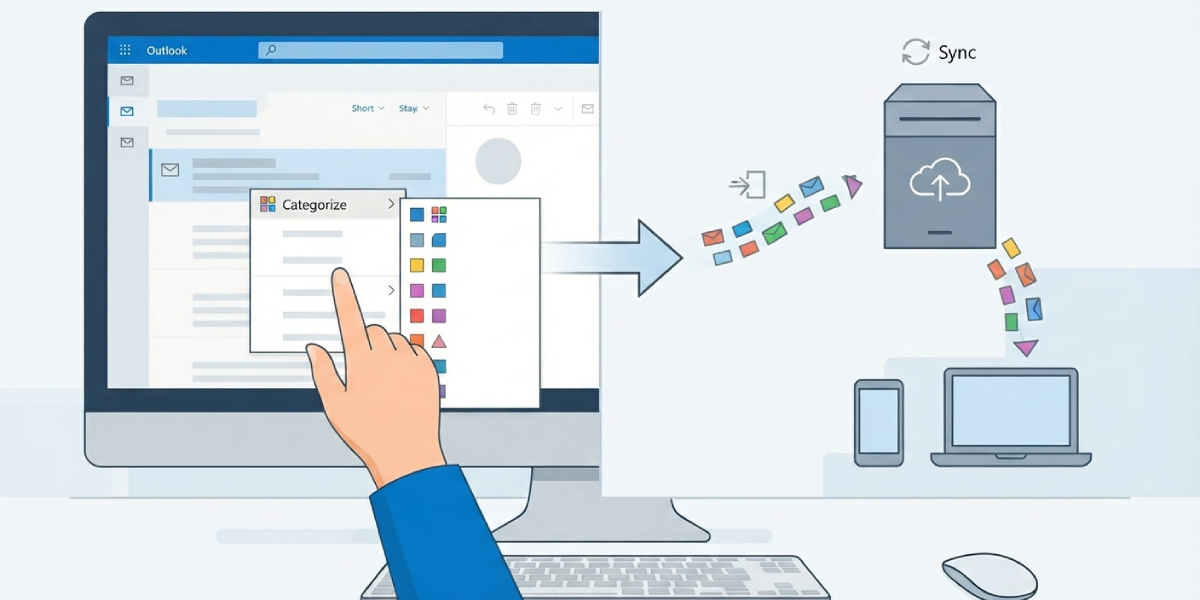
- In Outlook desktop, right-click any email, choose Categorize, then All Categories. Confirm the categories and colours shown are the correct, current set. If a category was renamed or recoloured recently, that change needs a moment to push to the server before other devices will see it.
- Send an email or perform any action that triggers a Send/Receive cycle. This forces Outlook to push the updated Master Category List to the mailbox on the server, which is what other devices actually read from.
Step 3: Force a Manual Send/Receive
- Press the F9 key, or go to the Send/Receive tab and select Send/Receive All Folders. This clears out any queued updates that have not yet reached the server, including category changes.
Tip: If categories still look outdated on a second device after a manual sync, close and reopen Outlook there instead of just switching folders. A folder refresh does not always reload the Master Category List, but a full app restart does.
Step 4: Check Cached Exchange Mode Settings
- Go to File, Account Settings, Account Settings, then double-click the Exchange or Microsoft 365 account. Under Cached Exchange Mode Settings, confirm Use Cached Exchange Mode is turned on. Cached mode keeps a local copy of mailbox data in sync with the server on a schedule, and having it off can cause categories to appear inconsistent between devices.
Step 5: Enable Category Sync on Outlook Mobile
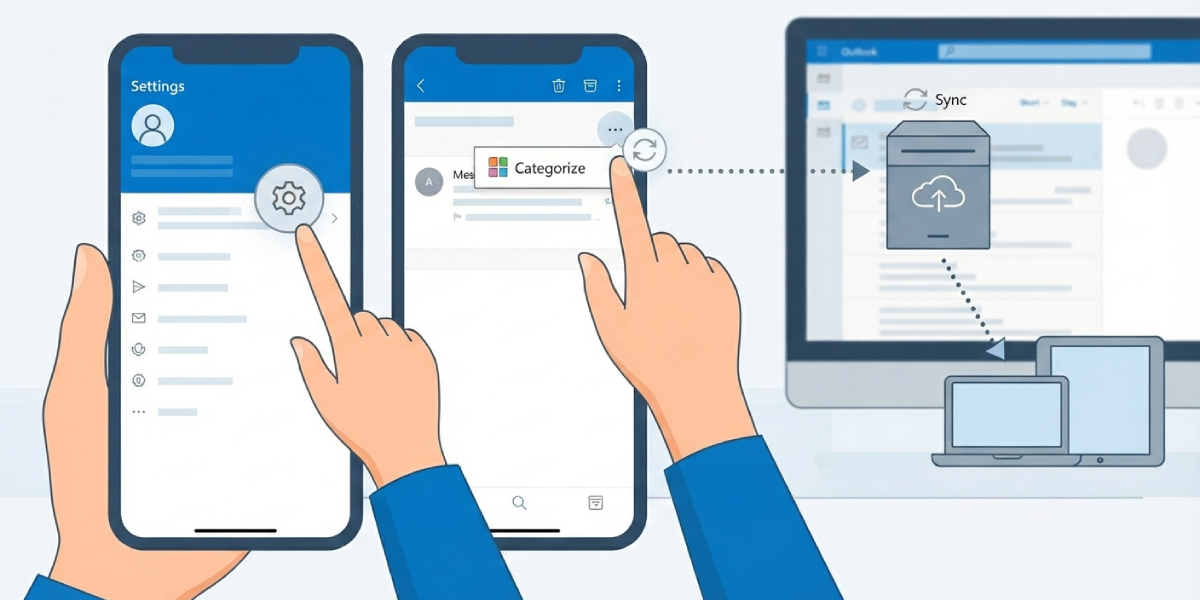
- Open the Outlook mobile app, tap the account profile icon, then Settings, then select the account in question. Confirm the account is signed in with the same credentials used on the desktop, since a duplicate or secondary account added separately will not share category data with the primary one.
- Open an email on mobile, tap the three-dot menu, and select Categorize to confirm the same categories from the desktop appear in the list. If they are missing, force-close the app and reopen it to trigger a fresh sync.
Step 6: Check Categories on Outlook on the Web
- Sign in to Outlook on the web using a browser. Right-click an email and select Categorize to see whether the categories match the desktop app. Outlook on the web reads directly from the server, so this step is a reliable way to confirm whether the server-side category list itself is correct, separate from any single device’s cache.
Step 7: Sign Out and Back Into the Affected Device
- On the device where categories are not showing up, remove the account and add it back, or sign out and sign in again through Settings. This clears the local sync cache and forces the app to pull a fresh copy of the Master Category List from the server.
Common Problems and Fixes
Categories Show Different Colours on Different Devices
This usually happens when a category was recoloured on one device before the Master Category List finished syncing. Wait for a Send/Receive cycle to complete, then close and reopen Outlook on the other devices to pick up the corrected colour.
A Category Disappears Completely on One Device
Check that the category was not deleted locally by accident through the All Categories dialog. If it still exists on Outlook on the web, it can be reapplied from the desktop or mobile app and it will sync back out from there.
Categories Sync on Desktop but Not on Mobile
This is often a sign that the mobile app is signed in with a different account or a duplicate profile. Removing and re-adding the account on mobile, using the exact same email address as the desktop, typically resolves it.
Shared or Delegated Mailboxes Show Old Categories
Shared mailboxes sync categories more slowly than a primary mailbox. Give it extra time after making a change, and confirm the person who owns the mailbox has also triggered a manual Send/Receive.
Frequently Asked Questions
Why do Outlook categories not sync across devices with an IMAP account?
IMAP accounts store category data locally on each device rather than in the mailbox itself, so there is no shared list for other devices to read from. Switching to an Exchange or Microsoft 365 account is the only way to get true cross-device category sync.
How long does it take for categories to sync after a change?
Most changes appear on other devices within a few minutes once a Send/Receive cycle completes. Larger mailboxes or slower connections can take longer, so it helps to force a manual sync rather than waiting passively.
Do categories sync between Outlook desktop and Outlook on the web automatically?
Yes, as long as the account is Exchange or Microsoft 365 based. Outlook on the web reads directly from the server, so it usually reflects category changes faster than a desktop app running in cached mode.
Why did a category colour change on its own?
This typically happens when the same category name was assigned a different colour on another device before syncing finished. The most recently synced colour becomes the one shown everywhere once the update completes.
Can renaming a category cause sync problems?
Renaming can briefly create two entries if the change has not synced yet, which looks like a duplicate category. This resolves itself once all devices complete a sync cycle after the rename.
Does Cached Exchange Mode affect category syncing?
Yes. Cached Exchange Mode keeps a local copy of mailbox data that updates on a set schedule, and having it disabled or misconfigured can make categories appear delayed or missing compared to the server copy.
Will removing and re-adding an account delete existing categories?
No. Categories are stored in the mailbox on the server, not on the device, so removing and re-adding an account only refreshes the local cache and pulls the existing category list back down.
Why do categories not appear on a shared mailbox for every user?
Shared mailboxes sync more slowly than a personal mailbox, and each user’s device needs its own Send/Receive cycle to pick up changes made by someone else.
Is there a limit to how many categories can sync?
Outlook supports a large number of categories in the Master Category List, and in practice running into a limit is rare. Sync problems are almost always related to account type or a delayed refresh rather than category count.
