
Outlook error 0x80040119 usually shows up when sending or receiving email, and it often points to a damaged send/receive setting or a corrupted Outlook profile. This guide walks through the exact steps needed to fix Outlook error 0x80040119 in Windows without losing existing mail or account settings.
Key Takeaways
- Error 0x80040119 is typically caused by a corrupted send/receive group, a damaged profile, or an outdated Outlook version.
- Resetting the send/receive settings resolves the issue in most cases.
- Repairing or recreating the Outlook profile fixes it when the send/receive reset does not work.
- Updating Outlook and checking the data file for corruption prevents the error from returning.
- No account passwords or existing emails are lost when following these steps correctly.
Step-by-Step Guide to Fix Outlook Error 0x80040119
The steps below follow the order that resolves this specific error fastest, starting with the simplest fix and moving toward deeper repairs only if needed.
Reset the Send/Receive Settings
- Step 1: Open Outlook and go to the ‘Send / Receive’ tab on the ribbon.
- Step 2: Select ‘Send/Receive Groups’, then choose ‘Define Send/Receive Groups’.
- Step 3: Highlight the group currently in use, usually named ‘All Accounts’, and click ‘Edit’.
- Step 4: Uncheck the account showing the error, click ‘OK’, then reopen the same menu and check it again.
- Step 5: Close Outlook completely and reopen it to force a fresh send/receive cycle.
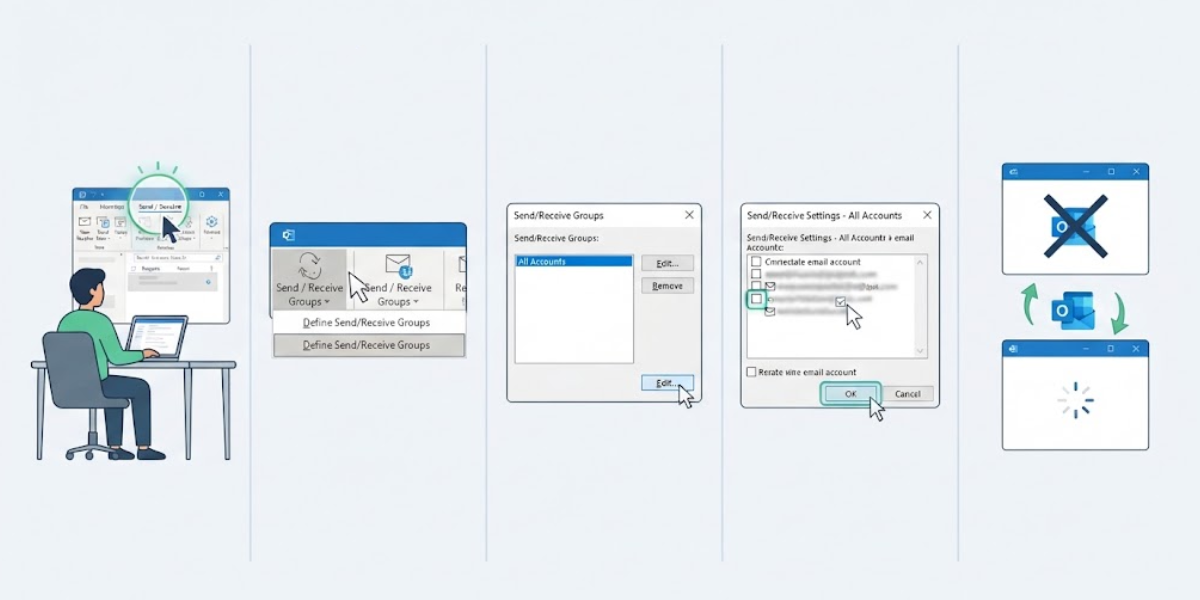
Tip: Restarting Outlook right after adjusting the send/receive group matters more than it seems, since a stale session can keep referencing the old, broken setting.
Repair the Outlook Data File
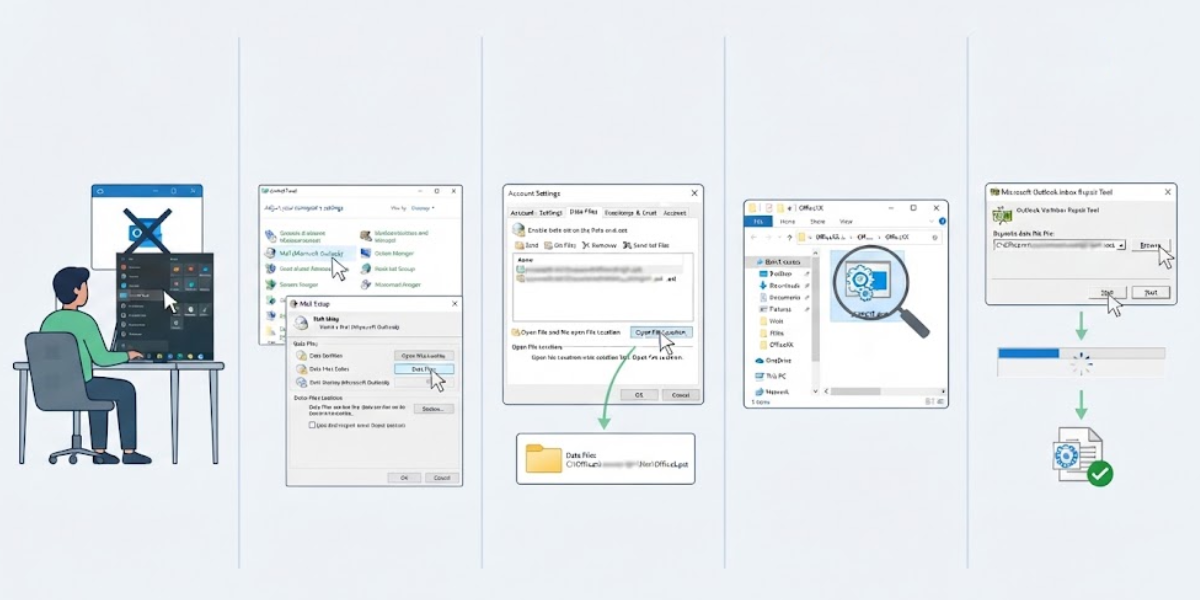
- Step 6: Close Outlook, then search for and open ‘Control Panel’ from the Start menu.
- Step 7: Select ‘Mail (Microsoft Outlook)’, then click ‘Data Files’.
- Step 8: Select the relevant .pst or .ost file, click ‘Open File Location’, and note the file path.
- Step 9: Locate the Inbox Repair Tool, typically named scanpst.exe, inside the Outlook installation folder (commonly under Program Files\Microsoft Office\root\OfficeXX).
- Step 10: Run scanpst.exe, browse to the data file noted earlier, and click ‘Start’ to scan and repair any errors found.
Recreate the Outlook Profile
- Step 11: In Control Panel, open ‘Mail (Microsoft Outlook)’ again and click ‘Show Profiles’.
- Step 12: Click ‘Add’ to create a new profile, name it, and follow the prompts to reconnect the email account.
- Step 13: Set the new profile as the default under ‘Always use this profile’, then restart Outlook.
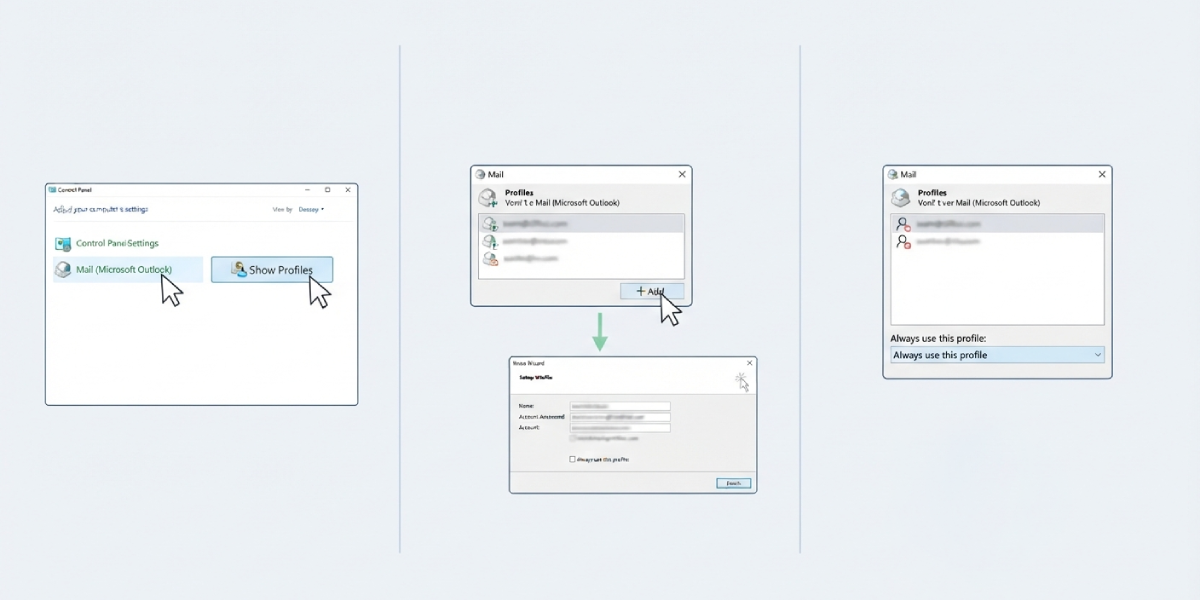
Tip: Creating a new profile rather than editing the existing one avoids carrying over whatever setting triggered the error in the first place.
Update Outlook
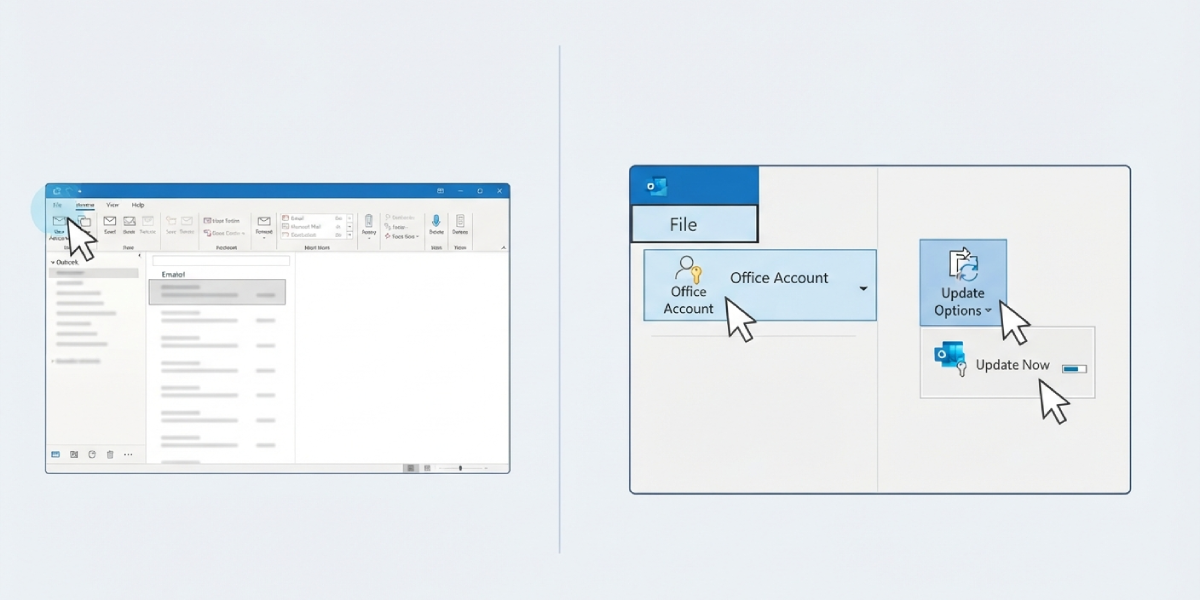
- Step 14: Open Outlook, go to ‘File’, then ‘Office Account’.
- Step 15: Click ‘Update Options’, then select ‘Update Now’ to install any pending fixes.
Common Problems and Fixes
- Error 0x80040119 returns immediately after a send/receive reset: The send/receive group settings were not saved correctly. Repeat the reset steps and confirm the account box is checked before closing the dialog.
- scanpst.exe cannot find the data file: The file path was copied incorrectly. Reopen ‘Data Files’ in Control Panel and copy the exact path shown next to the account.
- New profile still shows the same error: An old, corrupted .ost file is still linked. Delete the cached .ost file (Outlook rebuilds it automatically) and restart Outlook.
- Outlook will not open after creating a new profile: The wrong profile was left set as default. Go back to ‘Show Profiles’ and confirm the new profile is selected under ‘Always use this profile’.
- Error appears only on one account in a multi-account setup: Remove that account from the send/receive group, apply changes, then add it back and reconfigure its settings.
Frequently Asked Questions
What causes Outlook error 0x80040119?
This error most commonly stems from a corrupted send/receive group, a damaged Outlook data file, or a broken profile configuration.
Does fixing this error delete existing emails?
No. None of the steps above remove emails, since the data file is repaired rather than deleted, and a new profile simply reconnects to the existing mailbox.
Is it safe to run scanpst.exe?
Yes, scanpst.exe is Microsoft’s official Inbox Repair Tool and is designed specifically to detect and fix issues within Outlook data files.
How long does the send/receive reset take?
The reset itself takes under a minute; the fix becomes effective once Outlook is closed and reopened.
What if error 0x80040119 keeps coming back after every fix?
Recurring errors usually point to a corrupted .ost file. Deleting the cached .ost file and letting Outlook regenerate it typically resolves persistent cases.
Does updating Outlook alone fix this error?
Sometimes, especially if the error is tied to a known bug patched in a recent update, but pairing the update with a send/receive reset gives more reliable results.
Can this error affect only one email account and not others?
Yes, this is common in multi-account profiles, and it usually means only that specific account’s send/receive settings need to be reset.
Where is scanpst.exe located on Windows?
It is typically found under Program Files\Microsoft Office\root\OfficeXX, with XX representing the installed Office version number.
Is creating a new Outlook profile risky?
No, creating a new profile does not affect the mail server or delete any mailbox data; it only changes how Outlook connects locally.
Should IMAP and POP accounts be fixed differently?
The same steps apply to both, though IMAP accounts rely more heavily on server sync, so clearing the cached .ost file tends to resolve IMAP-related instances faster.
