
Adding an Outlook.com account in Classic Outlook takes just a few minutes once the right menu is found. This guide walks through the easy way to get an Outlook.com inbox connected and syncing without wrestling with server settings.
Key Takeaways
- Classic Outlook uses the File menu, not the View menu, to add a new account.
- Outlook.com accounts connect automatically, so manual server setup is rarely needed.
- A valid Outlook.com, Live.com, Hotmail.com, or MSN.com address works the same way.
- Two-factor authentication may prompt for a browser sign-in window instead of a simple password box.
- The whole process usually finishes in under five minutes.
How to Add an Outlook.com Account in Classic Outlook
This section covers the exact sequence of steps to add an Outlook.com account in Classic Outlook, starting from a completely open inbox.
Step-by-Step Instructions
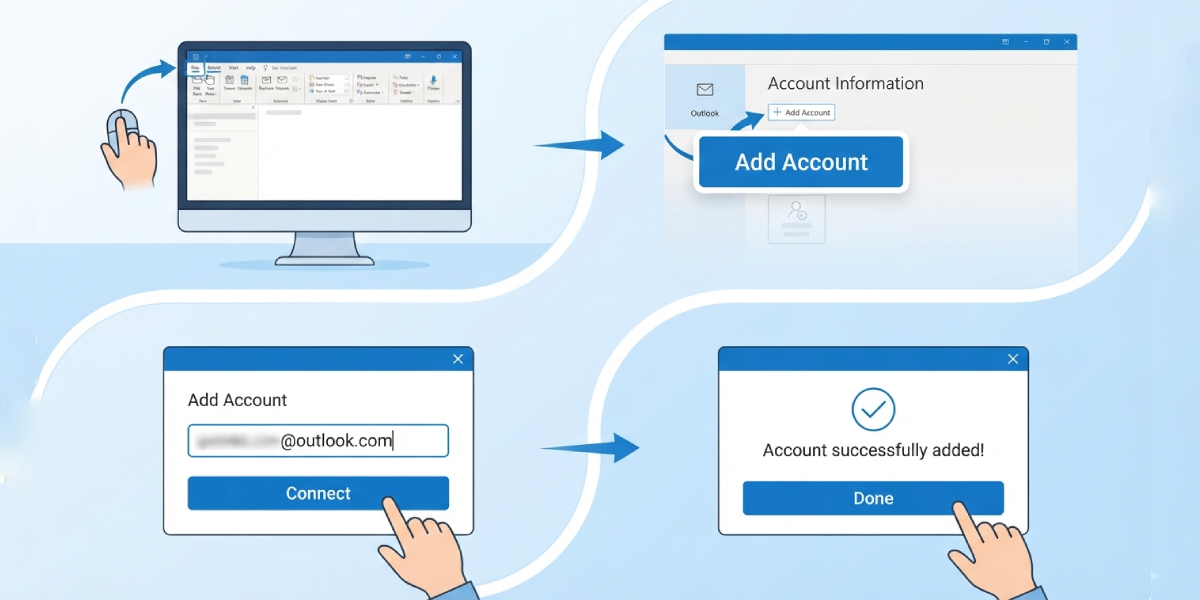
- Step 1: Open Classic Outlook on the desktop. If unsure which version is running, checking the top-left corner for a File tab confirms it – new Outlook hides account setup under View instead.
- Step 2: Select the File tab in the upper-left corner of the ribbon.
- Step 3: Choose Add Account from the Account Information screen. This option appears whether it’s the very first account being added or an additional one alongside an existing mailbox.
- Step 4: Type the full Outlook.com email address, including the @outlook.com, @live.com, @hotmail.com, or @msn.com ending, then select Connect.
- Step 5: Enter the account password when the sign-in window appears, then select OK or Sign In.
- Step 6: Approve any additional prompts, such as a security code or a ‘Stay signed in’ choice, since Microsoft occasionally asks for a quick verification step on new devices.
- Step 7: Select Done (or Finish) once Outlook confirms the account was added successfully.
- Step 8: Restart Classic Outlook when prompted so the new Outlook.com folders can fully load and begin syncing.
Tip: Leaving the ‘Set up Outlook Mobile on my phone, too’ checkbox unchecked speeds things up if mobile setup isn’t needed right now – it can always be configured later from the account settings menu.
Confirming the Account Synced Correctly
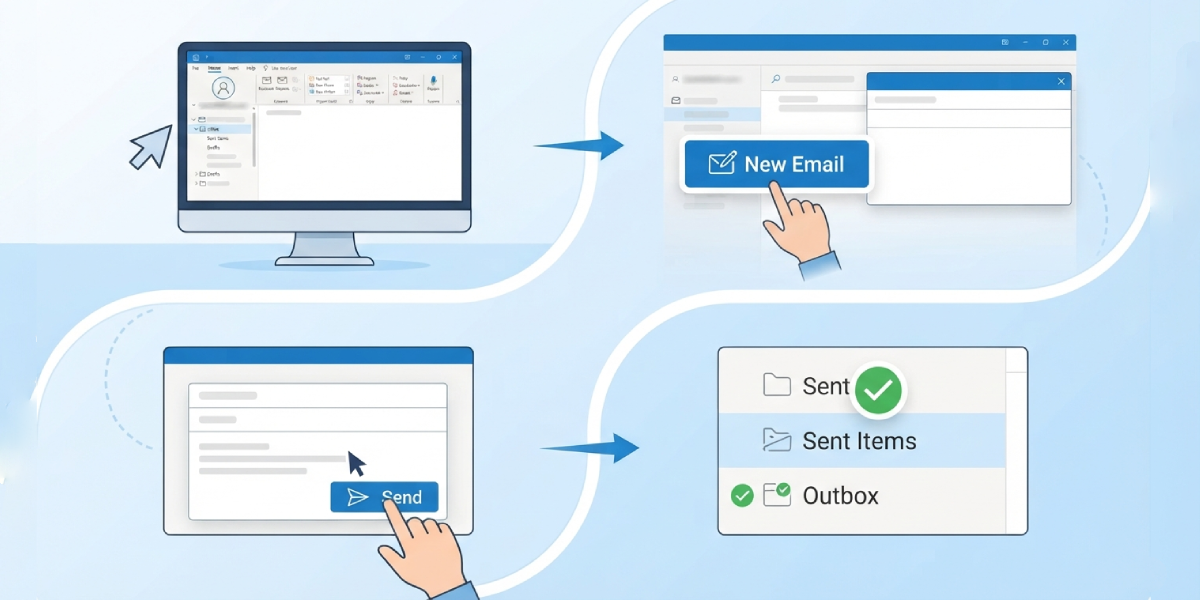
After Outlook reopens, the new Outlook.com account should appear in the folder pane on the left, complete with its own Inbox, Sent Items, and Drafts folders. Sending a quick test email is a simple, real-world way to confirm everything landed correctly, since a bounce-back or stuck message in the Outbox usually signals a sync issue worth revisiting.
Common Problems and Fixes
Most hiccups when trying to add an Outlook.com account in Classic Outlook trace back to a handful of familiar causes.
- Password not accepted: This usually means two-factor authentication is turned on for the Outlook.com account. Completing the sign-in through the browser window that Outlook opens, rather than typing the password directly into a small dialog box, usually resolves it.
- Add Account option missing from the File menu: This typically means new Outlook is running instead of Classic Outlook. Checking the top-left corner of the window for a toggle labeled ‘New Outlook’ clarifies which version is active.
- Setup hangs on ‘Searching for settings’: A slow or unstable internet connection is the usual culprit. Waiting a minute or restarting the router before trying Add Account again often clears it.
- Account added but no mail appears: Give the initial sync a few minutes, especially for accounts with a large mailbox. Restarting Outlook after the first sync completes usually brings everything current.
- Duplicate account error: This happens when the same Outlook.com address was added previously and never fully removed. Checking File > Account Settings > Account Settings for a leftover entry, then removing it before trying again, fixes this.
Frequently Asked Questions
Is adding an Outlook.com account in Classic Outlook free?
Yes. Connecting an Outlook.com, Live.com, Hotmail.com, or MSN.com address doesn’t require any extra purchase, as long as a licensed copy of Classic Outlook is already installed.
Does adding the account require the Outlook.com password every time?
No. Once connected, Outlook stores the sign-in token or credentials securely and only asks again if the password changes or the security session expires.
Can more than one Outlook.com account be added to the same Outlook profile?
Yes. Repeating the File > Add Account steps for each additional address adds multiple Outlook.com accounts to a single profile, and each one appears as its own folder set.
Why does Outlook ask for a browser sign-in instead of a plain password box?
This happens when two-factor authentication or modern authentication is enabled on the Outlook.com account, which routes sign-in through a secure Microsoft login page rather than Outlook itself.
What should be done if Add Account isn’t visible in Classic Outlook?
Checking whether new Outlook is toggled on is the first move, since new Outlook moves account setup to the View tab instead of File.
Will old emails from Outlook.com automatically appear after adding the account?
Yes. Classic Outlook downloads existing mail, folders, and contacts during the initial sync, though very large mailboxes can take longer to fully populate.
Is a restart of Outlook required after adding the account?
A restart isn’t always mandatory, but it’s recommended, since it helps the new folders finish loading and prevents the account from appearing ‘stuck’ in the folder pane.
Can this same process be used for a work or school Microsoft 365 address?
The File > Add Account steps are similar, but Microsoft 365 work or school accounts sometimes require organizational sign-in approval, which is handled separately by an IT administrator.
What if the Outlook.com account uses a custom domain through Microsoft 365 Family?
The same steps still apply. Typing the custom domain email address at Step 4 works exactly like a standard @outlook.com address, since Microsoft treats both the same way during setup.
