
A shared calendar not updating in Outlook is one of the most common scheduling headaches in shared workspaces. New meetings vanish, cancelled events still show up, and colleagues end up double-booked because the calendar on screen simply will not refresh. The fixes below solve this exact problem in a few minutes.
Key Takeaways
- Most sync failures come from Outlook’s Send/Receive settings or a stuck cache, not the shared calendar itself.
- Manually forcing a Send/Receive often resolves the issue instantly.
- Permission changes on the shared calendar can silently block updates.
- Clearing the Outlook cache fixes stubborn cases that a manual refresh does not.
- Rebuilding the shared calendar connection is the last resort but works almost every time.
Step-by-Step Guide: Fixing a Shared Calendar Not Updating in Outlook
Force a Manual Send/Receive
- Step 1: Open Outlook and click the ‘Send / Receive’ tab in the ribbon.
- Step 2: Select ‘Send/Receive All Folders’ (or press F9). This forces Outlook to pull the latest data instead of waiting on its automatic schedule.
- Step 3: Click on the shared calendar and watch the status bar at the bottom of the window. If it shows new activity, the calendar should populate within a few seconds.
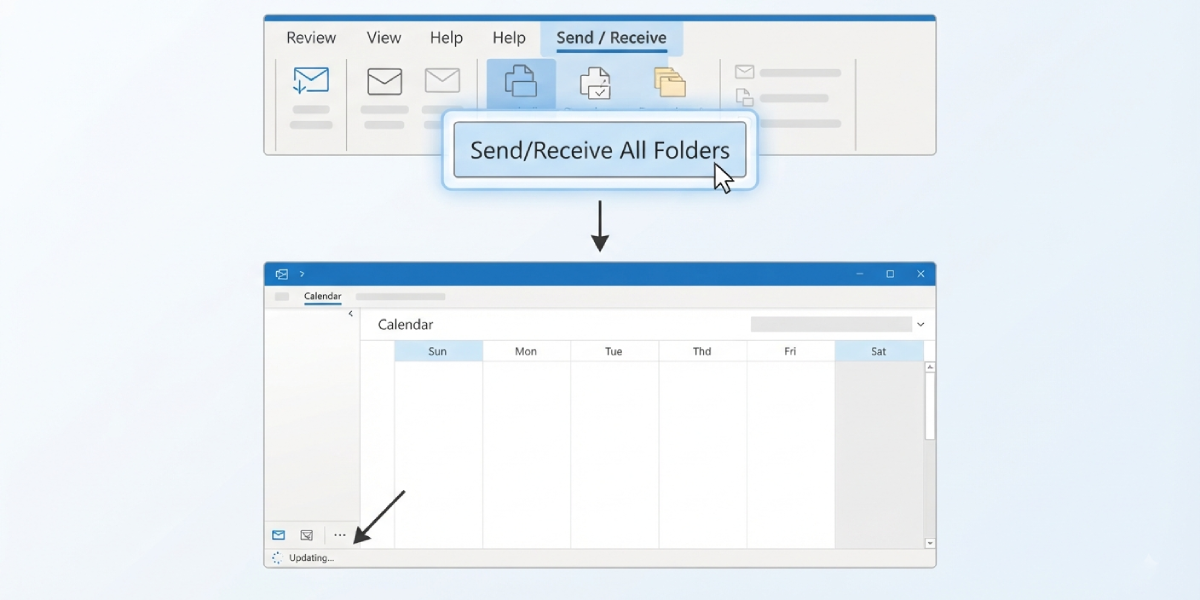
Tip: If nothing changes after step 3, the delay is usually on the sync side rather than the display side, so move on to checking the cache before assuming the calendar owner made no changes.
Check and Adjust Send/Receive Settings
- Step 1: Go to ‘File’ > ‘Options’ > ‘Advanced’.
- Step 2: Under the ‘Send and receive’ section, select ‘Send/Receive’.
- Step 3: Confirm the ‘Schedule an automatic send/receive every’ box is checked and set to a short interval, such as 5 minutes.
- Step 4: Click ‘Close’, then ‘OK’ to save the change.
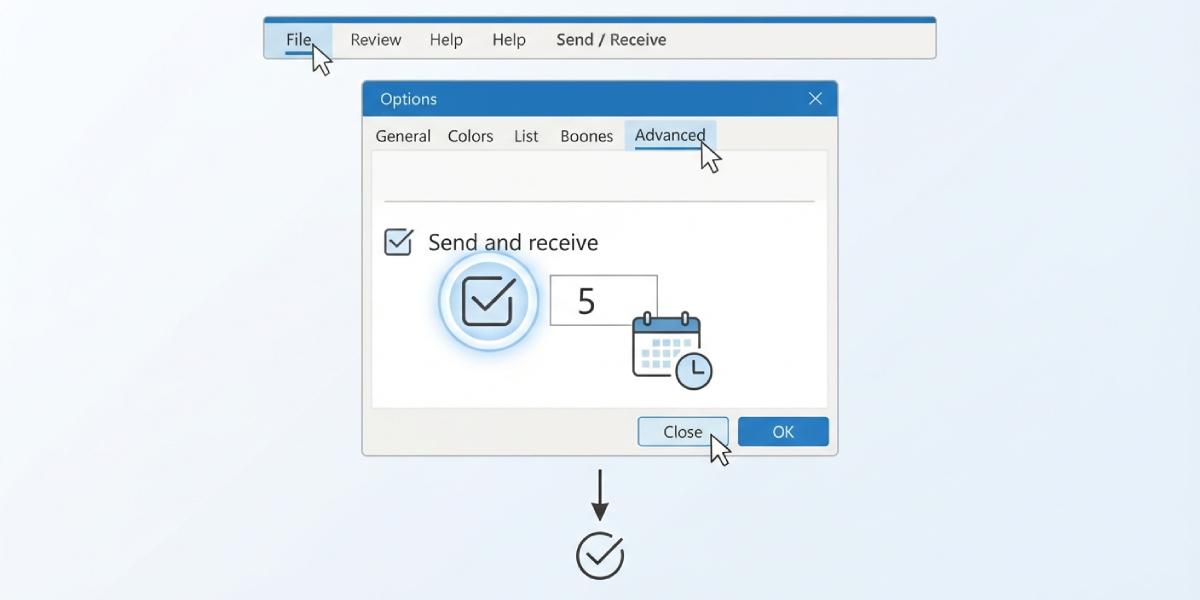
Verify Sharing Permissions
- Step 1: Ask the calendar owner to right-click the shared calendar in their Outlook and choose ‘Sharing Permissions’ (or ‘Properties’ > ‘Permissions’ tab).
- Step 2: Confirm the permission level is set to at least ‘Reviewer’ so updates are visible, not just ‘Free/Busy time’ which only shows blocked slots.
- Step 3: Have the owner save the change and resend the sharing invitation if the permission level was recently lowered.
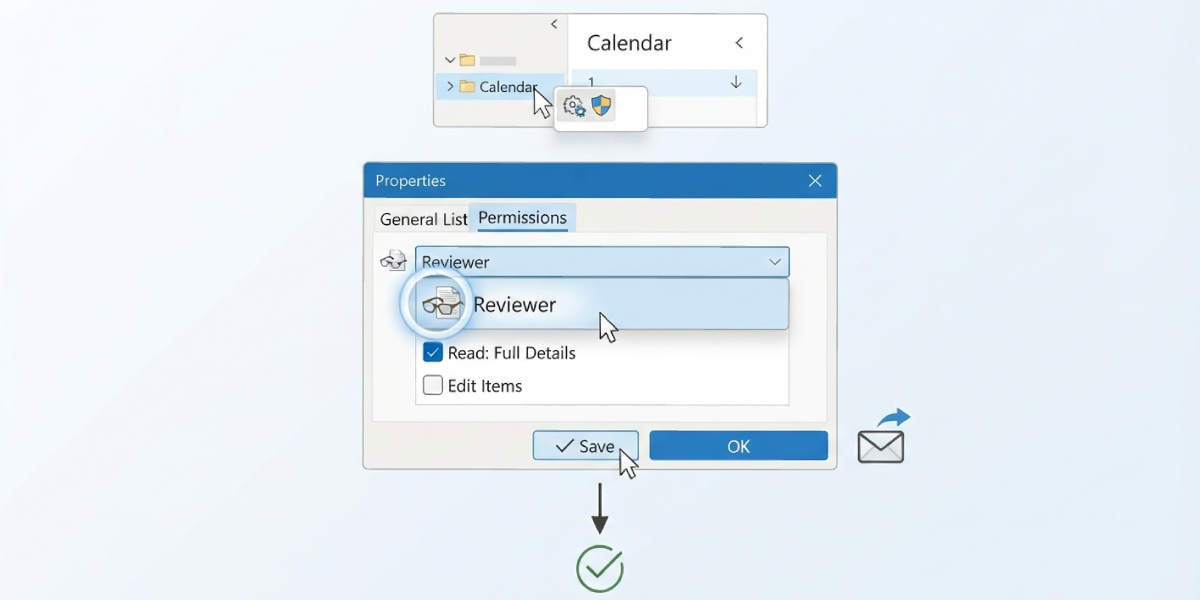
Clear the Outlook Cache
- Step 1: Close Outlook completely.
- Step 2: Open the Control Panel, search for ‘Mail’, and select ‘Show Profiles’.
- Step 3: Choose the active profile, click ‘Properties’, then ‘Data Files’, and note the location of the OST file.
- Step 4: Restart Outlook in Safe Mode by holding Ctrl while opening the app, then close it again once loaded. This resets cached rendering data without deleting mail.
- Step 5: Reopen Outlook normally and check the shared calendar again.
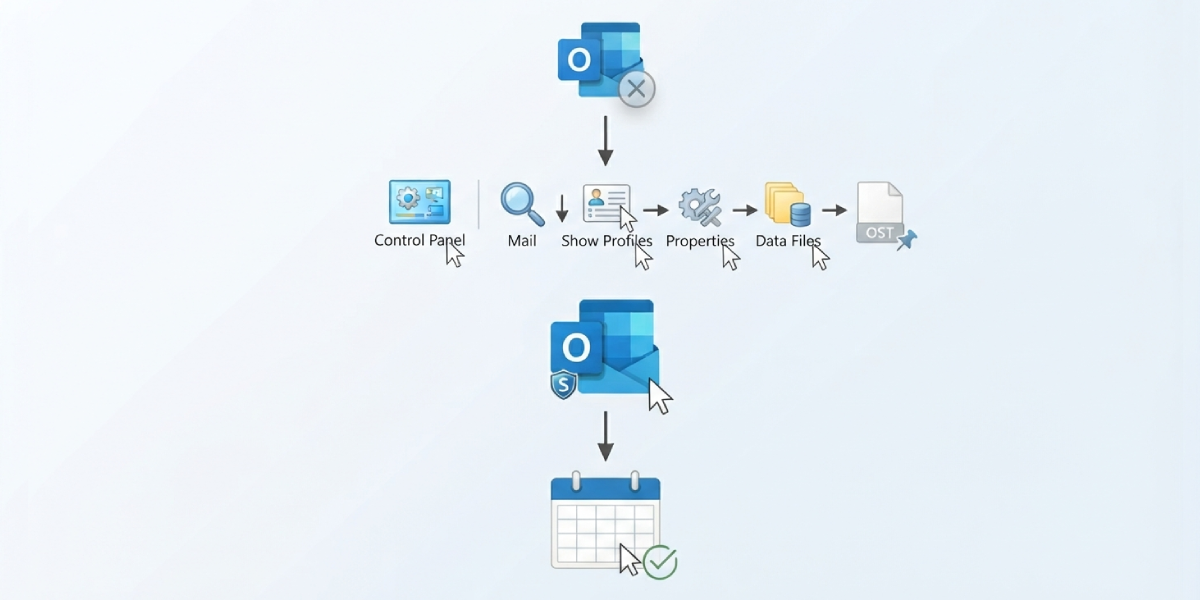
Tip: A stuck cache is the culprit far more often than people expect, especially on shared calendars that get updated frequently by several people at once.
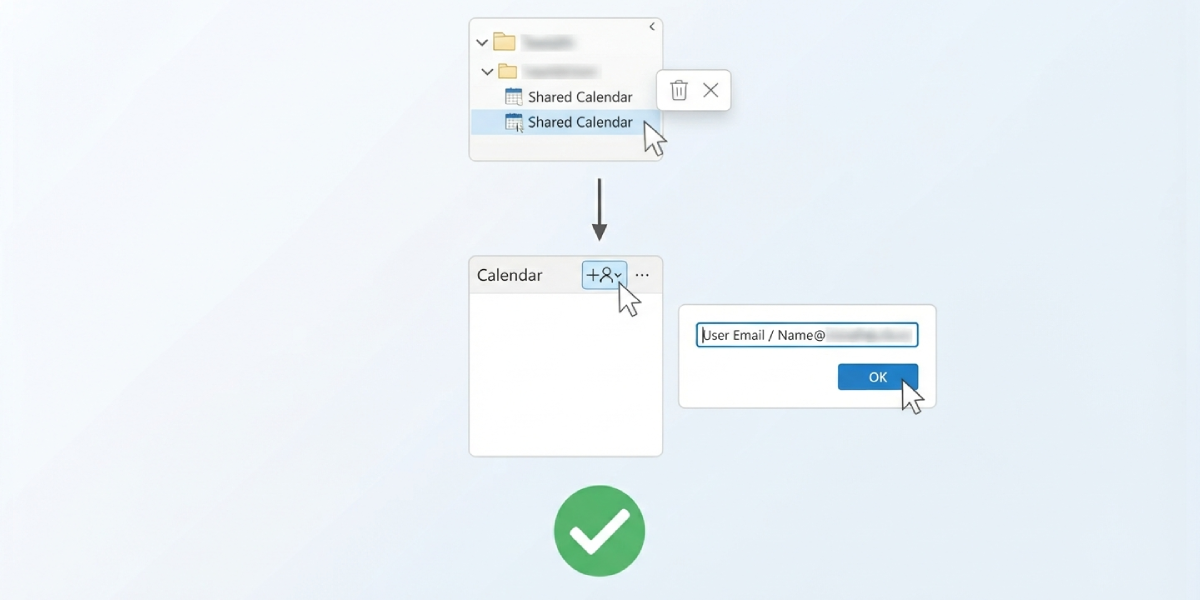
Remove and Re-Add the Shared Calendar
- Step 1: Right-click the shared calendar in the folder pane and select ‘Remove’ or ‘Delete Calendar’.
- Step 2: Go to the ‘Calendar’ view, click ‘Open Calendar’ in the ribbon, then ‘From Address Book’ or ‘Open Shared Calendar’.
- Step 3: Type the calendar owner’s name or email address and click ‘OK’ to reconnect it fresh.
- Step 4: Give Outlook a minute to rebuild the connection, then confirm current events are showing correctly.
Common Problems and Fixes
- Calendar shows old events after a manual Send/Receive: close and reopen Outlook, since the folder pane sometimes needs a fresh load to display newly synced data.
- Shared calendar disappears after removing and re-adding it: the owner may have changed sharing permissions at the same time, so ask them to resend the invitation.
- Updates appear on desktop Outlook but not on mobile, or the reverse: each platform syncs on its own schedule, so repeat the manual refresh step on the device that is lagging.
- Changes made by the calendar owner take a long time to appear for everyone: this is typically a server-side sync delay on Exchange or Microsoft 365, and forcing Send/Receive on both ends usually speeds it up.
- Shared calendar loads but shows a blank grid with no events: this usually points to a corrupted cache, so the cache-clearing steps above should resolve it.
Frequently Asked Questions
Why does a shared calendar not update automatically in Outlook?
Outlook checks for changes on a set schedule rather than in real time, so a shared calendar can lag behind until the next automatic sync or a manual Send/Receive is triggered.
How long does it normally take for a shared calendar to sync?
On most Microsoft 365 and Exchange accounts, updates appear within a few minutes. Longer delays usually point to a permission issue or a cache problem rather than normal sync timing.
Does closing and reopening Outlook fix sync issues?
Sometimes. Restarting Outlook forces the app to reload folder data, which can clear up display glitches even when the underlying sync was already working correctly.
Can permission settings stop a calendar from updating?
Yes. If the sharing permission is set to ‘Free/Busy time’ instead of ‘Reviewer’ or higher, viewers only see blocked time slots and not actual event details or new updates.
Is there a difference between fixing this on desktop Outlook and Outlook on the web?
The core fix is similar, but Outlook on the web relies on browser refresh rather than a manual Send/Receive, so refreshing the browser tab or signing out and back in often resolves it there.
What if removing and re-adding the shared calendar does not help?
Ask the calendar owner to confirm sharing permissions have not changed, and check that both accounts are connected to the internet with no ongoing Microsoft 365 service disruption.
Will clearing the Outlook cache delete any calendar events?
No. Restarting Outlook in Safe Mode and rebuilding the cache only refreshes how data is displayed locally; it does not delete events stored on the server.
Does the automatic Send/Receive interval affect shared calendars specifically?
Yes. Shortening the interval in ‘File’ > ‘Options’ > ‘Advanced’ makes Outlook check for updates more frequently, which reduces the delay on shared calendars along with regular mail.
Can a slow internet connection cause this issue?
Yes. A weak or intermittent connection can delay Send/Receive cycles, so testing on a stronger network is worth trying before assuming the calendar sharing itself is broken.
