
If double-clicks keep opening nothing, or single clicks keep turning into accidental double-clicks, it is time to change the double-click speed in Windows 11. The setting works on every edition, needs no administrator rights, and takes effect as soon as it is saved. The whole job takes about a minute.
Key Takeaways
- The setting lives in Mouse Properties, reached from Settings > Bluetooth & devices > Mouse > Additional mouse settings.
- On the Buttons tab, drag the Double-click speed slider toward Slow or Fast.
- A small test folder on the same tab shows right away whether the new speed feels right.
- The same window can also be opened from Control Panel or with the main.cpl command.
Step-by-Step Guide to Change Double-Click Speed in Windows 11
Method 1: Use the Settings App
- Press Windows + I to open Settings.
- Click Bluetooth & devices in the left sidebar.
- Click Mouse.
- Scroll down to the Related settings section and click Additional mouse settings. The Mouse Properties window opens.
- Select the Buttons tab if it is not already showing.
- Under Double-click speed, drag the slider toward Slow if double-clicks are hard to land, or toward Fast if the gap between clicks needs to be shorter.
- Double-click the small yellow folder in the test area to the right of the slider. The folder opens and closes when the speed suits the way you click.
- Click Apply, then click OK.
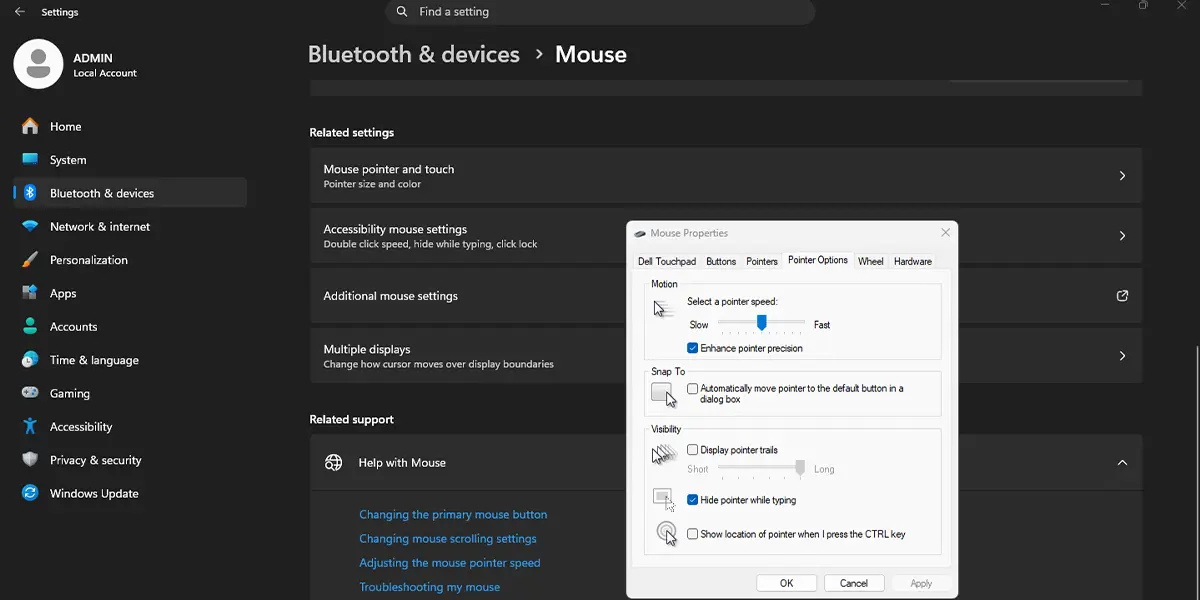
The new speed applies straight away, with no restart. Most people find that a slider position slightly toward Slow feels far more forgiving, especially on a laptop trackpad or an older mouse with a stiff button.
Tip: The same Buttons tab also holds the Switch primary and secondary buttons checkbox, which is handy on a shared family computer where one person uses the mouse left-handed.
Method 2: Use Control Panel
- Click Search on the taskbar, type Control Panel, and press Enter.
- In the top-right corner of Control Panel, set View by to Large icons or Small icons.
- Click Mouse. The Mouse Properties window opens on the Buttons tab.
- Drag the Double-click speed slider to the preferred position.
- Test it by double-clicking the folder icon beside the slider.
- Click Apply, then OK.
Method 3: Use the Run Command
This is the quickest route for anyone comfortable with the keyboard. No elevated (administrator) window is needed.
- Press Windows + R to open the Run dialog.
- Type the following command and press Enter:
main.cpl
- When Mouse Properties opens, stay on the Buttons tab and move the Double-click speed slider.
- Test the speed with the folder icon, then click Apply and OK.
Tip: Pinning the Run command to memory pays off when several PCs need the same adjustment, since the steps are identical on every Windows 11 computer.
How to Undo or Reverse This Change
To go back to the standard behavior, reopen Mouse Properties using any method above, return to the Buttons tab, and set the Double-click speed slider back to roughly the middle position. Click Apply and OK. Test with the folder icon to confirm that double-clicks feel familiar again.
Common Problems and Fixes
The Additional Mouse Settings Link Is Hard to Find
On the Mouse page, the link sits under Related settings near the bottom, so a scroll is often needed. If it still does not appear, press Windows + R, type main.cpl, and press Enter to open the same window directly.
The Test Folder Does Not Respond
A double-click that is too slow will not register as a double-click at all. Move the slider a notch toward Slow, then try the test folder again. Make sure both clicks land on the folder without the pointer moving between them.
The Speed Feels the Same After Changing It
Confirm that Apply or OK was clicked, because closing the window with the X button discards the change. Reopen Mouse Properties and check that the slider kept its new position.
The Settings Page or Mouse Window Will Not Open
On a work or school PC, an administrator may restrict mouse and Control Panel options. In that case, the change has to come from the person who manages the device.
Frequently Asked Questions
Does changing double-click speed work on Windows 11 Home?
Yes. The Double-click speed slider is available on Windows 11 Home, Pro, and Enterprise.
Do I need administrator rights to change it?
No. A standard user account can adjust the slider, since the setting applies to that user’s own profile.
Does the PC need a restart after the change?
No. The new speed takes effect as soon as Apply or OK is clicked.
Where is the double-click speed setting in Windows 11?
Open Settings > Bluetooth & devices > Mouse > Additional mouse settings, then use the Buttons tab in Mouse Properties.
Is there a keyboard shortcut to open the setting?
There is no single shortcut for the slider itself, but pressing Windows + R and running main.cpl opens Mouse Properties in two quick steps.
Can the slider be adjusted without a mouse?
Yes. After opening Mouse Properties with Windows + R and main.cpl, press Tab until the slider is selected, then use the arrow keys to move it.
Why does the double-click speed setting not seem to change anything?
Most often the change was not saved. Reopen the window, move the slider again, and click Apply followed by OK.
Will this setting affect how fast the pointer moves?
No. Double-click speed only controls the allowed gap between two clicks. Pointer movement is a separate option on the Pointer Options tab.
How can the speed be tested before saving?
Double-click the yellow folder next to the slider on the Buttons tab. If the folder opens and closes reliably, the speed is a good fit.
