
Knowing how to clear temporary files is one of the fastest ways to reclaim disk space without deleting anything important. These leftover files pile up quietly in the background, and most Windows users never even notice until storage warnings start popping up.
Key Takeaways
- Temporary files build up from app installs, Windows Updates, browser caching, and everyday system operations.
- Disk Cleanup and Storage Sense are the two built-in Windows tools for clearing them safely.
- The %temp% folder can also be cleared manually for a deeper cleanup.
- Clearing temp files is safe and reversible in the sense that Windows and apps simply regenerate what they need.
- Running this cleanup every few weeks keeps a system running smoother and frees up meaningful space over time.
How to Clear Temporary Files Using Disk Cleanup
Disk Cleanup has been part of Windows for years, and it remains one of the simplest ways to remove temporary files without digging through folders manually.
- Step 1: Type ‘Disk Cleanup’ into the Windows search bar and open the app.
- Step 2: Select the drive to scan, usually the C: drive, and select ‘OK’.
- Step 3: Wait for the scan to finish. This shows a breakdown of file categories taking up space.
- Step 4: Check the boxes next to ‘Temporary Files’, ‘Temporary Internet Files’, and ‘Recycle Bin’ if it’s safe to empty.
- Step 5: Select ‘Clean up system files’ for a deeper scan that includes items like old Windows Update files.
- Step 6: Review the categories again once the deeper scan finishes, then select ‘OK’ and confirm the deletion.
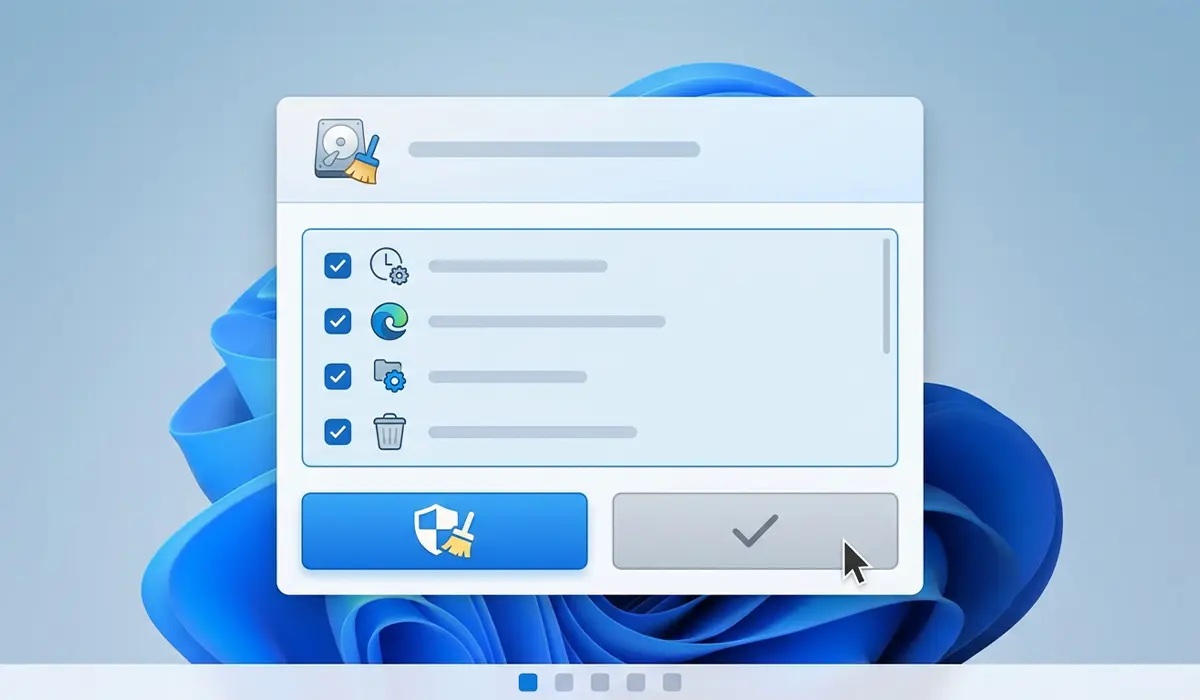
Tip: The ‘Previous Windows installation(s)’ category can free up a large chunk of space after a Windows upgrade, but only select it once everything is confirmed working properly on the new version.
How to Clear Temporary Files Using Storage Sense
Storage Sense works differently from Disk Cleanup. Instead of a one-time manual scan, it runs automatically in the background based on a schedule.
- Step 1: Open Settings and go to ‘System’, then ‘Storage’.
- Step 2: Turn on Storage Sense if it isn’t already enabled.
- Step 3: Select ‘Storage Sense’ to open its configuration page.
- Step 4: Set how often it runs automatically, such as every week or every month.
- Step 5: Enable the option to delete temporary files that apps aren’t using.
- Step 6: Select ‘Clean now’ to trigger an immediate cleanup instead of waiting for the schedule.
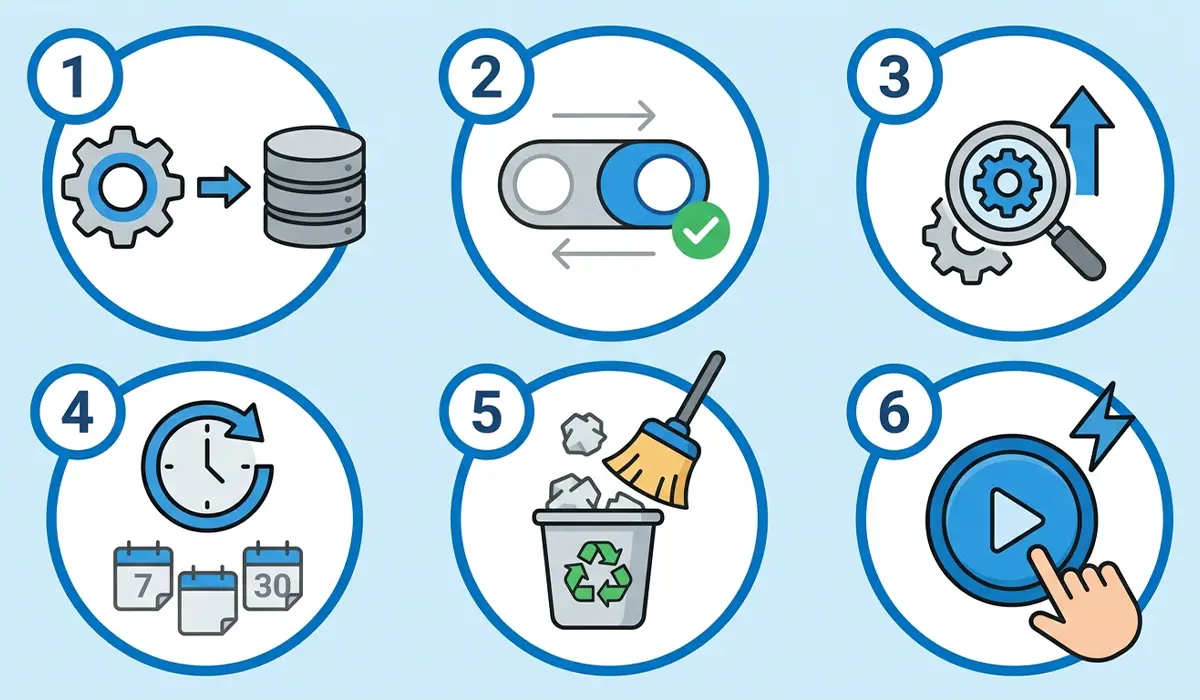
This works best when it’s left running on a regular schedule rather than checked only when storage gets critically low. Most people find that a monthly run is enough to keep things tidy without constantly triggering downloads or cache rebuilding.
How to Manually Clear the Temp Folder
Beyond the built-in tools, Windows also keeps a dedicated temp folder that many apps use to dump short-lived files. Clearing it directly gives a bit more control over the process.
- Step 1: Close any open programs to avoid file conflicts during deletion.
- Step 2: Press the Windows key and R together to open the Run dialog.
- Step 3: Type %temp% and select ‘OK’ to open the temporary files folder.
- Step 4: Select all files with Ctrl+A, then press Delete.
- Step 5: If a warning appears saying a file is in use, select ‘Skip’ and continue with the rest.
- Step 6: Empty the Recycle Bin afterward to fully free up the space.
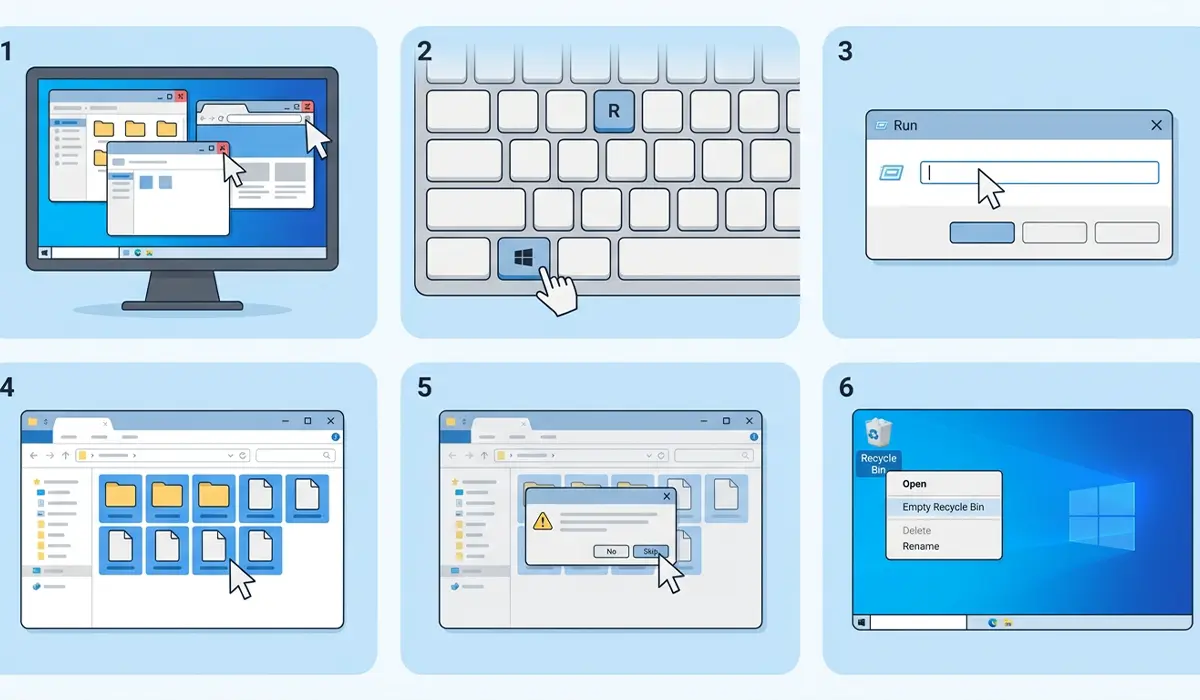
A locked file or two showing up during this step is completely normal. It usually just means an active process still has that file open, and skipping it causes no harm.
Clearing Browser Cache and Other App-Specific Temp Files
Disk Cleanup and the temp folder don’t catch everything. Web browsers, in particular, build up their own cache separately from the system-level temporary files.
- Step 1: Open the browser’s settings menu.
- Step 2: Look for a ‘Privacy’ or ‘Clear browsing data’ section.
- Step 3: Select ‘Cached images and files’ as the category to clear.
- Step 4: Choose a time range, such as ‘All time’, for the deepest cleanup.
- Step 5: Confirm the deletion.
Video editors, virtual machine software, and some creative apps also generate large temp files of their own, often stored in their install directory or a folder specified in the app’s settings. Checking an app’s preferences for a ‘cache location’ or ‘scratch disk’ setting is worth doing if storage keeps filling up despite regular cleanups.
Common Problems and Fixes
Some files in the temp folder won’t delete
This usually means a running program still has that file open. Closing background apps, or restarting the computer and trying again before anything else opens, clears most of these locks.
Disk Cleanup shows very little space freed
Regularly cleared systems naturally have less to remove each time. Running the deeper ‘Clean up system files’ scan usually reveals more, especially after a Windows Update or feature upgrade.
Storage keeps filling up again quickly after cleanup
This points to something actively generating large files rather than temp buildup alone. Checking Storage settings for which file types are taking up the most space helps pinpoint whether it’s downloads, app data, or another source entirely.
Deleting temp files caused an app to behave oddly
Most apps rebuild what they need automatically, but a rare few store settings or cache data that briefly resets on the next launch. Reopening the app usually resolves this within a minute or two.
Frequently Asked Questions
Is it safe to delete all temporary files in Windows?
Yes, temporary files are designed to be disposable. Windows and installed apps recreate whatever temp files they need during normal operation.
How often should temporary files be cleared?
Once a month is generally enough for most users, though heavier users who install and uninstall software often may benefit from a more frequent schedule using Storage Sense.
Will clearing temp files delete personal documents or photos?
No. Disk Cleanup, Storage Sense, and the %temp% folder only target system and app-generated temporary files, not personal files stored in folders like Documents or Pictures.
Why does the temp folder fill up so quickly?
Installers, updates, browsers, and many everyday apps write short-term files here as part of normal operation. Without regular cleanup, they simply accumulate over time.
What’s the difference between Disk Cleanup and Storage Sense?
Disk Cleanup is a manual, on-demand tool, while Storage Sense runs automatically on a set schedule in the background.
Can clearing temporary files speed up a slow computer?
It can help in cases where storage is nearly full, since Windows needs some free space to operate efficiently. On a system with plenty of free space already, the performance gain is usually minimal.
Is it necessary to restart the computer after clearing temp files?
A restart isn’t required, but it does help release any temp files that were locked by running processes at the time of cleanup.
Does clearing the browser cache log out saved passwords or accounts?
Clearing cached files alone does not remove saved passwords or logins. Those are typically stored separately, though it’s worth double-checking which categories are selected before confirming the cleanup.
Can third-party cleaning software do a better job than the built-in tools?
Windows’ own tools handle standard temporary files reliably and safely. Third-party tools can sometimes catch additional app-specific caches, but caution is warranted since some aggressive cleaners remove files that are still needed.
