
A USB port not working on a laptop is one of the most common complaints brought into any repair shop, and most of the time it has nothing to do with a dead motherboard. It usually comes down to a driver glitch, a power setting, or a bit of dust wedged where it should not be. This guide walks through the real causes and the fixes that actually work, starting with the simple checks and moving into deeper troubleshooting.
Key Takeaways
- Most non-working USB ports are caused by driver issues, USB selective suspend settings, or debris in the port, not hardware failure.
- Testing the port with more than one device rules out a bad cable or accessory before blaming the laptop.
- Windows Device Manager can reset a misbehaving USB controller in under a minute.
- Physical damage, bent pins, or a port that feels loose usually points to a hardware repair rather than a software fix.
- A port that works in BIOS but not in Windows almost always traces back to a driver or power management setting.
Common Causes of a USB Port Not Working on a Laptop
Before jumping into fixes, it helps to understand what typically causes this problem. A laptop USB port failing usually falls into one of these categories.
- Outdated, corrupted, or conflicting USB drivers
- Windows USB selective suspend putting the port to sleep and failing to wake it
- Dust, lint, or debris physically blocking the connector
- A faulty USB cable or the connected device itself, not the laptop
- A Windows update that changed driver behavior
- Physical damage to the port, such as bent contacts or a cracked housing
- In rare cases, a failing USB controller chip on the motherboard
Working through the fixes below in order saves time, since the easiest explanations are also the most common ones.
Before You Start
Most of the steps below are software fixes and require no disassembly. If a later step involves opening the laptop to inspect the port, take these precautions first.
- Shut the laptop down completely and unplug the charger.
- Remove the battery if it is user removable, or hold the power button for 10 seconds after unplugging to drain residual power.
- Touch a bare metal surface, such as the laptop’s chassis, or use an anti-static wrist strap before touching any internal components.
- Let the laptop cool down fully if it has been running.
Tip: Never use metal tools, toothpicks with metal tips, or anything conductive to probe inside a USB port. A wooden toothpick or a plastic pry tool is the safer choice.
Fix 1: Test With a Different Device and Cable
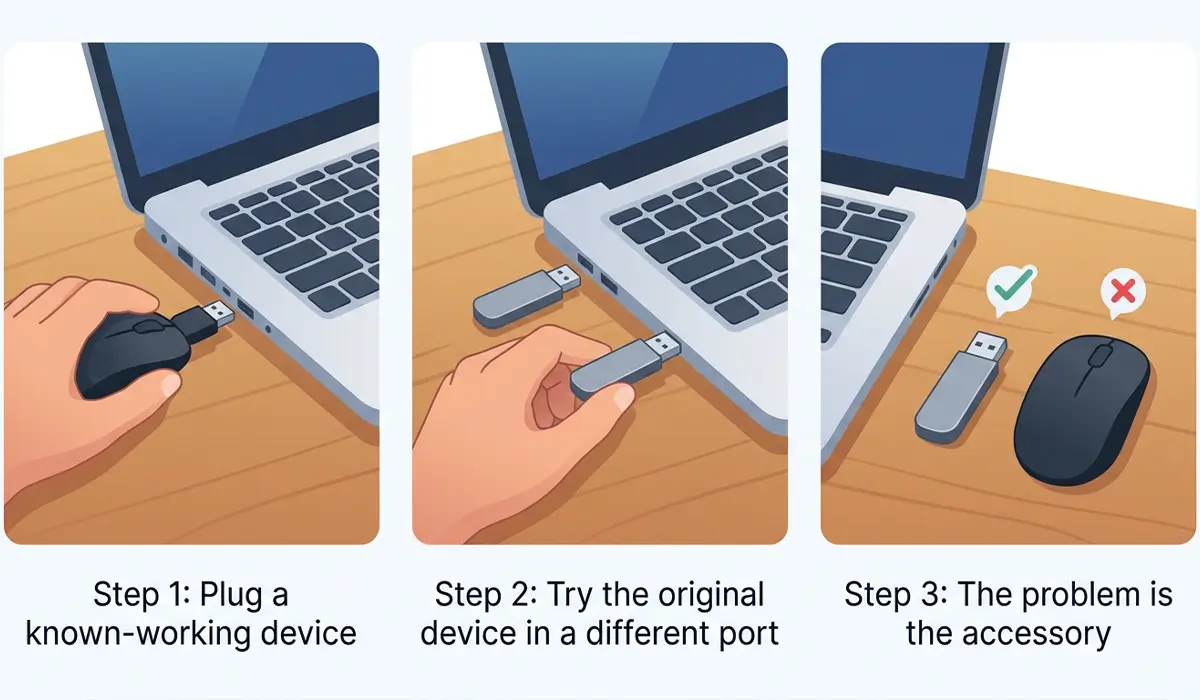
Before assuming the port itself is broken, rule out the accessory. A flash drive with a worn connector or a cheap USB cable causes more “dead port” complaints than people expect.
- Step 1: Plug a known-working device, such as a mouse or a different flash drive, into the port in question.
- Step 2: Try the original device or cable in a different USB port on the same laptop.
- Step 3: If the original accessory fails everywhere but a different accessory works fine in the same port, the problem is the accessory, not the laptop.
Fix 2: Restart the Laptop
This sounds almost too simple, but Windows occasionally loses track of a USB device after a sleep cycle or a driver crash. A full restart clears out temporary system states that a USB port relies on.
- Step 1: Save any open work and restart the laptop normally through the Start menu, rather than just closing the lid.
- Step 2: Once Windows loads back up, plug the device back into the affected port.
Fix 3: Update or Reinstall the USB Drivers
Corrupted or outdated USB drivers are the single most common software reason a port stops responding. Device Manager makes this fix straightforward.
- Step 1: Right-click the Start button and select Device Manager.
- Step 2: Expand ‘Universal Serial Bus controllers’.
- Step 3: Right-click each entry labeled ‘USB Root Hub’ or ‘Generic USB Hub’ and select ‘Uninstall device’.
- Step 4: Once all related entries are removed, restart the laptop. Windows reinstalls the drivers automatically on boot.
- Step 5: Test the port again once the desktop loads.
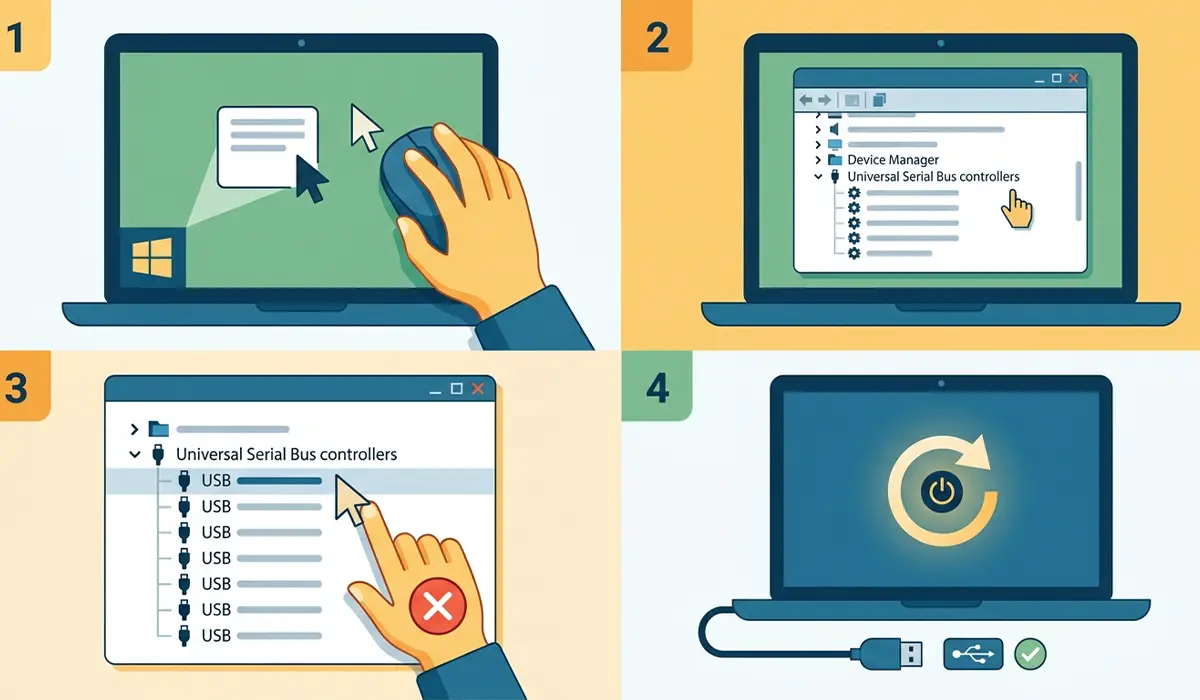
Tip: If a yellow warning icon appears next to any USB controller entry before starting this process, that is a strong clue the driver was already the problem.
Fix 4: Turn Off USB Selective Suspend
Windows has a power-saving feature that puts idle USB ports to sleep, and sometimes they do not wake back up properly. Disabling this setting solves a surprising number of “port randomly stops working” cases.
- Step 1: Open Control Panel and go to ‘Power Options’.
- Step 2: Click ‘Change plan settings’ next to the active power plan, then ‘Change advanced power settings’.
- Step 3: Scroll to ‘USB settings’ and expand ‘USB selective suspend setting’.
- Step 4: Set both ‘On battery’ and ‘Plugged in’ to Disabled.
- Step 5: Click Apply, then OK, and test the port.
Fix 5: Check for a Blocked or Dirty Port
Lint, pocket dust, and pet hair build up inside USB ports more often than most people realize, especially on laptops that travel in bags. A blocked port can prevent the connector from making full contact even when everything else is working fine.
- Step 1: Power off the laptop completely and unplug it.
- Step 2: Shine a flashlight into the port and look for lint, debris, or a bent metal contact inside.
- Step 3: Use short bursts of compressed air held at a slight angle to blow debris out of the port, rather than spraying straight in.
- Step 4: If debris remains, gently loosen it with a soft brush or a plastic pry tool, never a metal object.
- Step 5: Let the port sit for a minute in case any moisture from the compressed air needs to evaporate, then test with a device.
Fix 6: Run the Windows Hardware Troubleshooter
Windows includes a built-in tool that scans for common hardware conflicts, and it catches issues that are easy to miss manually.
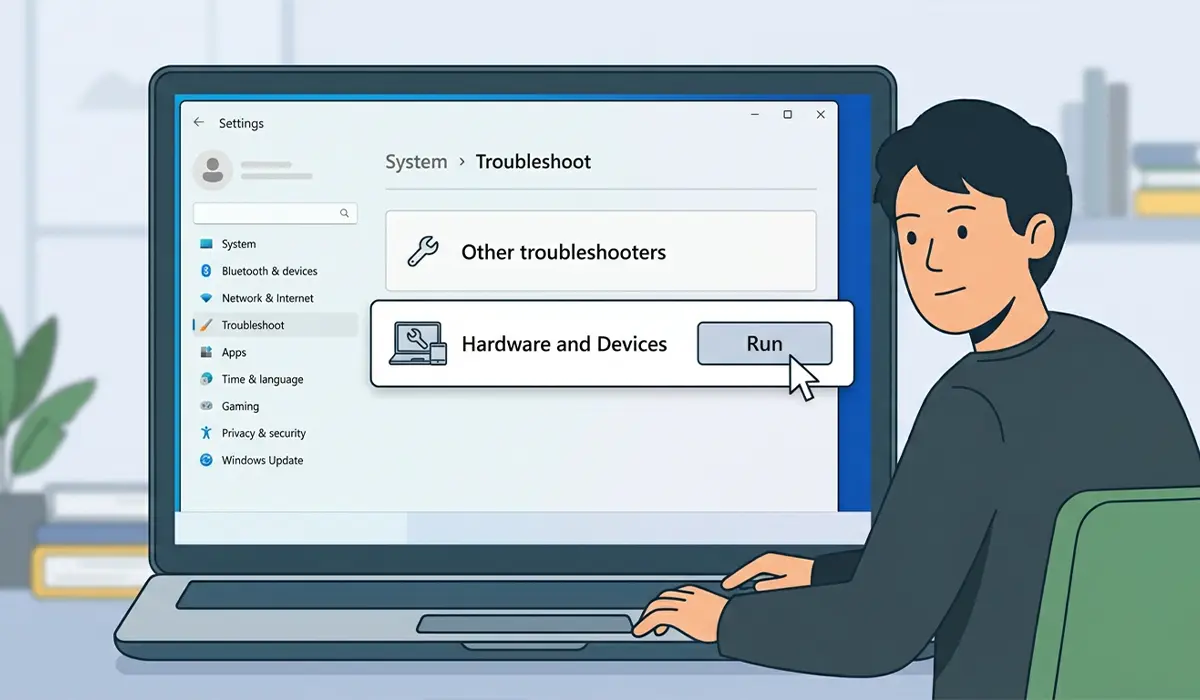
- Step 1: Go to Settings, then ‘System’, then ‘Troubleshoot’, then ‘Other troubleshooters’.
- Step 2: Find ‘Hardware and Devices’ or a similarly named entry and run it.
- Step 3: Follow the on-screen prompts and apply any fix it suggests.
- Step 4: Restart the laptop and test the port again.
Fix 7: Check the Port in BIOS
Testing a USB port in BIOS helps determine whether the problem is hardware or software. BIOS runs independently of Windows, so if a device is recognized there but not in Windows, the drivers are almost certainly the culprit.
- Step 1: Restart the laptop and enter BIOS using the manufacturer’s key, commonly Delete, F2, or F10, pressed right after powering on.
- Step 2: Plug a USB keyboard or mouse into the affected port while in BIOS.
- Step 3: Check whether the device responds, such as the keyboard’s num lock light toggling or the cursor moving.
- Step 4: If the device works in BIOS but not in Windows, focus troubleshooting on drivers and power settings rather than hardware.
Common Problems and Fixes
A few related issues tend to show up alongside a non-working USB port. Here is how to handle the ones that come up most often.
- Port works intermittently: This usually points to a loose internal connection or a worn port. Try a different cable first, and if the problem persists, the port may need a professional inspection.
- Port stopped working right after a Windows update: Roll back the most recent update through Settings, then ‘Windows Update’, then ‘Update history’, and look for an option to uninstall it, or wait for a follow-up patch.
- Only one port fails while others work fine: This points toward a localized issue, either debris or physical damage to that specific port, rather than a system-wide driver problem.
- USB 3.0 devices fail but USB 2.0 devices work in the same port: This can indicate a driver mismatch or a port that has partially failed on the high-speed data lines while the power lines still function.
- Port feels loose or wiggly: A loose port usually means the internal solder joints have weakened, often from repeated plugging and unplugging. This calls for professional repair rather than a DIY fix.
If a port shows physical damage, such as a bent pin, a cracked shell, or visible looseness, stop troubleshooting through software and have it inspected by a professional. Forcing a device into a damaged port risks harming both the port and the accessory, and opening the laptop to replace an internal port may affect the manufacturer’s warranty.
Frequently Asked Questions
Why did my laptop’s USB port suddenly stop working?
The most common reasons are a corrupted USB driver, a Windows update that changed driver behavior, or the USB selective suspend setting putting the port to sleep without waking it back up.
How can I tell if the problem is the port or the USB device?
Test a different device in the same port and test the original device in a different port. If the original device fails everywhere, the device or cable is likely the issue rather than the port.
Can dust really stop a USB port from working?
Yes. Lint and debris can prevent the connector pins from making full contact, which looks identical to a driver or hardware failure until the port is cleaned out.
Is it safe to use compressed air on a USB port?
Yes, short bursts held at a slight angle are safe and effective. Avoid spraying continuously or holding the can upside down, since that can push moisture into the port.
Why does the USB port work in BIOS but not in Windows?
This almost always points to a software issue, such as a missing or corrupted driver, since BIOS operates independently of the Windows USB driver stack.
Does reinstalling USB drivers delete any files?
No. Reinstalling USB drivers through Device Manager only affects the software that controls the ports. It does not touch personal files, documents, or installed programs.
Should USB selective suspend always be disabled?
Not necessarily for every laptop, since it does help battery life on some systems. Disabling it is a reasonable troubleshooting step, and it can be re-enabled later if it turns out not to be the cause.
Can a laptop USB port be repaired if it is physically broken?
In many cases yes, since USB ports can often be resoldered or replaced by a professional repair technician. This is generally not a DIY task without soldering experience and the right equipment.
Will a USB hub work if the laptop port itself is faulty?
Sometimes, since a powered USB hub can bypass certain data or power issues in a single failing port. It is not a permanent fix, but it can serve as a workaround until the port is repaired.
Does this fix apply to USB-C ports as well?
Most of the driver and power setting fixes apply to USB-C ports too, though physical damage checks and cleaning should be done with extra care since USB-C connectors are more delicate than standard USB-A ports.
