
A corrupt OST file can turn a normal workday into a frustrating one, with Outlook freezing, emails failing to load, or sync errors popping up out of nowhere. This guide shows exactly how to delete and rebuild a corrupt OST file without losing data, so a fresh, healthy copy syncs right back from the mail server.
Key Takeaways
- An OST file is just a local cache of mailbox data – deleting it does not remove anything from the mail server.
- Outlook automatically rebuilds a new OST file the next time it connects to the account.
- Closing Outlook completely before deleting the file prevents the dreaded “file in use” error.
- A full resync can take anywhere from a few minutes to several hours, depending on mailbox size and connection speed.
- Data stored only offline, such as unsynced drafts, should be checked before deletion.
How to Delete and Rebuild a Corrupt OST File
Follow these steps in order. Skipping ahead is the most common reason this process goes wrong.
Step-by-Step Process
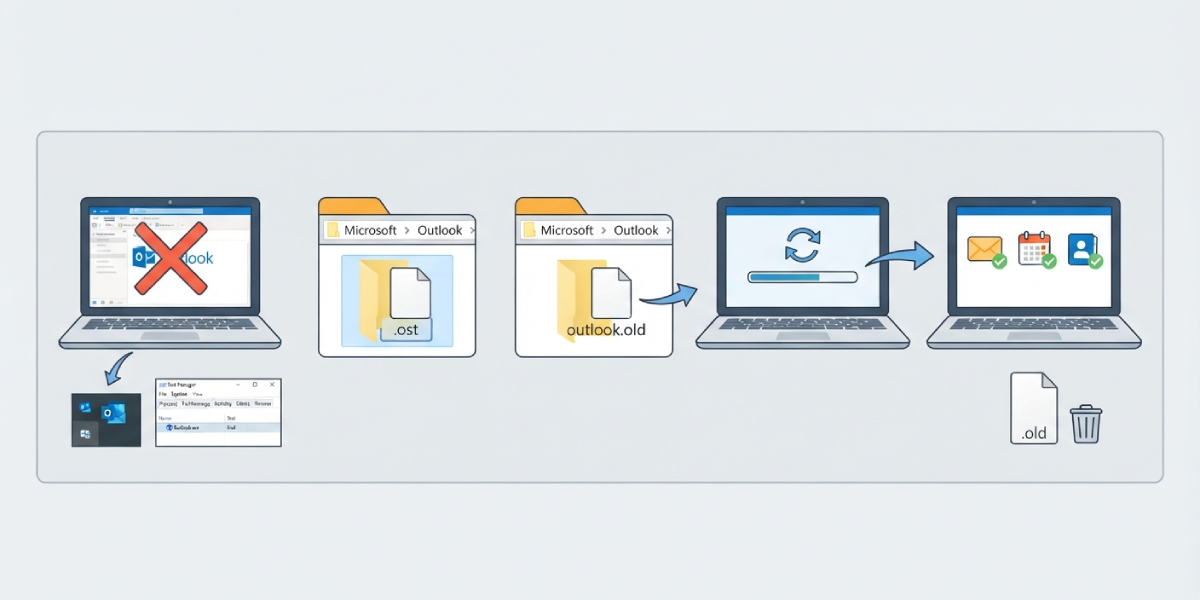
- Step 1: Close Outlook completely. Check the system tray and Task Manager to confirm no Outlook.exe process is still running in the background.
- Step 2: Open File Explorer and navigate to the OST file location. In most modern installations, this is found at ‘C:\Users\[username]\AppData\Local\Microsoft\Outlook’.
- Step 3: Locate the file ending in .ost that matches the affected email account. If the file name is not obvious, check it in Outlook beforehand through File > Account Settings > Account Settings > Data Files tab, which lists the exact file path.
- Step 4: Rename the file instead of deleting it right away, for example changing ‘Outlook.ost’ to ‘Outlook_old.ost’. This preserves a backup copy for a short period in case anything unexpected surfaces later.
- Step 5: Open Outlook again. It detects that the OST file is missing and automatically begins creating a brand-new one.
- Step 6: Let Outlook sync fully with the mail server. A progress indicator usually appears in the bottom status bar showing “Updating Inbox” or similar messages.
- Step 7: Once syncing finishes and folders, emails, and calendar items appear normally, confirm everything looks correct, then delete the renamed old OST file to free up disk space.
Tip: Large mailboxes with several years of history can take a while to fully resync, especially over a slower connection. Leaving Outlook open and undisturbed overnight often finishes the job cleanly by morning.
Before Starting: Quick Data Check
- Step 1: Check for any drafts sitting only in the Drafts folder that have not been sent, since these live locally until sent or saved elsewhere.
- Step 2: Confirm the account is set up as an Exchange, Microsoft 365, or IMAP account, since these store data on the server and rebuild safely. A POP account configured to “not leave a copy on the server” is different and needs a manual backup first.
- Step 3: Export anything irreplaceable, such as offline drafts, to a .pst file through File > Open & Export > Import/Export before proceeding.
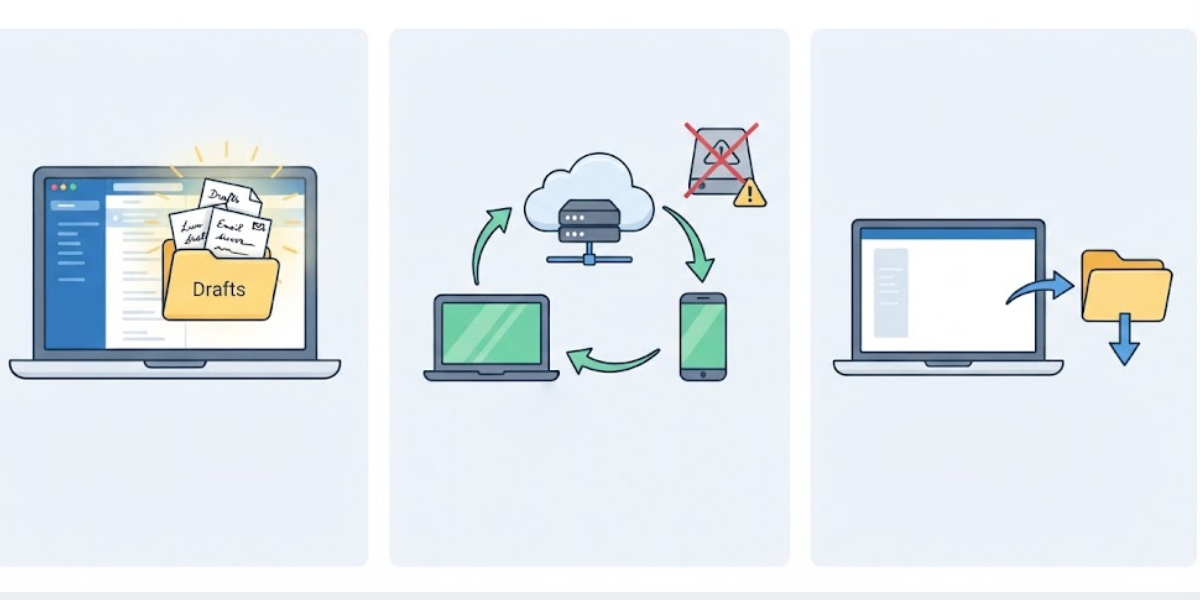
Tip: Most mailbox data, including sent items, calendar entries, and contacts, lives on the mail server, not just in the OST file. That is exactly why deleting and rebuilding it is safe for the vast majority of users.
Common Problems and Fixes
“The file is in use” error when renaming or deleting
This means Outlook or a related background process is still active. Reopen Task Manager, end any Outlook.exe or related processes, then try again.
Outlook does not create a new OST file automatically
Close Outlook, reopen it, and if nothing happens, go to Control Panel > Mail > Show Profiles, select the profile, and click Repair. This nudges Outlook into recreating the data file.
Sync appears stuck at a certain percentage
Large attachments or a spotty internet connection often cause this. Pause and resume the connection, or let Outlook run overnight rather than force-closing it mid-sync.
Some folders are missing after the rebuild
This usually resolves itself once syncing fully completes. If folders remain missing after several hours, check that the account is not set to sync only certain folders in Account Settings > Change > More Settings > Advanced.
New OST file becomes corrupt again shortly after
Repeated corruption often points to a deeper issue like a failing hard drive, antivirus software scanning the file mid-sync, or an unstable network connection. Excluding the OST folder from real-time antivirus scanning frequently resolves this.
Frequently Asked Questions
Does deleting an OST file delete emails permanently?
No. The OST file is only a local cache. Emails, calendar items, and contacts remain safely stored on the mail server and resync automatically.
How long does rebuilding an OST file take?
It depends on mailbox size and internet speed. A small mailbox may finish in minutes, while a large one with years of history can take several hours.
Is it necessary to back up the OST file before deleting it?
A backup is not strictly required since the data lives on the server, but renaming the file instead of deleting it outright adds an extra safety net.
Where is the OST file usually located on Windows?
It is typically found at ‘C:\Users\[username]\AppData\Local\Microsoft\Outlook’, though the exact path can be confirmed in Account Settings under the Data Files tab.
What happens if Outlook will not open after deleting the OST file?
This is often caused by a leftover process still locking resources. Restart the computer and open Outlook again to trigger a clean rebuild.
Can this process fix a corrupt OST file caused by ScanPST errors?
Yes. Deleting and letting Outlook rebuild the file is often faster and more reliable than repeatedly running the Inbox Repair Tool on a badly damaged OST file.
Will calendar appointments and contacts come back after rebuilding?
Yes, as long as the account is connected to an Exchange, Microsoft 365, or IMAP server, all synced data returns automatically during the rebuild.
Is it safe to delete the OST file for a POP account?
Only if messages are set to remain on the server. If the account is configured to remove messages from the server after download, back up the OST file first using the Inbox Repair Tool or an export to .pst.
Why does the OST file keep getting corrupted repeatedly?
Frequent corruption often points to antivirus interference, an unstable network connection, or a failing disk drive, and is worth investigating once the immediate rebuild is complete.
