
Learning how to enable XMP or EXPO in BIOS is the fastest way to make sure a RAM kit actually runs at the speed printed on the box instead of the slower default speed most motherboards use out of the factory. This guide walks through the exact steps for both Intel systems using XMP and AMD systems using EXPO, along with what to do when the setting does not stick.
Key Takeaways
- Without XMP or EXPO enabled, RAM typically runs well below its rated speed, even on kits marketed as high-performance.
- XMP (Extreme Memory Profile) is used on Intel platforms, while EXPO (Extended Profile for Overclocking) is the AMD equivalent for Ryzen systems.
- The setting is found in the BIOS/UEFI, usually on the main page or under an Ai Tweaker, Overclocking, or Memory menu, depending on the motherboard brand.
- Enabling the correct profile takes under five minutes and does not require opening the case.
- A failed boot after enabling the profile is common and almost always fixable without touching hardware.
Before You Start
This is a firmware-level change, not a physical repair, so there is no need to power down and open the case. A few quick checks beforehand will save some frustration.
- Save any open work and close programs before restarting into the BIOS, since the system will reboot at least once.
- Confirm the RAM kit actually supports XMP or EXPO. Most modern gaming or performance memory kits do, but some basic or OEM sticks only run at standard JEDEC speeds and have no profile to enable.
- Check that the motherboard supports the rated speed of the kit. Every board has a maximum supported memory frequency, and running near or above that ceiling can make the profile less stable.
- If the system is on unstable power, consider running it on a UPS or at least a surge-protected outlet, since a sudden shutdown mid-BIOS-save can occasionally corrupt settings.
How to Enable XMP or EXPO in BIOS Step by Step
The general process is nearly identical across brands, even though menu names differ slightly between Asus, MSI, Gigabyte, and ASRock boards.
- Step 1: Restart the computer and press the key that opens the BIOS or UEFI setup during boot. This is commonly Delete or F2, and the correct key is usually shown briefly on the boot screen.
- Step 2: Once inside, switch to Advanced Mode if the board opens in a simplified EZ Mode screen. Advanced Mode usually shows more detailed memory options.
- Step 3: Locate the memory profile setting. On Asus boards this is usually under Ai Tweaker, on MSI it is under OC or Overclocking, on Gigabyte it often sits right on the main Tweaker page, and on ASRock it is typically under OC Tweaker.
- Step 4: Look for a dropdown labeled XMP on Intel systems or EXPO on AMD systems. There may be two or more profiles listed, such as EXPO I and EXPO II, or Profile 1 and Profile 2.
- Step 5: Select the profile that matches the rated speed printed on the RAM’s label or box. If two profiles are available, Profile I is usually the more conservative and stable option, while Profile II may push slightly tighter timings or higher speed.
- Step 6: Some boards will automatically adjust the CPU’s memory controller voltage, DRAM voltage, and Infinity Fabric clock on AMD systems as part of applying the profile. Leave these on Auto unless there is a specific reason to change them.
- Step 7: Save the changes and exit, usually by pressing F10, then confirm the save when prompted.
- Step 8: Let the system reboot. It may take slightly longer than usual on this first restart while it trains the memory at the new speed and timings. This is normal and not a sign of a problem.
- Step 9: Once back at the desktop, confirm the change took effect using Task Manager’s Performance tab on Windows, or a utility like CPU-Z, which will show the current memory speed under the Memory tab.

Tip: Write down the RAM’s rated speed, voltage, and timings before making any changes. If something needs to be reset later, having those numbers on hand makes it much faster to reapply the correct profile manually.
Checking That XMP or EXPO Actually Applied
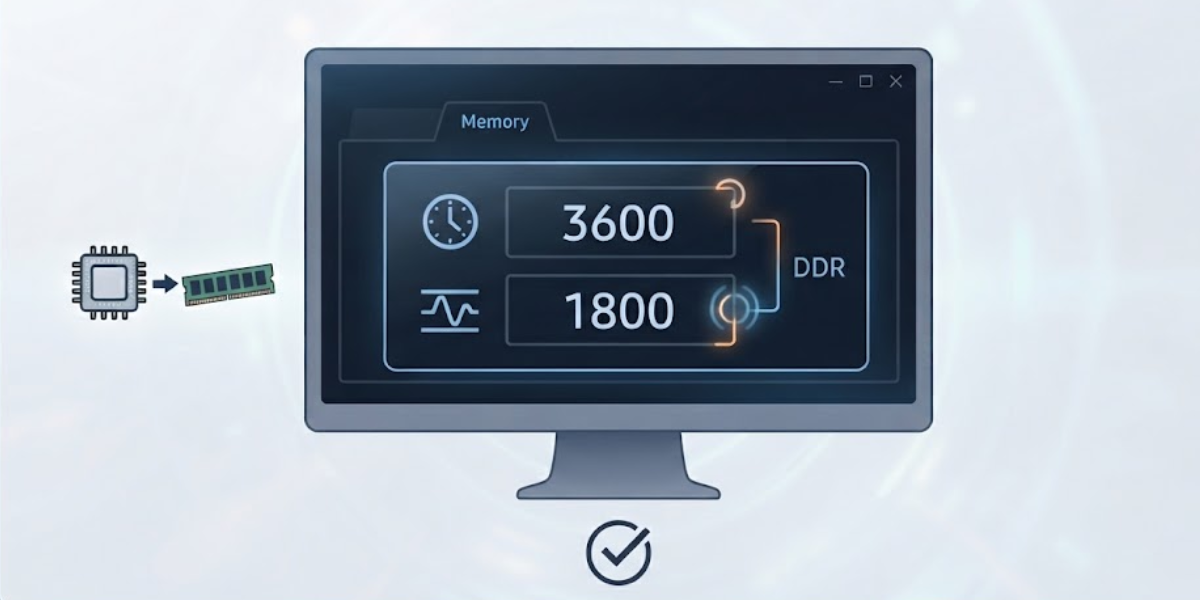
It is worth double-checking rather than assuming the setting worked. CPU-Z is the simplest free tool for this, showing the DRAM frequency directly, which should read close to half the advertised speed since RAM speeds are quoted as double data rate. A kit rated at a certain MT/s will show roughly half that number as the base frequency in CPU-Z, which is expected and not an error.
Common Problems and Fixes
System Fails to Boot After Enabling the Profile
This is the most frequent issue and is rarely serious. Most modern boards will automatically detect a failed boot and either roll back to default settings or prompt for a choice on the next restart. If the board does not recover on its own, clear the CMOS using the reset button on the case or by using the motherboard’s CMOS clear pins or jumper, then re-enter the BIOS and try the more conservative profile if two options were available.
System Boots but Is Unstable or Crashes Under Load
Occasional instability points to the memory running at the edge of what the motherboard’s memory controller can handle cleanly. Trying the less aggressive profile, if the kit offers one, often resolves this. On boards that allow it, manually lowering the memory speed by one step from the rated maximum while keeping the profile’s voltage is a common and effective middle ground.
Only Part of the Rated Speed Is Applied
Some boards, particularly with four memory sticks installed instead of two, will not reach the full rated speed of the kit even with the profile enabled. This is a known limitation tied to how many memory ranks the motherboard’s controller can drive at higher frequencies, not a fault with the RAM or the profile setting itself.
XMP or EXPO Option Is Missing Entirely
If no profile option appears in the BIOS, this usually means either the installed RAM does not include an XMP or EXPO profile, or the motherboard’s firmware is outdated. Updating the BIOS to the latest version from the manufacturer’s support page often adds or restores memory profile support, especially on newer AMD platforms where EXPO support was added through firmware updates after launch.
Settings Reset After a Power Outage or CMOS Battery Issue
If the profile keeps reverting to default speeds on its own, the small CMOS battery on the motherboard may be weak and unable to hold BIOS settings when the system loses power. Replacing that coin cell battery, widely available and inexpensive, typically resolves this.
Frequently Asked Questions
What is the difference between XMP and EXPO?
XMP is Intel’s memory profile standard, while EXPO is AMD’s equivalent, introduced for Ryzen systems. Both do the same job of storing a tested speed, timing, and voltage profile on the RAM module so it can run faster than the default JEDEC standard with one selection.
Is it safe to enable XMP or EXPO?
Yes. These profiles are tested and validated by the RAM manufacturer specifically for that kit, unlike manual overclocking, which involves more trial and error. Enabling the listed profile is considered a standard step rather than a risky modification.
Will enabling XMP or EXPO void the warranty?
No. Both Intel and AMD, along with virtually all major motherboard and memory manufacturers, treat XMP and EXPO as intended, supported features rather than overclocking that voids coverage.
Why does RAM run at a slower speed by default?
Motherboards default to the industry-standard JEDEC speed for stability across every possible RAM configuration, since not every board or CPU can guarantee the RAM’s advertised speed without some validation. The XMP or EXPO profile is what unlocks the faster, factory-tested speed.
Does enabling XMP or EXPO increase temperatures?
RAM modules do run slightly warmer at higher speeds and voltages, but the increase is minor for most kits and well within safe operating limits, especially for modules with a basic heat spreader.
Can XMP or EXPO damage the CPU or motherboard?
Running a validated profile at the settings provided by the RAM manufacturer carries very low risk. Damage from memory settings is far more associated with manual, aggressive overclocking well beyond rated specs rather than simply enabling a stock profile.
What if the RAM kit does not support XMP or EXPO?
Some budget or OEM RAM modules only include standard JEDEC speed profiles and have nothing to enable. In that case, the module will simply run at its base rated speed, and there is no profile switch to look for.
Do all four RAM slots need to be filled for XMP or EXPO to work?
No. The profile works with any supported RAM configuration, whether that is two modules or four. However, running four modules can sometimes reduce the achievable stable speed compared to two, depending on the motherboard’s memory controller.
How can it be confirmed that the profile is working?
A free tool like CPU-Z shows the current memory frequency and timings under its Memory tab, which can be compared against the RAM’s rated specifications printed on the module or its packaging.
