
Outlook stuck on Loading Profile is one of the most frustrating desktop app freezes around, especially when a workday depends on email. This guide walks through the exact steps that clear the freeze and stop it from coming back, without any guesswork.
Key Takeaways
- Outlook usually freezes on the Loading Profile screen because of a corrupted profile, a damaged data file, or a misbehaving add-in.
- Closing Outlook fully through Task Manager before trying any fix prevents the process from getting stuck in the background.
- Resetting the Navigation Pane and repairing the data file solve the majority of cases without touching the profile itself.
- Creating a fresh Outlook profile is the most reliable permanent fix when the freeze keeps returning.
- A Quick Repair through the Control Panel resolves deeper installation issues that simple restarts cannot fix.
Fix Outlook Stuck on Loading Profile: Step-by-Step Guide
Work through these steps in order. Most people find the freeze clears somewhere in the first four steps, but the later ones matter if the problem keeps coming back.
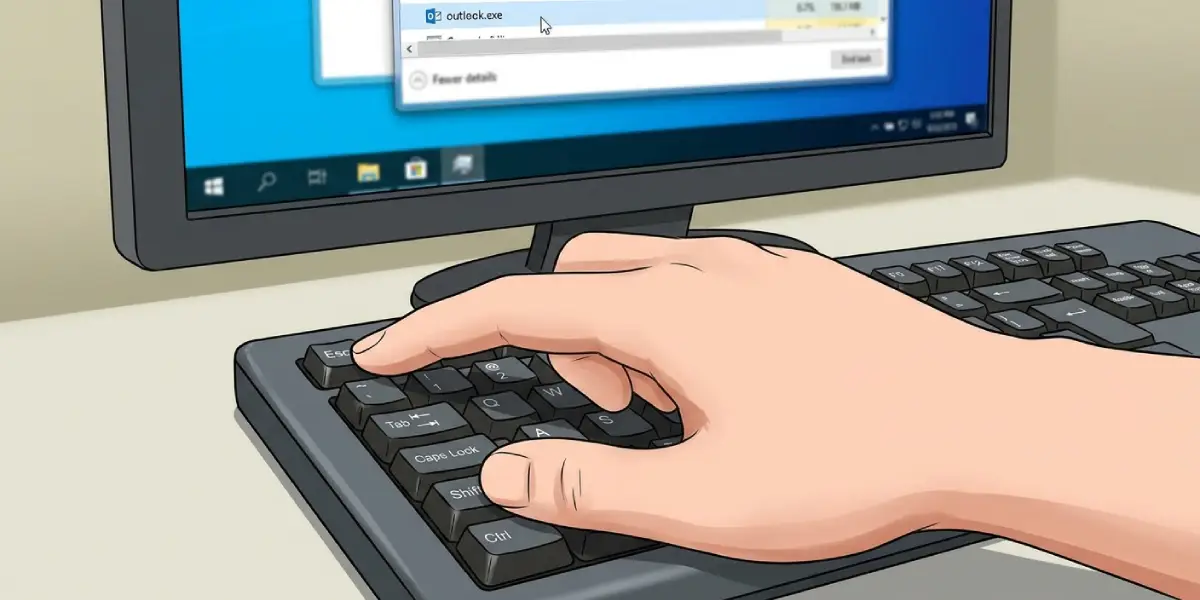
- Step 1: Open Task Manager with Ctrl+Shift+Esc, find every instance of outlook.exe under the Processes tab, and select End Task for each one. Outlook can sometimes leave a hidden background process running even after the window appears closed, and that leftover process is often the real reason the profile screen never progresses.
- Step 2: Press Windows+R, type outlook.exe /safe, and press Enter. This launches Outlook in Safe Mode with add-ins and custom toolbars disabled. If Outlook loads normally in Safe Mode, the freeze is almost certainly caused by an add-in rather than the profile itself.
- Step 3: Close Outlook again, then press Windows+R and run outlook.exe /resetnavpane. This rebuilds the Navigation Pane, which frequently gets corrupted and stalls the profile loading process before the inbox ever appears.
- Step 4: Locate the Inbox Repair Tool, scanpst.exe, typically found in a path such as C:\Program Files\Microsoft Office\root\Office16. Run it against the Outlook data file (.ost or .pst) tied to the affected profile and let the scan complete fully before reopening Outlook.
- Step 5: Open Control Panel, search for Mail, and select Show Profiles. Highlight the problem profile and click Remove, then click Add to create a brand new profile using the same email account. A fresh profile skips whatever corrupted setting was causing the freeze.
- Step 6: If the freeze persists, go to Control Panel, then Programs and Features, right-click Microsoft Office, and choose Change. Select Quick Repair and let it run. This fixes damaged Office installation files without removing personal settings or data.
- Step 7: Reopen Outlook normally, without the /safe switch, and confirm the Loading Profile screen moves past its usual few seconds and into the inbox view.
When Safe Mode Points to an Add-in
If Step 2 confirms an add-in is the culprit, go to File, then Options, then Add-ins, and use the Manage dropdown to disable COM add-ins one at a time. Reopen Outlook normally after each change to identify the specific add-in causing the stall.
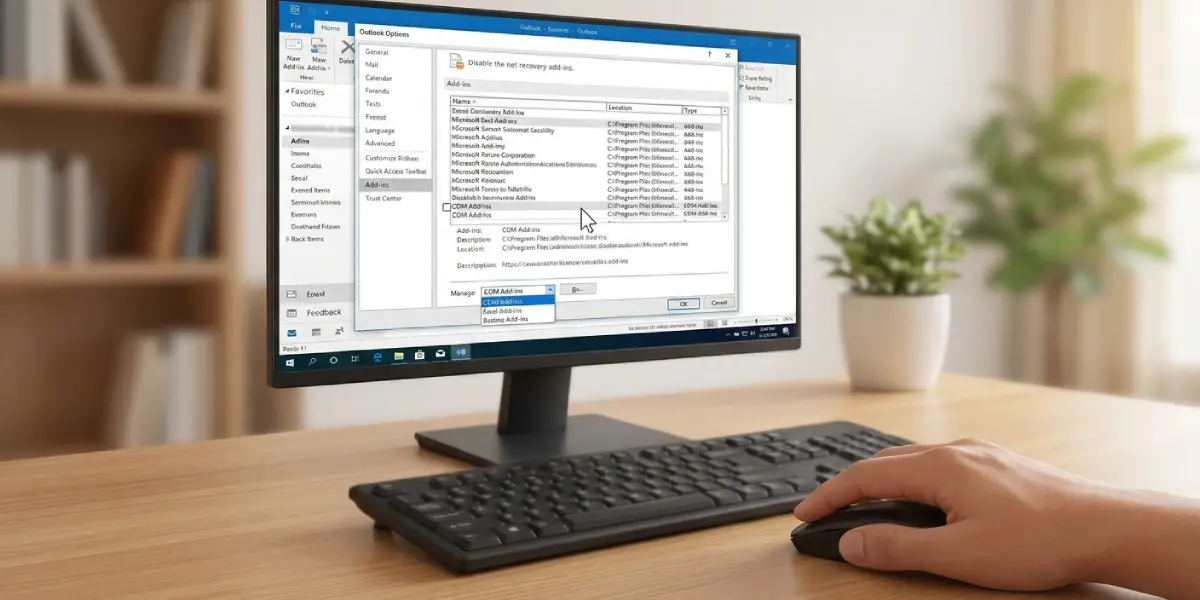
Tip: Disable one add-in at a time rather than all of them at once. Turning everything off together only proves that an add-in is involved somewhere, not which one is actually responsible.
Repairing the Data File
Tip: Before running the Inbox Repair Tool, check the file size of the .ost file in File Explorer. A file that has ballooned far beyond its usual size is a strong sign of the kind of corruption that freezes the profile loading screen.
Common Problems and Fixes
- Outlook still freezes even in Safe Mode: This points away from add-ins and toward a corrupted profile or data file. Skip ahead to the Inbox Repair Tool and profile recreation steps.
- The Mail icon is missing from Control Panel: Type Control Panel Mail directly into the Windows search bar instead of browsing manually, since the icon’s visibility depends on the installed Office bitness and can be easy to miss.
- A brand new profile also gets stuck on Loading Profile: This usually signals a damaged Office installation rather than a profile problem, which means an Online Repair is needed instead of a Quick Repair.
- Scanpst.exe reports no errors but the freeze continues: The data file itself is fine, so the issue sits with the profile configuration or Outlook’s installation files, not the mailbox content.
- Outlook closes instantly instead of freezing: This is a related but separate symptom, often tied to a damaged .ost file that the Inbox Repair Tool can usually resolve on its own.
Frequently Asked Questions
Why does Outlook get stuck on the Loading Profile screen?
It typically happens because of a corrupted user profile, a damaged .ost or .pst data file, a conflicting add-in, or Outlook processes that failed to close properly during a previous session.
Is it safe to end the outlook.exe process in Task Manager?
Yes. Ending the process only closes the application; it does not delete any emails, contacts, or calendar entries stored in the data file.
Will creating a new Outlook profile delete existing emails?
No, as long as the account reconnects to the same mailbox or the same .pst file. Email stored on the server, such as with Exchange or Microsoft 365 accounts, simply resyncs into the new profile.
How long should the Loading Profile screen normally take?
A few seconds is normal, especially the first time Outlook opens after a restart. Anything beyond thirty seconds without progress is a sign something needs fixing.
Does Safe Mode fix the problem permanently?
No, Safe Mode is a diagnostic step. It confirms whether an add-in is responsible, but the add-in still needs to be disabled or the profile still needs to be repaired for the fix to hold.
What is scanpst.exe used for in this situation?
Scanpst.exe is the Inbox Repair Tool built into Office. It scans the Outlook data file for structural corruption and repairs it, which often resolves freezes that happen during profile loading.
Should Quick Repair or Online Repair be used first?
Quick Repair first, since it runs faster and fixes most installation issues without requiring an internet download. Online Repair is the next step if Quick Repair does not resolve the freeze.
Can antivirus software cause this freeze?
Yes, some antivirus programs scan Outlook data files in a way that locks them during startup. Temporarily disabling real-time scanning while testing can confirm whether this is the cause.
What if none of these steps fix the freeze?
A full uninstall and reinstall of Office is the last resort, and it resolves cases where the installation files themselves are too damaged for a repair to fix.
