
A memory leak in Windows happens when a program keeps grabbing RAM but never releases it back to the system, slowly choking performance until a reboot is the only relief. This guide walks through how to spot the culprit, confirm it is really a leak and not just heavy RAM usage, and apply fixes that stick.
Key Takeaways
- A memory leak shows up as RAM usage that keeps climbing over time even when workload stays the same, rather than usage that simply runs high under a heavy task.
- Task Manager and Resource Monitor are the fastest tools for spotting which process is responsible.
- Outdated drivers, buggy background apps, and browser extensions are the most common causes on consumer PCs.
- Most leaks are fixed with updates, a clean process restart, or removing the offending software, not with a hardware upgrade.
- A leak that returns immediately after every fresh boot points to a startup program or a driver, not a one-off glitch.
Common Causes of a Memory Leak in Windows
Before jumping into fixes, it helps to understand why this happens in the first place. Windows itself manages memory well, but the software running on top of it does not always play by the rules.
Buggy or Outdated Applications
Some programs fail to release memory they no longer need. This is especially common with apps that stay open for long sessions, like browsers with dozens of tabs, chat clients, or creative software that handles large files.
Driver Issues
A poorly written or outdated driver, particularly for graphics cards, network adapters, or audio devices, can leak memory at the system level. This type of leak is harder to spot because it does not always show up under a single process name in Task Manager.
Background Processes and Startup Bloat
Programs that launch at startup and quietly run in the background add up. Some of them, especially older utilities or trial software, were never built with long-term memory efficiency in mind.
Browser Extensions
Extensions are a frequent offender. A single misbehaving extension can cause a browser’s memory footprint to grow for as long as the browser stays open.
How to Fix a Memory Leak in Windows
The approach below moves from quick checks to deeper fixes, so most people can resolve the issue without ever touching advanced tools.
Method 1: Identify the Process Using the Most Memory
- Step 1: Open Task Manager by pressing Ctrl, Shift, and Esc together.
- Step 2: Click the ‘Memory’ column header to sort processes from highest to lowest usage.
- Step 3: Leave Task Manager open and watch the same process over several minutes. A leak is confirmed when memory usage keeps rising without the workload changing.
- Step 4: Note the exact process name, since some Windows processes share generic names and need a bit more digging in Resource Monitor to confirm the source.
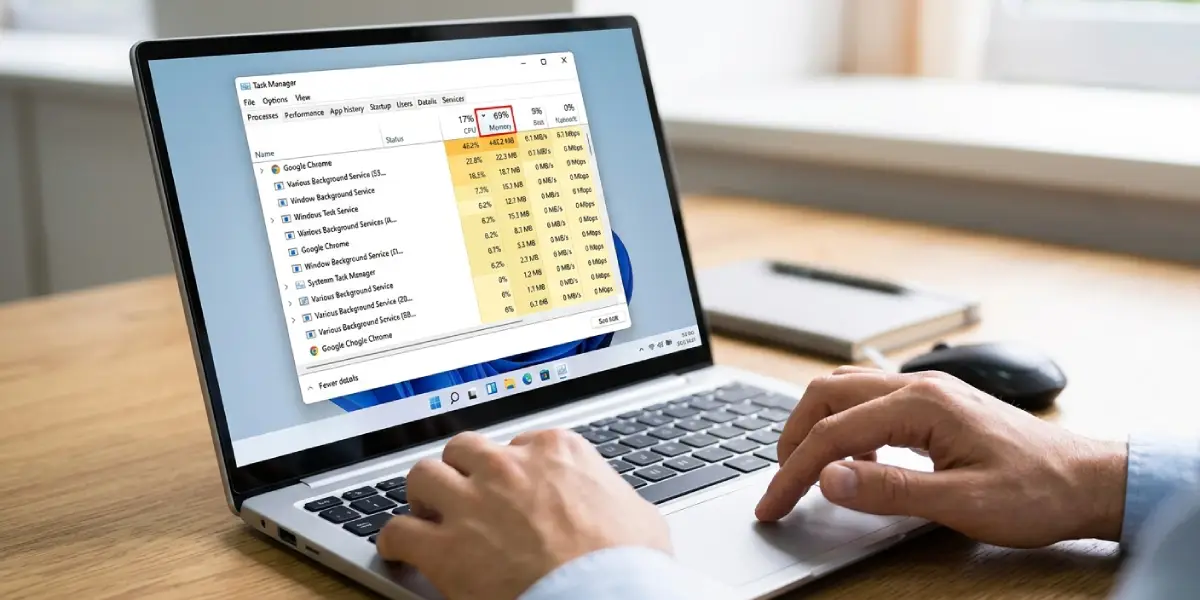
Tip: right-click any process in Task Manager and choose ‘Open file location’ to confirm exactly which application it belongs to before deciding what to do with it.
Method 2: Update the Application or Driver
- Step 1: If the leaking process belongs to a specific application, check for an update inside the app or on the developer’s official site.
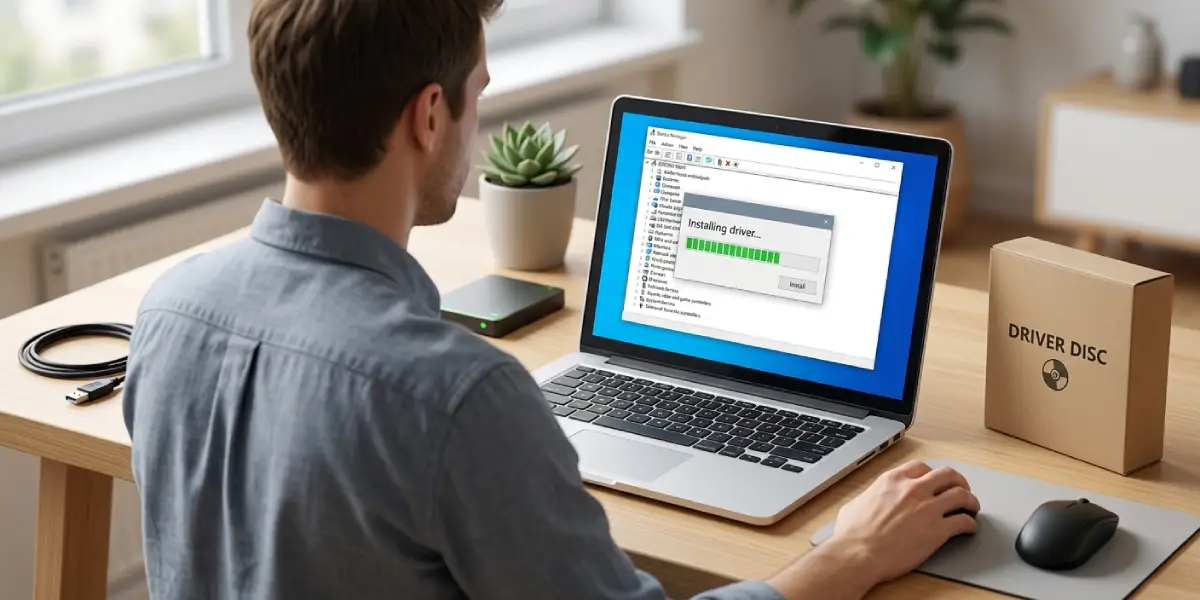
- Step 2: If the process is tied to hardware, such as a graphics or network driver, open Device Manager, right-click the device, and select ‘Update driver’.
- Step 3: For graphics drivers specifically, download the latest version directly from the manufacturer’s site, since this often includes memory handling fixes that generic driver updates miss.
- Step 4: Restart the computer after any driver update, since driver changes typically need a fresh boot to fully apply.
Method 3: Close or Remove the Offending Software
- Step 1: If a specific app is the repeat offender, close it fully rather than minimizing it.
- Step 2: Open Settings, then Apps, and check if a newer version is available or if the app has a known history of memory issues.
- Step 3: If the leak keeps happening with no fix available, uninstall the app and look for a well-maintained alternative.
- Step 4: For browser extensions, open the browser’s extension manager and disable extensions one at a time to isolate the source.
Method 4: Check Startup Programs
- Step 1: Open Task Manager and click the ‘Startup apps’ tab.
- Step 2: Disable anything unnecessary, especially utilities that run silently in the background.
- Step 3: Restart the PC and monitor memory usage again over normal use to see if the leak pattern has changed.
Method 5: Run System File and Malware Checks
- Step 1: Open Command Prompt as an administrator and run the System File Checker with the command sfc /scannow.
- Step 2: Run a full scan with Windows Security, or a trusted third-party anti-malware tool, since some malware disguises itself as a normal process while consuming memory.
- Step 3: Restart once scans complete and confirm whether memory usage stabilizes during normal tasks.
Method 6: Reset or Update Windows Itself
- Step 1: Open Settings, then Windows Update, and install any pending updates, since Microsoft regularly patches memory management bugs.
- Step 2: If the leak persists across multiple apps and drivers are current, consider a Windows repair install, which keeps personal files but replaces system files.
- Step 3: As a last resort for a system that has accumulated years of software clutter, a clean reinstall of Windows resolves almost any lingering memory issue tied to corrupted system components.
Tip: keep a habit of restarting the PC at least once every few days rather than only using sleep mode, since a full restart clears memory that some poorly coded background tasks never release on their own.
Common Problems and Fixes
Memory Usage Climbs Again Right After Reboot
This points to a startup program or driver rather than a one-time glitch. Revisit the startup app list and confirm the latest driver versions are installed for graphics and network hardware.
Task Manager Shows High Usage but No Single Process Stands Out
Open Resource Monitor for a more detailed breakdown, since it separates memory into categories like hardware reserved, standby, and in use, which can reveal whether the issue is a driver rather than an application.
Leak Returns After Uninstalling the Suspected App
Leftover background services sometimes keep running after an uninstall. Check the Services tab in Task Manager for anything still tied to the removed program and disable it if found.
Browser Memory Keeps Growing Even With Extensions Disabled
Some browsers cache heavily with many open tabs. Try closing tabs in batches and checking if the built-in task manager for the browser shows one tab or one site consuming an unusual amount of memory.
System Feels Slow Even Though RAM Usage Looks Normal
This is often unrelated to a memory leak and points instead to a slow storage drive or too many background processes competing for CPU time. Checking disk activity in Resource Monitor helps separate the two issues.
Frequently Asked Questions
How can someone tell the difference between a memory leak and normal high RAM usage?
Normal high usage stays roughly steady for a given task and drops when the task ends. A leak keeps climbing over time even while doing the same or lighter work, and usually does not go back down until the process is closed or the PC restarts.
Does restarting the computer actually fix a memory leak?
Restarting clears the leaked memory for that session, but it does not fix the underlying cause. The leak will likely return unless the app, driver, or setting responsible is updated or removed.
Can a memory leak damage the RAM itself?
No. A memory leak is a software issue, not a hardware one. It affects performance and stability, but it does not cause physical wear or damage to the RAM modules.
Is more RAM the solution to frequent memory leaks?
Adding RAM can delay how quickly a leak becomes noticeable, but it does not solve the root cause. The leaking software will still consume memory over time, just against a larger total.
Which Windows tool is best for finding a memory leak?
Task Manager works well for a quick check, while Resource Monitor gives a more detailed view of how memory is being used across hardware reserved, standby, and active categories.
Are browser tabs a common cause of memory leaks?
Yes. Browsers are one of the most frequent sources, especially with many tabs open or with extensions that were not built with efficient memory handling in mind.
Can outdated Windows updates cause memory leaks?
Yes. Microsoft periodically patches memory management bugs, so staying current with Windows Update reduces the chance of running into known leak issues.
Should background apps always be disabled to prevent leaks?
Not all background apps are risky, but ones that are rarely used or come from unreliable sources are worth disabling. Keeping the startup list lean reduces the number of potential sources for a leak.
When does a memory leak require a full Windows reinstall?
A reinstall is a reasonable last step when updates, driver fixes, and malware scans have not resolved the issue and the leak affects multiple unrelated processes, suggesting deep system file corruption.
