
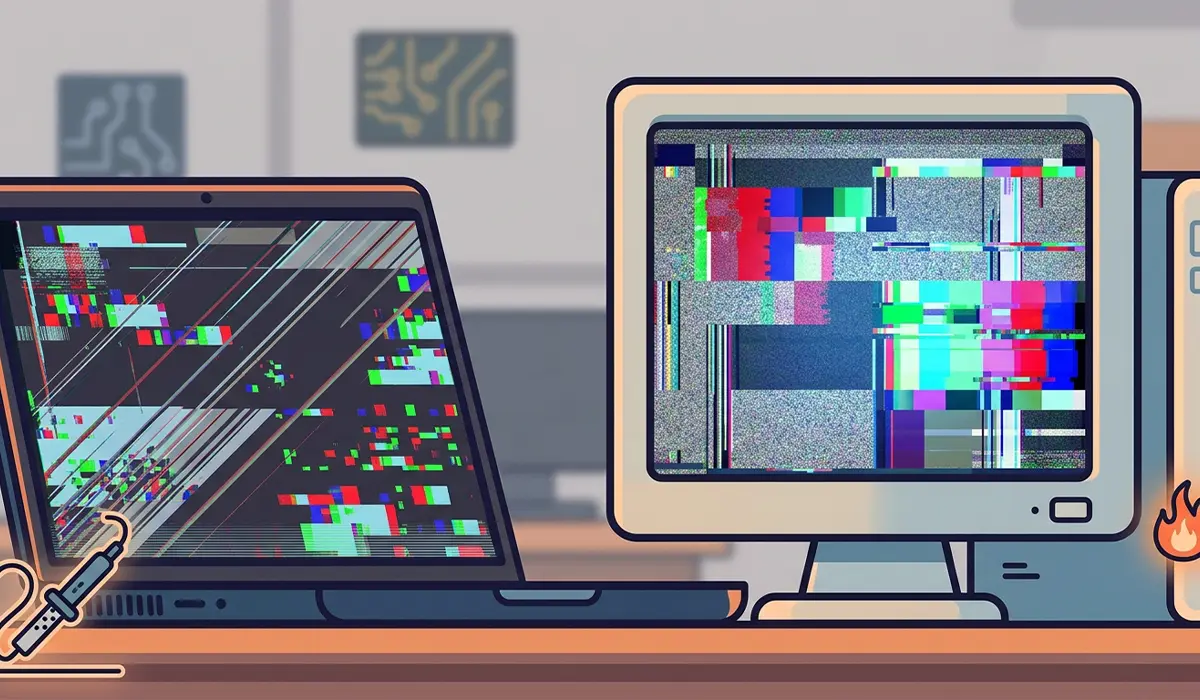
Screen artifacts and glitches show up as flickering colors, strange lines, or blocky patches that have no business being on the display. Whether it happens on a laptop panel or an external monitor, the cause almost always traces back to the graphics card, the display cable, or a driver conflict, and most of the time it can be fixed without replacing hardware.
Key Takeaways
- Screen artifacts usually point to a graphics driver issue, a loose or damaged cable, or a failing GPU.
- Updating or rolling back the graphics driver resolves a large share of glitching cases.
- Overheating and unstable overclocks are common triggers during gaming or heavy workloads.
- A quick external monitor test tells whether the problem is the panel or the graphics hardware.
- Persistent artifacts after software fixes often mean the GPU or display cable needs replacing.
Common Causes of Screen Artifacts and Glitches
Before jumping into fixes, it helps to understand what typically causes this. Artifacts generally fall into a few categories, and narrowing down which one applies saves a lot of trial and error.
Graphics Driver Problems
A corrupted or outdated graphics driver is one of the most frequent culprits. This happens often after a Windows update quietly changes driver files, or after installing a new game that pushes the GPU in ways the current driver was not built to handle.
Loose or Damaged Display Cables
HDMI and DisplayPort cables can degrade over time, especially if they get bent sharply or pinched behind a desk. A cable that is even slightly loose at the port can cause flickering lines that come and go depending on how the cable sits.
Overheating or GPU Instability
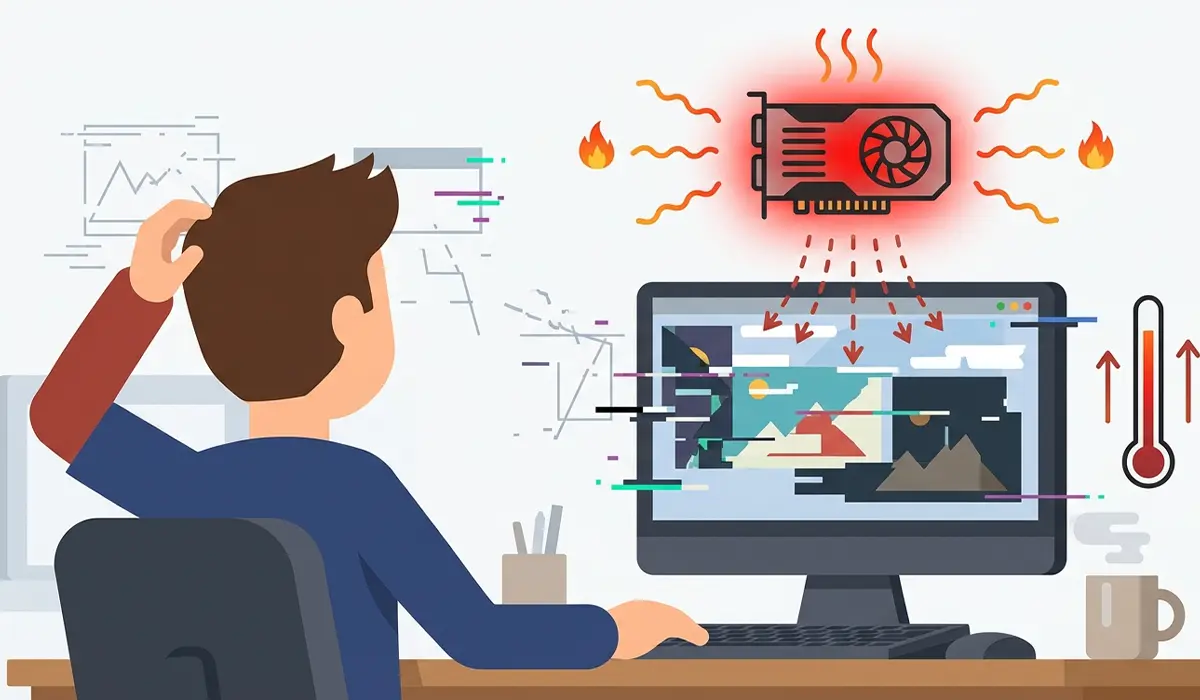
When a graphics card runs too hot or is pushed past its stable clock speeds, it can start producing visual errors long before the system crashes outright. This shows up most during gaming sessions or video rendering, when the GPU is under sustained load.

Failing Hardware
Older laptops sometimes develop artifacts from a GPU with worn solder joints, a common issue on units that run hot for years. On desktops, a graphics card nearing the end of its life can show the same symptoms, particularly under load.
How to Fix Screen Artifacts and Glitches
Work through these steps in order. Most cases get resolved in the first two or three, so there is no need to jump straight to hardware replacement.
- Step 1: Restart the computer first. This sounds obvious, but a fresh boot clears out temporary driver glitches and confirms whether the artifact is a one-time software hiccup or something ongoing.
- Step 2: Test with an external monitor if using a laptop, or swap the display cable if using a desktop monitor. This single test is the fastest way to tell if the panel itself, the cable, or the graphics card is at fault. If the artifacts disappear on the external display, the built-in panel or its connection cable is likely the problem.
- Step 3: Reseat the display cable at both ends. Power down the system, unplug the cable fully, check the connector for bent pins or debris, and plug it back in firmly. A cable that looks fine can still have an intermittent connection.
- Step 4: Update the graphics driver through Device Manager or the GPU manufacturer’s official software. Search for the display adapter, check for the latest driver release, and install it. A restart afterward is required for the update to take effect.
- Step 5: If artifacts started right after a driver update, roll back to the previous driver version instead. This is done from the driver’s properties in Device Manager, under the option to revert to the earlier installation.
- Step 6: Run a clean driver reinstall using the GPU manufacturer’s dedicated uninstall utility, then install a fresh driver download. This clears out leftover files that a standard update sometimes leaves behind, and it resolves conflicts that a simple update cannot.
- Step 7: Check GPU temperatures using the manufacturer’s monitoring software or a trusted third-party utility. If temperatures climb rapidly under load, dust buildup or dried thermal paste inside the case or laptop chassis is likely adding to the problem.
- Step 8: Undo any overclocking settings on the GPU or memory. Return every value to its default, factory-set clock speed and voltage, then check whether the artifacts stop appearing under the same workload that triggered them before.
- Step 9: Run a dedicated GPU stress and artifact-scanning tool to see if visual errors reproduce reliably under controlled load. Consistent artifacts during this kind of test point toward failing GPU hardware rather than a software setting.
Tip: Note exactly when the glitching happens, whether it is only during gaming, only on battery power, or randomly at idle. That pattern narrows down the cause far faster than testing every possible fix at once.
Common Problems and Fixes
Artifacts Return After a Driver Update
This usually means the new driver conflicts with a specific game or application. Roll back to the previous stable version and hold off updating again until a newer release specifically addresses the issue.
External Monitor Test Shows No Improvement
If the artifacts follow the system to an external display, the graphics card itself is the likely source rather than the built-in screen. At that point, further diagnosis should focus on temperature, driver stability, and eventually GPU replacement.
Glitching Only Happens Under Heavy Load
This pattern almost always points to heat or power delivery. Clean out dust from intake vents, confirm the cooling fans spin freely, and make sure the power supply or laptop charger is rated for the system’s actual draw.
Screen Flickers Only on Battery Power
On laptops, this often traces back to a power management setting that switches between integrated and dedicated graphics. Adjusting the graphics preference in the power plan settings, or disabling automatic GPU switching, typically resolves it.
Artifacts Appear Immediately After Reassembly
If this issue started right after opening the laptop or desktop for cleaning, an internal cable connecting the display to the motherboard may not be fully seated. This calls for reopening the unit and checking that connection carefully.
Frequently Asked Questions
What do screen artifacts actually look like?
They typically appear as colored blocks, flickering lines, strange pixel patterns, or areas of the screen that look torn or scrambled, usually not matching anything that should be on screen.
Can a bad graphics driver really cause this?
Yes. A corrupted or mismatched driver is one of the most common causes, since the driver is what translates instructions between the operating system and the graphics hardware.
Is it safe to keep using a computer with screen artifacts?
Occasional minor glitches are not usually dangerous, but frequent or worsening artifacts often signal overheating or failing hardware, so it is worth diagnosing the cause rather than ignoring it.
Does overheating cause permanent screen damage?
Sustained overheating can shorten the lifespan of a graphics card and eventually cause permanent artifacts, so addressing high temperatures early helps prevent lasting damage.
How can someone tell if it is the screen or the graphics card?
Connecting an external monitor is the quickest test. If the artifacts disappear on the external display, the built-in screen or its cable is the likely cause rather than the graphics card.
Will reinstalling Windows fix screen artifacts?
It can help if the cause is a deeply corrupted driver or software conflict, but it will not fix a hardware problem like a failing GPU or a damaged cable.
Are screen artifacts covered under warranty?
Many manufacturers cover display and GPU defects under standard warranty terms, so checking the warranty status before attempting any repair is worth doing.
Can a laptop screen artifact issue be fixed without replacing the panel?
Sometimes. If the cause is a loose internal display cable or an outdated driver, no panel replacement is needed. If the panel itself is damaged, replacement becomes necessary.
Why do artifacts only show up during gaming?
Gaming pushes the GPU to its highest workload, which is when heat, power delivery issues, and unstable overclocks are most likely to surface as visual errors.
When should a professional handle screen artifact issues?
If temperatures are normal, drivers are up to date, and cables have been tested with no improvement, the issue likely points to failing internal hardware, and a professional repair technician should take over from there.
