
A Wi-Fi adapter that keeps resetting drops the connection, vanishes from the network list, or flashes on and off every few minutes. The good news is that most cases come down to a power setting, a faulty driver, or corrupted network settings, all of which can be fixed without opening the laptop. This guide walks through the causes and the fixes in the order that saves the most time.
Key Takeaways
- Most resetting problems come from Windows power saving, a bad driver, or damaged network settings.
- Start with the quick software fixes before touching any hardware.
- A clean driver reinstall and a network reset solve the majority of stubborn cases.
- Testing the same adapter on another network, or another device on the same router, shows whether the adapter or the router is at fault.
- If the adapter still resets after every software fix, the card or its antenna connection may be failing.
Common Causes of a Wi-Fi Adapter Resetting
Knowing the likely cause makes the fix much faster. Think of it like a flickering lamp: the bulb, the switch, or the wiring could be at fault, and the quickest approach is to check the cheapest options first.
- Windows power management turning the adapter off to save energy
- An outdated, corrupted, or recently updated driver that does not behave properly
- Fast Startup leaving the adapter in a half-initialized state after shutdown
- Damaged network settings or a corrupted network stack
- Conflicts with a VPN client, virtual adapter, or third-party security software
- Router problems such as a crowded channel or outdated firmware
- On laptops, a loose antenna cable or a failing internal Wi-Fi card
- On USB adapters, a weak port, a loose connection, or an unpowered hub
How to Fix a Wi-Fi Adapter That Keeps Resetting, Step by Step
Work through these steps in order and test the connection after each one. Stop as soon as the resets end.
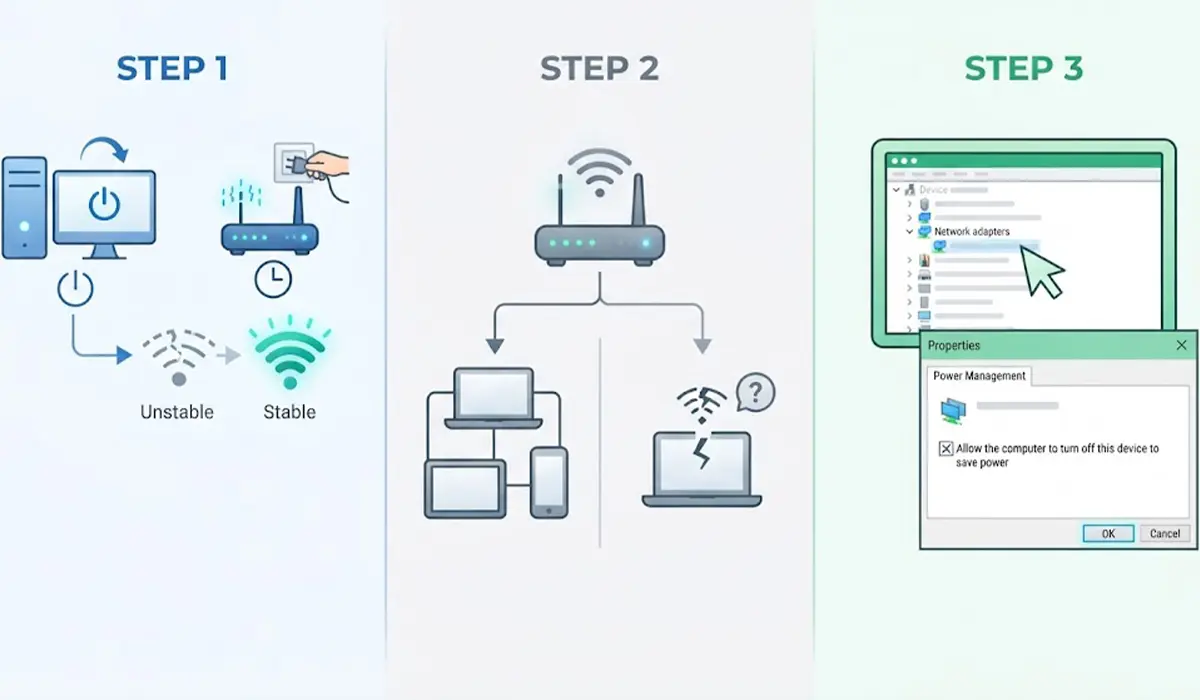
- Step 1: Restart the PC and the router. Power the router off for about 30 seconds before turning it back on. This clears temporary glitches on both ends of the connection.
- Step 2: Check whether the problem follows the device or the network. If other devices stay connected on the same router while only one PC keeps dropping, the adapter or its settings are the likely cause. If every device drops, focus on the router instead (see Step 10).
- Step 3: Turn off power saving for the adapter. Open Device Manager, expand Network adapters, right-click the Wi-Fi adapter, and choose Properties. Open the Power Management tab and uncheck ‘Allow the computer to turn off this device to save power’. Click OK.
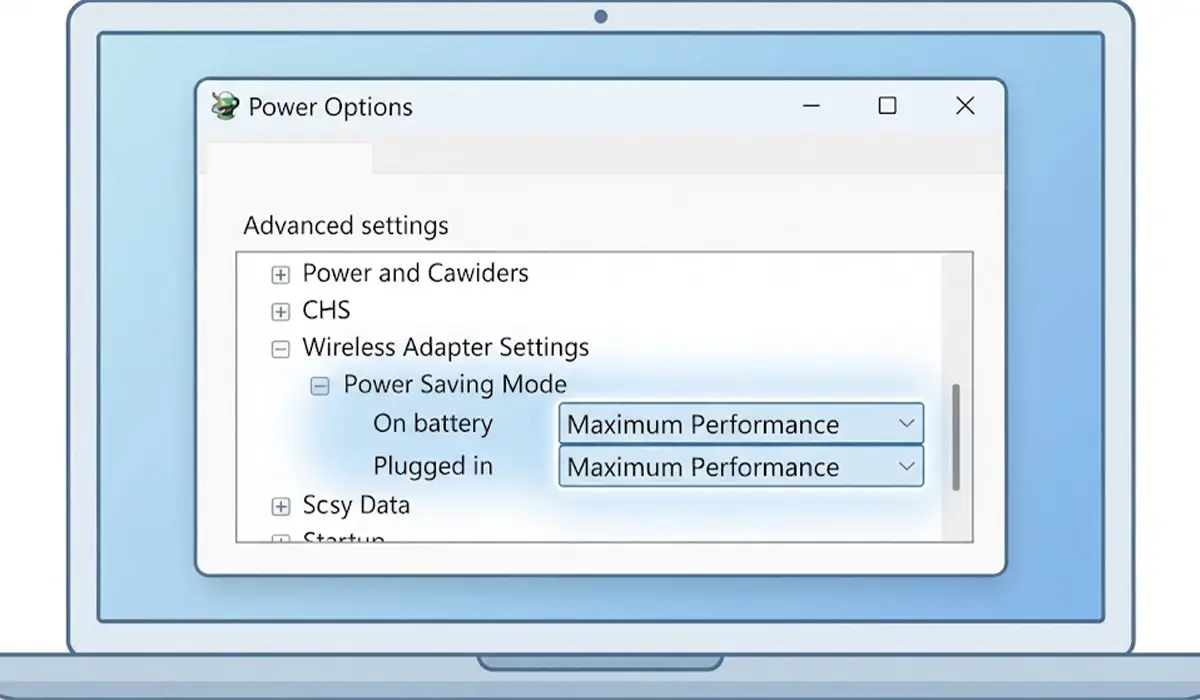
Set the Wireless Adapter to Maximum Performance
Tip: Windows power plans have their own wireless setting that can override the adapter setting. Open Control Panel, go to Power Options, click Change plan settings next to the active plan, and then Change advanced power settings. Expand Wireless Adapter Settings, then Power Saving Mode, and set both On battery and Plugged in to Maximum Performance. Expect slightly shorter battery life on a laptop in return for a steadier connection.
- Step 4: Update the driver. In Device Manager, right-click the Wi-Fi adapter and choose Update driver, then Search automatically for drivers. For better results, download the latest Wi-Fi driver from the laptop or motherboard manufacturer’s support page, since it is often newer or better tuned than the generic one.
- Step 5: Roll back the driver if the resets began right after an update. Open the adapter Properties in Device Manager, switch to the Driver tab, and click Roll Back Driver if the button is available. Restart the PC afterward.
- Step 6: Reinstall the adapter. In Device Manager, right-click the Wi-Fi adapter, choose Uninstall device, and confirm. Restart the PC and Windows detects the hardware and installs a fresh driver automatically.
- Step 7: Turn off Fast Startup. Open Control Panel, go to Power Options, click Choose what the power buttons do, then Change settings that are currently unavailable. Uncheck Turn on fast startup (recommended) and save the changes. A full shutdown now resets the adapter properly each time.
- Step 8: Run the built-in troubleshooter. Open Settings, go to System, then Troubleshoot, then Other troubleshooters, and run the Network and Internet troubleshooter. It can repair simple configuration errors automatically.
- Step 9: Reset the network stack. Open Command Prompt as administrator and run the following commands one at a time, pressing Enter after each: netsh winsock reset, then netsh int ip reset, then ipconfig /flushdns. Restart the PC when finished.
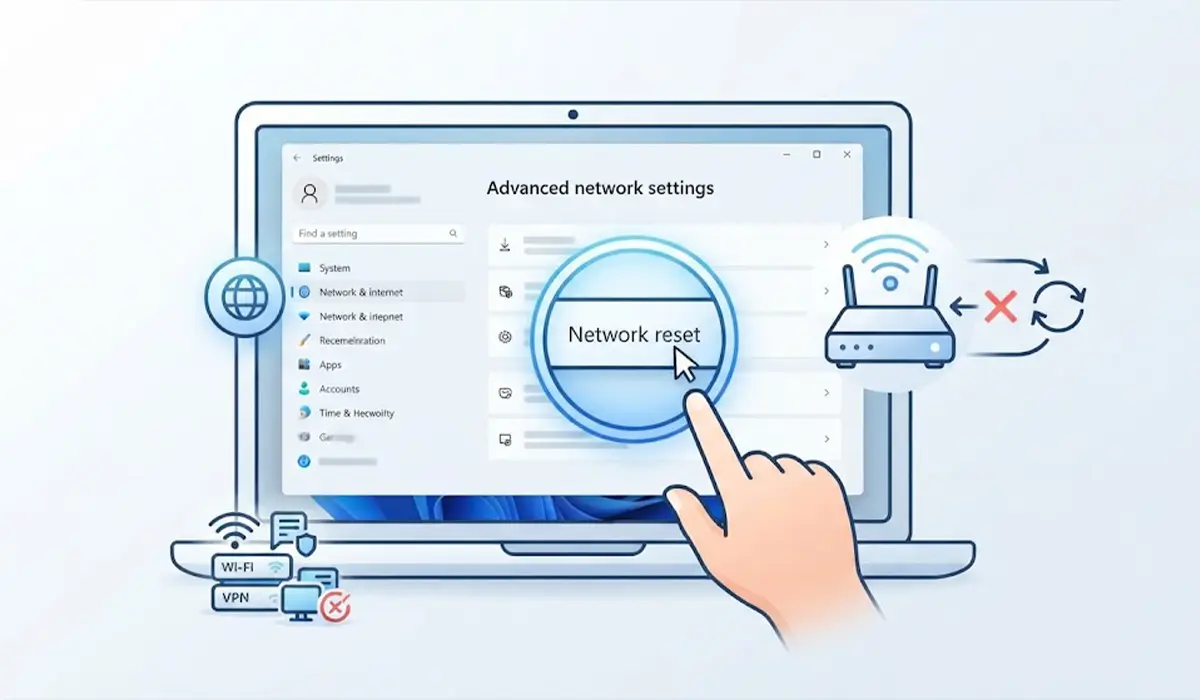
Use the Windows Network Reset as a Stronger Option
If the commands do not help, Windows offers a full network reset. On Windows 11, open Settings, go to Network and internet, then Advanced network settings, then Network reset. On Windows 10, it sits under Settings, Network and Internet, Status. This removes saved Wi-Fi networks, VPN connections, and custom adapter settings, so keep the Wi-Fi password handy. Personal files are not touched.
- Step 10: Check the router. Log in to the router settings and try a different Wi-Fi channel, or switch between the 2.4 GHz and 5 GHz bands to see which one holds steady. Install any available firmware update, and keep the router in an open spot away from thick walls and other electronics.
- Step 11: Remove software conflicts. Temporarily disconnect any VPN client and disable virtual adapters it created. If the resets stop, update or reinstall that software. Security suites with their own network filtering can cause similar trouble, so check their settings too.
Before You Start the Hardware Check
If every software step has failed, the cause may be physical. This applies to laptops and desktops with an internal Wi-Fi card, and it involves opening the device. Opening a device may affect the warranty, and anyone uncomfortable working inside a laptop should leave this to a professional repair shop.
- Shut down fully, unplug the charger, and disconnect the battery where it is removable.
- Touch bare metal or wear an anti-static strap to discharge static before touching any component.
- Have a small Phillips screwdriver and a plastic pry tool ready. Avoid metal tools on delicate connectors.
Reseat the Card and Antenna Cables
Internal Wi-Fi cards are usually small M.2 cards with two thin antenna cables clipped onto them. A cable that has worked loose causes weak, unstable signal that can look like constant resetting. Gently press the connectors back down onto the card, check that the card sits firmly in its slot and is secured by its screw, and then reassemble. The antenna connectors are tiny and easy to damage, so stop if they will not seat with light pressure.
Test with a USB Wi-Fi Adapter
A USB Wi-Fi adapter is a quick way to confirm whether the internal card has failed. Disable the internal adapter in Device Manager, plug the USB adapter into a port directly on the PC rather than a hub, and watch the connection for a day. If the USB adapter stays stable, the internal card is the problem and replacing it is the permanent fix.
Common Problems and Fixes
The Adapter Still Resets After a Driver Update
The newest driver is not always the best one. Roll back to the previous version, or install the version offered on the laptop manufacturer’s support page rather than the generic Windows one.
The Wi-Fi Adapter Disappears from Device Manager
This points to a hardware or connection issue rather than a settings issue. Restart fully, then check for hidden devices by choosing View and Show hidden devices in Device Manager. If the adapter is still missing, reseat the card or have it inspected.
The Connection Drops Only After Sleep or Wake
Disable the power management option from Step 3 and turn off Fast Startup from Step 7. These two settings are the most common cause of drops after waking the PC.
Only the 5 GHz Network Keeps Dropping
The 5 GHz band has shorter range and struggles through walls. Move closer to the router, try a different 5 GHz channel, or use the 2.4 GHz band for rooms far from the router.
The Problem Returns After a Network Reset
A reset that holds only briefly suggests a driver problem or failing hardware. Reinstall the manufacturer’s driver cleanly, then run the USB adapter test to rule out the card.
Tip: Write down the driver version and date from the Driver tab before changing anything. If a new driver makes things worse, the old version is easy to identify and reinstall.
Frequently Asked Questions
Why does my Wi-Fi adapter keep resetting?
The most common reasons are Windows power saving turning the adapter off, a faulty or outdated driver, and damaged network settings. Less often, a router issue, a software conflict, or failing hardware is responsible.
Does a resetting Wi-Fi adapter mean the hardware is failing?
Not usually. Software causes are far more common. Hardware becomes the suspect when the problem continues after a clean driver reinstall and a network reset, and a USB Wi-Fi adapter stays stable on the same network.
Can a Windows update cause the Wi-Fi adapter to reset?
Yes. An update can replace a working driver with one that behaves differently. Rolling the driver back or installing the manufacturer’s version often fixes it.
Will a network reset delete my files?
No. A network reset removes saved Wi-Fi networks, VPN connections, and custom network settings, and reinstalls the network adapters. Personal files and installed programs stay in place.
How do I check which Wi-Fi driver version is installed?
Open Device Manager, expand Network adapters, right-click the Wi-Fi adapter, and choose Properties. The Driver tab shows the driver provider, date, and version.
Can the router make the adapter keep resetting?
A router can cause repeated disconnects, especially with a crowded channel or outdated firmware. If other devices also drop, the router is the likely cause. If only one PC drops, the adapter or its settings are more likely at fault.
Why does the Wi-Fi drop after the PC wakes from sleep?
Power management often turns the adapter off during sleep and fails to bring it back properly. Unchecking the power saving option for the adapter and turning off Fast Startup usually resolves it.
Can overheating cause a Wi-Fi adapter to reset?
Heat can contribute to instability in the Wi-Fi card on a poorly cooled laptop. Keeping the vents clear and using the laptop on a hard, flat surface is a sensible precaution.
