
Figuring out how many RAM slots are available on a computer is the first thing to check before buying more memory. Whether the goal is a quick upgrade or just confirming what a machine can handle, this guide walks through every reliable method, from built-in Windows tools to a quick physical check inside the case.
Key Takeaways
- Windows Task Manager shows the total number of memory slots and how many are currently in use, without opening the computer.
- Third-party tools like CPU-Z or Speccy give more detail, including how many slots are still empty.
- Laptops often have one or two accessible slots, while some ultra-thin models solder RAM directly to the motherboard.
- Opening the case or the laptop’s memory panel is the most accurate way to confirm slot count and see what is currently installed.
- The motherboard manual or manufacturer’s spec page always lists the maximum number of slots the board supports.
Before You Start
Checking slot count through software needs no preparation at all. If the plan includes a physical look inside the case or under a laptop’s memory panel, a few basics keep things safe:
- Shut down the computer completely and unplug it from the wall.
- For laptops, remove the battery if it is user-removable, or hold the power button for a few seconds after unplugging to drain residual power.
- Touch a bare metal part of the case or use an anti-static wrist strap before touching any internal components.
- Let the machine cool down for a few minutes if it was just running, since components near the memory slots can hold heat.
Opening a laptop’s chassis may affect the manufacturer’s warranty on some models, so it is worth checking the warranty terms first. If a laptop’s memory is not covered by an accessible panel and requires removing the entire bottom shell, that is a reasonable point to hand the job to a professional rather than risk damaging ribbon cables or clips.
How to Check How Many RAM Slots Are Available
Method 1: Task Manager
- Step 1: Right-click the Windows taskbar and select ‘Task Manager’, or press Ctrl+Shift+Esc.
- Step 2: Click the ‘Performance’ tab on the left side.
- Step 3: Select ‘Memory’ from the list of resources.
- Step 4: Look at the bottom of the panel for a line labeled ‘Slots used’. This shows the number of slots currently populated out of the total number available on the motherboard.

Tip: If Task Manager shows something like ‘2 of 4’, that means two sticks are installed and two slots are sitting empty, ready for an upgrade.
Method 2: System Information Tool
- Step 1: Press the Windows key, type ‘System Information’, and open the app.
- Step 2: Expand ‘Components’ and click ‘Memory’.
- Step 3: Review the listed memory devices and their slot designations, such as ‘DIMM0’ or ‘DIMM1’.
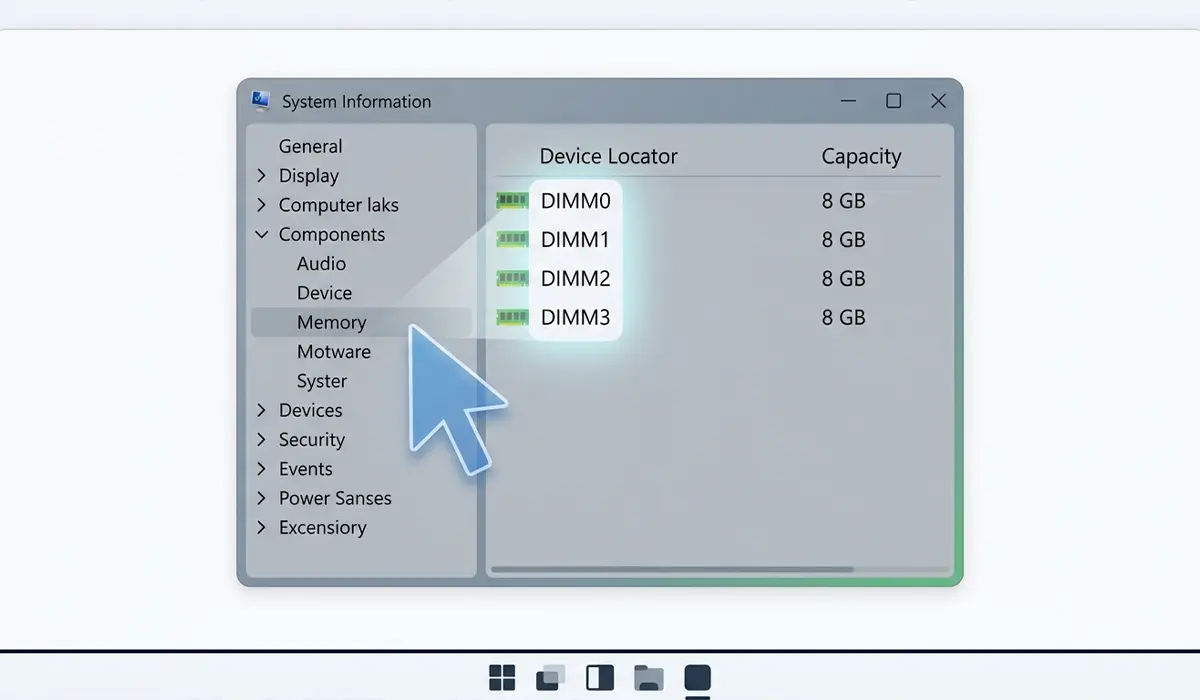
This method is useful when a more detailed breakdown by slot label is needed, since it lists each populated slot individually rather than just a used-versus-total count.
Method 3: Third-Party Diagnostic Software
- Step 1: Download a trusted memory diagnostic tool such as CPU-Z or Speccy from the developer’s official website.
- Step 2: Install and open the program.
- Step 3: Navigate to the ‘Memory’ or ‘SPD’ tab, depending on the tool.
- Step 4: Check the slot selector or summary view, which typically lists every slot on the board along with which ones hold a module and which remain empty.
These tools tend to give a clearer picture than the built-in Windows options, since some also show maximum supported capacity per slot, which helps when planning an upgrade.
Method 4: Physical Inspection
- Step 1: With the computer powered off and unplugged, open the desktop side panel or the laptop’s memory access panel.
- Step 2: Locate the memory slots next to the processor. They are the long, thin slots with clips or latches on the ends.
- Step 3: Count the total number of slots, then note how many currently hold a memory module.
- Step 4: Close the case or panel back up once the count is confirmed.
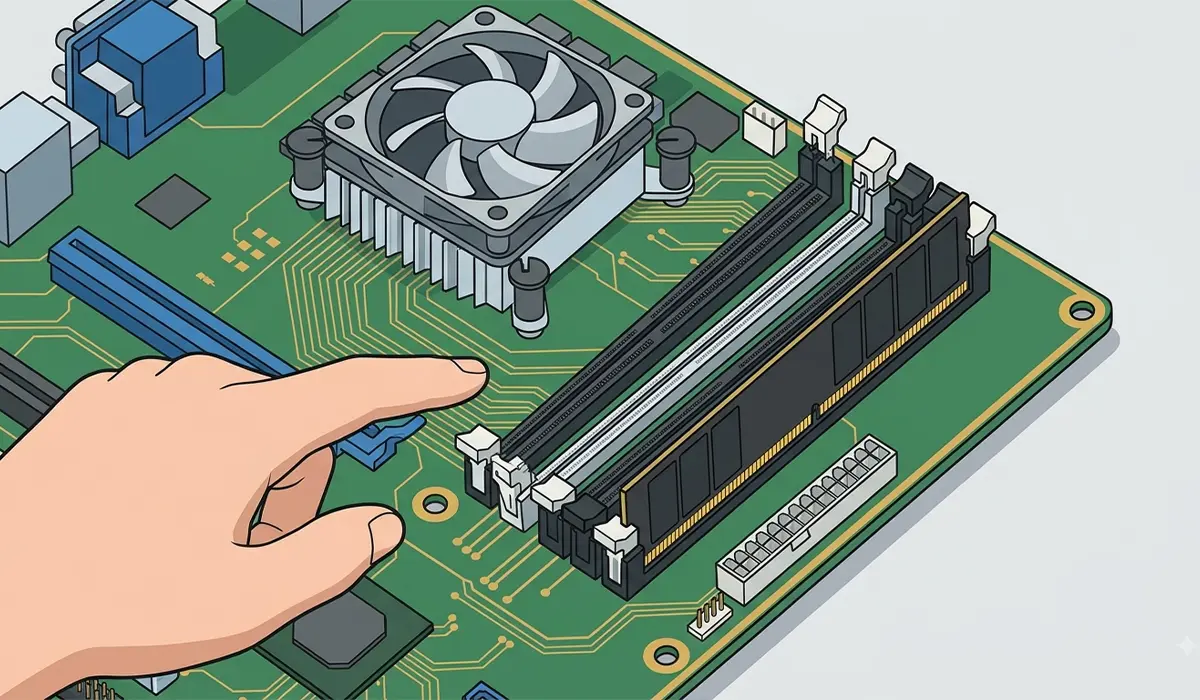
This method settles any doubt left by software, especially on prebuilt desktops or laptops where a manufacturer’s spec sheet is vague about slot count.
Method 5: Manufacturer Specifications
- Step 1: Identify the exact motherboard model for a desktop, or the exact laptop model number.
- Step 2: Visit the manufacturer’s official support page and search for that model.
- Step 3: Look for the memory or specifications section, which lists total slot count and maximum supported RAM.
Tip: This is the most reliable source for maximum capacity per slot, which software tools do not always report accurately.
Common Problems and Fixes
- Task Manager shows the wrong total slot count: This sometimes happens on older systems or with outdated drivers. Update the chipset drivers through the motherboard or laptop manufacturer’s site, then check again.
- Software tools report different numbers than a physical count: This usually means a slot is disabled in BIOS or UEFI, or a module is not seated properly. Reseating the modules or checking BIOS memory settings usually resolves the mismatch.
- No memory information shows up in CPU-Z or Speccy: This can happen if the tool needs administrator permissions. Right-click the program and select ‘Run as administrator’, then check again.
- Laptop shows no accessible slots at all: Some ultra-thin and compact laptops solder RAM directly to the motherboard with no upgradeable slots. Checking the manufacturer’s official spec sheet confirms whether the model supports upgrades at all.
Frequently Asked Questions
How many RAM slots does a typical desktop have?
Most consumer desktop motherboards have either two or four RAM slots, though some higher-end boards designed for enthusiasts or workstations may have more.
How many RAM slots does a typical laptop have?
Most laptops have one or two slots. Some thin-and-light or ultrabook models have no accessible slots, since the memory is soldered directly to the board.
Can Task Manager be wrong about the number of slots?
It is generally accurate, but on some systems it may not detect all physical slots correctly. Cross-checking with System Information or a physical inspection confirms the true count.
Is it necessary to open the computer to check RAM slots?
Not usually. Software tools like Task Manager or CPU-Z are enough for most people. A physical check is only needed when software results seem inconsistent or unclear.
Do all RAM slots on a motherboard need to be filled?
No. A system runs fine with only some slots populated, as long as the installed modules are compatible and properly seated.
Why does a laptop show fewer slots than expected?
Some laptop models combine one soldered memory chip with a single accessible slot for expansion, which can look confusing in software that reports total slots differently than expected.
Can slot count affect which RAM to buy?
Yes. Knowing the total slot count and how many are already filled determines whether new memory can simply be added or whether existing modules need to be swapped out for higher-capacity ones.
Does checking RAM slots reveal the maximum supported RAM?
Not always. Slot count only shows how many modules can physically fit. Checking the motherboard or laptop manufacturer’s specifications confirms the actual maximum capacity supported.
Are empty RAM slots a sign of a problem?
No. Empty slots are completely normal and simply represent room for a future upgrade.
