
How much RAM do you actually need depends almost entirely on what gets asked of the computer on a daily basis, not on whatever number happens to be trending in a spec sheet. Basic browsing and schoolwork run comfortably on far less memory than video editing or modern gaming, and buying more than necessary just wastes money that could go toward a faster drive or a better processor.
Key Takeaways
- 8GB is the bare minimum for light use like browsing, email, and document editing, and it already feels tight in 2026.
- 16GB is the sensible baseline for most people, including students, office workers, and casual gamers.
- 32GB suits gamers running demanding titles, content creators, and anyone who keeps dozens of browser tabs and apps open at once.
- 64GB or more is reserved for heavy video editing, 3D rendering, large local AI models, and professional workstation tasks.
- Speed and channel configuration (dual-channel vs single-channel) can matter almost as much as total capacity for real-world performance.
How Much RAM Do You Actually Need? A Breakdown by Use Case
The fastest way to answer this question is to match actual daily habits against the categories below. Most people overestimate what they need because they think about worst-case scenarios instead of typical ones.
8GB: Basic Tasks Only
8GB still ships in a lot of budget laptops, and it can handle web browsing, word processing, video calls, and light streaming without much trouble. The catch is headroom. Modern web browsers are memory-hungry, and having a dozen tabs open alongside a video call and a spreadsheet will push an 8GB system into swapping data to the storage drive, which slows everything down noticeably. This tier makes sense for a secondary device or someone who genuinely uses one or two applications at a time.
16GB: The Practical Sweet Spot
For the vast majority of users, 16GB hits the right balance of cost and performance. It comfortably handles multitasking across office software, dozens of browser tabs, photo editing in programs like Lightroom, and most current games at reasonable settings. Students, remote workers, and home users doing a mix of everything tend to find 16GB never becomes a bottleneck in normal use.
Tip: When shopping for a new machine, prioritize 16GB over a slightly faster processor if the budget forces a choice. Insufficient memory tends to create more noticeable slowdowns than a modest CPU difference.
32GB: Gaming and Content Creation
Gamers running graphically demanding titles at high settings, especially with several background applications like Discord, a browser, and recording software running simultaneously, benefit from 32GB. Content creators editing 4K video, working with large Photoshop files, or running multiple creative applications at once also land in this tier. It is also the point where power users who keep an enormous number of browser tabs open permanently stop worrying about memory pressure entirely.
64GB and Beyond: Professional Workloads
64GB or higher is built for specialized work: rendering complex 3D scenes, working with large video projects in multiple timelines, running virtual machines, handling large datasets, or working with sizable local AI models. Most home and office users will never touch the ceiling of 32GB, let alone need to go further, so this tier is genuinely a professional or hobbyist-enthusiast category rather than a mainstream recommendation.
How to Check Current RAM and Usage
Before deciding whether an upgrade makes sense, it helps to see what is actually being used on the current system.
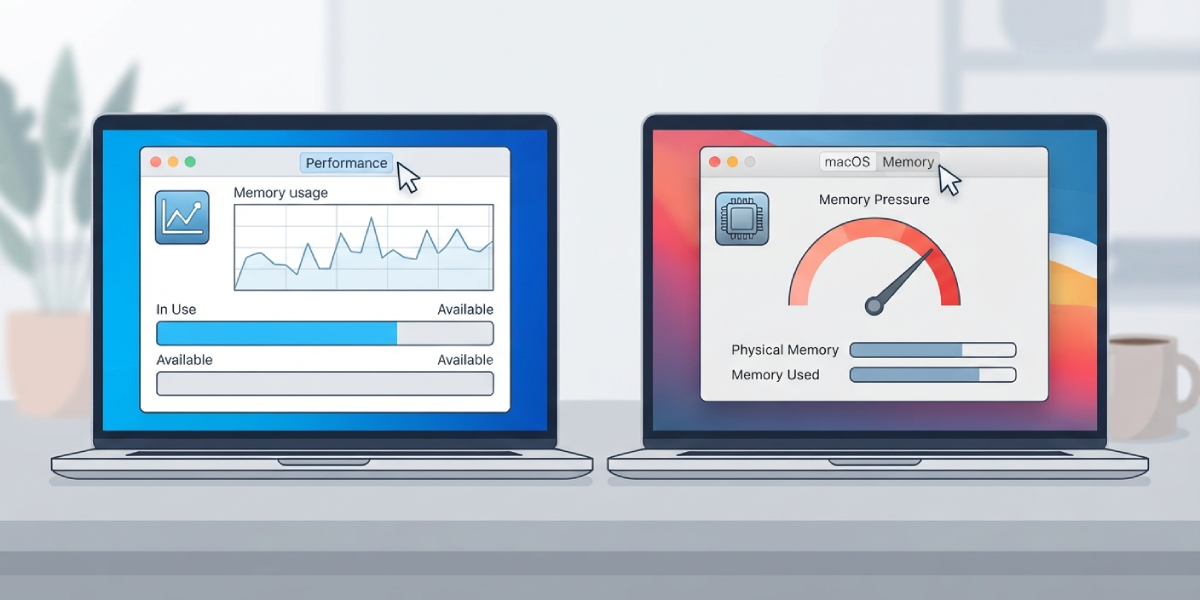
- Step 1: On Windows, open Task Manager and click the Performance tab, then select Memory to see total capacity, speed, and how much is currently in use.
- Step 2: On macOS, open Activity Monitor and click the Memory tab to view memory pressure, which is a more useful indicator than raw usage percentage.
- Step 3: Watch memory usage during a typical demanding session, such as gaming or video editing, rather than at idle, since idle numbers rarely reveal the real bottleneck.
- Step 4: If usage regularly sits above 80 to 90 percent of total capacity during normal tasks, or if the system starts feeling sluggish and the drive activity light stays busy, that is a solid sign more RAM would help.
Tip: A system that constantly relies on virtual memory (using storage as overflow for RAM) will feel slow even with a fast processor, because storage is dramatically slower than actual memory chips.
Common Problems and Fixes
- System feels slow despite having 16GB or more: Check for memory-heavy background processes, outdated drivers, or too many browser extensions running simultaneously. Sometimes the issue is a specific application leaking memory rather than a genuine capacity shortage.
- Upgraded RAM but no performance improvement: Confirm the new modules are running in dual-channel mode rather than single-channel, since single-channel configurations can cut effective bandwidth significantly even with the same total capacity. Also verify the modules are seated fully and the correct slots were used according to the motherboard manual.
- New RAM not detected at full capacity: Enter the BIOS or UEFI settings and check that XMP or EXPO profiles are enabled so the memory runs at its rated speed, and confirm the motherboard officially supports the total capacity installed.
- Games or creative apps still stutter with plenty of RAM installed: The bottleneck may actually be the graphics card, storage drive speed, or CPU rather than memory. More RAM cannot fix a limitation elsewhere in the system.
Frequently Asked Questions
Is 8GB of RAM enough in 2026?
8GB is enough only for the lightest tasks like browsing and document editing with few applications open at once. Most users will find it limiting for multitasking or modern games.
Is 16GB of RAM overkill for everyday use?
No, 16GB is considered the practical standard for most everyday use in 2026, offering comfortable multitasking without unnecessary extra cost.
Does more RAM make a computer faster?
More RAM only improves speed when the current amount is a bottleneck. Beyond that point, additional memory sitting unused provides no performance benefit.
What is the difference between RAM speed and RAM capacity?
Capacity determines how much data can be held at once, while speed determines how quickly that data can be accessed. Both affect performance, but capacity usually matters more for avoiding slowdowns from multitasking.
Do gamers need 32GB of RAM?
Most current games run well on 16GB, but 32GB provides extra headroom for demanding titles combined with background applications like streaming or voice chat software.
How much RAM do video editors need?
Video editors working with high-resolution footage typically benefit from 32GB, while those handling complex multi-layer 4K or 8K projects often move up to 64GB.
Can too much RAM hurt performance?
Installing more RAM than needed does not hurt performance, but it does mean spending money on capacity that will likely never be used.
Should RAM or storage be upgraded first on a slow computer?
If the computer uses a traditional hard drive, upgrading to a solid-state drive often provides a bigger overall speed improvement than adding RAM. If it already has an SSD and still feels slow during multitasking, RAM is usually the better next upgrade.
Is it better to buy one large RAM stick or two smaller ones?
Two matched sticks running in dual-channel mode generally perform better than a single stick of the same total capacity, since dual-channel configurations increase memory bandwidth.
How much RAM is needed for a laptop versus a desktop?
The recommendations are largely the same for laptops and desktops based on use case, though desktops typically offer easier and cheaper upgrade paths since laptop memory is sometimes soldered and cannot be changed later.
