
Knowing how to clean GPU PCIe connectors safely can rescue a graphics card that shows no display, drops out randomly, or runs at reduced bus speed. The job takes about fifteen minutes and a few inexpensive supplies. The gold contacts on the card and the slot on the motherboard only need gentle handling, not aggressive scrubbing.
Key Takeaways
- Clean the gold edge fingers of the GPU with 90 percent or higher isopropyl alcohol and a lint-free cloth or microfiber swab.
- Clear the PCIe x16 slot with a soft brush and short bursts of compressed air. Never push liquid or tools into the slot.
- Skip pencil erasers, abrasives, and metal tools. They scratch or contaminate the plating.
- Let everything dry completely, then reseat the card until the slot latch clicks and reconnect the power cables firmly.
- Clean connectors only when there is a reason, such as no signal, artifacts, or a card that is not detected.
Before You Start
Preparation keeps both the card and the motherboard safe. A few minutes here prevents most accidents.
Safety Prep
- Shut the PC down fully, switch off the power supply, and unplug the power cable from the wall.
- Press the case power button once after unplugging to drain leftover charge from the system.
- Touch bare metal on the case or wear an anti-static wrist strap to discharge static.
- Let the GPU cool if the PC was running recently, since heatsinks can stay hot for several minutes.
- Work on a clean, well-lit, non-carpeted surface, and hold the card by its edges and bracket.
Tools and Materials
- Isopropyl alcohol, 90 percent or higher
- Lint-free or microfiber cloth
- Foam or microfiber-tipped swabs (avoid loose-cotton swabs that shed fibers)
- Soft anti-static brush
- Compressed air
- Phillips screwdriver for the bracket screw
- Flashlight or phone light for inspecting the slot
Opening a PC is routine for most desktop builds, but some prebuilt systems carry warranty seals or proprietary parts. Check the warranty terms first. If a pin is bent or the slot looks cracked or burned, stop and have a professional technician look at it.
Step-by-Step: How to Clean GPU PCIe Connectors Safely
- Step 1: Open the side panel and take a quick photo of the cable layout. This makes reassembly easy, especially with several PCIe power cables.
- Step 2: Unplug every PCIe power cable from the graphics card. Press each cable’s release tab and pull straight out rather than tugging on the wires.
- Step 3: Remove the screw or screws holding the card’s bracket to the case. If a support bracket or anti-sag stand is fitted, move it aside.
- Step 4: Release the retention latch at the end of the PCIe slot. On many boards this is a small plastic tab that pushes down or sideways, and some boards use a button instead. Lift the card out evenly, keeping it level so the connector does not rock and strain the slot.
- Step 5: Inspect the gold edge fingers under good light. Look for dull patches, dark film, fingerprints, or discoloration. Light tarnish is normal, while deep scratches or burn marks point to damage that cleaning will not fix.
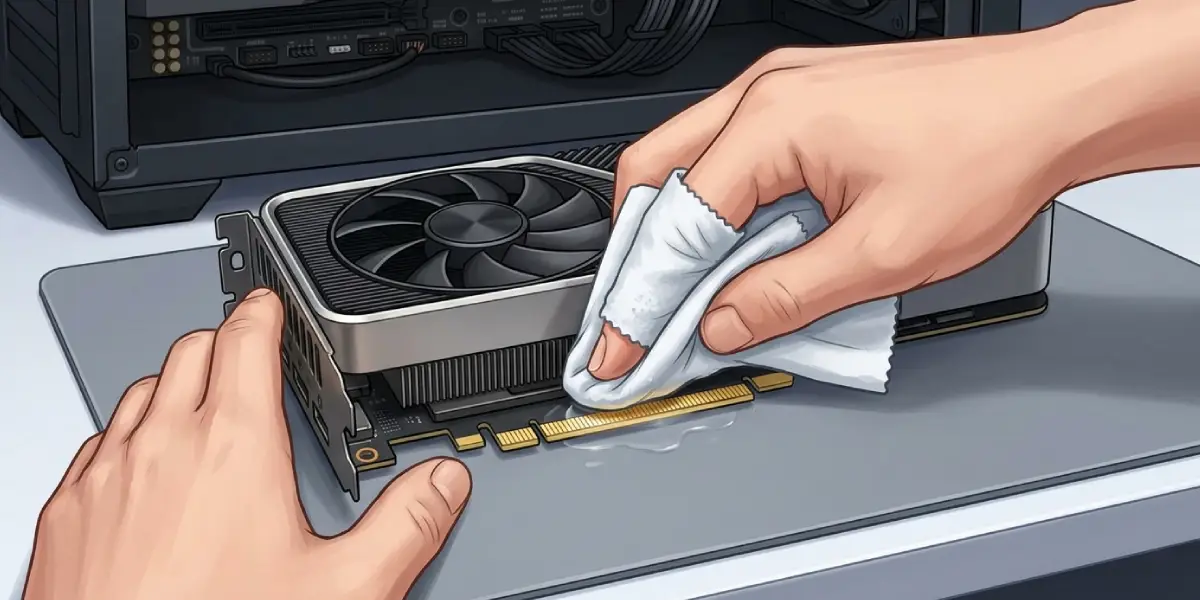
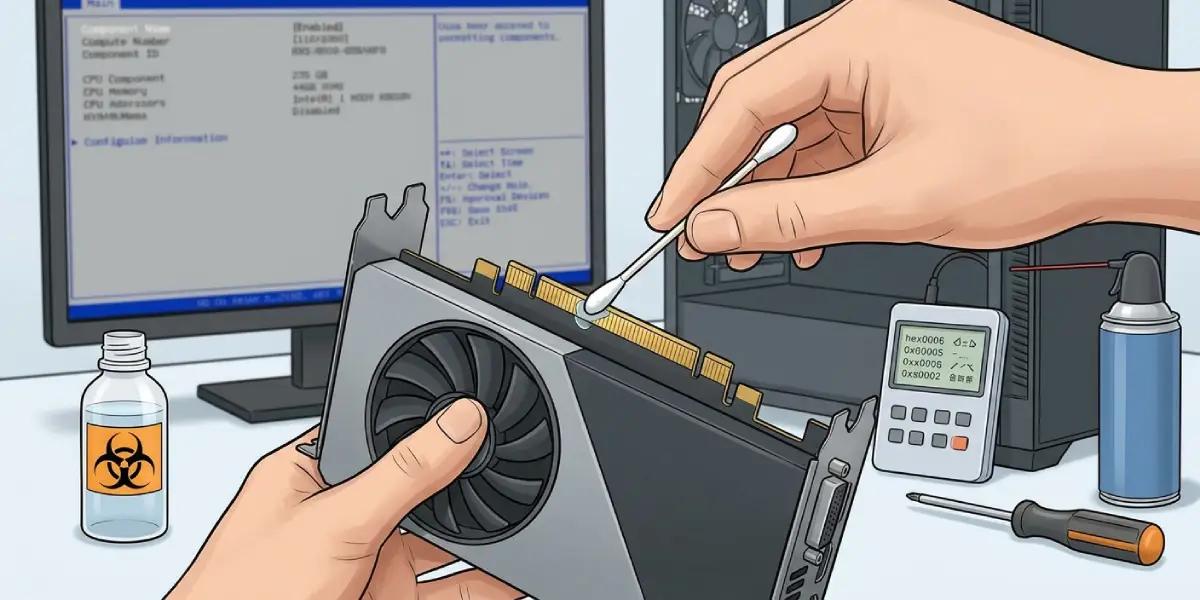
- Step 6: Dampen a lint-free cloth or foam swab with isopropyl alcohol. It should be damp, not dripping. Wipe along the length of each finger in one direction, away from the card body, and keep switching to a clean section of cloth.
- Step 7: Dry the fingers with a fresh dry part of the cloth. Then set the card down on a clean, static-safe surface for several minutes so any remaining alcohol evaporates.
- Step 8: Clean the PCIe slot. Brush gently along the slot with the soft brush to loosen dust, then use short bursts of compressed air with the can held upright. Aim along the slot rather than straight down into it.
- Step 9: Check the slot with a flashlight. Dust, pet hair, or a stray fiber can sit between the contacts and cause poor connection. Remove anything visible with the brush or air.
- Step 10: Reinstall the card. Line the edge connector up with the slot, then press down firmly and evenly until the retention latch clicks. Secure the bracket screw, then reconnect all PCIe power cables until they click.
- Step 11: Close the case, reconnect power, and switch the power supply back on. Boot the PC and confirm that the display works and the GPU is detected.
Tip: Hold the GPU fan blades still with a finger or a soft tool while using compressed air near the card. Fans that spin freely from a blast of air can generate a voltage spike or wear the bearings.
Cleaning the PCIe Slot Without Causing Damage
The slot is the more delicate half of the connection. Its contacts are small spring pins inside a plastic housing, and they bend easily.
What to Avoid in the Slot
- Do not spray or pour isopropyl alcohol into the slot. Liquid can pool inside and take a long time to dry.
- Do not insert credit cards, paper, or metal tools. These can bend contacts or leave debris behind.
- Do not blow into the slot with the mouth. Moisture from breath can cause corrosion over time.
Tip: If the slot looks dirty beyond dust, a foam swab barely dampened with alcohol can be run along the slot opening, but only if the swab fits without force and the board is left to dry fully before power returns.
What to Use and What to Skip
Isopropyl alcohol at 90 percent or higher evaporates fast and leaves little residue, which is why it is the standard choice. Lower concentrations contain more water and dry slowly. Microfiber and lint-free cloth are gentle and do not shed fibers.
Pencil erasers are often suggested online, but they are best avoided. Erasers can leave rubber residue and abrade the thin gold plating, which shortens the life of the contact. Abrasive pads, sandpaper, and metal blades are also off the table for the same reason. Water and household cleaners are never appropriate on electronics.
When Cleaning Is Worth Doing
Gold plating resists corrosion well, so healthy connectors rarely need attention. Cleaning makes sense in a few common situations:
- The PC powers on but there is no display output from the GPU.
- The graphics card is not detected in Device Manager or the BIOS.
- Random black screens, crashes, or visual artifacts appear without a clear software cause.
- The card runs at a lower PCIe link width or speed than expected.
- The card has been moved, shipped, or stored in a dusty or humid environment.
Cleaning a connector that is already working adds handling risk with no benefit, so it is better left alone in that case.
Common Problems and Fixes
No Display After Reinstalling the Card
The most common cause is a card that is not fully seated or a power cable that is not clicked in. Power down, reseat the card until the latch clicks, and check every PCIe power connector. Also confirm the monitor cable is plugged into the graphics card ports and not the motherboard.
PC Does Not Boot at All
Check that the power supply switch is on and that the 24-pin and CPU power cables were not knocked loose during the work. Remove the GPU and try booting with integrated graphics if the CPU supports it, which helps tell whether the problem is the card or something else.
Card Still Not Detected After Cleaning
Try a different PCIe x16 slot if the board has one, and test the card in another PC if possible. Persistent failure after proper cleaning points to a damaged slot, a faulty card, or a power delivery problem rather than a dirty connector.
Card Runs at a Lower PCIe Speed or Width
Some cards reduce the link speed at idle to save power, so check the reading under load using a tool such as GPU-Z with its render test. If the card still shows a lower width under load, reseat it and recheck the slot for debris.
Visible Residue or Streaks on the Gold Fingers
This usually means too much alcohol or a lint-shedding cloth was used. Wipe again with a fresh lint-free cloth lightly dampened with isopropyl alcohol, then let the card dry fully.
Burn Marks or Melted Plastic on a Connector
Discoloration, a burnt smell, or melted plastic on a power connector or slot signals electrical damage. Do not keep powering the system. Have the card, cable, or board inspected by a qualified technician.
Frequently Asked Questions
Is it safe to clean GPU PCIe connectors with isopropyl alcohol?
Yes, when the alcohol is 90 percent or higher and applied sparingly to a lint-free cloth or foam swab. The card must be fully dry before it is reinstalled and powered on.
How often should GPU PCIe connectors be cleaned?
Only when there is a reason, such as no display, detection problems, or visible dirt. Healthy gold connectors do not need routine cleaning.
Can a dirty PCIe connector cause a GPU not to be detected?
Yes. Dust, film, or oxidation on the contacts can interrupt the connection, so the card may not be detected or may produce unstable behavior. A poorly seated card or a faulty slot can cause the same symptoms.
Should a pencil eraser be used on gold PCIe fingers?
No. An eraser can leave residue and wear down the thin gold plating. Isopropyl alcohol and a lint-free cloth are safer and more effective.
Can compressed air alone clean a PCIe slot?
Compressed air removes loose dust well, but it will not remove film or oils. Pairing it with a soft brush gives better results, and the can should be kept upright and used in short bursts.
How long should the GPU dry after cleaning?
Isopropyl alcohol at 90 percent or higher evaporates quickly, but waiting several minutes before reinstalling is a safe habit. Longer is better if the cloth was noticeably wet.
Do GPU PCIe power connectors need cleaning too?
They rarely do, but loose or partly inserted power cables are a frequent cause of crashes and black screens. Unplugging and firmly reseating each cable until it clicks usually solves the problem, and any dust can be cleared with a soft brush.
Will cleaning the PCIe connector void the warranty?
Wiping the card’s edge fingers is generally low risk, but warranty terms vary. Some prebuilt systems and manufacturers restrict opening the case or removing parts, so reading the warranty first is wise.
What if the GPU still does not work after cleaning the PCIe connector?
Test the card in another PCIe slot or another computer, and check all power cables. If the problem follows the card, it is likely faulty, and if it follows the slot, the motherboard may need service from a professional.
