
A laptop that runs hot during gaming, video editing, or long work sessions usually needs more airflow than its internal fans can pull in on their own, and that is exactly where a cooling pad earns its keep. Adding one is one of the simplest ways to improve laptop cooling without opening the case or touching a single internal component. The right pad, placed and used correctly, can noticeably lower surface and internal temperatures during demanding tasks.
Key Takeaways
- A cooling pad works by increasing airflow underneath the laptop, which helps the built-in fans exhaust hot air more efficiently.
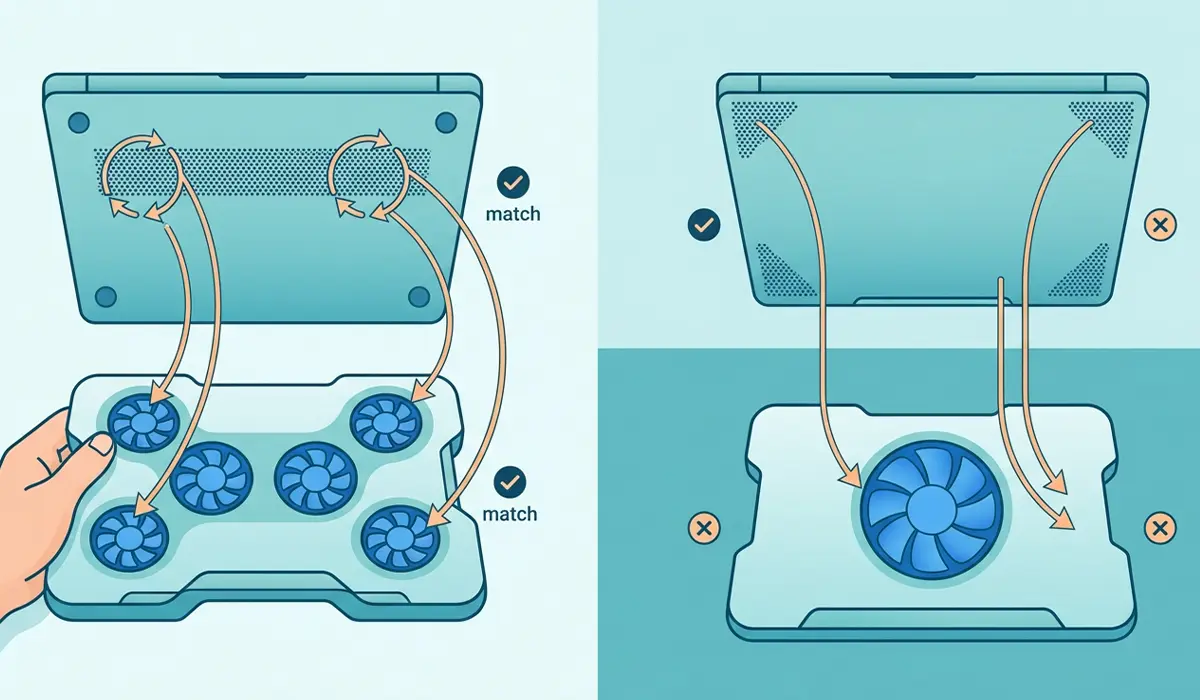
- Pads with multiple fans positioned near the laptop’s intake vents perform better than pads that just blow air at the flat underside.
- Elevating the laptop’s rear edge improves natural airflow even before the pad’s fans are switched on.
- A cooling pad helps most with laptops that pull air from the bottom panel; it does little for laptops that intake air only from the sides or top.
- Cooling pads reduce fan strain and heat buildup over time, but they cannot fix a laptop with dust-clogged vents or dried-out thermal paste.
Choosing and Using a Cooling Pad to Improve Laptop Cooling
The fastest way to see results is picking a pad that matches how a specific laptop actually breathes. Most laptops draw cool air in through vents on the underside near the front or center, then push hot air out through vents on the back or side edges. A cooling pad that lines up its fans with those intake vents gives the internal cooling system a real boost. A pad that just blows generic airflow across the whole chassis helps less, since much of that air never reaches where it is needed.
Match Fan Placement to the Laptop’s Vents
Before buying or using a pad, flip the laptop over and look for the mesh or perforated sections where air is pulled in. Multi-fan pads with adjustable or repositionable fans allow those fans to sit directly under those intake points. Single large-fan pads work fine on laptops with one central intake vent but underperform on laptops with vents split toward the corners.
Set the Right Elevation and Angle
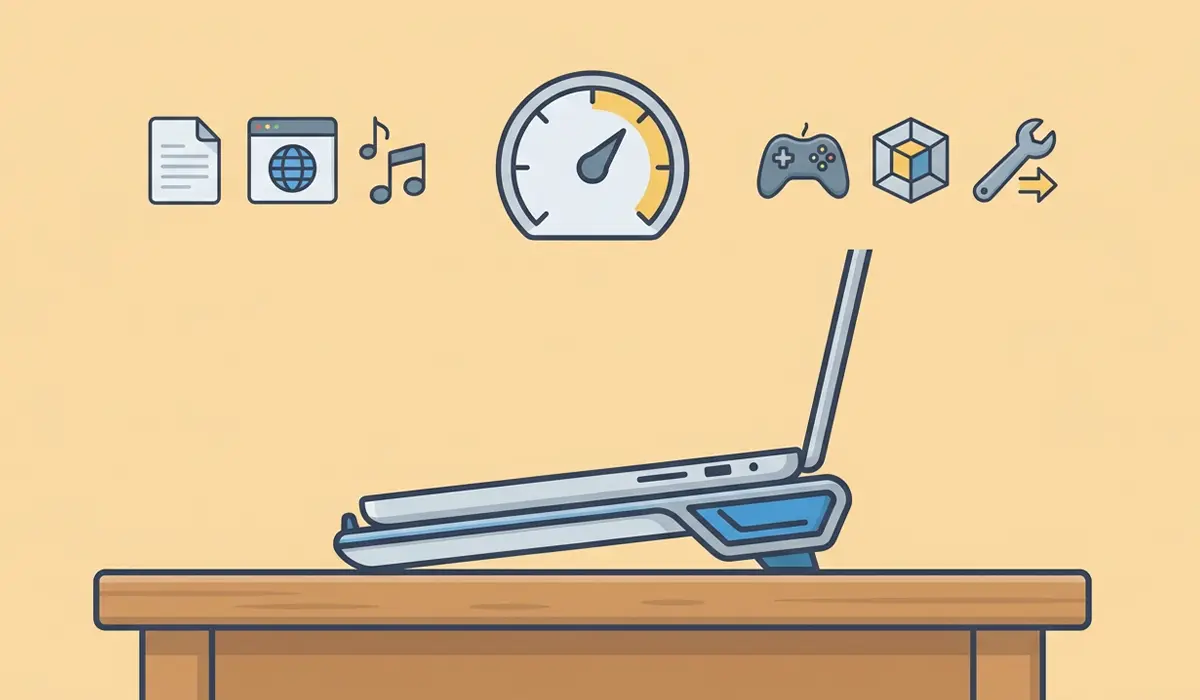
Most cooling pads tilt the laptop upward at the back, and this angle does more than just look ergonomic. Raising the rear edge increases the gap between the desk surface and the intake vents, letting more ambient air reach them even before any fan spins. Most people find that a moderate tilt, rather than the steepest setting, offers the best balance between airflow and typing comfort.
Use the Correct Fan Speed for the Task
Running fans at maximum speed constantly is not always necessary and adds fan noise for no real benefit during light tasks like browsing or word processing. Save higher fan speeds for sustained heavy loads such as gaming, rendering, or compiling code, and drop to a lower or medium setting for everyday use. Tip: use USB-powered pads plugged directly into a laptop’s USB port rather than through an unpowered hub, since some hubs cannot supply enough current for pads with several fans running at full speed.
Keep the Desk Surface and Pad Clean
A cooling pad pulls in ambient room air, so dust on the desk, carpet fibers, or pet hair near the pad’s intake gets pulled straight into its fans and eventually toward the laptop. Wiping down the desk area and periodically dusting the pad’s fan grilles with a soft brush or a short burst of compressed air keeps airflow consistent instead of gradually declining.
Common Problems and Fixes
Cooling pad is running but temperatures barely change: This usually means the fans are not aligned with the laptop’s actual intake vents, or the laptop draws air from the sides rather than the bottom. Reposition adjustable fans directly under the vent locations, and if the laptop intakes from the sides, consider a pad with side airflow channels or accept that a pad will offer only limited benefit for that specific model.
Pad fans are loud but airflow feels weak: Cheaper fans can spin fast while moving relatively little air. Check that the pad’s intake grille underneath is not blocked by a soft surface like a mattress or cushion, since fans need open space below them to pull air in, not just push it out the top.
Laptop still throttles under heavy load even with the pad running: A cooling pad supplements airflow, but it cannot compensate for internal vents clogged with dust or thermal paste that has dried out after years of use. If temperatures stay high despite proper pad use, an internal cleaning or a thermal paste refresh is likely overdue.
USB-powered pad is not getting enough power: Some laptops limit power output on certain USB ports, especially when running on battery. Plugging the pad into a different port, connecting the laptop to AC power, or using a pad with its own separate power adapter usually resolves this.
Pad makes the laptop feel unstable or wobbly: This is common with pads that have a mesh surface too flexible for the laptop’s weight distribution, particularly with larger 17 inch models. Choosing a pad rated for the laptop’s size and weight, and centering the laptop rather than pushing it toward one edge, fixes most stability issues.
Frequently Asked Questions
Does a cooling pad actually lower laptop temperatures?
Yes, when the fans are aligned with the laptop’s intake vents, a cooling pad can meaningfully lower both surface and internal temperatures during demanding tasks by increasing the volume of air available for the laptop’s own fans to pull in.
What type of cooling pad works best?
Pads with multiple, repositionable fans generally outperform single large-fan designs, since they can be aligned precisely with a specific laptop’s vent layout rather than blowing air across the whole underside indiscriminately.
Can a cooling pad replace the need to clean dust out of a laptop?
No. A cooling pad improves external airflow, but it cannot remove dust that has already built up inside the laptop’s heatsink and fan assembly. Periodic internal cleaning is still necessary regardless of pad use.
Do cooling pads work on laptops that intake air from the sides?
They offer limited benefit in that case, since the pad’s airflow is directed at the bottom panel rather than the side vents. Checking vent locations before buying a pad helps set realistic expectations.
Is a higher fan speed always better for cooling?
Not necessarily. Higher fan speeds help most during sustained heavy loads, but running fans at maximum speed for light tasks adds unnecessary noise without a meaningful temperature benefit.
Does elevating the laptop with a cooling pad help even with the fans off?
Yes, to a degree. Raising the back of the laptop increases the gap between the desk and the intake vents, which improves passive airflow even before the pad’s fans are switched on.
Can a cooling pad damage a laptop?
A properly sized, stable cooling pad will not damage a laptop. The main risk comes from unstable or poorly fitted pads that let the laptop wobble, which can strain hinges or increase the chance of an accidental drop.
Should a cooling pad be used with the laptop on battery power?
USB-powered pads with several fans can draw more current than some laptops supply through USB while on battery. If fan speed drops noticeably on battery power, connecting the laptop to AC power usually restores full pad performance.
How often should the cooling pad itself be cleaned?
Wiping down the fan grilles every few weeks, or more often in dusty environments, keeps airflow consistent. A soft brush or a short burst of compressed air is enough for routine maintenance.
Will a cooling pad fix thermal throttling on its own?
It can reduce throttling caused by insufficient airflow, but if throttling persists after proper pad use, the underlying cause is often dust buildup or degraded thermal paste inside the laptop, which a cooling pad cannot address.
