
A PC that suddenly powers off with no warning, no blue screen, and no error message is one of the more frustrating problems a desktop or laptop owner can run into.
What causes a PC to randomly shut down almost always comes down to a handful of hardware-level issues, ranging from overheating and failing power supplies to unstable drivers and dying batteries. This guide walks through the real causes technicians see most often and how to track down which one applies.
Key Takeaways
- Overheating is the single most common cause of random shutdowns, especially in dusty desktops and laptops with clogged vents.
- A failing or undersized power supply unit (PSU) can cause shutdowns under load, particularly during gaming or heavy tasks.
- Faulty RAM, a corrupted driver, or an outdated BIOS can trigger a shutdown that looks random but repeats under specific conditions.
- On laptops, a degraded battery or a loose charging connection is frequently the culprit, not the internal hardware.
- Working through causes in order of likelihood, starting with heat and power, saves time versus guessing at a fix.
Common Causes of Random PC Shutdowns
Before jumping to a fix, it helps to understand what is actually happening inside the machine. A shutdown that happens with no crash screen is usually the system protecting itself, not failing outright.
Overheating and Thermal Shutdown
Every modern processor and graphics card has a built-in thermal limit. When internal temperatures spike past that limit, the system cuts power immediately to prevent damage.
This is by far the most frequent reason a desktop or laptop drops off without warning, and it usually shows up during gaming, video rendering, or anything else that pushes the CPU or GPU hard. Dust buildup on heatsinks and fans, dried-out thermal paste, and blocked air vents are the usual suspects.
Power Supply Problems
A power supply unit that is aging, damaged, or simply undersized for the components it feeds can cause shutdowns the moment demand spikes, such as when a graphics card ramps up during a game. This is especially common after a graphics card upgrade where the old PSU was never rated for the new load.
On laptops, the equivalent problem is a failing charger, a worn charging port, or a battery that can no longer hold a stable charge.
Faulty or Incompatible RAM
Bad memory modules do not always throw obvious errors. Sometimes they cause a shutdown or unexpected restart instead, particularly under memory-intensive tasks. Mismatched RAM sticks, a stick that has come loose in its slot, or a module that is simply failing can all produce this symptom.
Driver, BIOS, or Software Conflicts
An outdated graphics driver, a corrupted system file, or an old BIOS version can sometimes cause the system to shut down rather than crash cleanly, especially right after a Windows update or a new driver install. This cause is easy to miss because it looks identical to a hardware fault from the outside.
Electrical and Connection Issues
Loose internal cables, a failing wall outlet, a worn surge protector, or a laptop charging port with a poor connection can all interrupt power delivery just enough to trigger a shutdown. This cause is often overlooked because it has nothing to do with the components themselves.
Battery Failure on Laptops
A laptop battery that has degraded significantly can cause the system to shut down abruptly once it hits a low charge threshold, sometimes well before the reported battery percentage suggests it should. This is especially common in laptops more than a few years old that see daily use.
How to Diagnose and Fix a Randomly Shutting Down PC
Working through these steps in order helps rule out the most likely causes first, rather than replacing parts on a guess.
Before You Start
Power the machine down fully and unplug it from the wall before opening the case or touching internal components. Let the system cool for a few minutes if it just shut down from heat. Touch a bare metal part of the case or use an anti-static wrist strap before handling any internal hardware to avoid static discharge.
Opening a laptop or desktop case may affect the manufacturer’s warranty, so check the warranty terms first if the machine is still covered.
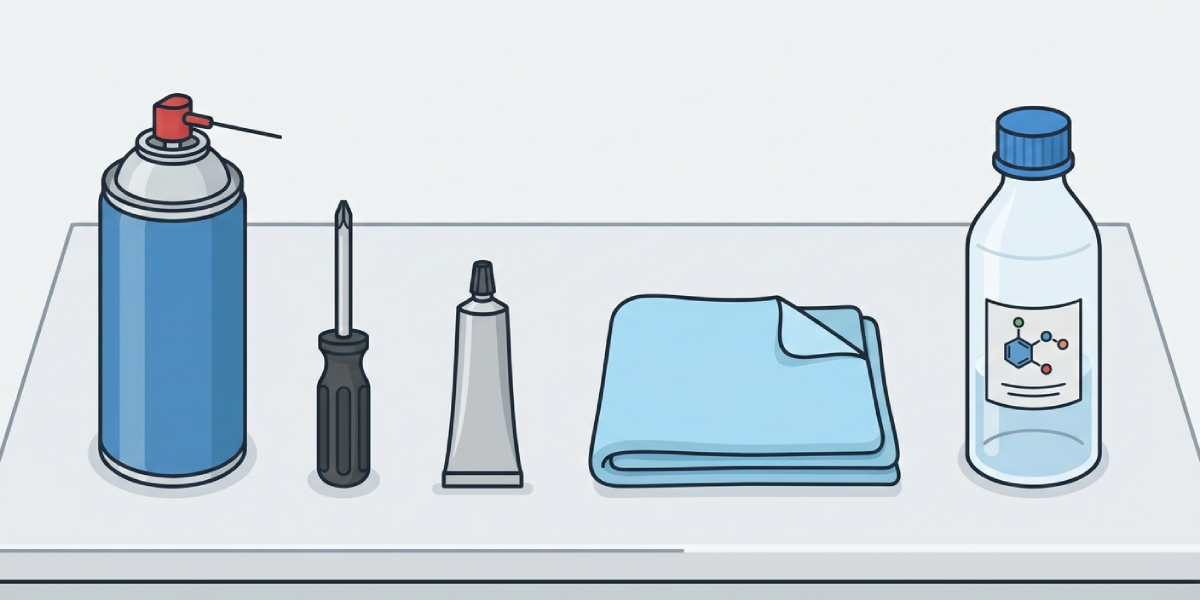
Tools and Materials Needed
- Compressed air or a soft brush for dust removal
- A screwdriver matching the case or laptop panel screws
- Fresh thermal paste, if reapplication is needed
- A lint-free or microfiber cloth
- 90 percent or higher isopropyl alcohol, for cleaning off old thermal paste
- Step 1: Check internal temperatures using a monitoring tool such as HWMonitor or the motherboard manufacturer’s utility, and watch CPU and GPU temperatures while running a normal task. Sustained high temperatures right before a shutdown point strongly to a heat issue.
- Step 2: Open the case or laptop base panel and clean out dust from the fans, heatsinks, and vents using compressed air, holding fans still with a finger to avoid spinning them past their rated speed.
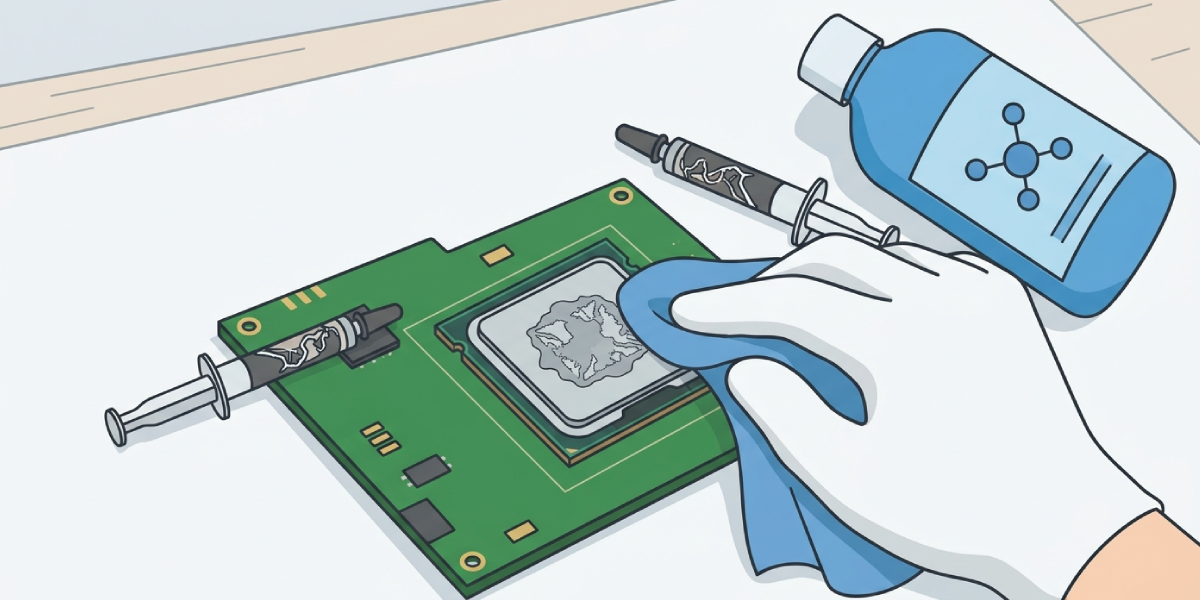
- Step 3: If the system is more than two or three years old and has never had it done, remove the CPU cooler, clean off the old thermal paste with isopropyl alcohol and a lint-free cloth, and apply a fresh, thin layer of new paste before reseating the cooler.
- Step 4: Test the power supply by checking whether shutdowns happen specifically under heavy load, such as gaming or exporting video. If so, and the PSU is older or was not sized for a recently added graphics card, replacing it with a unit rated for the system’s actual power draw is the most reliable fix.
- Step 5: Run a memory diagnostic, such as Windows Memory Diagnostic or MemTest86, to check for faulty RAM. If errors show up, reseat each stick firmly in its slot first, then test each stick individually to isolate a bad module.
- Step 6: Update the graphics driver, chipset drivers, and BIOS to their current versions from the manufacturer’s website, since an outdated version is a common and easy-to-fix cause of unexpected shutdowns.
- Step 7: On a laptop, check battery health through the operating system’s built-in battery report and inspect the charging cable and port for damage or a loose fit. A battery reporting significantly reduced capacity is a strong sign it needs replacing.
- Step 8: Rule out the electrical side by plugging the PC directly into a wall outlet instead of a power strip or surge protector, and try a different outlet if one is available.
Tip: Keep a simple log of when shutdowns happen, what the system was doing at the time, and how warm the case felt. A pattern tied to gaming or heavy load points toward heat or power, while shutdowns that happen at idle point more toward electrical or battery issues.
Common Problems and Fixes
The following issues come up often even after the main diagnostic steps have been completed.
- Shutdowns continue after cleaning and reapplying thermal paste: Reseat the CPU cooler to confirm even mounting pressure, since an uneven mount can leave temperatures high even with fresh paste. If temperatures still climb quickly under light use, the cooler itself may be undersized for the CPU.
- PC shuts down only while gaming, even after a PSU upgrade: Confirm the new PSU’s wattage and connector types actually match the graphics card’s requirements, since an incorrectly rated unit can cause the same symptom as the old one.
- Laptop shuts down even while plugged in: This usually points to a failing charging port, a damaged charging cable, or a battery that has failed completely rather than just degraded. Testing with a different, known-good charger helps narrow this down quickly.
- Shutdowns stop for a few days, then return: This pattern is common with dust buildup returning quickly in a high-dust environment, or with a marginal power supply that only fails intermittently. Keeping the diagnostic log running helps catch the pattern again.
- System shuts down immediately after a driver or BIOS update: Rolling back to the previous driver version or BIOS release often resolves this, since a specific update can occasionally introduce a power management bug.
Frequently Asked Questions
Why does a PC shut down instead of showing a blue screen?
A sudden shutdown with no error screen usually means the hardware itself cut power, often as a thermal or power protection response, rather than the operating system crashing. A blue screen is a software-level event, while an instant shutdown points more toward hardware.
Can a virus or malware cause random shutdowns?
It is uncommon, but certain malware that pushes the CPU or GPU to constant high usage can indirectly trigger a thermal shutdown. Running a full antivirus scan is worth doing if hardware causes have been ruled out.
Is it safe to keep using a PC that shuts down randomly?
Occasional use to run diagnostics is fine, but repeated thermal shutdowns can shorten the lifespan of the CPU or GPU over time. It is best to identify and fix the cause before returning to normal daily use.
How can overheating be confirmed as the cause?
Monitoring software that logs CPU and GPU temperatures in the background makes it possible to check the readings right before a shutdown happened. Temperatures at or near the component’s rated maximum right before the shutdown confirm heat as the cause.
Does a laptop battery need to be replaced if it causes shutdowns?
If the built-in battery report shows significantly reduced capacity or the laptop shuts down at a charge level well above zero percent, replacement is usually the most reliable fix. A battery that has degraded this much rarely improves with calibration alone.
Can a power strip or surge protector cause a PC to shut down?
Yes, an aging or overloaded power strip can fail to deliver stable power, which can look identical to a PSU problem. Plugging the PC directly into a wall outlet is a quick way to test this.
How long does it take to diagnose a random shutdown issue?
Simple causes like dust buildup or an outdated driver can be confirmed within an hour. More complex cases involving RAM testing or PSU replacement can take a day or more, since some tests need to run for extended periods to catch an intermittent fault.
Should thermal paste be replaced even if the PC is still under warranty?
Opening the case to replace thermal paste can affect warranty coverage on some systems, so checking the manufacturer’s warranty terms first is worth doing. If the system is still covered, contacting the manufacturer or an authorized service center is the safer route.
What is the most common single cause of random PC shutdowns?
Overheating from dust buildup and dried thermal paste is by far the most common cause seen in both desktops and laptops. It is also usually the easiest and cheapest issue to fix.
When should a professional technician be called instead of self-diagnosing?
If shutdowns continue after checking temperatures, power, RAM, and drivers, or if there is any doubt about handling internal components safely, a professional technician can run deeper diagnostics such as load testing the power supply directly. This is also the better route for anyone uncomfortable opening a laptop chassis.
