
Learning how to fix black screen on startup with cursor behavior starts with one clue: the PC is running, Windows has loaded far enough to draw a pointer, but the desktop never appears. That usually points to a stalled desktop shell, a display handoff problem, or a graphics driver fault rather than a dead computer. The fixes below run from the fastest checks to the more involved repairs.
Key Takeaways
- A visible cursor means Windows is running, so the problem is almost always software or display detection, not a failed motherboard or drive.
- Restarting the desktop process (explorer.exe) from Task Manager fixes many cases within seconds.
- Display driver problems, Fast Startup glitches, and a bad Windows update are the next most common causes.
- Safe Mode, reached through the Windows Recovery Environment, is the safest place to make deeper repairs.
- If the screen stays black in the BIOS or on a different monitor too, the cause is more likely hardware.
Common Causes of a Black Screen With a Cursor
Think of Windows startup as a relay race. The system loads, hands off to the sign-in process, then hands off to the desktop shell. A black screen with a cursor means the baton was dropped near the end. The usual reasons are:
- The desktop shell (explorer.exe) failed to start or crashed during sign-in.
- The graphics driver is corrupted, outdated, or conflicting after an update.
- Windows is sending the picture to the wrong display, such as a disconnected monitor or TV.
- Fast Startup left the system in a half-saved state after a previous shutdown.
- A recent Windows update or newly installed software interfered with startup.
- Corrupted system files or a damaged user profile.
Before You Start
Most of these fixes need no tools, but a little preparation avoids extra trouble. Save any open work if the system responds at all, and unplug unneeded USB devices, docks, and extra monitors. A second known-working display cable or monitor is useful for testing. Nothing here requires opening the case, but if a hardware check points to a loose RAM stick or a failing graphics card, a professional repair is the safer route, and opening a device may affect its warranty.
How to Fix Black Screen on Startup With Cursor: Ordered Steps
Work through these in order and test after each one. Stop as soon as the desktop returns.
Quick Fixes First
- Step 1: Press Ctrl + Shift + Esc to open Task Manager. If it opens, choose File, then Run new task, type explorer.exe, tick the option to create the task with administrator privileges, and confirm. A working desktop at this point means the shell simply failed to launch.
- Step 2: Press Windows + Ctrl + Shift + B. This restarts the graphics driver, and a short beep or screen flicker means the command was received.
- Step 3: Press Windows + P and choose PC screen only. If Windows was sending video to a missing second display, this brings the picture back. Pressing the Down arrow then Enter after opening the menu works even when the screen is black.
- Step 4: Disconnect every external display, dock, and USB device, then force a restart by holding the power button until the machine shuts off. Start it again with only the essentials attached.
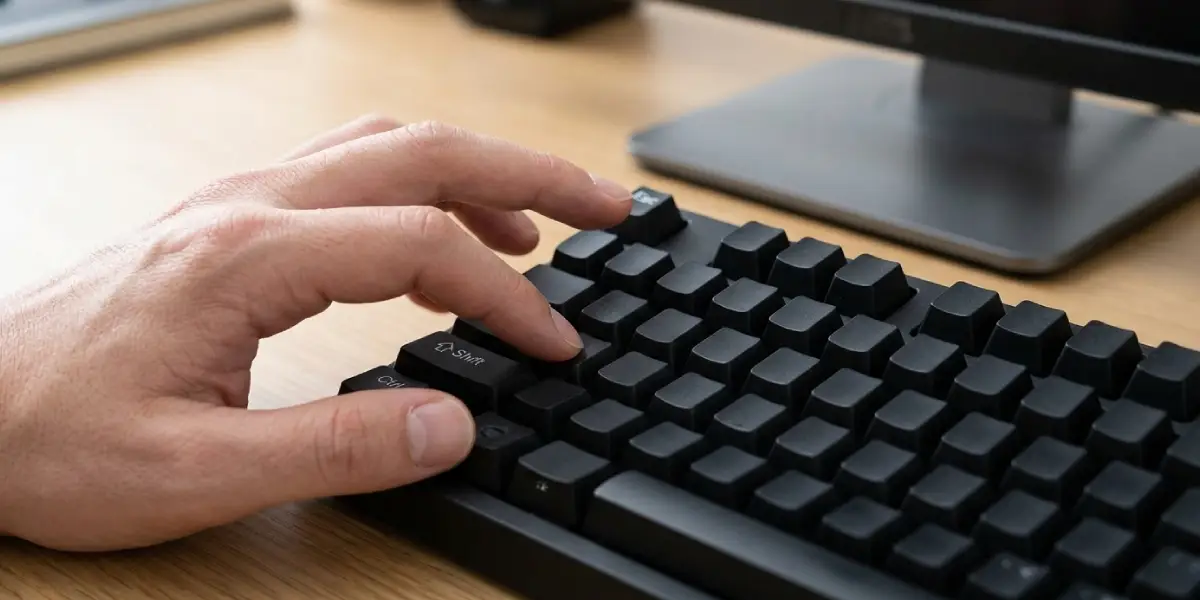
Tip: On a laptop, unplug the charger as well and hold the power button for around 15 seconds before restarting. This clears leftover charge and can reset a confused display path.
Boot Into Safe Mode
- Step 5: Turn the PC on, and as soon as the manufacturer logo or spinning dots appear, hold the power button to force it off. Repeat this two or three times until Windows shows the Automatic Repair or Recovery screen.
- Step 6: Select Advanced options, then Troubleshoot, then Advanced options, then Startup Settings, and choose Restart.
- Step 7: Press 4 or F4 for Safe Mode, or 5 or F5 for Safe Mode with Networking. A normal-looking desktop in Safe Mode strongly suggests a driver or startup software problem.
Repair the Display Driver
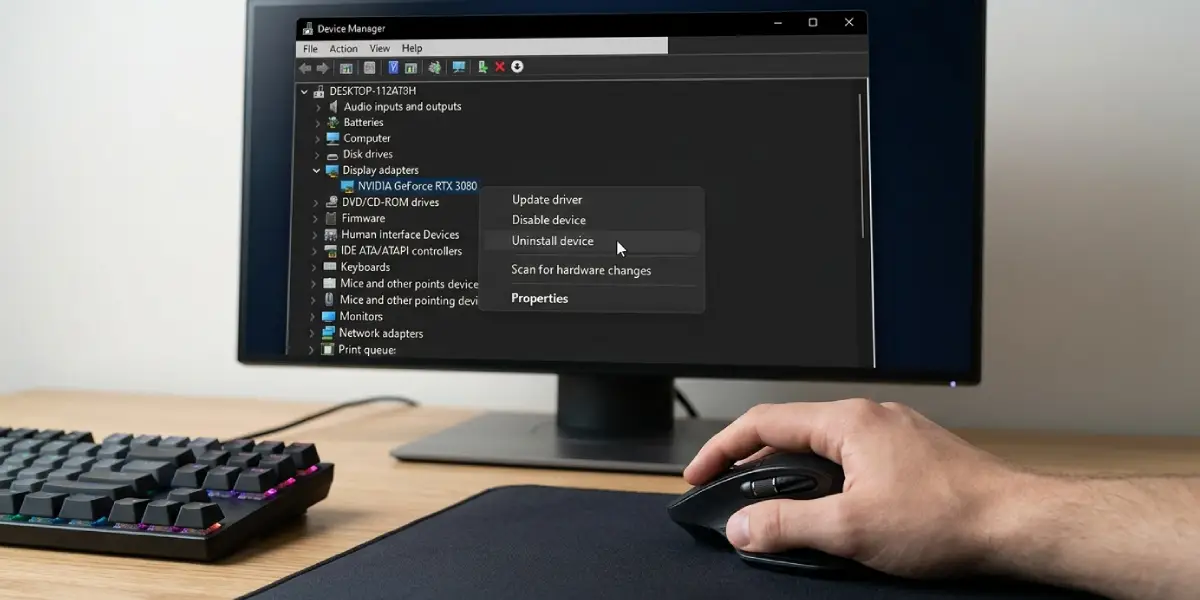
- Step 8: In Safe Mode, right-click Start and open Device Manager, then expand Display adapters.
- Step 9: Right-click the graphics adapter and choose Properties. If the Roll Back Driver button is available, use it. Otherwise choose Uninstall device and tick the option to delete the driver software if it appears.
- Step 10: Restart normally. Windows installs a basic driver automatically, and the latest driver can then be downloaded from the graphics manufacturer or the laptop maker.
Turn Off Fast Startup
- Step 11: In Safe Mode, open Control Panel, then Power Options, then Choose what the power buttons do.
- Step 12: Select Change settings that are currently unavailable, untick Turn on fast startup, and save the changes.
Repair System Files and Remove Bad Updates
- Step 13: Open Command Prompt as administrator, run sfc /scannow, and let it finish.
- Step 14: Run DISM /Online /Cleanup-Image /RestoreHealth, wait for it to complete, then restart.
- Step 15: If the problem began right after an update, open Settings, then Windows Update, then Update history, then Uninstall updates, and remove the most recent one.
- Step 16: From the recovery menu, try System Restore to return to a restore point created before the black screen began.
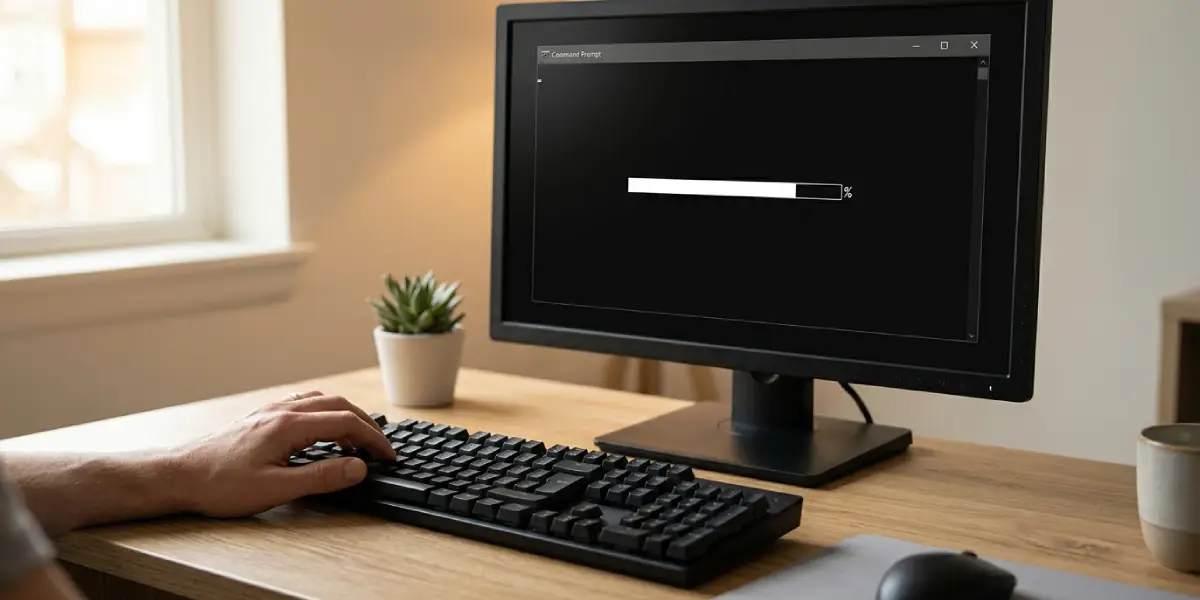
Tip: Run the scans in the order shown. DISM repairs the component store that SFC relies on, so a failed SFC scan often succeeds on a second try after DISM.
Last Resorts
- Step 17: Create a new local user account from Safe Mode. If the desktop loads normally under the new account, the original user profile is damaged, and files can be copied across.
- Step 18: Use Reset this PC from the recovery menu and choose the option to keep personal files. Back up important data first whenever access allows.
Common Problems and Fixes
The Screen Stays Black Even in Safe Mode
This points toward a hardware or firmware issue. Test with a different monitor and cable, and try the other video port on the PC. If the BIOS screen is also black, the display output or graphics hardware is the likely culprit and should be inspected by a technician.
Task Manager Will Not Open
Try Ctrl + Alt + Delete and choose Task Manager from the blue menu. If nothing responds, skip ahead to Safe Mode through the recovery screen.
The Black Screen Returns After Every Restart
This usually means Fast Startup is still enabled or the driver was reinstalled automatically in the same faulty version. Disable Fast Startup and install a different, stable driver version.
The Desktop Appears but Icons and Taskbar Are Missing
The shell started only partly. Run explorer.exe from Task Manager again, then run the SFC and DISM scans to repair the underlying files.
The Problem Appeared After a Windows Update
Remove the latest update from Update history in Safe Mode, then pause updates briefly until the issue is resolved.
Frequently Asked Questions
Why does my PC show a black screen with a cursor at startup?
It usually means Windows loaded but the desktop shell or display output failed. Common triggers are a crashed explorer.exe process, a faulty graphics driver, a wrong display selection, or a bad update.
Is a black screen with a cursor a sign of a dead hard drive or motherboard?
Rarely. The cursor appearing shows that Windows booted and the graphics system is working at a basic level, so the cause is typically software or display related.
Can I fix a black screen with a cursor without losing files?
Yes. Restarting explorer.exe, resetting the graphics driver, using Safe Mode, and running SFC and DISM do not remove personal files. Even Reset this PC offers an option to keep them.
What does Windows + Ctrl + Shift + B do?
It restarts the graphics driver without rebooting the computer. The screen may flicker briefly, and a short beep may sound when the command is received.
How do I open Task Manager when the screen is black?
Press Ctrl + Shift + Esc. If that does not work, press Ctrl + Alt + Delete and select Task Manager from the menu that appears.
Can Fast Startup cause a black screen with a cursor?
Yes. Fast Startup saves part of the system state at shutdown, and a corrupted save can leave the next boot stuck on a black screen. Turning the feature off in Power Options often prevents a repeat.
Should I reinstall Windows to fix this problem?
Reinstalling is a last resort. Driver rollback, system file repair, removing a recent update, and System Restore resolve most cases without a full reset.
When should I take the PC to a technician?
If the screen is black in Safe Mode, in the BIOS, and on a second monitor, or if the system shows other signs of hardware failure, professional diagnosis is the safest next step.
