
Audio cutting out randomly during music, calls, or video playback is one of the most frustrating everyday PC problems, and it almost always traces back to a driver conflict, a power-saving setting, or a loose physical connection. This guide breaks down the real causes and walks through the fixes that actually resolve it, starting with the quickest checks first.
Key Takeaways
- Random audio dropouts are usually caused by outdated or corrupted audio drivers, USB power-saving settings, or Bluetooth interference.
- A loose headphone jack connection or a failing audio cable can produce the exact same symptom as a software issue.
- Updating and reinstalling the audio driver resolves the majority of cases within a few minutes.
- Disabling USB selective suspend and audio enhancements prevents Windows from interrupting the audio stream.
- Wireless audio devices need a fresh pairing and updated firmware if dropouts happen only over Bluetooth.
Common Causes of Audio Cutting Out Randomly
Before jumping into fixes, it helps to understand what typically triggers this. Most people find that the problem falls into one of a few categories, and identifying which one applies narrows down the fix considerably.
Driver and Software Conflicts
An outdated, corrupted, or mismatched audio driver is the single most common cause. This happens often after a Windows update, since the update can silently swap in a generic driver that does not fully match the sound hardware.
Power Management Settings
Windows aggressively manages power to save battery life, and it sometimes suspends the USB controller or audio device mid-stream. This is especially common on laptops running on battery power.
Loose or Damaged Physical Connections
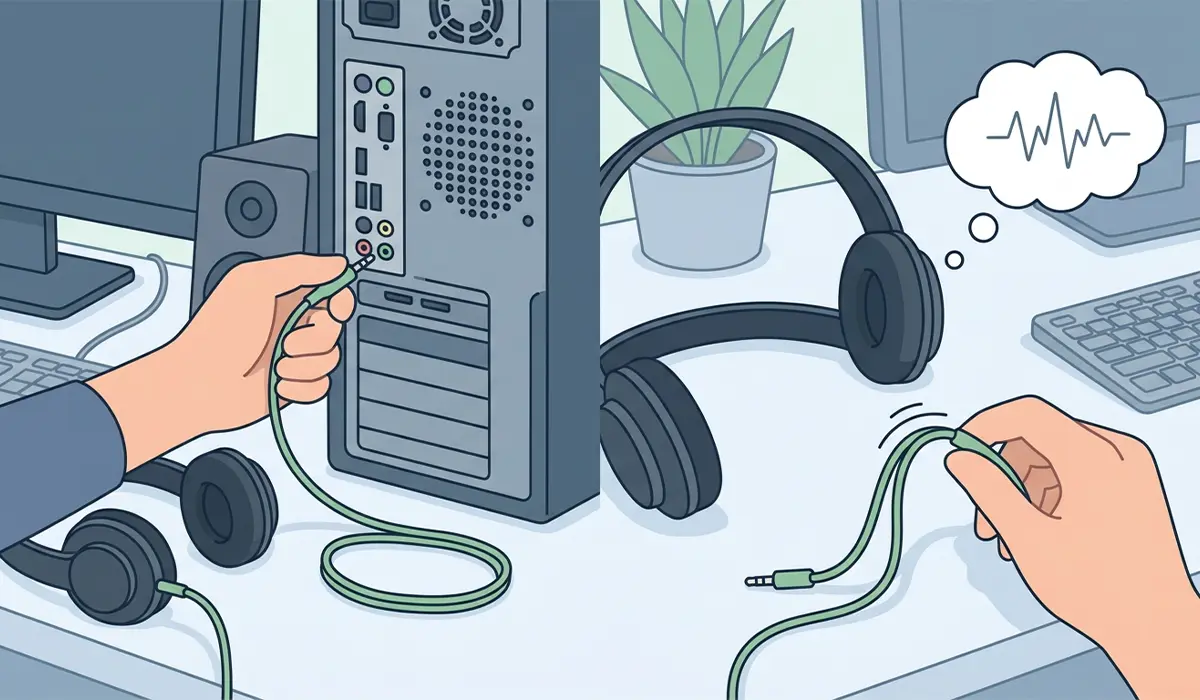
A worn headphone jack, a partially seated audio cable, or a failing 3.5mm port can cause intermittent cutouts that look identical to a software glitch. Wiggling the cable and hearing the audio flicker is a strong sign the issue is physical.
Bluetooth Interference and Codec Issues
Wireless headphones and speakers are sensitive to interference from Wi-Fi routers, microwaves, and other 2.4GHz devices. A weak Bluetooth codec pairing can also cause the stream to stutter under load.
Audio Enhancements and Exclusive Mode
Built-in Windows sound enhancements and certain exclusive-mode settings occasionally conflict with playback software, causing brief but repeated interruptions.
How to Fix Audio Cutting Out Randomly
Work through these steps in order. The key is to start with the simplest checks, since a surprising number of cases turn out to be a loose cable rather than anything deeper.
- Step 1: Check the physical connection first. Unplug and firmly reinsert any 3.5mm cable, USB audio adapter, or wireless dongle. If a wired headset is being used, gently wiggle the cable near the jack while audio plays to rule out a damaged connector.
- Step 2: Open Device Manager, expand ‘Sound, video and game controllers,’ right-click the audio device, and select ‘Update driver.’ Choose ‘Search automatically for drivers’ and let Windows install the latest version.
- Step 3: If updating does not help, uninstall the audio driver entirely from Device Manager, restart the computer, and let Windows reinstall a fresh copy automatically on boot.
- Step 4: Open Device Manager again, locate the audio device or the USB Root Hub controllers under ‘Universal Serial Bus controllers,’ open Properties, go to the Power Management tab, and uncheck ‘Allow the computer to turn off this device to save power.’
- Step 5: Right-click the speaker icon in the taskbar, choose ‘Sounds,’ select the active playback device, click Properties, and open the Enhancements tab. Check ‘Disable all sound effects’ to rule out enhancement conflicts.
- Step 6: On the same Properties window, open the Advanced tab and uncheck ‘Allow applications to take exclusive control of this device,’ since exclusive mode can cause certain apps to interrupt the shared audio stream.
- Step 7: For Bluetooth audio, forget the device in Windows Bluetooth settings, restart both the computer and the headphones or speaker, then pair again from scratch. Move any Wi-Fi routers or other wireless devices farther from the listening area if interference is suspected.
- Step 8: Run the built-in Windows audio troubleshooter by going to Settings, then System, then Troubleshoot, then Other troubleshooters, and running the Playing Audio troubleshooter. It catches several common misconfigurations automatically.
Tip: If the cutouts only happen in one specific app, like a browser or a game, the issue is often that app’s own audio settings rather than the system driver. Testing playback through a different app helps confirm whether the problem is system-wide or app-specific.
Common Problems and Fixes
Audio Still Cuts Out After a Driver Reinstall
This usually points to a hardware issue rather than software. Testing with a different set of headphones or an external USB audio adapter helps confirm whether the onboard sound chip or jack itself is failing.
Cutouts Only Happen Under Heavy CPU or GPU Load
This pattern often means a resource bottleneck is interrupting the audio buffer. Closing background applications and checking Task Manager for a process spiking to 100 percent usage during the dropout usually identifies the culprit.
Bluetooth Audio Stutters Even After Re-Pairing
Some Bluetooth adapters default to a lower-quality codec under interference. Checking for a firmware update on the headphones or speaker, and keeping the device within a few feet of the PC during testing, often clears this up.
Audio Cuts Out Only While Charging
On some laptops, a poorly shielded charger or dock can introduce electrical interference into the audio circuit. Switching to a different charging cable or power outlet is worth testing before assuming a deeper hardware fault.
Frequently Asked Questions
Why does audio randomly cut out for a split second on Windows?
This is most often caused by a driver hiccup or a USB power-saving setting momentarily suspending the audio device. Updating the driver and disabling selective suspend resolves most brief dropouts.
Can a bad USB port cause audio to cut out?
Yes. A worn or loose USB port can interrupt power delivery to a connected DAC, headset, or dongle, producing the same symptom as a software glitch. Trying a different port helps rule this out.
Does updating Windows fix audio dropout issues?
Sometimes. Windows updates can include revised audio drivers that resolve known bugs, but they can also occasionally introduce a generic driver that causes new dropout issues, so checking Device Manager afterward is worth doing either way.
Why does Bluetooth audio cut out but wired audio does not?
Bluetooth relies on a wireless signal that is vulnerable to interference and distance, unlike a direct wired connection. Weak signal strength, low battery on the headphones, or nearby wireless interference are the usual causes.
Is audio cutting out a sign of a failing sound card?
It can be, but it is far more commonly a driver or power setting issue. A failing sound card is more likely if the problem persists after a full driver reinstall and testing with different playback devices.
Should audio enhancements be turned off permanently?
Not necessarily. Disabling them is a useful troubleshooting step to isolate the cause, but they can be re-enabled afterward if they were not the source of the problem.
Why does audio cut out only when a laptop is unplugged?
This points to a power management setting reducing performance to save battery, which can affect the USB controller feeding an audio device. Adjusting the power plan settings for USB devices usually fixes it.
Can a Windows Update rollback fix random audio cutouts?
If the dropouts started right after a specific update, rolling back that update can confirm it as the cause. This is a reasonable troubleshooting step before reinstalling drivers from scratch.
Does using a USB DAC or external sound card help with audio cutouts?
It can, especially if the onboard audio chip is the source of the problem. An external DAC bypasses the internal sound hardware entirely, which isolates whether the issue is with the motherboard audio or something else.
