
Few things interrupt a workday like clicking a link or opening an email in Outlook and getting a blunt ‘The operation failed’ pop-up. This guide shows how to fix the Outlook ‘The Operation Failed’ error message by working from the quickest checks to the deeper repairs. Most people find the problem disappears within the first few steps.
Key Takeaways
- The error is usually caused by a faulty add-in, a broken default app setting, a damaged Office installation, or a corrupted data file or profile.
- Start Outlook in Safe Mode first to find out whether an add-in is behind the problem.
- Resetting default apps and repairing Office resolves most link and attachment failures.
- A repaired data file or a fresh Outlook profile is the last resort and fixes stubborn cases.
Step-by-Step Guide to Fix the Outlook ‘The Operation Failed’ Error Message
Work through these steps in order and test Outlook after each one. Stopping as soon as the error disappears saves time and avoids unnecessary changes.
Update and Restart First
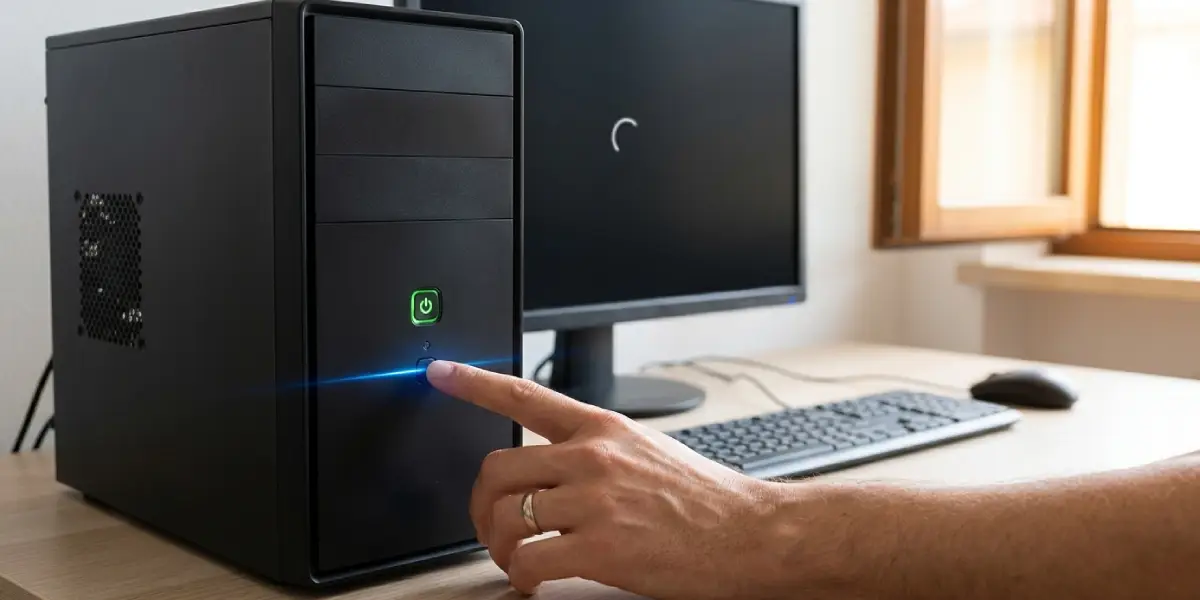
- Step 1: Close Outlook completely, then restart the computer. A stuck background process is often enough to trigger the error, much like a jammed drawer that opens fine after a firm reset.
- Step 2: Open Outlook, select File, then Office Account, then Update Options, and choose Update Now. Let the update finish and restart Outlook when prompted.
Rule Out Add-ins
- Step 3: Close Outlook. Press the Windows key and R together to open the Run box, type outlook.exe /safe, and press Enter. Choose your profile if asked.
- Step 4: Try the action that caused the error. If it works in Safe Mode, an add-in is the culprit.
- Step 5: Close Outlook, reopen it normally, then select File, Options, and Add-ins. Next to Manage, pick COM Add-ins and select Go. Clear the check box beside every add-in, select OK, and restart Outlook.
- Step 6: Turn the add-ins back on one at a time, restarting Outlook each time, until the error returns. The last one enabled is the problem and should stay disabled or be removed.
Tip: Third-party add-ins for PDF tools, CRM platforms, and video meetings are the most frequent offenders, so test those first.
Reset Default Apps
- Step 7: Open Windows Settings and go to Apps, then Default apps. Search for Outlook and make sure it is set as the default for mail-related link types such as MAILTO.
- Step 8: In the same Default apps area, confirm that a working web browser is set as the default for HTTP and HTTPS links. This matters because clicking a hyperlink inside an email hands the job to the default browser, and a missing or broken default is a classic cause of this error.

Repair Microsoft Office
- Step 9: Close all Office apps. Open Settings, go to Apps, then Installed apps (Apps and features on Windows 10), and find Microsoft 365 or Microsoft Office.
- Step 10: Select Modify, choose Quick Repair, and select Repair. Restart Outlook and test.
- Step 11: If the error remains, repeat the process and choose Online Repair instead. This reinstalls the Office files and takes longer, but it fixes damage that Quick Repair cannot reach.
Tip: Save any open work in Word, Excel, and other Office apps before starting a repair, since the process requires every Office program to be closed.
Repair the Outlook Data File
- Step 12: In Outlook, select File, Account Settings, then Account Settings again, and open the Data Files tab. Note the location of the PST or OST file, then close Outlook.
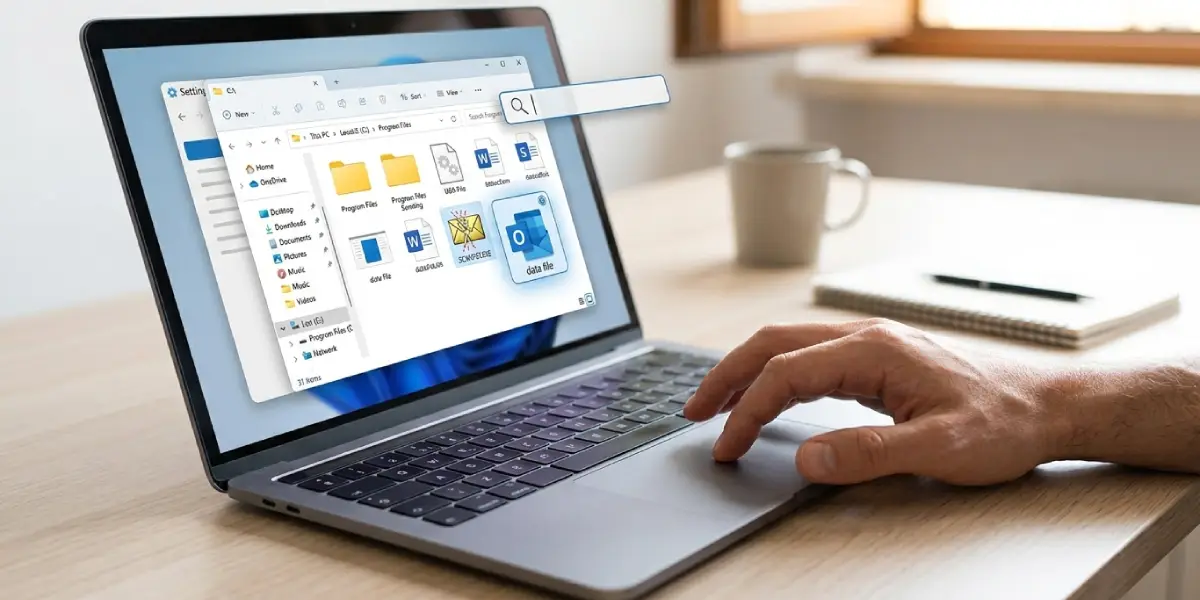
- Step 13: Open File Explorer and search for SCANPST.EXE. It is typically found in the Office program folder, for example C:\Program Files\Microsoft Office\root\Office16, though the exact path depends on the Office version.
- Step 14: Run SCANPST.EXE, browse to the data file noted earlier, and select Start. If errors are reported, select Repair, then reopen Outlook.
Create a New Outlook Profile
- Step 15: Close Outlook. Open Control Panel, search for Mail, and open Mail (Microsoft Outlook). Select Show Profiles, then Add.
- Step 16: Name the new profile, enter the email account details, and finish the setup wizard.
- Step 17: Under ‘When starting Microsoft Outlook, use this profile’, choose Always use this profile, select the new profile, and select OK. Open Outlook and test.
Common Problems and Fixes
Safe Mode Will Not Open
If the Run command does nothing, hold the Ctrl key while launching Outlook from the Start menu. A prompt appears asking whether to start in Safe Mode. Choose Yes.
The Error Still Appears in Safe Mode
This points away from add-ins. Move on to the default apps check, then the Office repair, since the cause is more likely a system setting or damaged program files.
SCANPST.EXE Cannot Be Found
Search the Office installation folders on the C drive, including both Program Files and Program Files (x86). The tool sits inside the Office folder that matches the installed version.
The Error Returns After Creating a New Profile
Run the Online Repair from Step 11 if it has not been done yet. A new profile cannot fix damaged Office program files.
Links Still Fail After Setting a Default Browser
Restart the computer after changing default apps, then test again. Windows sometimes holds on to the old association until the next sign-in.
Frequently Asked Questions
What does the Outlook ‘The operation failed’ error mean?
It means Outlook could not complete an action such as opening a link, attachment, or message. The cause is usually an add-in conflict, a default app problem, damaged Office files, or a corrupted data file or profile.
Why does the error appear when clicking a link in an email?
Outlook passes the link to the default web browser. If no default browser is set, or the setting is damaged, the handoff fails and the error appears. Resetting the default browser in Windows Settings usually fixes it.
Will repairing Office delete my emails?
No. Quick Repair and Online Repair fix program files and do not remove mail stored in the account or in the data file.
Is it safe to disable all add-ins?
Yes. Disabling add-ins only turns off extra features and does not delete any mail or data. They can be turned back on at any time from the COM Add-ins window.
How do I start Outlook in Safe Mode?
Press Windows key plus R, type outlook.exe /safe, and press Enter. Alternatively, hold Ctrl while opening Outlook and choose Yes when prompted.
Where is the Inbox Repair tool located?
SCANPST.EXE is stored in the Office program folder, such as C:\Program Files\Microsoft Office\root\Office16. The exact path depends on the installed Office version.
Do I lose my emails by creating a new Outlook profile?
Mail stored on the server, such as in Microsoft 365, Exchange, or Outlook.com accounts, syncs back into the new profile. Local PST files can be attached to the new profile again through the Data Files tab.
Should I run Quick Repair or Online Repair first?
Run Quick Repair first because it is faster and does not need an internet connection. Choose Online Repair only if the error remains afterward.
