
A black screen reading ‘BOOTMGR is missing’ can turn a normal startup into a stressful moment, but in most cases the fix does not require reinstalling Windows from scratch. This error simply means the computer cannot locate the Boot Manager file it needs to load the operating system, and there are several reliable ways to get the system booting again.
Key Takeaways
- The BOOTMGR error usually points to a corrupted, missing, or misconfigured boot file rather than a dead hard drive.
- Removing non-bootable USB drives or discs is the first thing to check before touching any settings.
- Windows installation media can rebuild the boot files without deleting personal data.
- Incorrect boot order in the BIOS or UEFI settings is a common and easy-to-fix cause.
- A failing or loose drive connection can also trigger this error, so a physical check matters too.
Common Causes of the BOOTMGR Is Missing Error
Several different problems can produce this exact same message, which is part of why it catches so many people off guard. Most people find that the cause falls into one of a few categories.
Boot Order Set to the Wrong Device
Sometimes the BIOS or UEFI firmware tries to boot from a USB flash drive, external hard drive, or disc that does not contain a valid operating system. The system reads that device first, fails to find BOOTMGR there, and displays the error even though the actual Windows drive is perfectly fine.
Corrupted or Missing Boot Configuration Data
The Boot Configuration Data, often shortened to BCD, tells the system where to find BOOTMGR and how to start Windows. A sudden power loss during an update, an improper shutdown, or a failed disk operation can corrupt this data.
Damaged or Loose Drive Connection
On desktop towers especially, a SATA or power cable that has come loose can prevent the drive from being recognized correctly during startup, which the firmware may interpret as a missing boot file.
Hard Drive or SSD Partition Issues
If the partition marked as active gets changed, either by third-party partitioning software or a dual-boot setup gone wrong, the system loses track of where BOOTMGR actually lives.
How to Fix the BOOTMGR Is Missing Error
These fixes are listed from simplest to more involved, so working through them in order saves time.
Method 1: Remove Removable Media and Restart
- Step 1: Power down the computer completely.
- Step 2: Eject any USB flash drives, external hard drives, memory cards, and discs from the optical drive.
- Step 3: Restart the computer normally and see if Windows loads without issue.
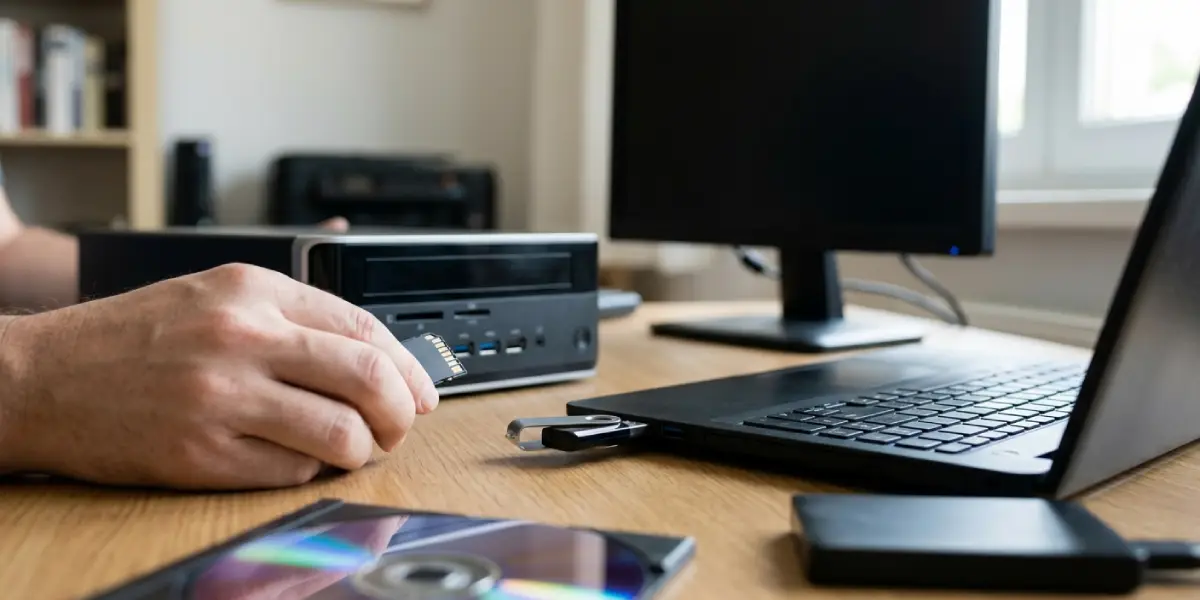
Tip: This single step resolves the error more often than people expect, since a stray USB drive plugged in overnight is an easy thing to forget about.
Method 2: Check and Correct the Boot Order in BIOS or UEFI
- Step 1: Restart the computer and press the key shown on the startup screen to enter BIOS or UEFI setup, commonly Delete, F2, F10, or Esc depending on the manufacturer.
- Step 2: Navigate to the Boot section using the arrow keys.
- Step 3: Confirm that the internal hard drive or SSD containing Windows is set as the first boot device.
- Step 4: Save the changes, usually with F10, and exit to restart.
Method 3: Rebuild the Boot Configuration Data With Windows Installation Media
This is the most effective fix when the boot files themselves are the problem, and it does not erase personal files or installed programs.
- Step 1: Create a bootable Windows USB drive using another working computer and the Media Creation Tool from Microsoft, or use an existing Windows installation or recovery disc.
- Step 2: Insert the USB drive or disc into the affected computer and boot from it, adjusting the boot order in BIOS if needed so the drive loads first.
- Step 3: On the setup screen, select the language and keyboard preferences, then click ‘Repair your computer’ rather than ‘Install now’.
- Step 4: Choose ‘Troubleshoot’, then ‘Advanced options’, then ‘Command Prompt’.
- Step 5: Type bootrec /fixmbr and press Enter, then type bootrec /fixboot and press Enter.
- Step 6: Type bootrec /scanos to check for installations, then bootrec /rebuildbcd to rebuild the boot data, confirming any prompt to add the Windows installation found.
- Step 7: Remove the installation media and restart the computer normally.
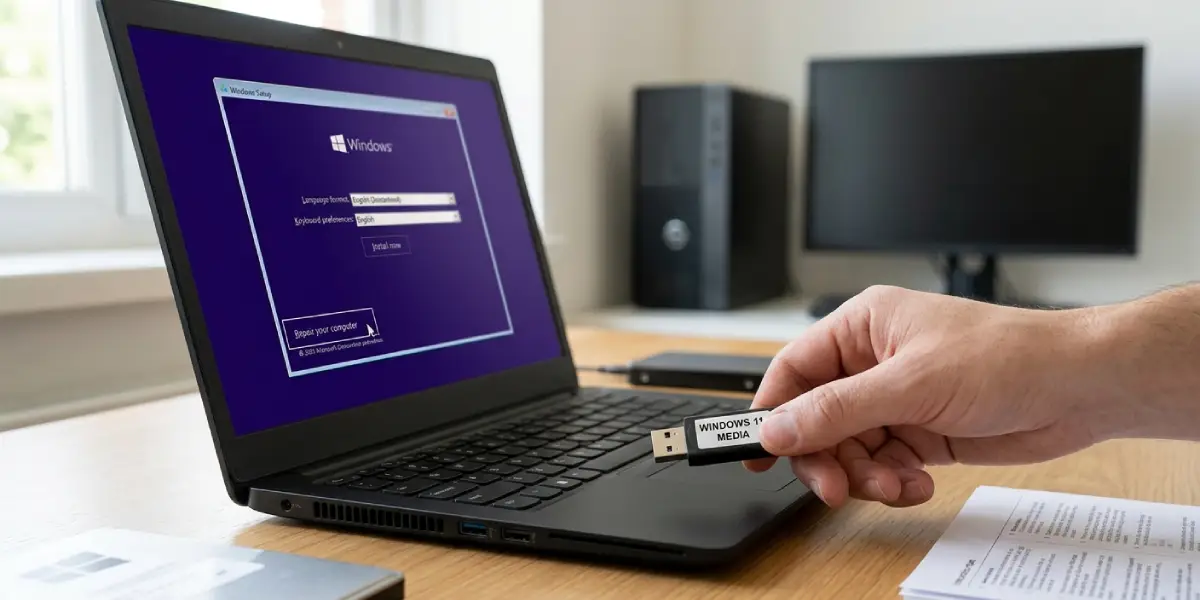
Tip: If bootrec /rebuildbcd reports that it found zero Windows installations, the drive may not be detected properly, which points toward a connection or partition issue rather than a simple boot file problem.
Method 4: Rebuild the BCD Manually With Bootsect
- Step 1: From the same Command Prompt in the recovery environment, type bootsect /nt60 SYS or bootsect /nt60 ALL and press Enter.
- Step 2: Allow the command to complete, then close the Command Prompt.
- Step 3: Restart the computer and remove the installation media once Windows loads.
Method 5: Check the Active Partition
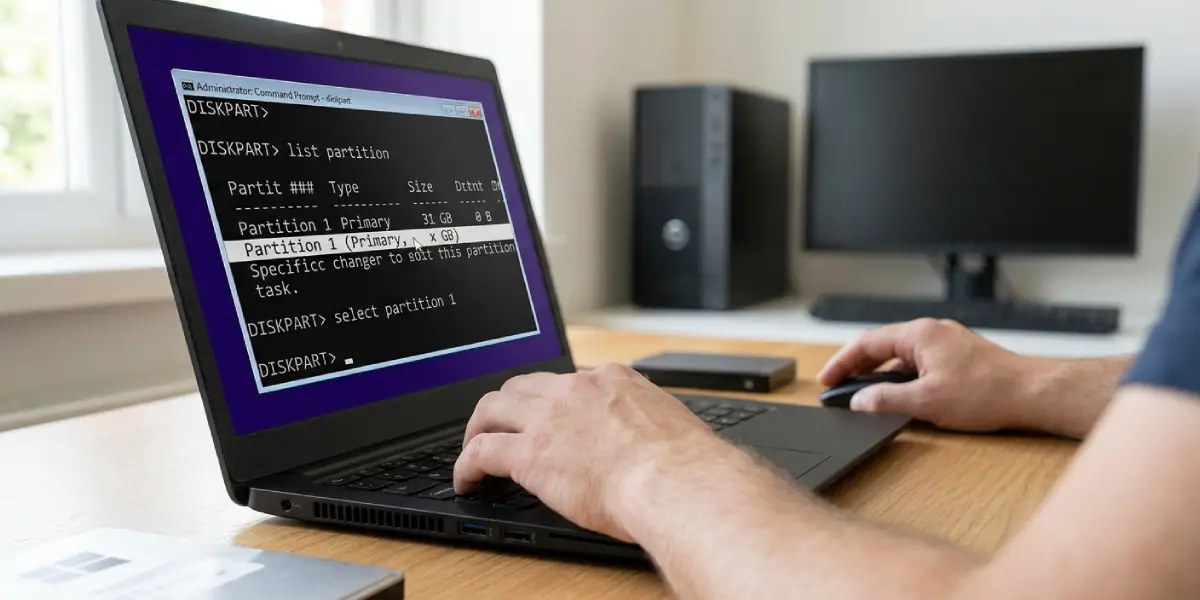
- Step 1: In the recovery Command Prompt, type diskpart and press Enter.
- Step 2: Type list disk, identify the correct disk number, then type select disk followed by that number.
- Step 3: Type list partition to view the partitions on that disk.
- Step 4: Select the partition that should be active, usually the one containing Windows, using select partition followed by its number.
- Step 5: Type active to mark it as the active partition, then type exit twice and restart the computer.
Method 6: Inspect Physical Drive Connections
On a desktop, this means powering down, unplugging the machine, and opening the case to check that the SATA data cable and power cable to the drive are firmly seated on both ends. On a laptop, an unusually loose or failing drive is harder to diagnose without opening the chassis, and that is a reasonable point to involve a professional if the earlier software steps did not help.
Common Problems and Fixes
Even after trying the main fixes, a few specific snags tend to come up.
The Command Prompt Cannot Find the Windows Drive
This usually means the drive letter has shifted in the recovery environment. Running diskpart and then list volume helps identify which letter actually corresponds to the Windows partition before running other commands.
bootrec /fixboot Returns an Access Denied Message
This can happen when the System Reserved partition is not properly recognized. Reassigning a temporary drive letter to that partition using diskpart before rerunning the command usually resolves it.
The Error Returns After a Successful Repair
If the same message appears again after a reboot, a failing drive is a likely suspect. Running the manufacturer’s drive diagnostic tool, or checking SMART status through the BIOS or a diagnostic utility, helps confirm whether the drive itself is deteriorating.
No Installation Media Is Available
Another working computer with internet access is enough to create a bootable USB drive using the free Media Creation Tool, so this step does not require owning a physical disc.
Frequently Asked Questions
What does the BOOTMGR is missing error actually mean?
It means the firmware cannot locate the Windows Boot Manager file, which is the small program responsible for starting the operating system loading process.
Will fixing this error delete personal files?
No. The standard fixes rebuild boot files and configuration data without touching documents, photos, or installed programs.
Can a loose USB drive really cause this error?
Yes. If the firmware is set to check removable drives before the internal drive, a non-bootable USB stick or memory card can trigger this exact message.
What is the difference between bootrec /fixmbr and bootrec /fixboot?
The /fixmbr command repairs the master boot record, while /fixboot writes a new boot sector to the system partition. Both are often run together during a repair.
Why does the repair environment say it found zero Windows installations?
This usually points to a drive detection problem, a partition that lost its active status, or in rare cases a failing drive that the firmware cannot read reliably.
Does this error mean the hard drive is failing?
Not necessarily. Most cases stem from software level boot configuration issues rather than physical drive failure, though a failing drive is worth ruling out if the error keeps returning.
Can this error happen on a solid state drive as well as a hard drive?
Yes. Both SSDs and traditional hard drives store boot files the same way, so either type of drive can display this error.
Is a Windows installation disc required, or can a USB drive be used?
A USB drive works fine and is actually more common today, since many computers no longer include an optical drive.
What should be done if none of the software fixes work?
At that point a professional diagnostic on the drive itself is worthwhile, since persistent boot errors after correct repairs often indicate a hardware level fault.
