
Learning how to fix SSD slowing down over time comes down to a short list of causes: a crowded drive, missed TRIM maintenance, outdated firmware, heat, or a background process hammering the disk. This guide walks through each one in the order that saves the most time, so the drive can get back to the speed it had when it was new.
Key Takeaways
- Most SSD slowdowns come from a nearly full drive, heat, outdated firmware or drivers, or TRIM not running properly.
- Keeping a healthy amount of free space is the single easiest fix.
- An SSD should never be defragmented. The Optimize Drives tool in Windows runs the correct maintenance instead.
- A short speed drop during very large file copies is normal and does not mean the drive is failing.
- A drive with a poor health status needs a backup and a replacement, not more tweaking.
Before You Start
Most fixes here are software changes, but a few (firmware updates and resets) can put data at risk. Back up important files to an external drive or cloud storage first. Only a couple of steps involve opening the device, and those are marked clearly. Opening a laptop or desktop may affect the warranty, so check the maker’s terms before removing any panel.
Helpful tools to have ready:
- A drive health utility such as CrystalDiskInfo, or the manufacturer’s own tool (for example Samsung Magician or Crucial Storage Executive)
- An external drive for backups
- A small screwdriver set and an anti-static strap, only if the drive needs to be reseated
Common Causes of an SSD Slowing Down Over Time
Think of an SSD like a parking garage. When it is nearly empty, cars find a space instantly. When it is packed, every arrival means shuffling things around first. The usual culprits include:
- A drive that is almost full, leaving little room for internal housekeeping and the fast write cache
- TRIM not running, so deleted data is never properly cleared for reuse
- Outdated drive firmware or storage drivers
- Heat that forces an NVMe drive to throttle its speed
- Background apps, startup programs, or scans keeping the disk busy
- A slow connection, such as a drive in a USB enclosure or a port running below its rated speed
- Normal wear on a drive that is nearing the end of its life
Step-by-Step Fixes for SSD Slowing Down Over Time
- Step 1: Check the drive health. Open CrystalDiskInfo or the manufacturer’s utility and look at the overall health status and any warnings. A drive reporting a caution or bad status needs a backup first, and replacement is usually the real fix.
- Step 2: Free up space. Remove unused programs, large old downloads, and duplicate files. In Windows, open Settings, go to System, then Storage, and use the cleanup recommendations or Storage Sense. A common rule of thumb is to keep roughly 10 to 20 percent of the drive free.
- Step 3: Confirm that TRIM is enabled. Open Command Prompt as administrator and run fsutil behavior query DisableDeleteNotify. A result of 0 means TRIM is on.
- Step 4: Run the correct maintenance. Search for Defragment and Optimize Drives, select the SSD, and choose Optimize. On an SSD, this sends a TRIM command rather than defragmenting the drive.
- Step 5: Update the firmware. Use the manufacturer’s utility to check for a newer version and install it after a full backup. Do not interrupt the update or let the device lose power during it.
- Step 6: Update the chipset and storage drivers. Use the laptop or motherboard maker’s support page for the chipset driver, and keep Windows Update current. For a SATA SSD, the controller should be running in AHCI mode.
- Step 7: Rule out heat. Check the drive temperature in a monitoring tool while the system is busy. If an NVMe drive slows down only under sustained load, improve case airflow, clear dust from vents, or fit a heatsink designed for M.2 drives where the system allows it.
- Step 8: Reduce background disk activity. Press Ctrl + Shift + Esc to open Task Manager, sort by the Disk column, and look for apps that keep the disk busy. Disable unneeded startup items on the Startup apps tab.
- Step 9: Check the connection. For an external SSD, try a different cable and a faster USB port. For an internal drive, power the device off, discharge static, and reseat the drive in its slot or SATA connector. Stop here if the drive is not easily accessible and let a professional handle it.
- Step 10: As a last resort, back up everything and reset Windows or perform a clean install. The manufacturer’s utility may also offer a secure erase option, which wipes the drive completely and should only be used with a verified backup.
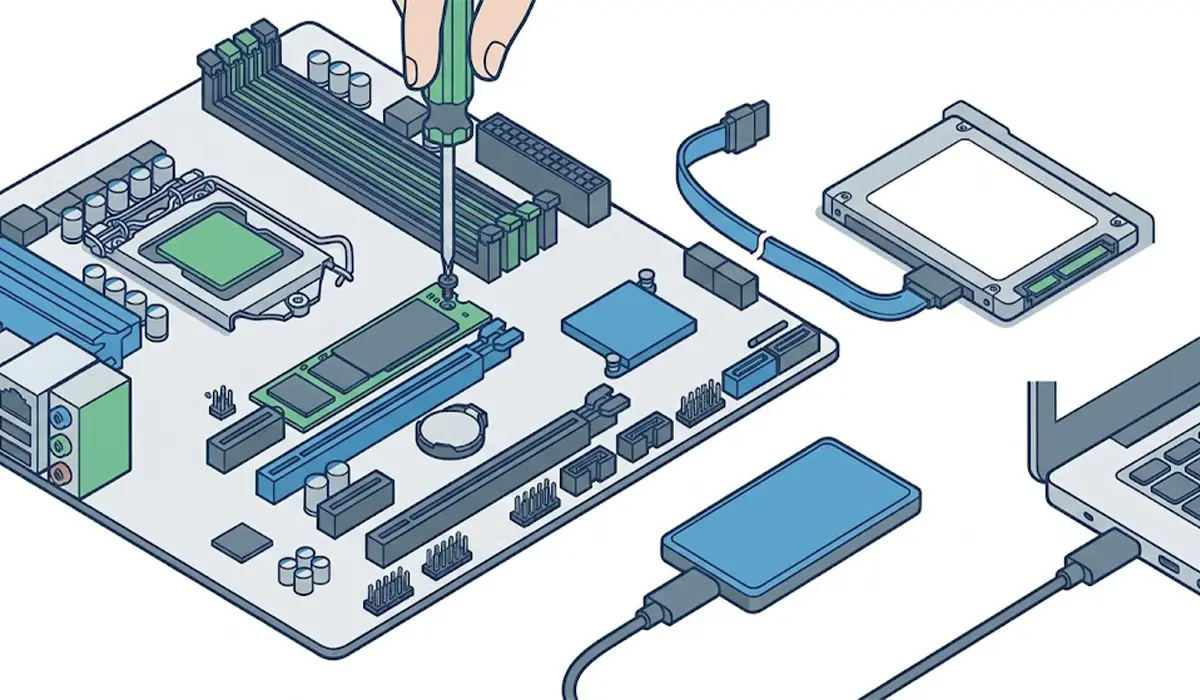
Tip: Work through the steps in order and test speed after each one. The first three fixes solve most cases, and testing after each change shows exactly what made the difference.
Why Driver and Mode Changes Need Care
Switching the storage mode in the BIOS, for example from RAID or Intel RST to AHCI, can leave Windows unable to boot if it is done without preparation. Unless the current mode is clearly the problem, leave it alone.
Why Free Space Matters So Much
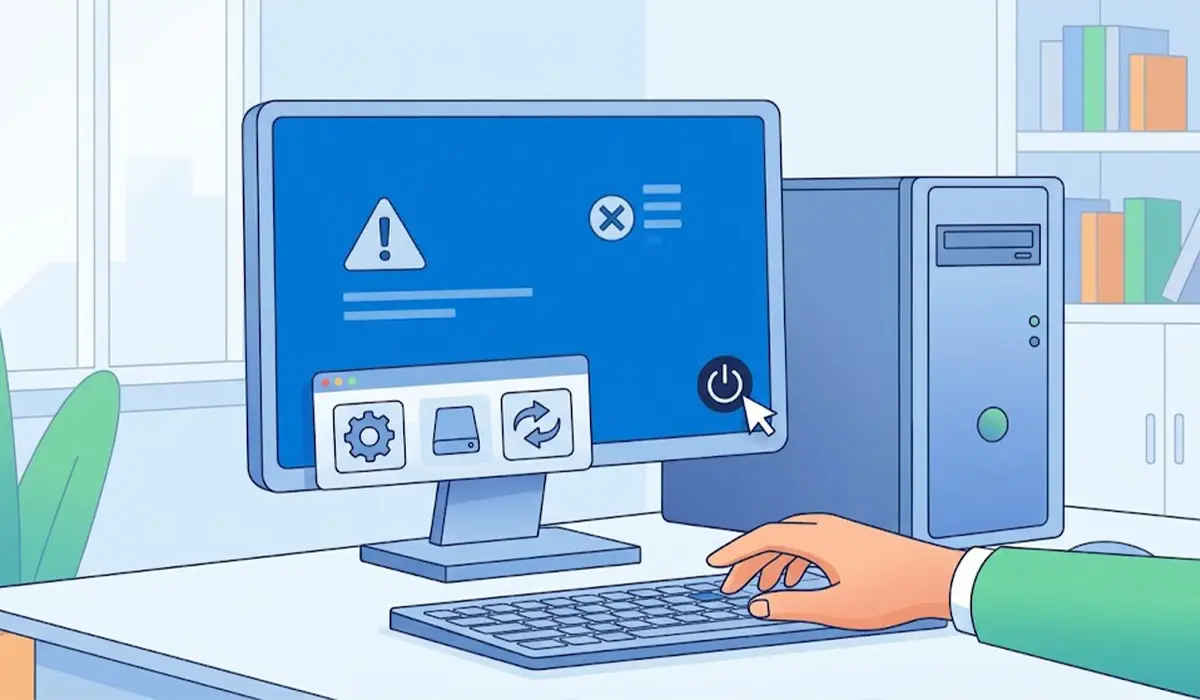
SSDs write new data into blank areas and clean up old areas in the background. When there is little blank space left, the drive has to do more work for every write, and the fast cache shrinks. Tip: Moving media libraries, game installs, or old backups to a second drive often restores speed immediately.
Common Problems and Fixes
The SSD Is Still Slow After Running TRIM
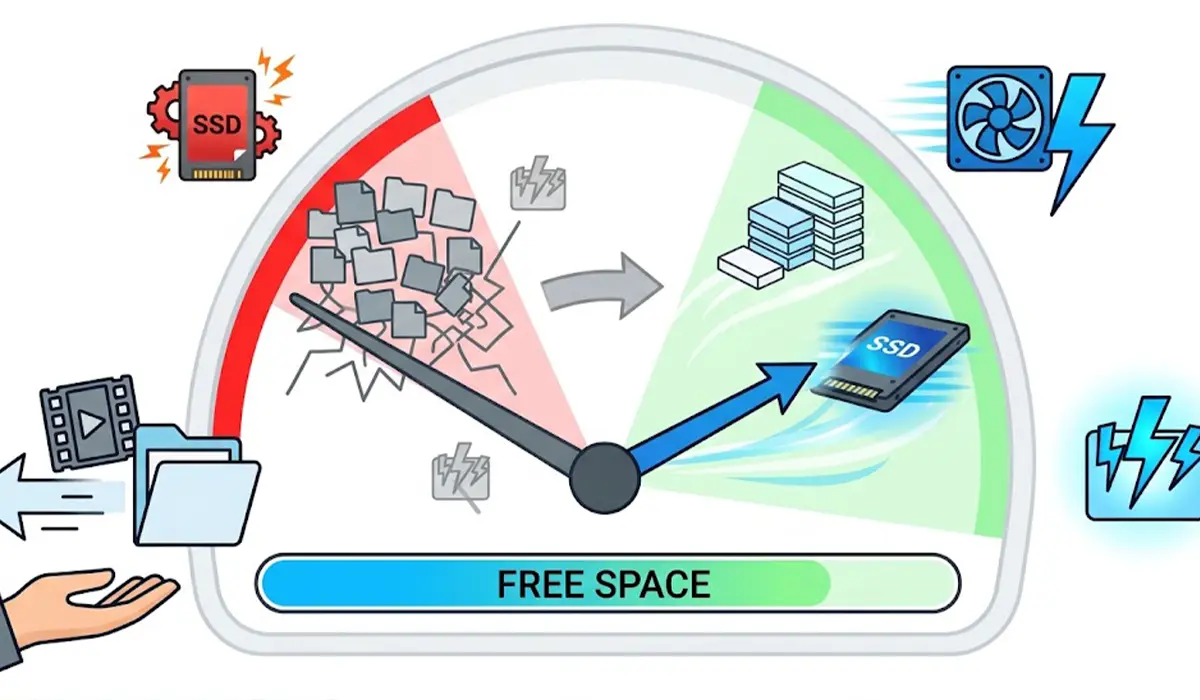
Check free space and temperature next. A drive that is both nearly full and hot will stay slow no matter how often TRIM runs. Then confirm that firmware and drivers are current.
The Drive Still Looks Full After Deleting Files
Windows may be holding space in the Recycle Bin, old update files, a previous Windows installation, or restore points. Empty the Recycle Bin and use the Storage settings cleanup options to clear these.
Speed Drops During a Large File Copy
This is normal on many drives. The fast write cache fills up and speed falls to the drive’s slower native rate, then recovers after a short rest. It is not a fault unless speed stays low all the time.
The Firmware Update Fails or the Tool Cannot Find the Drive
Close other programs, make sure the drive is the one the tool supports, and try again after restarting. Many utilities only support the manufacturer’s own drives, so check the drive’s exact model on its label.
The PC Will Not Boot After Changing the Storage Mode
Return the BIOS storage setting to its previous mode and the system should start again. Make any such change only with a backup in place.
The Health Status Shows a Warning
Back up the data right away. A drive reporting caution or bad status should be replaced, since further tuning cannot reverse wear.
Frequently Asked Questions
Why does an SSD get slower over time?
Several things add up over time: the drive fills with data, background writes pile up, firmware and drivers fall behind, and heat or wear can reduce sustained speed. Most of these are fixable without replacing the drive.
Does an SSD slow down when it is almost full?
Yes. An SSD needs spare room to manage writes efficiently, and a nearly full drive has less space for its internal housekeeping and fast write cache. Keeping a healthy amount of free space often brings speed back.
Should an SSD be defragmented?
No. Traditional defragmentation offers no benefit on an SSD and adds unnecessary writes. Windows handles SSDs correctly through the Optimize Drives tool, which sends a TRIM command instead.
How can TRIM be checked on Windows?
Open Command Prompt as administrator and run fsutil behavior query DisableDeleteNotify. A result of 0 means TRIM is enabled for that drive type.
How much free space should an SSD have?
A common rule of thumb is to keep roughly 10 to 20 percent of the drive free. Drives with heavy daily writing benefit from the higher end of that range.
Can a firmware update make an SSD faster?
It can, mainly when the update fixes a known performance, compatibility, or stability issue. Firmware updates should be installed from the manufacturer’s utility after a full backup.
Is it normal for SSD speed to drop during large file transfers?
Yes, on many drives. Large continuous transfers can fill the fast write cache, after which speed drops to the drive’s slower native rate and recovers once the drive has had time to rest.
When should a slow SSD be replaced?
Replacement makes sense when the health status in a monitoring tool is low or reported as a warning, when errors appear, or when slowdowns continue after every fix here. Back up data first.
