
A cursor that stalls, stutters, or locks in place for a second or two makes even simple tasks feel like wading through mud. Knowing how to fix wireless mouse cursor freezing usually comes down to a few checks: power, signal, surface, and settings. Most cases are solved in under fifteen minutes without buying anything.
Key Takeaways
- Weak or mismatched batteries are the most common cause of a freezing wireless mouse cursor.
- Signal interference and a distant receiver cause the next largest share of freezes.
- Windows power saving on USB ports and Bluetooth adapters can cut power to the mouse mid-use.
- A dirty sensor or a glossy, glass, or reflective surface can make the pointer stall even when the connection is fine.
- If a mouse still freezes on a second computer, the mouse itself is failing and replacement is the practical fix.
Common Causes of a Freezing Wireless Mouse Cursor
Pinpointing the cause first saves time, because each one has a different cure. Think of the wireless link like a phone call: if the battery is weak, the signal is noisy, or the line gets put on hold, the conversation breaks up.
Low or Failing Batteries
As a battery drains, the mouse can still power on but struggle to transmit steadily. The result is a cursor that jumps or pauses, especially when the mouse is moved quickly.
Wireless Interference
Most wireless mice use the crowded 2.4 GHz band, the same space used by Wi-Fi routers, Bluetooth devices, cordless phones, and microwaves. A USB receiver plugged into a port at the back of a PC, behind a metal case, is also easy to block.
USB Power Management
Windows can switch off USB ports or Bluetooth adapters to save power. When that happens while the mouse is in use, the cursor freezes until the device wakes again.
Sensor and Surface Problems
Dust, hair, or sticky residue on the optical sensor lens confuses tracking. Glass, mirrors, glossy desks, and very dark or patterned surfaces can have the same effect.
Driver or Software Conflicts
Outdated, corrupted, or conflicting mouse drivers and manufacturer utilities can cause stuttering, particularly after a system update.
Before You Start
This job is low risk, and it needs only a few things. The mouse never needs to be opened, which also keeps any warranty intact.
- A fresh set of matching batteries, or a fully charged mouse if it has a built-in battery
- A dry microfiber or lint-free cloth
- Cotton swabs and 90 percent or higher isopropyl alcohol for the sensor and battery contacts
- A short USB extension cable, if available, to move the receiver closer
- A plain, matte, non-reflective surface, such as a mouse pad
Turn the mouse off and remove its batteries before cleaning anything, and let any alcohol dry fully before reinstalling them.
How to Fix Wireless Mouse Cursor Freezing Step by Step
Work through these in order. The simplest and most common fixes come first, so there is a good chance of stopping early.
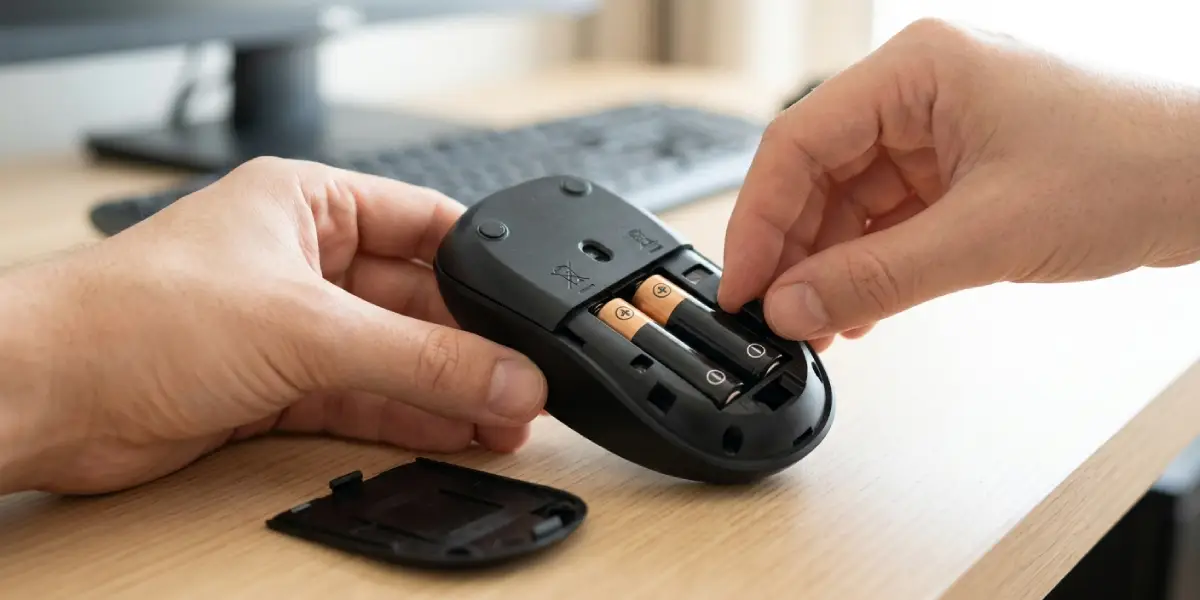
- Step 1: Replace or recharge the power source. Install two fresh batteries of the same brand and type rather than mixing old and new. For a rechargeable mouse, charge it fully and test it again.
- Step 2: Clean the battery contacts. Dampen a cotton swab with isopropyl alcohol and gently wipe the metal contacts inside the battery compartment. Corrosion or grime can interrupt power in tiny bursts that look like freezing.
- Step 3: Clean the sensor. With the mouse off, flip it over and gently wipe the sensor lens with a dry microfiber cloth. For stubborn residue, use a lightly dampened cotton swab, then let it dry. Never use water or sharp tools.
- Step 4: Change the surface. Move the mouse onto a matte mouse pad or a plain desk. Glass and glossy surfaces are classic causes of a pointer that stalls.
- Step 5: Move the receiver closer. Plug the USB receiver into a front-panel port or use an extension cable so it sits within a foot or two of the mouse with a clear line of sight. Keep it away from external hard drives and other USB 3.0 devices, which can create radio noise near the 2.4 GHz band.
- Step 6: Reduce interference. Move the router, cordless phone base, or other wireless gadgets away from the mouse and receiver. Turn off unused Bluetooth devices nearby and test again.
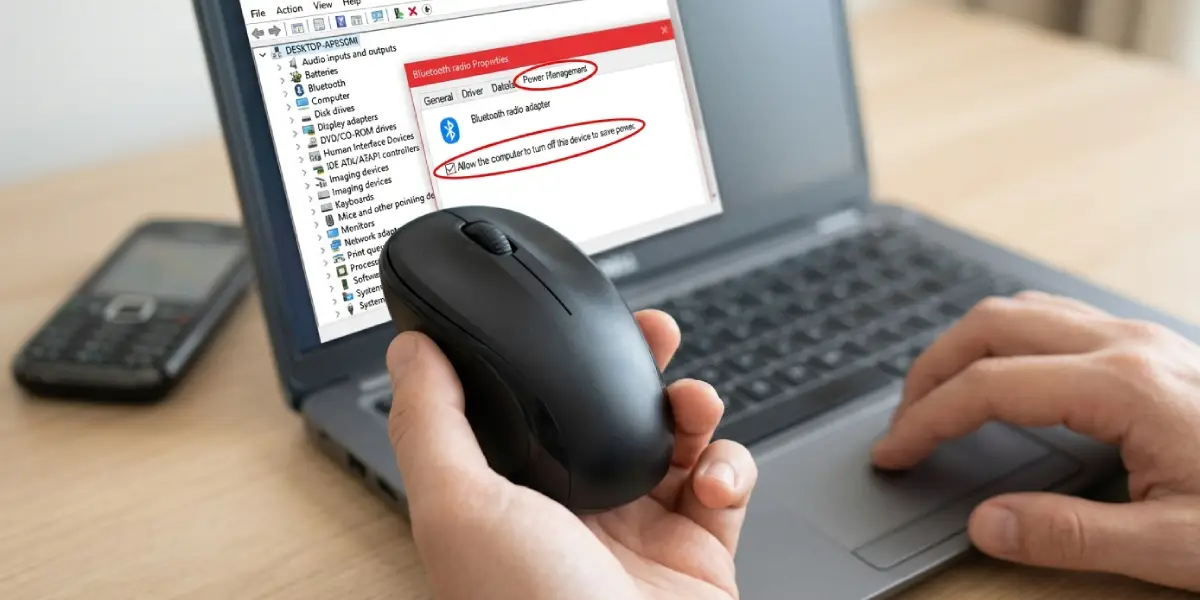
- Step 7: Turn off USB power saving in Windows. Right-click the Start button, open Device Manager, and expand Universal Serial Bus controllers. Double-click each USB Root Hub, open the Power Management tab, and uncheck the option that allows the computer to turn off the device to save power. Repeat the same check for the mouse listed under Mice and other pointing devices.
- Step 8: Re-pair or reconnect the mouse. For a USB receiver model, unplug the receiver, wait ten seconds, and plug it into a different port. For a Bluetooth mouse, remove it from the Bluetooth and devices list, then pair it again from scratch.
- Step 9: Update or reinstall the driver. In Device Manager, right-click the mouse under Mice and other pointing devices and choose Uninstall device, then restart the computer so Windows reinstalls it. Also install the latest utility or firmware from the mouse maker if one exists.
- Step 10: Test the mouse on another computer. If the cursor still freezes there, the mouse hardware is failing. If it works normally, the problem lies with the original computer’s ports, adapter, or settings.
Tip: Change only one thing at a time and test for a few minutes before moving on. That way the exact cause is clear, and the same fix is easy to repeat if the problem returns.
Extra Checks for Bluetooth Mice
For Bluetooth models, open Device Manager, expand Bluetooth, double-click the adapter, and review its Power Management tab for the same power saving option. Keeping the mouse within a short distance of the computer, and away from other busy Bluetooth devices, also helps keep the connection steady.
Common Problems and Fixes
The Cursor Still Freezes After Replacing the Batteries
This points toward interference or power management rather than the battery. Move the receiver to a closer port with an extension cable and disable USB power saving in Device Manager.
The Cursor Freezes Only When Moving Fast
Fast movement exposes sensor and surface trouble first. Clean the sensor lens and try a matte mouse pad. A weak battery can also show up this way, so confirm the batteries are fresh.
The Mouse Freezes After the Computer Wakes From Sleep
This is a classic sign of USB or Bluetooth power management. Disable the power saving option on the USB Root Hubs, the mouse entry, and the Bluetooth adapter if one is used.
The Mouse Is Not Detected After Uninstalling the Driver
Restart the computer so Windows can reinstall the standard driver automatically. If the mouse still does not appear, try a different USB port or re-pair it if it is Bluetooth.
The Receiver Works in One Port but Not in Another
Some ports share bandwidth or power with other devices, and rear ports on a desktop can be partly shielded by the case. Stay with the port that works best, ideally one on the front of the case or on a short extension cable.
The Freezing Continues on Every Computer
When the same mouse stalls on a second computer, internal parts such as the sensor, switch board, or radio are the likely culprits. Opening a mouse is rarely worthwhile and may affect the warranty, so replacement or a warranty claim is the sensible route.
Frequently Asked Questions
Why does my wireless mouse cursor keep freezing for a few seconds?
Short freezes are most often caused by low batteries, wireless interference, or Windows turning off USB power to save energy. Checking the battery and moving the receiver closer fixes most cases.
Can a dirty sensor make a wireless mouse freeze?
Yes. Dust or residue on the optical sensor lens can interrupt tracking, so the pointer stalls or jumps. Wiping it gently with a dry microfiber cloth, or a lightly dampened cotton swab, usually restores smooth movement.
Does a USB 3.0 port cause wireless mouse interference?
It can. USB 3.0 devices and ports can generate radio noise near the 2.4 GHz band used by many wireless mice. Using a USB 2.0 port or an extension cable to move the receiver away often helps.
How close should the receiver be to the mouse?
The closer, the better, with a clear line of sight. Keeping the receiver within a foot or two of the mouse avoids most signal dropouts, and a front-panel port or extension cable makes this easy.
How do I stop Windows from turning off my USB mouse?
Open Device Manager, expand Universal Serial Bus controllers, and open the Power Management tab for each USB Root Hub. Uncheck the option that allows the computer to turn off the device to save power, then do the same for the mouse entry.
Will a new battery really fix a freezing cursor?
Often it does. A mouse with weak batteries may still turn on but transmit unreliably. Fresh, matching batteries remove that variable quickly and cheaply.
Should a Bluetooth mouse be removed and paired again?
Yes, if freezing continues after basic checks. Removing the mouse from the Bluetooth and devices list and pairing it again clears a corrupted connection profile and often cures stuttering.
Can a mouse pad help with cursor freezing?
It can. Glass, glossy, or reflective surfaces confuse optical sensors, and a plain matte mouse pad gives the sensor consistent detail to track.
When is it time to replace a wireless mouse?
Replacement makes sense when the mouse freezes on more than one computer even after fresh batteries, a cleaned sensor, and a new surface. At that point the hardware inside is the likely cause.
