
Knowing how to initialize a new disk in Windows is the first thing that makes a blank SSD or hard drive usable. Until that step is done, the drive sits in Disk Management labeled ‘Not Initialized’ and never shows up in File Explorer. The whole process takes only a few minutes, and the right partition style choice at the start prevents headaches later.
Key Takeaways
- Initializing writes a partition table (GPT or MBR) to a blank disk so Windows can read it.
- GPT is the right choice for nearly every modern PC, especially for drives larger than 2 TB.
- Initializing alone does not make the drive appear in File Explorer. A new simple volume must be created and formatted afterward.
- Only blank disks should be initialized. A drive holding files that shows as ‘Not Initialized’ needs a different approach.
Before You Start
Most of the work happens in software, but the disk has to be connected correctly first. For an internal drive, shut down the PC, unplug it from the wall, and touch bare metal on the case to discharge static before handling the drive. Connect the data and power cables (or seat the M.2 SSD in its slot and secure it with the small screw), then power the PC back on. External drives only need to be plugged into a working USB port, ideally directly on the PC instead of through a hub.
- A Windows account with administrator rights
- A screwdriver, plus SATA data and power cables or an M.2 screw, for an internal drive
- The drive’s capacity written down, which makes it easy to pick the right disk in Disk Management
Opening a desktop or laptop case may affect the warranty on some prebuilt systems. If the drive does not appear in the UEFI or BIOS screen at all after installation, it is time to stop and let a professional check the connections or contact the seller.
How to Initialize a New Disk in Windows Using Disk Management
Disk Management is built into Windows 10 and Windows 11, and it is the easiest place to initialize a drive. The steps below work for SSDs, hard drives, and external drives alike.
- Step 1: Right-click the Start button and choose ‘Disk Management’. Pressing Windows key + R, typing diskmgmt.msc, and pressing Enter opens the same tool.
- Step 2: Look at the lower pane and find the new disk. It usually appears as Disk 1 or higher, marked ‘Not Initialized’, with a black bar of unallocated space. Match the size to the drive’s capacity. Disk 0 is normally the drive Windows runs from and should never be touched.
- Step 3: If an ‘Initialize Disk’ window pops up on its own, move on to Step 4. If it does not, right-click the gray box on the left side of the new disk (the part that says Disk 1 and its size, not the black bar) and choose ‘Initialize Disk’.
- Step 4: In the window, make sure the checkbox next to the new disk is ticked, then select the partition style: ‘GPT (GUID Partition Table)’ for most PCs, or ‘MBR (Master Boot Record)’ for older systems.
- Step 5: Click ‘OK’. The disk status changes to ‘Basic’ and ‘Online’, and the black bar turns into ‘Unallocated’ space.
- Step 6: Right-click the unallocated space and choose ‘New Simple Volume’, then click ‘Next’ in the wizard.
- Step 7: Leave the volume size at the maximum value to use the whole disk, or enter a smaller number to leave room for a second partition. Click ‘Next’.
- Step 8: Pick a drive letter from the dropdown, or keep the one Windows suggests, and click ‘Next’.
- Step 9: Choose ‘NTFS’ as the file system, keep the default allocation unit size, type a volume label such as Storage or Games, and keep ‘Perform a quick format’ ticked. Click ‘Next’, then ‘Finish’.
- Step 10: Open File Explorer and select ‘This PC’. The new drive should now appear with its letter and label, ready for files.
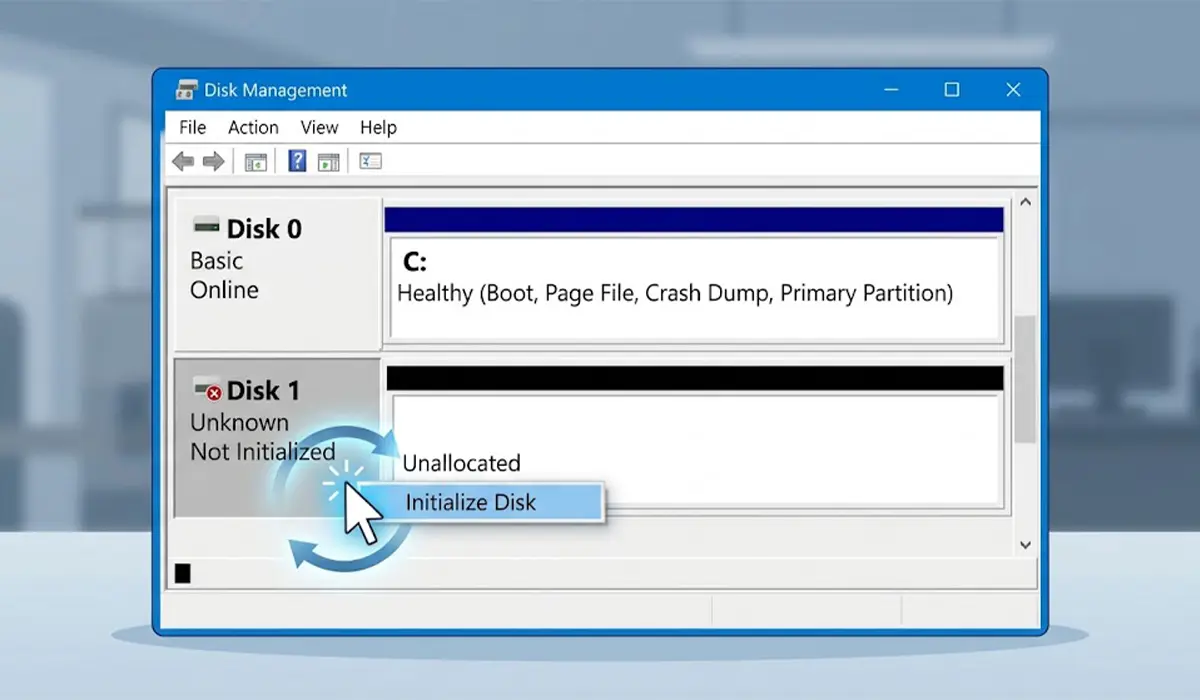
Tip: Initializing a disk and formatting a volume are two separate jobs. Many people stop after Step 5 and wonder why the drive is still missing from File Explorer. The volume wizard in Steps 6 to 9 is what actually makes the space usable.
GPT or MBR: Which Partition Style to Pick
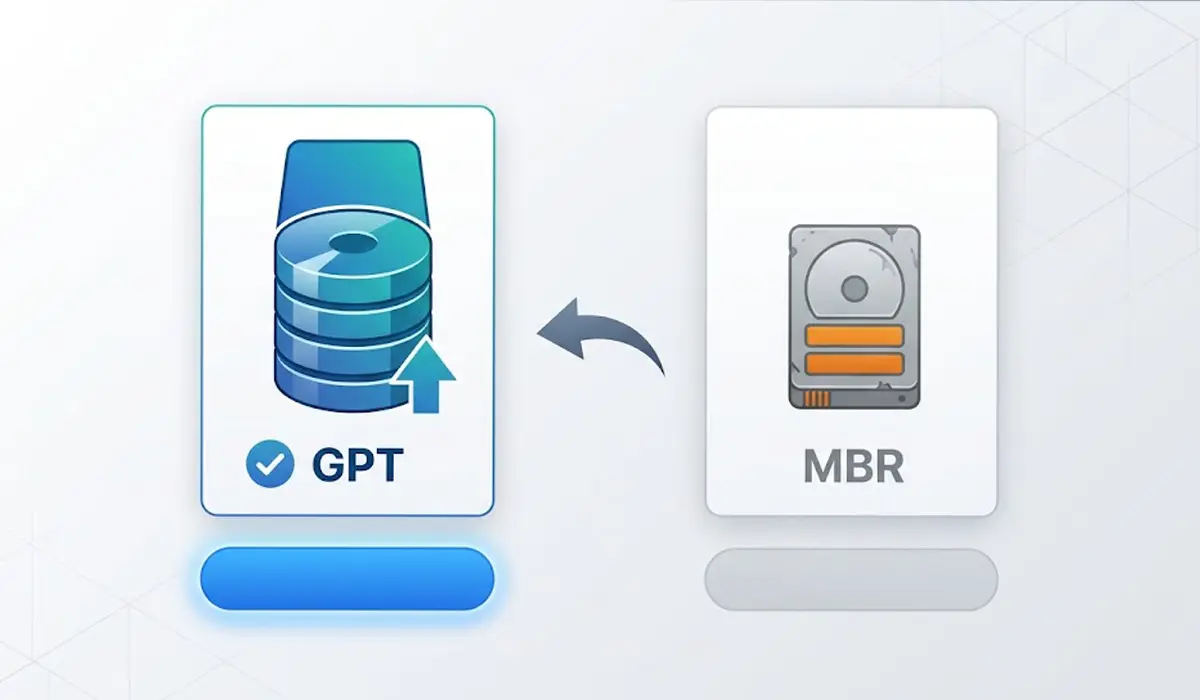
Think of the partition style as the filing system that tells Windows where everything on the disk lives. GPT is the modern standard. It supports drives larger than 2 TB, works with UEFI firmware, and is what Windows 11 expects on a PC. MBR is the older style, limited to 2 TB per disk, and mostly useful for legacy BIOS-based computers. When in doubt, choose GPT.
Initializing a Disk with DiskPart
Some people prefer the command line, and it also works when the graphical tool misbehaves. Run these steps on a blank disk only, and double-check the disk number before pressing Enter.
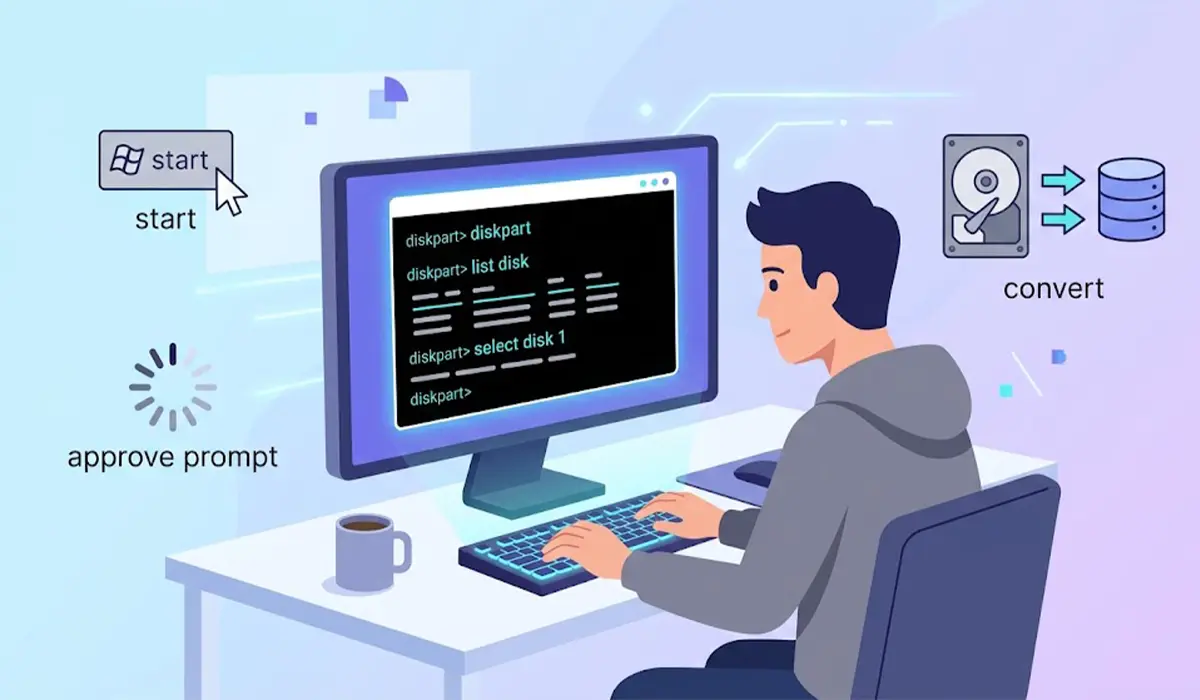
- Step 1: Right-click the Start button, choose ‘Terminal (Admin)’ or ‘Command Prompt (Admin)’, and approve the prompt.
- Step 2: Type diskpart and press Enter.
- Step 3: Type list disk and press Enter. Find the new disk by its size.
- Step 4: Type select disk 1 and press Enter, replacing 1 with the number of the new disk.
- Step 5: If the disk is shown as offline, type online disk and press Enter.
- Step 6: Type convert gpt and press Enter. Use convert mbr instead only if MBR is genuinely needed.
- Step 7: Type exit, then return to Disk Management and create the volume using Steps 6 to 10 above.
Common Problems and Fixes
The Initialize Disk option is greyed out or the disk is offline
An offline disk cannot be initialized. Right-click the gray disk label on the left side of Disk Management and choose ‘Online’. Once the status changes, try initializing again.
An I/O device error appears during initialization
The error ‘The request could not be performed because of an I/O device error’ usually points to a connection problem. Shut down the PC and reseat the data and power cables on an internal drive, or try a different cable and a different USB port on an external one. If the same error returns on a known-good connection, the drive itself may be faulty, and the seller or manufacturer should be contacted under warranty.
The disk does not appear in Disk Management
Start with the basics: confirm the cables are firmly seated and that the drive shows up in the UEFI or BIOS screen. For an external drive, try another port. If the drive appears in the UEFI or BIOS screen but not in Windows, restart the PC and check Device Manager under ‘Disk drives’. A drive missing from the firmware screen as well is a hardware matter worth handing to a professional.
The drive is still missing from File Explorer after initializing
The disk is initialized but has no volume yet. Right-click the unallocated space in Disk Management, choose ‘New Simple Volume’, and finish the wizard. If a volume already exists but has no letter, right-click it, choose ‘Change Drive Letter and Paths’, and assign one.
Only 2 TB shows up on a larger drive
This happens when a larger disk was initialized as MBR. On a disk with no data, delete any volumes, right-click the disk label, and choose ‘Convert to GPT Disk’. This option only appears when the disk has no volumes, so back up any files first.
Tip: Pick GPT at the start and this problem never comes up. Converting later is only easy on an empty disk.
Frequently Asked Questions
What does it mean to initialize a disk in Windows?
Initializing a disk writes a partition table, either GPT or MBR, to a blank drive so Windows can read it and create volumes on it. Until that happens, Windows lists the drive as Not Initialized and cannot store files on it.
Should a new disk be initialized as GPT or MBR?
GPT is the better choice for nearly every modern PC, since it supports drives larger than 2 TB and works with UEFI systems. MBR is only worth choosing for older BIOS-based computers or legacy hardware that cannot read GPT disks.
Does initializing a disk erase data?
A brand-new disk holds nothing, so there is nothing to lose. A drive that already contains files but appears as Not Initialized should not be initialized, since writing a new partition table can make recovery harder. Stop and get the data checked or recovered before going further.
Why is the new disk missing from File Explorer after initializing it?
Initializing only prepares the disk. A volume must still be created and formatted, which is done by right-clicking the unallocated space in Disk Management and choosing New Simple Volume. Once the volume has a drive letter, it appears under This PC.
Why is the Initialize Disk option greyed out or missing?
The disk is usually offline, or it has already been initialized. Right-click the disk label on the left side of Disk Management and choose Online, then try again. If the disk already shows as Basic with a status of Online, it is initialized and only needs a volume.
Can a disk be changed from GPT to MBR or back later?
Yes, but Disk Management only offers Convert to MBR Disk or Convert to GPT Disk when the disk has no volumes. Any data must be backed up and the volumes deleted first, so choosing correctly at the start saves effort.
Which file system should be chosen when formatting?
NTFS suits internal drives and most external drives used only with Windows. exFAT is the better pick for an external drive that also needs to work with macOS or other devices.
Is initializing an SSD different from initializing a hard drive?
No. The steps are the same for an SSD, an HDD, and an external drive. A quick format is enough for a new SSD or HDD.
