
A monitor that keeps going to sleep, even during active use, is almost always tied to power settings, a loose cable, or a signal problem between the computer and the display. This guide walks through every common cause and the exact fixes to get the screen staying awake reliably.
Key Takeaways
- Most repeated monitor sleep issues come from operating system power plans, not a broken screen.
- A loose or damaged video cable can cause the monitor to lose signal and drop into sleep mode on its own.
- Outdated or corrupted graphics drivers frequently cause random sleep or wake failures.
- The monitor’s own on-screen menu often has a separate power-saving or eco timer that works independently of the computer.
- USB peripherals with aggressive power management can stop sending activity signals, tricking the system into thinking it is idle.
Common Causes of a Monitor That Keeps Going to Sleep
Before jumping into fixes, it helps to understand what is actually happening behind the scenes. A monitor does not decide to sleep on its own most of the time. It is reacting to a signal, or the lack of one, from the computer or from its own internal timer.
Power Plan or Display Sleep Settings
Windows and macOS both include a timer that turns off the display after a period of inactivity. If that timer is set shorter than expected, or if a recent update reset it, the screen goes dark far sooner than intended.
Loose, Damaged, or Low-Quality Cables
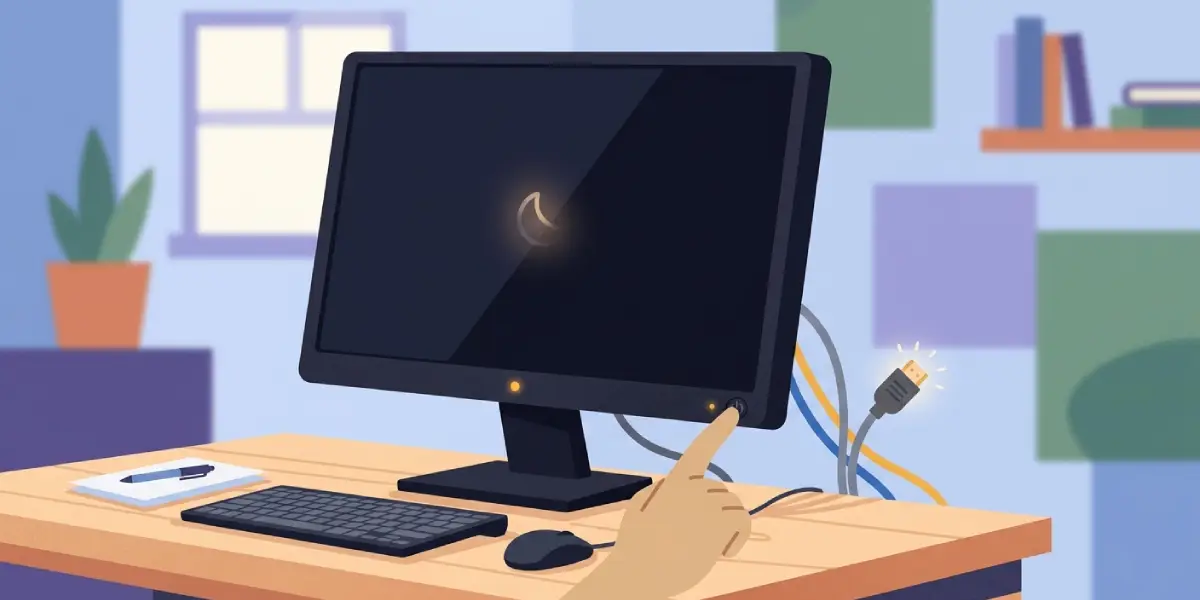
An HDMI or DisplayPort cable that is not fully seated, bent at a sharp angle, or simply worn out can cause intermittent signal loss. Many monitors interpret a dropped signal as an idle state and switch to sleep mode as a result.
Outdated or Buggy Graphics Drivers
Graphics drivers manage the handshake between the GPU and the display. A driver that is out of date or was not installed cleanly can misreport activity status, causing the monitor to sleep even while someone is actively working.
Monitor-Side Eco or Power-Saving Timers
Many monitors have their own energy-saving settings buried in the on-screen display menu. These run independently of the computer, so even a perfectly configured operating system will not stop the screen from sleeping if this timer is active.
USB Peripheral Power Management
Wireless mice and keyboards sometimes go into their own low-power state, which can stop them from registering as active input devices. The system reads this as no activity and puts the display to sleep on schedule.
HDMI-CEC and Smart Display Features
Some monitors and TVs used as monitors include HDMI-CEC or similar smart-signal features that let connected devices control power states. This can cause unexpected sleep behavior that has nothing to do with the computer’s own settings.
How to Fix a Monitor That Keeps Going to Sleep
These steps are ordered from the most common fix to the least common, so working through them in sequence saves time.
Before You Start
No disassembly is required for this issue, but a couple of quick prep steps make troubleshooting cleaner. Close any open work to avoid losing progress, and have the cable box or a spare video cable nearby in case a swap is needed.
- Step 1: Open the power settings on the computer. On Windows, go to Settings, then System, then Power and Battery. On macOS, go to System Settings, then Lock Screen or Displays. Check the ‘turn off display after’ timer and adjust it to a longer duration or set it to never for testing purposes.
- Step 2: Inspect the video cable at both ends. Unplug it from the monitor and the computer, check for bent pins or visible damage, and reseat it firmly. If a spare HDMI or DisplayPort cable is available, swap it in to rule out a failing cable.
- Step 3: Update the graphics driver. Visit the GPU manufacturer’s official site (NVIDIA, AMD, or Intel), download the latest driver for the specific model, and install it. A restart afterward is recommended.
- Step 4: Open the monitor’s on-screen display menu using the physical buttons on the bezel. Look for a power-saving, eco mode, or sleep timer setting and either disable it or extend the timeout.
- Step 5: Check wireless peripheral power settings. In Windows Device Manager, find the mouse and keyboard entries, open Properties, go to the Power Management tab, and uncheck the option that allows the computer to turn off the device to save power.
- Step 6: Disable HDMI-CEC or similar smart-signal features in the monitor’s OSD menu if the display is a smart monitor or a TV used as a monitor. These features sometimes go by different brand names, so check the manual if the option is not obvious.
- Step 7: Test with a different port on the computer, such as switching from HDMI to DisplayPort or vice versa. A specific port on the GPU or motherboard can occasionally cause signal handshake issues that trigger sleep behavior.

Tip: If the monitor stops sleeping only after switching cables, that confirms a cable issue rather than a software one, which saves time on further troubleshooting.
Common Problems and Fixes
Monitor Sleeps Immediately After Waking Up
This usually points to a power management setting on a USB input device. Reconnecting a wired mouse or keyboard temporarily helps confirm whether a wireless peripheral is the source before adjusting its power settings.
Screen Goes Black but the Power Light Stays On
A steady power light with a black screen often means the monitor is receiving power but not a video signal. This points back to the cable or the port rather than the sleep timer itself.
Monitor Will Not Wake Up From Sleep At All
If moving the mouse or pressing a key does nothing, try pressing the monitor’s own power button once. If that brings the display back, the issue is on the signal side. If nothing brings it back, a hard restart of the computer is the next step.
Sleep Settings Keep Resetting on Their Own
This can happen after a Windows update or a driver reinstall resets default power plans. Re-checking the power settings after any major system update is a good habit to avoid repeat surprises.
Second Monitor Sleeps While the Main One Stays Active
Multi-monitor setups sometimes apply different power behavior per display. Checking the cable and port on the affected monitor specifically, along with its own OSD eco settings, usually resolves this.
Frequently Asked Questions
Why does my monitor keep going to sleep even when I am using it?
This is typically caused by a power plan setting turning off the display too soon, a loose cable dropping the signal, or a wireless mouse and keyboard not registering enough activity to keep the system awake.
Is it bad for a monitor to go to sleep frequently?
No. Sleep mode is a normal power-saving feature and does not cause wear on the display. Frequent unwanted sleeping is only an inconvenience, not a hardware risk.
Why does my monitor sleep but my computer stays on?
The display and the computer often have separate power timers. It is common for the monitor to shut off on its own schedule while the computer continues running in the background.
Can a bad cable cause a monitor to sleep randomly?
Yes. A loose, bent, or worn HDMI or DisplayPort cable can interrupt the signal intermittently, and many monitors interpret that interruption as an idle state, triggering sleep mode.
Why does my monitor go to sleep right after I wake it up?
This pattern usually points to a peripheral, such as a wireless mouse, that briefly wakes the system but then fails to keep registering activity due to its own power-saving settings.
Does updating graphics drivers actually help with monitor sleep issues?
Yes. Outdated or corrupted drivers can misreport the display’s active state to the operating system, which can cause the monitor to sleep unexpectedly even during use.
Why does my monitor sleep even after I disabled sleep mode in Windows?
Many monitors have their own independent eco or power-saving timer set through the on-screen display menu. This setting overrides the operating system entirely and needs to be checked separately.
Can HDMI-CEC cause a monitor to sleep unexpectedly?
Yes, on monitors or TVs that support HDMI-CEC or similar smart-signal features, connected devices can sometimes trigger power state changes that have nothing to do with the computer’s settings.
Why does only one of my two monitors keep going to sleep?
This is often tied to that specific monitor’s cable, port, or individual eco settings rather than a system-wide issue, since each display can behave independently in a multi-monitor setup.
Should a monitor that will not wake up at all be replaced?
Not necessarily. Try a different cable and port first, and confirm the computer itself is not the one stuck in a low-power state. If nothing brings the display back after those checks, a professional inspection is worth considering before replacing the unit.
