
A laptop showing wrong battery percentage is one of the most common complaints technicians hear, whether the number jumps from 40% to 15% in seconds or the laptop shuts down while the display still claims 20% remaining. The good news is that this is almost always a software or calibration issue rather than a sign the battery needs replacing. This guide walks through why it happens and how to fix it in the right order.
Key Takeaways
- Most wrong battery percentage readings come from a confused battery gauge, not physical battery damage.
- Battery calibration (a full charge, full discharge, full charge cycle) fixes the majority of cases.
- Outdated chipset or battery drivers are a frequent hidden cause on Windows laptops.
- Third-party battery monitoring apps often conflict with built-in readings and should be tested by removing them.
- If the percentage jump happens alongside sudden shutdowns or a swollen case, that points to actual battery wear and needs a professional check.
Common Causes of a Laptop Showing Wrong Battery Percentage
Before jumping into fixes, it helps to understand what is actually going on inside the machine. A laptop battery does not directly measure ‘percent remaining’ the way a fuel gauge measures liquid in a tank. Instead, the battery’s internal controller estimates remaining capacity based on voltage, current draw, and a stored calculation of the battery’s full charge capacity. When that calculation drifts out of sync with the battery’s real condition, the percentage on screen stops matching reality.
Battery Gauge Drift
Over months of partial charges and quick top-ups, the controller’s estimate of ‘full capacity’ can drift. This is the single most common reason a battery percentage jumps around or reads inaccurately, and it is also the easiest to fix.
Outdated or Corrupted Drivers
The Microsoft ACPI-compliant battery driver and chipset drivers handle communication between the operating system and the battery controller. When these are outdated or glitched after a Windows update, the reported percentage can freeze, jump, or misreport entirely.
Software Conflicts
Manufacturer power management tools (like those from Dell, HP, Lenovo, or ASUS) sometimes run alongside Windows’ own battery reporting and disagree with each other, creating two different numbers or an unstable reading.
Genuine Battery Wear
A battery that has been through hundreds of charge cycles naturally loses capacity, and the estimate can become less reliable as the cells age unevenly. This is a hardware issue rather than a software one.
How to Fix a Laptop Showing Wrong Battery Percentage
Work through these fixes in order, starting with the simplest. Most laptops are fixed by the first two or three steps alone.
Before You Start
No disassembly is required for most of these fixes, but a few basic precautions still apply. Save any open work and close unnecessary programs before restarting the laptop. Keep the charger nearby, since two of the fixes below involve a full charge and discharge cycle. If a later step involves opening the laptop to check the battery physically, power it off, unplug the charger, and let the machine cool down first.
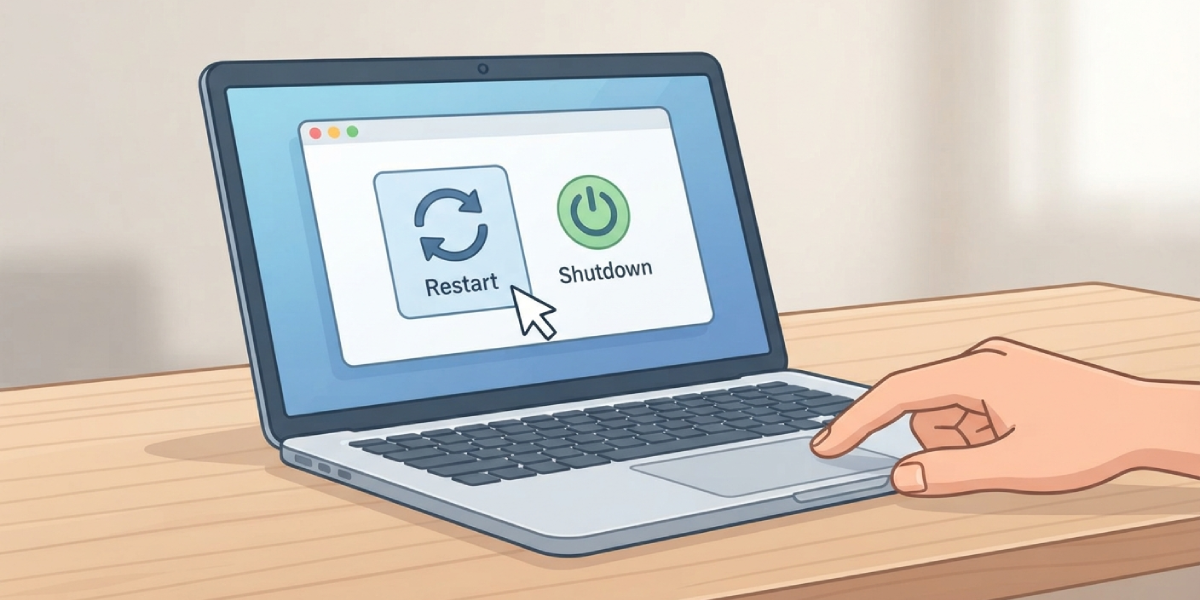
- Step 1: Restart the laptop fully rather than using sleep mode. A full shutdown and restart clears temporary system values, including a stuck battery reading, more reliably than sleep or hibernate.
- Step 2: Update the battery and chipset drivers. Open Device Manager, expand ‘Batteries’, right-click each listed battery driver, and choose ‘Update driver’. Do the same for the chipset driver under ‘System devices’, or download the latest version directly from the laptop manufacturer’s support page.
- Step 3: Uninstall the Microsoft ACPI-compliant battery driver and let Windows reinstall it. In Device Manager, right-click the driver, select ‘Uninstall device’, then restart the laptop. Windows will automatically reinstall a fresh copy on boot, which often resolves a stuck or inaccurate percentage.
- Step 4: Run a full battery calibration cycle. Charge the laptop to 100% and let it sit for about two hours after reaching full charge. Then let it discharge, ideally through normal use, all the way down until it shuts off on its own. Leave it off for a few hours, then charge it back to 100% without interruption. This resets the gauge’s understanding of true full and empty capacity.
- Step 5: Close or uninstall third-party battery monitoring software. Apps that track battery health can sometimes override or conflict with the built-in reading. Test with these tools closed to see if the percentage stabilizes.
- Step 6: Check the built-in battery report. On Windows, open Command Prompt and type powercfg /batteryreport, then open the generated HTML file. This shows design capacity versus full charge capacity, which reveals whether the battery has genuinely degraded or whether the software is simply misreporting a healthy battery.
- Step 7: Reset the laptop’s power management settings to default in the Control Panel power options, since a misconfigured power plan can occasionally interfere with how battery status is calculated and displayed.
Tip: Run the battery calibration cycle (Step 4) just once and observe results for a full day of normal use afterward. Repeating it too often provides no extra benefit and just wastes a charge cycle.
Common Problems and Fixes
Percentage Jumps Suddenly, Then Corrects Itself
This usually points to gauge drift rather than a driver issue. A single calibration cycle typically resolves it within one to two charge cycles.
Laptop Shuts Down While Percentage Still Shows 10-20%
This is a stronger sign of an aging battery whose voltage drops faster than the percentage estimate accounts for. Check the battery report from Step 6; if full charge capacity is well below design capacity, battery replacement is the appropriate fix rather than further software troubleshooting.
Percentage Freezes at One Number and Will Not Move
This is typically a driver communication failure. Reinstalling the ACPI-compliant battery driver (Step 3) resolves this in most cases; if it persists, a BIOS or UEFI firmware update from the manufacturer’s site is the next step, since battery communication protocols are sometimes patched there.
Reading Still Wrong After Calibration
If a full calibration cycle does not fix the issue, suspect either leftover third-party software interference or a battery that has genuinely aged past reliable self-calibration. At that point, a hardware-level battery health check is worth doing before assuming anything else.
Percentage Differs Between Windows and Manufacturer Software
Two programs are reading the same hardware differently, usually because one is cached or outdated. Update both the manufacturer’s power app and Windows itself, then restart before comparing readings again.
Frequently Asked Questions
Why does a laptop battery percentage jump around randomly?
This almost always happens because the battery gauge’s internal calculation of full capacity has drifted out of sync with the battery’s real charge level. A calibration cycle usually corrects it.
Is a wrong battery percentage a sign the battery is failing?
Not necessarily. Most cases are a software or gauge calibration issue. It becomes a hardware concern when the laptop shuts down unexpectedly while showing a decent percentage, or when a battery report shows significantly reduced full charge capacity.
How often should battery calibration be done?
Only when the percentage becomes noticeably inaccurate. Doing it every month or more is unnecessary and simply uses up charge cycles without added benefit.
Does unplugging and replugging the charger fix the percentage?
It can offer a temporary correction by forcing the system to re-read current draw, but it does not fix the underlying gauge drift the way a full calibration cycle does.
Can a Windows update cause the battery percentage to read wrong?
Yes. Updates sometimes replace or reset battery drivers, which can temporarily disrupt accurate reporting until the driver is updated or reinstalled.
Should the battery be removed to fix a wrong percentage reading?
On laptops with a removable battery, removing it for a minute and reseating it can help reset the connection, but this is only necessary if driver reinstallation and calibration have not worked.
Why does the percentage show differently right after waking from sleep?
The battery controller needs a moment to re-poll the actual voltage after sleep, so a brief mismatch right after waking is normal and typically self-corrects within a minute.
Does using the laptop while charging affect the percentage accuracy?
It can cause more fluctuation in the displayed percentage since power draw and charge input are happening simultaneously, but it does not damage the gauge or the battery itself.
When should a professional be consulted about battery percentage issues?
If the battery report shows major capacity loss, if the case looks swollen, or if the laptop shuts down unpredictably despite trying every software fix, a professional battery replacement is the safer next step.
