
Single channel vs dual channel RAM comes down to how many data pathways a motherboard uses to talk to memory at once, and that difference has a real, measurable effect on everyday performance. A single stick of RAM runs on one channel, while two matched sticks installed correctly can run on two channels at the same time. This guide breaks down what that actually means for gaming, everyday tasks, and laptops, plus how to check which setup a system is currently running.
Key Takeaways
- Dual channel RAM uses two memory sticks together to roughly double the available memory bandwidth compared to a single stick.
- Integrated graphics (built into most laptop and budget desktop CPUs) benefit the most from dual channel, since they share system memory instead of using dedicated video memory.
- Dedicated GPU gaming sees a smaller but still noticeable improvement in minimum frame rates and frame time consistency.
- Dual channel only activates when RAM is installed in the correct matching slots, and it works best with two identical or closely matched sticks.
- General office work and web browsing show little practical difference between single and dual channel setups.
Single Channel vs Dual Channel RAM: What Actually Changes
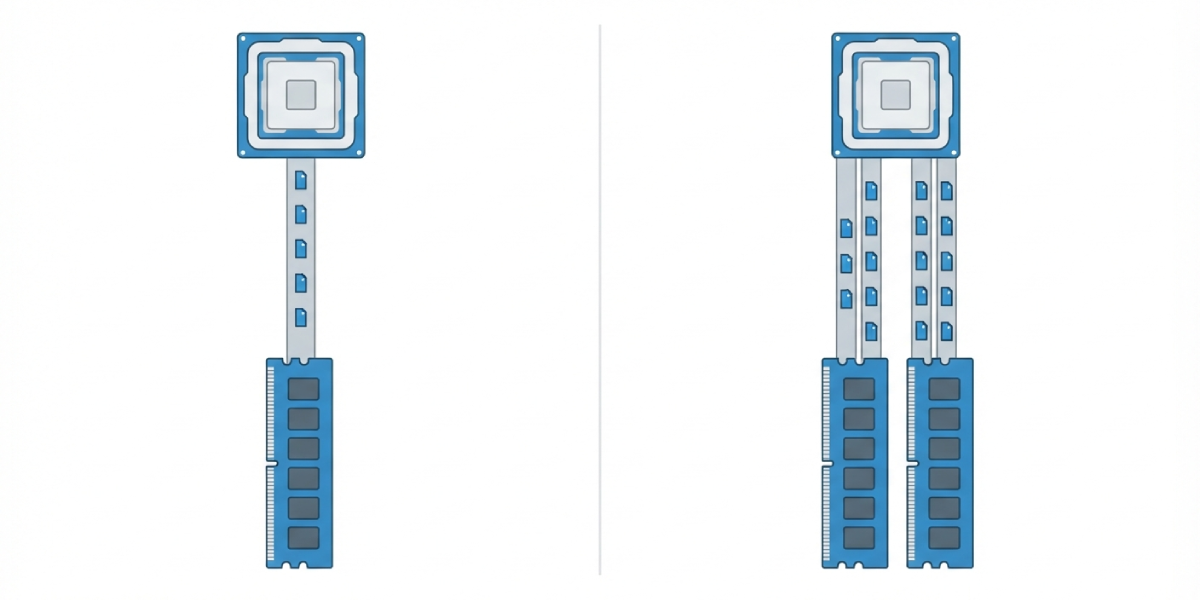
Think of a single memory channel like a one-lane road between the CPU and the RAM. Every piece of data has to line up and take turns. Dual channel adds a second lane, letting two lanes of data move at once. This does not double raw processing power, but it does reduce the chances of the CPU or GPU sitting idle while waiting for memory to catch up, which is often called a memory bottleneck.
Most modern CPUs are actually designed around dual channel memory controllers. Running just one stick does not just waste potential, it leaves the second controller channel completely unused, similar to buying a two-lane bridge and only ever driving on one side of it.
Where the Difference Matters Most
Systems using integrated graphics, which includes most laptops, mini PCs, and budget desktops without a separate video card, feel this the most. Integrated graphics borrow system RAM to act as video memory, so doubling the available bandwidth can noticeably improve frame rates in games and smoothness in everyday graphics tasks like scrolling or video playback.
Systems with a dedicated graphics card still benefit, particularly in CPU-heavy games and productivity software that processes large files, but the improvement is usually smaller since the GPU has its own dedicated memory to lean on.
Where It Barely Matters
Basic tasks like web browsing, word processing, and streaming video rarely push memory bandwidth hard enough to expose a real difference. A single stick of RAM in one of these situations will feel almost identical to a dual channel setup for most people.
How to Check and Enable Dual Channel
- Step 1: Confirm the RAM sticks are a matching pair. Matching capacity, speed, and ideally the same kit from the same manufacturer gives the most reliable dual channel operation.
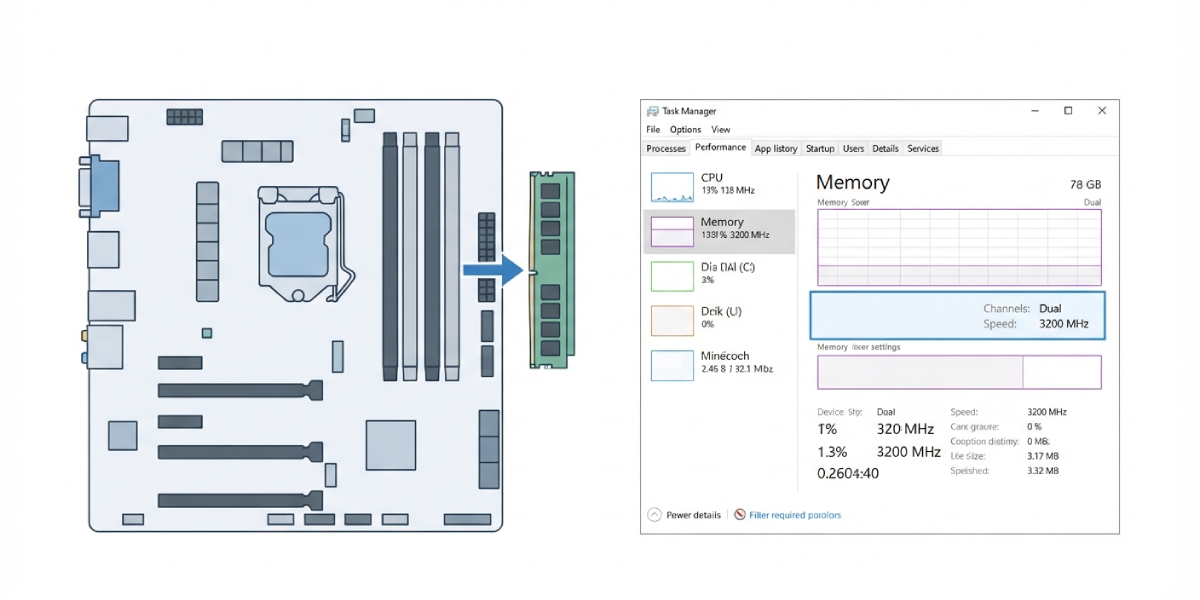
- Step 2: Check the motherboard manual or the labeling on the slots themselves. Slots are usually color-coded or numbered in pairs, such as slot 1 and slot 3, or slot 2 and slot 4.
- Step 3: Power down the system, disconnect it from power, and ground out static by touching a bare metal part of the case before handling any components.
- Step 4: Install the two matching sticks into the correct paired slots rather than two adjacent slots, unless the manual specifically says otherwise.
- Step 5: Boot the system and open Task Manager on Windows, then check the Performance tab under Memory. It should list the channel configuration, or check the BIOS or UEFI memory information screen for confirmation.
- Step 6: On a laptop, check the manufacturer’s specification sheet or use a system information tool, since laptop RAM slots are not always accessible without removing a back panel.
Tip: When buying RAM for a dual channel setup, purchasing a two-stick kit sold together as a pair is more reliable than buying two single sticks separately, since kits are tested by the manufacturer to run together at their rated speed.
Common Problems and Fixes
System shows dual channel installed but performance did not improve. This usually points to mismatched RAM speeds or timings. Check that both sticks report the same speed in the BIOS, and confirm the XMP or EXPO memory profile is enabled rather than left at a default, slower speed.
Computer will not boot after adding a second stick. This is often caused by using two sticks from different kits with incompatible timings, or by installing them in the wrong slot pairing. Reseat both sticks firmly, confirm the slot pairing matches the motherboard manual, and try each stick individually in the primary slot to rule out a faulty module.
Task Manager or BIOS shows single channel even with two sticks installed. Double check that both sticks are actually in the correct paired slots and not two slots next to each other on the same channel. Reseating the modules and clearing the BIOS to default settings often resolves this.
Laptop only has one RAM slot filled and cannot reach dual channel. Some laptops have a second slot available under the back cover, while others have RAM soldered directly to the motherboard with no upgrade path. Checking the exact model’s specification sheet before buying additional memory avoids wasted effort.
Frequently Asked Questions
Is dual channel RAM worth it for gaming?
Yes, particularly for systems using integrated graphics, where dual channel can noticeably improve frame rates. On systems with a dedicated graphics card, the benefit is smaller but still shows up in more consistent frame times and reduced stuttering in CPU-intensive games.
Can two different brands of RAM run in dual channel?
It is possible if both sticks match in capacity, speed, and timings, but it is not guaranteed to work smoothly. Using a matched kit from the same manufacturer remains the safest and most reliable way to get dual channel working correctly.
Does dual channel RAM require the same size sticks?
Matching capacity is strongly recommended for the best and most consistent dual channel performance. Mismatched capacities can sometimes still trigger dual channel on the portion of memory that matches, but the setup becomes more complex and less predictable.
Why does the motherboard manual show specific slots for dual channel?
Motherboards route memory channels to specific physical slots based on their circuit design. Installing RAM in the wrong slot pairing can leave the system running in single channel mode even though two sticks are technically installed.
Does dual channel RAM increase total memory capacity?
No, dual channel affects bandwidth and speed, not total storage capacity. Two 8GB sticks in dual channel still provide 16GB of total memory, the same as two 8GB sticks running in single channel.
How much of a real-world difference does dual channel make?
The difference depends heavily on the task. Gaming and content creation with integrated graphics often show a clear improvement, while basic browsing and office work show very little practical change.
Can a laptop with soldered RAM be upgraded to dual channel?
If the RAM is fully soldered with no open slot, dual channel cannot be added after purchase. Some laptops pair one soldered module with a single open slot, which can allow dual channel if a matching module is added.
Does quad channel RAM exist, and is it better than dual channel?
Quad channel exists mainly on workstation and server-class platforms with CPUs and motherboards designed to support four memory channels at once. It offers more bandwidth than dual channel but is not typically available on standard consumer desktop or laptop platforms.
Will running RAM in single channel damage the system?
No, single channel is completely safe to run and simply results in lower memory bandwidth. It will not cause any hardware damage, it just leaves some performance on the table compared to a dual channel setup.
