
Num Lock causing wrong key inputs is one of those small annoyances that turns typing into guesswork, especially when letters suddenly become numbers or the cursor jumps instead of moving. This usually comes down to a stuck key, a mismatched Num Lock state, or a driver hiccup rather than a failing keyboard. The fixes below walk through the most reliable ways to track down the cause and get normal typing back.
Key Takeaways
- Wrong key inputs tied to Num Lock almost always trace back to the numpad overlay being active on laptops without a dedicated number pad.
- A stuck or sticky Num Lock key, a BIOS setting, or an outdated keyboard driver can all cause the same symptom.
- Restarting the keyboard driver and checking Num Lock’s boot behavior solves the issue in most cases.
- External keyboards can conflict with a laptop’s built-in Num Lock state, so testing with only one keyboard connected helps isolate the problem.
- Persistent wrong inputs after software fixes often point to a hardware issue with the key switch itself.
Common Causes of Num Lock Causing Wrong Key Inputs
Most laptops without a separate number pad borrow letter keys – usually along the right side of the keyboard – to act as a virtual numpad. When Num Lock gets toggled on by accident, those letters start typing numbers instead, which is the single most common reason for this exact problem. On full-size keyboards, the cause tends to be different: a stuck Num Lock key, a keyboard driver that lost sync with the operating system, or a BIOS setting that forces Num Lock on or off at every startup.
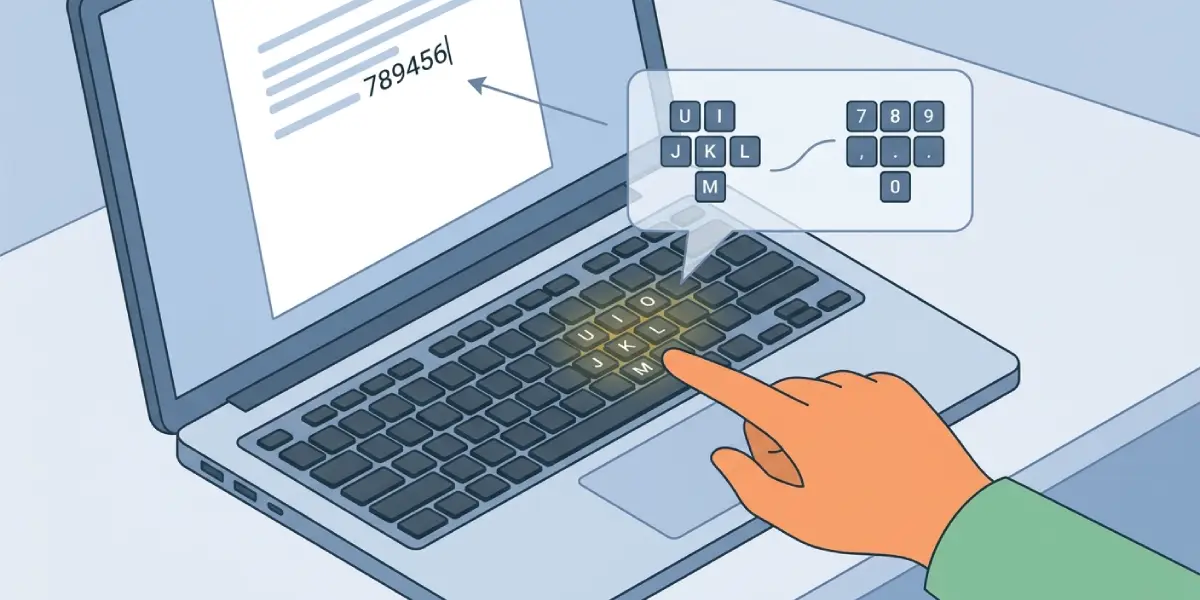
Other contributors include conflicting input from a second connected keyboard, outdated firmware on a wireless keyboard receiver, or a physical switch under the key that no longer registers a clean press. Liquid spills or years of dust buildup can leave a key partially stuck, which makes it behave as if Num Lock is being held down even when it is not.
Steps to Fix Num Lock Causing Wrong Key Inputs
Step-by-Step Fix
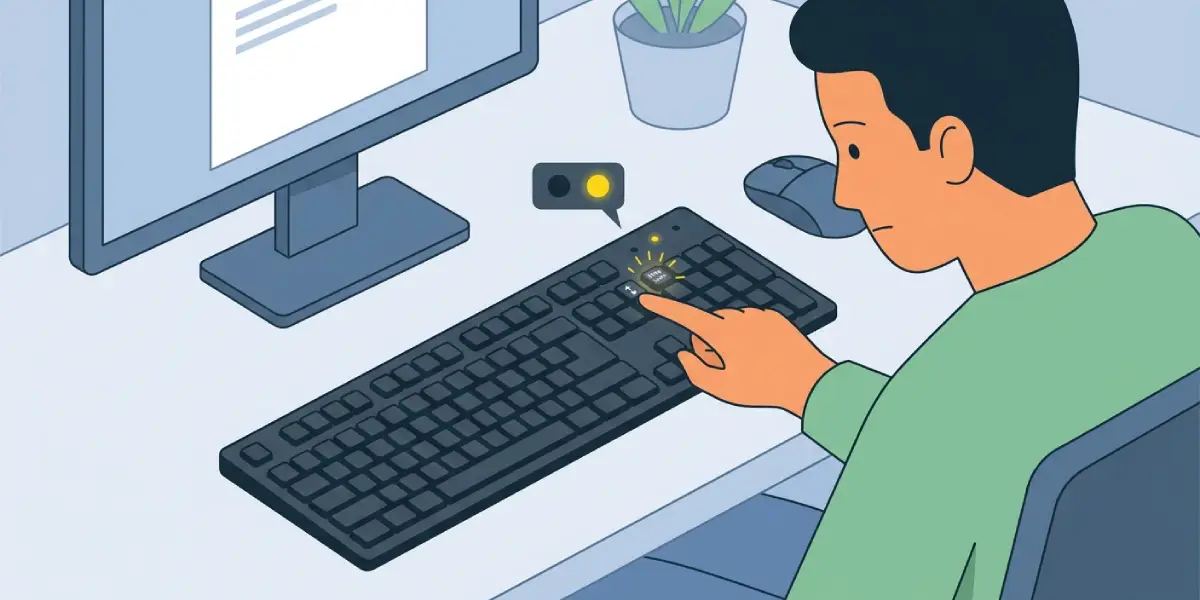
- Step 1: Press the Num Lock key once and check whether an indicator light on the keyboard changes state, or whether typing a letter that normally shares a numpad function now behaves differently. This confirms whether Num Lock is actually the trigger.
- Step 2: On a laptop, look for a small numpad icon printed on part of the keyboard – often on the right-hand letter keys. If Num Lock is on, that overlay is active, so turning it off (usually Fn plus Num Lock or Fn plus a key labeled NumLk) should restore normal letters immediately.
- Step 3: Open Device Manager, expand ‘Keyboards’, right-click the listed keyboard device, and select ‘Uninstall device’. Restart the computer so Windows reinstalls the driver fresh, which clears up many cases where Num Lock state and key mapping fall out of sync.
- Step 4: Check the BIOS or UEFI settings by restarting and entering setup (commonly Delete, F2, or Esc during boot). Look for a ‘Num Lock’ setting under boot or keyboard options and set it to match personal preference, since some systems force it on at every boot regardless of the operating system setting.
- Step 5: Disconnect any secondary keyboard, USB numpad, or wireless dongle and test with only the primary keyboard connected. Two keyboards can each hold a different Num Lock state, which causes inconsistent typing that looks random until isolated this way.
- Step 6: Clean the Num Lock key and surrounding keys using compressed air to dislodge crumbs or dust, then gently wipe the key caps with a microfiber cloth lightly dampened with 90 percent or higher isopropyl alcohol. A key that sticks even slightly can behave as if it is constantly being toggled.
- Step 7: Test the keyboard in a different application, such as a plain text editor, and also test an on-screen keyboard through the operating system’s accessibility settings. If the on-screen keyboard types correctly but the physical one does not, the issue points toward hardware rather than software.
Tip: If wrong inputs only happen in one specific program, the issue is more likely a software conflict or a custom shortcut inside that app rather than Num Lock itself.
Before You Start
No disassembly is needed for the fixes above, but if a physical cleaning is part of the plan, power down the computer and unplug it first. For a laptop, this also means letting it cool if it has been running, since components near the keyboard deck can be warm to the touch. Static discharge is not usually a concern for surface cleaning, but touching a bare metal part of the case beforehand is a good habit before working near any electronics.
Common Problems and Fixes
- Num Lock keeps turning on by itself after every restart: This is typically a BIOS setting forcing the state at boot. Adjusting the Num Lock option in BIOS/UEFI setup, or updating BIOS to the latest version from the manufacturer’s support site, usually resolves it.
- Wrong inputs continue even after reinstalling the driver: Try a different USB port for a wired keyboard, or fresh batteries and a driver update for a wireless one. If the same keys still misbehave, the physical key switch may be worn out or damaged.
- Only certain keys type the wrong character: This points to individual key switches rather than Num Lock as a whole. Testing those exact keys with the numpad overlay confirmed off narrows down whether it is a software mapping issue or a hardware fault.
- Num Lock light is off but numbers still appear: Some keyboards separate the indicator light from the actual key state due to a driver bug. A full driver reinstall or a firmware update for the keyboard often fixes this mismatch.
Where wrong inputs persist across multiple keyboards, multiple user accounts, and even a freshly reinstalled driver, the remaining likely cause is a fault inside the keyboard’s internal wiring or controller, and that is a reasonable point to consult a qualified repair technician rather than attempt further troubleshooting.
Frequently Asked Questions
Why does my laptop type numbers instead of letters?
This happens when Num Lock activates the built-in numpad overlay on keys that normally type letters. Turning off Num Lock, usually with the Fn key combination printed on the keyboard, restores normal letter input.
How do I turn off Num Lock on a laptop without a numpad?
Look for a key labeled NumLk, Num, or a numpad icon shared with another key, then press Fn together with that key. The exact combination varies by manufacturer, so checking the keyboard legend is the fastest way to confirm it.
Why does Num Lock turn on automatically every time I boot?
Most commonly this is controlled by a BIOS or UEFI setting rather than Windows itself. Entering BIOS setup during boot and changing the Num Lock option to the preferred state usually stops this from recurring.
Can a keyboard driver cause Num Lock problems?
Yes. An outdated or corrupted keyboard driver can lose sync with the actual Num Lock hardware state, leading to inconsistent behavior. Uninstalling the device in Device Manager and letting Windows reinstall it often clears this up.
Why does only one specific key type the wrong character?
A single misbehaving key is more likely a worn key switch or debris under that key than a Num Lock issue affecting the whole keyboard. Cleaning around that key and testing it in isolation helps confirm which it is.
Does using two keyboards at once cause this problem?
It can. Each connected keyboard can hold its own Num Lock state, and Windows does not always keep them synchronized. Disconnecting one keyboard and testing with only the other connected quickly isolates the cause.
Will cleaning the keyboard fix wrong key inputs?
Cleaning helps when a sticky or dust-clogged key is causing inconsistent presses that mimic a Num Lock toggle. It will not help if the cause is a BIOS setting or driver conflict, so it is best tried after the software checks.
Is this problem covered under warranty?
If troubleshooting points to a hardware fault in the key switch or keyboard controller, and the device is still within its warranty period, a manufacturer repair is usually the safer option rather than attempting internal repairs.
Why does the on-screen keyboard type correctly but the physical one does not?
This is a strong sign the issue is hardware-related rather than a Windows setting, since the on-screen keyboard bypasses the physical key switches entirely. At that point, professional inspection or a keyboard replacement is the next reasonable step.
Can updating BIOS fix Num Lock issues?
In some cases, yes. Manufacturers occasionally patch boot-time keyboard behavior in BIOS updates, so checking the manufacturer’s support page for a newer BIOS version is worth doing if other fixes have not worked.
