
Outlook attachments not downloading is one of the most frustrating interruptions during a workday, especially when a client file or invoice is sitting right there but refuses to open. Most of the time this comes down to a stuck cache, a misbehaving add-in, or a temporary connection hiccup. This guide walks through the exact steps to get attachments downloading normally again.
Key Takeaways
- Outlook attachments not downloading is usually caused by a corrupted temporary cache, a conflicting add-in, or an outdated Outlook build.
- Clearing the Outlook Secure Temp folder resolves the issue in the majority of cases.
- Testing the attachment in Outlook on the web quickly shows whether the problem is with Outlook itself or the file.
- Disabling add-ins and repairing the Office installation fix most remaining cases.
- A fresh Outlook profile is the reliable last-resort fix when nothing else works.
Step-by-Step Guide to Fix Outlook Attachments Not Downloading
Work through these steps in order. Most people find the problem clears up within the first three or four steps, so there is no need to jump straight to the more advanced fixes.
- Step 1: Check the internet connection. Open a browser and load any website to confirm the connection is stable, then reopen Outlook and try the download again. A weak or dropped connection is often the simplest explanation.
- Step 2: Restart Outlook completely. Close the application from the taskbar (not just the window), wait ten seconds, then reopen it. This clears out any temporary process that may have locked the attachment.
- Step 3: Test the same email in Outlook on the web. Sign in at outlook.com or the organization’s web portal, open the same message, and try downloading the attachment there. If it downloads fine on the web but not in the desktop app, the issue is isolated to the desktop client.
- Step 4: Clear the Outlook Secure Temp folder. This hidden folder stores a temporary copy of every attachment opened, and it can fill up or become corrupted over time.
- Step 5: Disable add-ins one at a time. Go to File, then Options, then Add-ins, select COM Add-ins in the Manage dropdown, click Go, and uncheck each add-in before restarting Outlook.
- Step 6: Update Outlook to the latest build. Go to File, then Office Account, then Update Options, and select Update Now.
- Step 7: Repair the Office installation through the Windows Control Panel or Settings app, using the Quick Repair option first.
- Step 8: Check antivirus and firewall settings, since some security software scans and quarantines attachments before Outlook can open them.
- Step 9: Create a new Outlook profile if the issue persists, since a damaged profile can silently block downloads even after every other fix.
Clearing the Outlook Secure Temp Folder
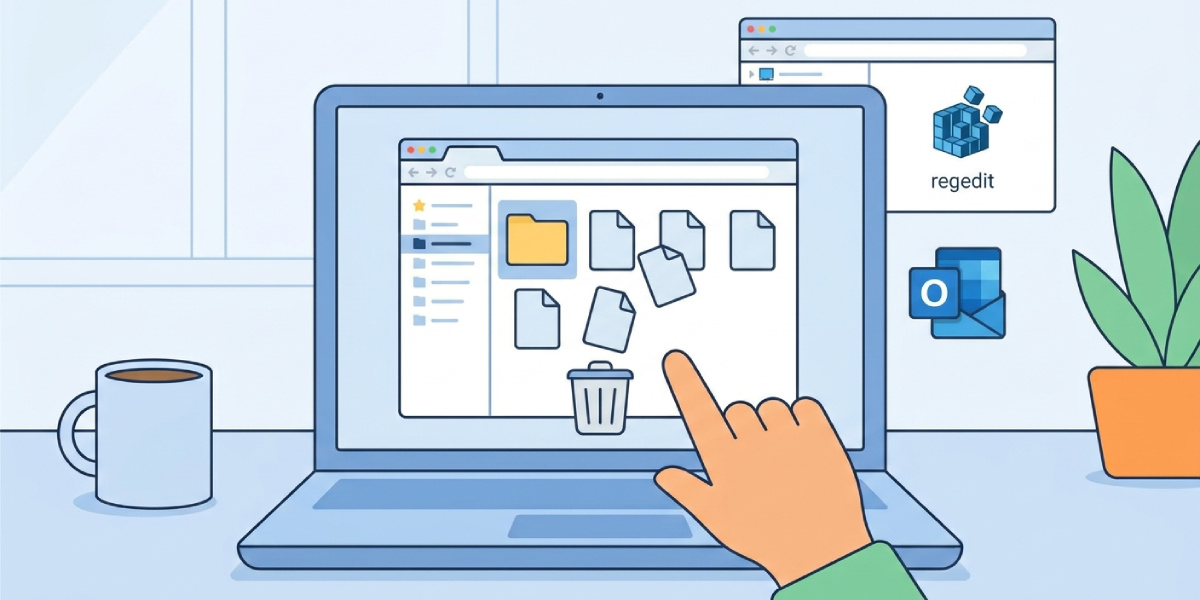
Close Outlook first. Open the Registry Editor by typing regedit into the Windows search bar, then navigate to HKEY_CURRENT_USER\Software\Microsoft\Office\[version number]\Outlook\Security. Look for a value named OutlookSecureTempFolder to find the exact folder path, then open that location in File Explorer and delete its contents. Reopen Outlook and try downloading the attachment again.
Tip: If the OutlookSecureTempFolder value is not visible, search Windows for “%temp%\Content.Outlook” instead, since this is the default location Outlook uses on most systems.
Testing With a Different Attachment Type
Try downloading a small, simple file such as a plain text document from a different email. This works best when the goal is to rule out a corrupted or oversized file as the actual cause, rather than a setting inside Outlook.
Common Problems and Fixes
- The attachment shows a red X instead of downloading: This usually points to a corrupted cache file. Clear the Outlook Secure Temp folder as described above and restart Outlook.
- The download progress bar freezes and never finishes: This is often caused by a large attachment combined with a slow or unstable connection. Pause other bandwidth-heavy applications and try again, or download the file from Outlook on the web instead.
- Outlook says the file type is blocked: Certain file extensions are restricted by default for security reasons. Ask the sender to rename the file with a different extension or compress it into a ZIP file before resending.
- The attachment downloads but will not open: The file itself may have been corrupted during sending. Ask the sender to resend the attachment, and confirm it opens correctly on their end first.
- Downloads work in Outlook on the web but not the desktop app: This confirms the issue is local to the desktop client, so focus on Steps 4 through 9 rather than checking the network or the sender’s file.
Frequently Asked Questions
Why are Outlook attachments not downloading on a Windows computer?
The most common causes are a corrupted temporary attachment cache, a conflicting add-in, an outdated Outlook build, or antivirus software quarantining the file before it can be saved.
How can the Outlook Secure Temp folder be found manually?
Open the Registry Editor, navigate to HKEY_CURRENT_USER\Software\Microsoft\Office\[version number]\Outlook\Security, and check the OutlookSecureTempFolder value for the exact path.
Does restarting Outlook actually fix download issues?
Yes, in many cases a simple restart clears a stuck background process that was holding onto the attachment file, allowing the next download attempt to succeed.
Is it safe to delete files from the Outlook temp folder?
Yes, this folder only stores temporary copies of previously opened attachments, and Outlook rebuilds it automatically as new attachments are opened.
Why do attachments download in Outlook on the web but not the desktop app?
This points to a local issue with the desktop installation, such as a damaged profile, a conflicting add-in, or a corrupted cache, rather than a problem with the file or the network.
Which add-ins are most likely to block attachment downloads?
Third-party antivirus or PDF-related add-ins are the most frequent culprits, since they often intercept files before Outlook finishes saving them locally.
What should be done if repairing Office does not fix the problem?
Create a new Outlook profile through Control Panel, then Mail, then Show Profiles, since a damaged profile can continue blocking downloads even after a successful repair.
Can antivirus software cause Outlook attachments not to download?
Yes, some antivirus programs scan and quarantine attachments automatically, which prevents them from saving to the expected location. Temporarily checking the antivirus quarantine log can confirm this.
How long does it typically take to fix this issue?
Most cases are resolved within five to ten minutes using the cache-clearing and restart steps, though a full profile rebuild can take slightly longer.
