
Outlook calendar not syncing with Google Calendar is one of the most common scheduling headaches for anyone juggling both platforms. The good news is that most sync failures come down to a handful of predictable causes, and each one has a quick fix. This guide walks through exactly why the sync breaks and how to get both calendars talking to each other again.
Key Takeaways
- Outlook and Google Calendar do not sync natively in real time – they rely on subscription links or account connections that refresh on a schedule.
- Most sync failures happen because of an outdated iCal link, incorrect sharing permissions, or a stalled refresh interval.
- Re-subscribing with the correct secret address usually resolves the issue within minutes.
- Outlook desktop typically refreshes subscribed calendars every few hours, not instantly, so patience matters before assuming something is broken.
- Reconnecting the Google account inside Outlook clears most authentication-related sync errors.
How to Fix Outlook Calendar Not Syncing with Google Calendar
This process works whether the calendar was set up months ago and quietly stopped updating, or the sync never worked properly to begin with. Follow the steps in order, since skipping ahead is where most people run into trouble.
Step-by-Step Fix
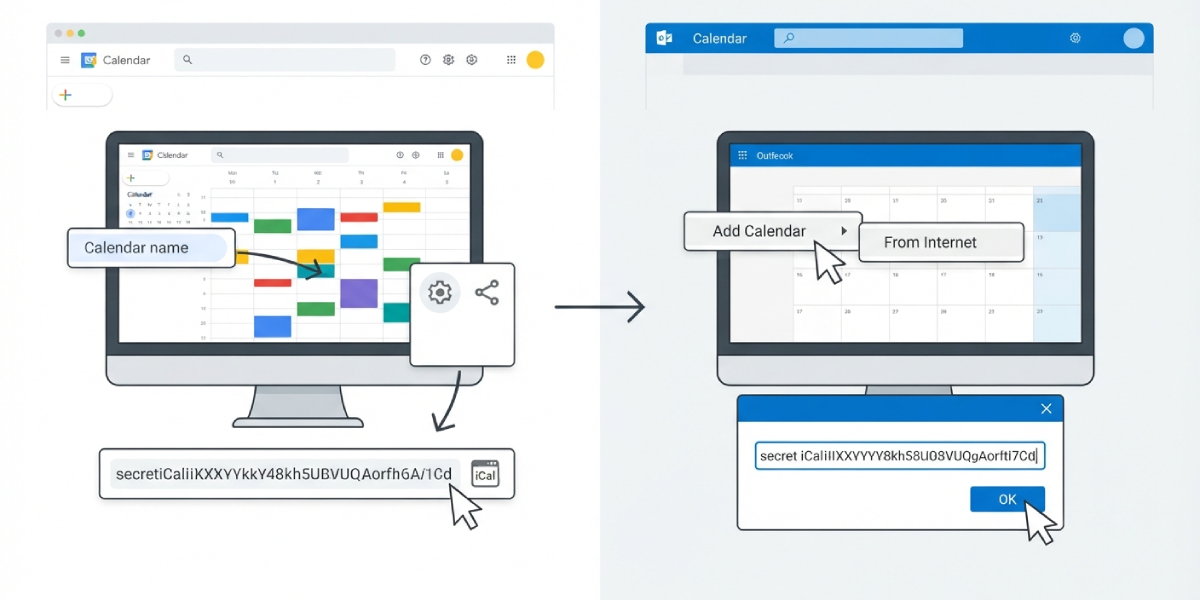
- Step 1: Open Google Calendar in a browser and confirm which calendar needs to sync. Click the three dots next to that calendar’s name in the left-hand list and select ‘Settings and sharing’.
- Step 2: Scroll to ‘Access permissions for events’ and make sure ‘Make available to public’ is checked if a broad sync is needed, or confirm the correct sharing level for the specific people who need access.
- Step 3: Under ‘Integrate calendar’, copy the ‘Secret address in iCal format’ link. This is the address Outlook actually reads from, so grabbing the wrong one is a frequent cause of failed syncing.
- Step 4: Switch to Outlook, go to the Calendar view, and select ‘Add Calendar’ followed by ‘From Internet’.
- Step 5: Paste the copied secret address into the box and select OK. If a calendar with the same name already exists, delete the old, broken subscription first to avoid duplicates.
- Step 6: Give the calendar a clear name when prompted, then confirm it appears in the calendar list on the left side of Outlook.
- Step 7: Right-click the newly added calendar and choose ‘Update this folder now’ to force an immediate refresh instead of waiting for the automatic cycle.
Tip: If events still fail to appear after the manual refresh, close Outlook completely and reopen it. A stuck background sync process is a common reason a valid subscription link does not pull new events right away.
If Using a Connected Google Account Instead
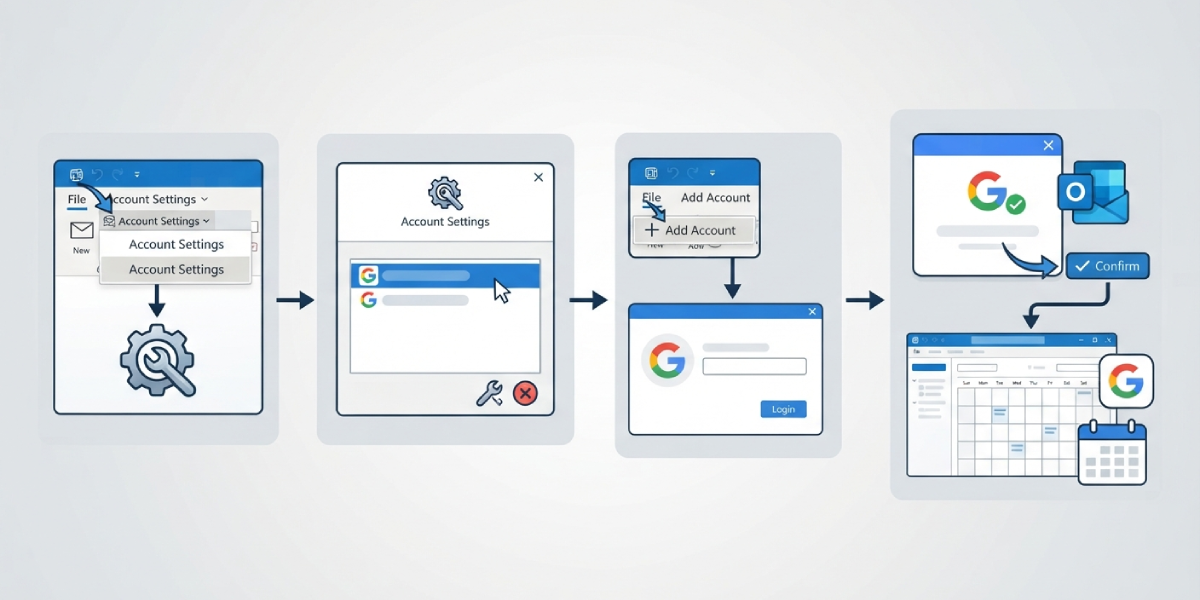
- Step 1: In Outlook, go to File, then Account Settings, then Account Settings again.
- Step 2: Select the connected Google account and choose Repair or Remove.
- Step 3: If removed, add the Google account again through File, Add Account, and sign in with the Gmail credentials.
- Step 4: Grant Outlook permission to access the Google Calendar when prompted, since declining this step is what usually causes silent sync failures.
- Step 5: Restart Outlook and check that events now populate under the connected Google calendar.
Tip: A recent Google account password change almost always breaks this type of connection until it is repaired or re-added, so that is the first thing worth checking before troubleshooting further.
Common Problems and Fixes
- Events appear hours late: Outlook refreshes subscribed internet calendars on its own schedule, often every few hours, so a delay right after adding events is normal rather than a true failure.
- Duplicate calendars showing up: This happens when the calendar was subscribed to more than once. Delete every duplicate except one, then confirm the remaining copy updates correctly.
- Only free/busy status shows, no event details: The sharing permission in Google Calendar is set too restrictively. Update it to ‘See all event details’ before copying the secret address again.
- Sync stops after a password change: Reconnect or repair the Google account inside Outlook’s Account Settings, since the stored login token becomes invalid.
- Calendar missing on Outlook mobile: Subscribed internet calendars added on desktop do not always carry over automatically. Add the same secret address through the mobile app’s calendar settings.
- Old, cancelled events still showing: Force a manual refresh by right-clicking the calendar and selecting ‘Update this folder now’, since cancellations can lag behind the automatic sync cycle.
Frequently Asked Questions
Why is Outlook calendar not syncing with Google Calendar automatically?
Outlook and Google Calendar are separate systems that rely on subscription links or account connections rather than a built-in live sync, so updates only pull in at set intervals rather than instantly.
How often does Outlook refresh a subscribed Google calendar?
Outlook desktop typically checks for updates every few hours. There is no setting to force a truly real-time refresh, though manually selecting ‘Update this folder now’ speeds things up.
Can Outlook and Google Calendar sync in real time?
Not through the built-in subscription method. True real-time, two-way sync generally requires a dedicated sync add-in rather than the native iCal subscription approach.
Why did the sync work before and suddenly stop?
This is usually caused by a changed Google account password, a revoked permission, or the secret iCal address being reset in Google Calendar settings.
Does deleting an event in Google Calendar remove it from Outlook?
Yes, once Outlook refreshes the subscription. Deleted events disappear from Outlook on the next sync cycle, not instantly.
Is the secret iCal address safe to share?
It should be treated like a password, since anyone with that link can view the calendar’s events. Resetting it in Google Calendar settings immediately breaks any existing subscription using the old link.
Why do only some events show up after syncing?
This is often a sharing permission issue. Confirm ‘See all event details’ is selected in Google Calendar’s sharing settings rather than a more limited view.
Does this fix work on Outlook mobile as well as desktop?
Yes, though the subscription needs to be added separately in the mobile app’s calendar settings using the same secret address used on desktop.
Will re-adding the calendar create duplicate events?
It can if the original broken subscription is not deleted first. Always remove the old calendar entry before adding the corrected one.
