
Setting up to add an Exchange account in New Outlook for Windows takes just a few minutes once the correct menu path is known. New Outlook handles this differently than the classic desktop app, and skipping the right sequence is where most sign-in errors start. This guide walks through the exact steps, no guesswork involved.
Key Takeaways
- New Outlook for Windows adds Exchange accounts through Settings, not the classic File tab menu.
- Only Microsoft 365 work or school accounts (Exchange Online) are supported – on-premises Exchange servers are not.
- The sign-in process is automatic once the correct email address is entered; no manual server settings are needed.
- A stable internet connection and correct license assignment prevent most connection errors.
- Accounts can be added, reordered, or removed anytime from the Accounts settings pane.
Step-by-Step Guide to Add an Exchange Account in New Outlook for Windows
This process applies to anyone running the New Outlook for Windows app, whether it is the only account being added or an additional mailbox joining an existing profile.
- Step 1: Open New Outlook for Windows from the Start menu or taskbar.
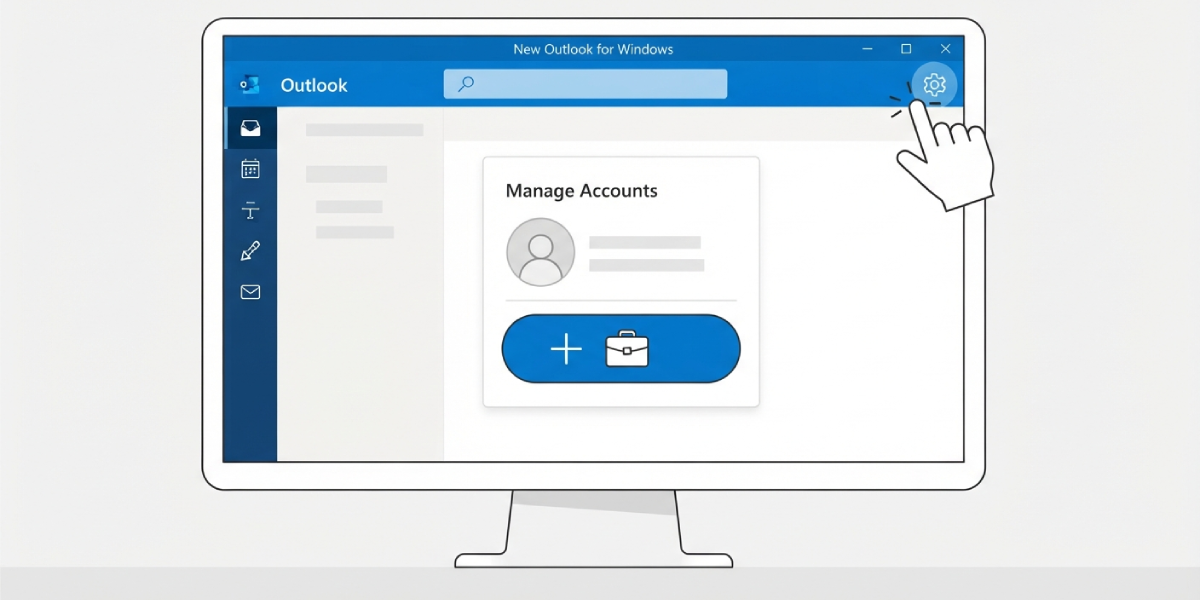
- Step 2: Select the gear icon in the top right corner to open Settings, or go to File and select Account info.
- Step 3: Choose Accounts from the left menu, then select Email accounts.
- Step 4: Select Add account.
- Step 5: Type the full Exchange email address for the Microsoft 365 work or school account and select Continue.
- Step 6: Enter the account password when prompted, then select Sign in.
- Step 7: Complete any additional verification the organization requires, such as multi-factor authentication.
- Step 8: Select Done once Outlook confirms the account has been added successfully.
Tip: If a work or school account has been used before on the same Windows device, Outlook may auto-fill the email address during Step 5 – double-check it before continuing, especially on shared machines.
Confirming the Account Synced Correctly
Once the account appears in the left-hand folder pane, give it a minute or two to finish its first sync. Larger mailboxes with years of history naturally take longer, so a folder list that looks empty at first usually just needs a bit more time.

Common Problems and Fixes
- Error message reading ‘We couldn’t reach the email server’: This typically means the account type isn’t supported, most often an on-premises Exchange server. New Outlook only connects to Exchange Online (Microsoft 365) accounts, so on-premises setups need the classic Outlook app instead.
- Sign-in loops back to the password screen repeatedly: Confirm the password is current and that the account isn’t locked. Resetting the password through the organization’s sign-in portal usually resolves this.
- Account adds but shows a licensing error: This happens when the Microsoft 365 SKU tied to the account doesn’t include an Outlook client license. An IT administrator will need to assign the correct license before the account can connect.
- Folders appear but no new mail arrives: Check the internet connection first, then confirm the account status under Settings > Accounts shows as connected rather than showing a sync error icon.
- Multi-factor authentication prompt never appears: Close and reopen New Outlook, since the sign-in window occasionally gets stuck behind the main app window.
Frequently Asked Questions
Can an on-premises Exchange account be added to New Outlook for Windows?
No. New Outlook currently supports Microsoft 365 work and school accounts through Exchange Online, along with Outlook.com and Hotmail accounts. On-premises Exchange servers require the classic Outlook desktop app.
Does adding an Exchange account in New Outlook require server settings?
No manual server settings are needed. New Outlook detects the correct configuration automatically once the email address and password are entered.
How many Exchange accounts can be added to New Outlook?
Multiple Exchange accounts can be added to the same profile. Each one appears as a separate entry in the left-hand folder pane after setup.
Why does New Outlook show a licensing error after adding the account?
This means the Microsoft 365 subscription tied to that mailbox doesn’t include a license for Outlook desktop apps. An administrator needs to assign the correct license type.
Is a password required every time New Outlook opens?
No. Once signed in successfully, New Outlook keeps the session active and only asks for credentials again if the password changes or the session expires.
What should be done if the Exchange account won’t sync after being added?
Check the account status in Settings > Accounts for a sync error icon, confirm the internet connection is stable, and restart New Outlook if the issue continues.
Can a personal Outlook.com account and a work Exchange account be added together?
Yes. New Outlook allows both account types to exist in the same profile, with each mailbox shown separately in the folder list.
Does multi-factor authentication affect how the Exchange account is added?
It adds an extra verification step during Step 7 of the setup, such as approving a prompt on a phone or entering a code. The core steps to add the account remain the same.
How can an Exchange account be removed from New Outlook later?
Go to Settings > Accounts > Email accounts, select the account, and choose Remove account.
