
Searching a shared mailbox in Outlook can suddenly stop returning results, even when the messages are clearly sitting in the folder. This usually comes down to a handful of common causes: indexing gaps, mailbox size limits, or search scope settings pointed at the wrong place. The steps below walk through exactly how to find and fix the problem.
Key Takeaways
- Most shared mailbox search failures trace back to Outlook’s search index not covering the shared mailbox.
- Rebuilding the search index resolves the majority of missing or incomplete results.
- Search scope must be set to ‘All Mailboxes’ to include shared mailbox content.
- Cached Exchange Mode settings for the shared mailbox affect how much content is searchable.
- Large or recently added shared mailboxes may need extra time to finish indexing.
How to Fix Search Problems When Searching a Shared Mailbox in Outlook
This process works through the most likely causes in order, starting with the quickest fix and moving to deeper settings changes.
Set the Correct Search Scope
- Step 1: Open Outlook and click into the shared mailbox folder to be searched.
- Step 2: Click into the search box at the top of the window, or press Ctrl+E to activate it.
- Step 3: On the Search ribbon that appears, select the Scope dropdown.
- Step 4: Choose ‘All Mailboxes’ rather than ‘Current Folder’ or ‘Current Mailbox’. This is the setting most people overlook, and it is the single most common reason a shared mailbox search comes back empty.
- Step 5: Re-enter the search term and run the search again.
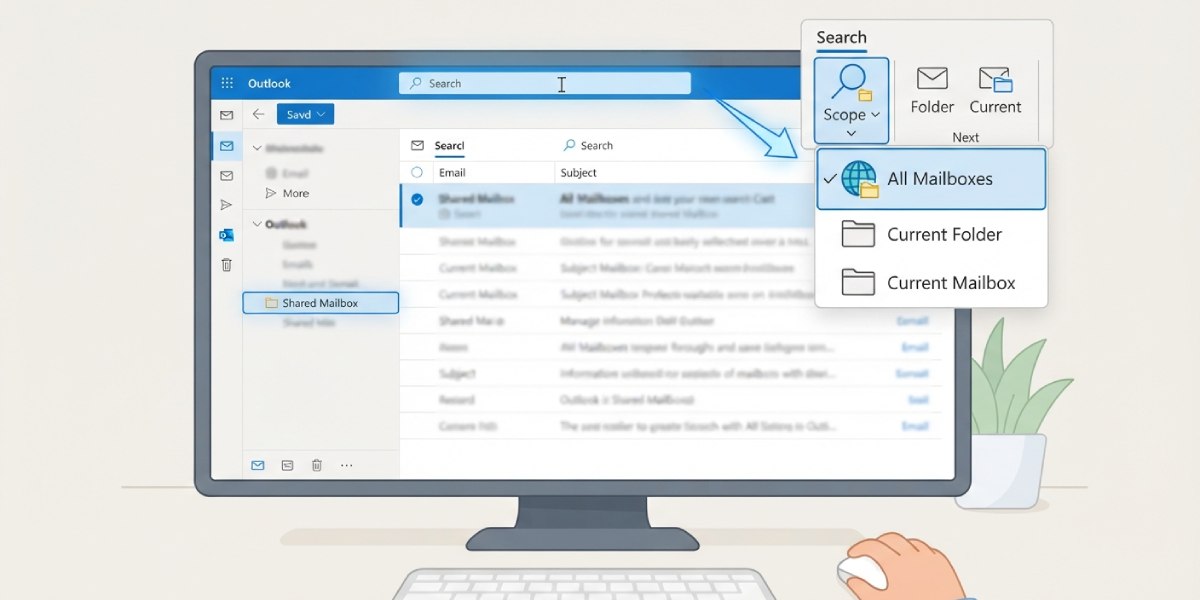
Tip: If results still don’t appear after changing the scope, the issue is almost always indexing rather than search settings, so move on to rebuilding the index next.
Rebuild the Outlook Search Index
- Step 1: Close Outlook completely.
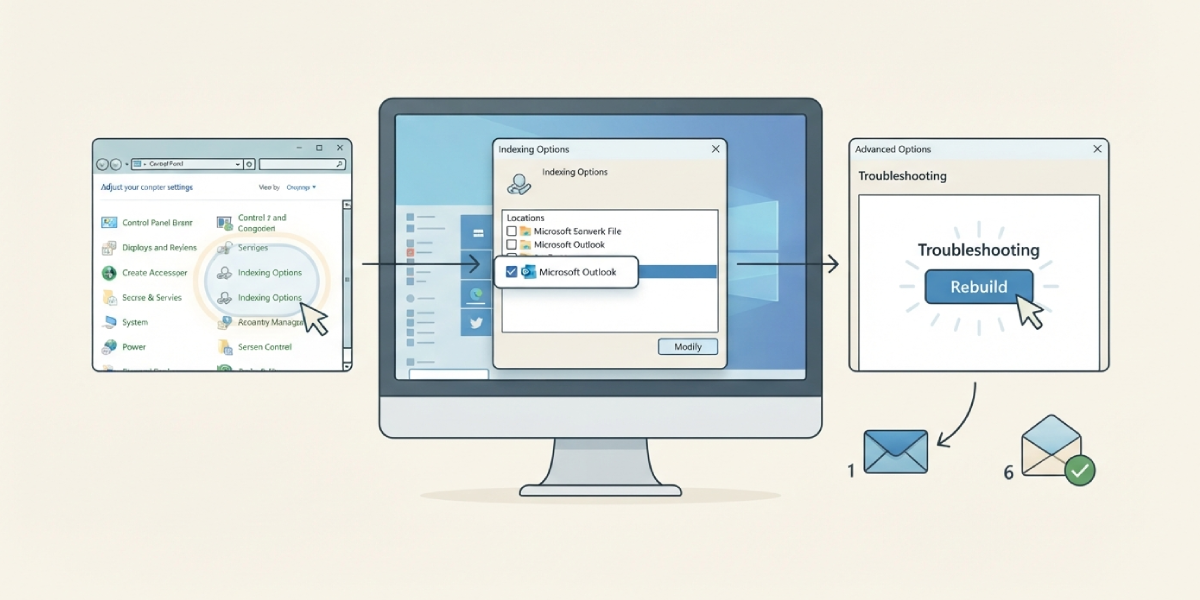
- Step 2: Open the Windows Control Panel and go to Indexing Options.
- Step 3: Click ‘Modify’ and confirm that Microsoft Outlook is checked as an included location.
- Step 4: Click ‘Advanced’, then select ‘Rebuild’ under the Troubleshooting section.
- Step 5: Confirm the rebuild when prompted. This can take anywhere from several minutes to a few hours depending on how much mail exists across all connected mailboxes.
- Step 6: Reopen Outlook once the rebuild finishes and test the shared mailbox search again.
Check Cached Exchange Mode for the Shared Mailbox
- Step 1: Go to File, then Account Settings, then Account Settings again.
- Step 2: Select the Exchange account and click ‘Change’.
- Step 3: Click ‘More Settings’, then open the Advanced tab.
- Step 4: Under ‘Additional Mailboxes’, confirm the shared mailbox is listed. If it isn’t, add it here.
- Step 5: Enable ‘Download shared folders’ if that option is available, since Outlook cannot fully index content it hasn’t downloaded locally.
- Step 6: Close and restart Outlook to apply the change, then allow time for the mailbox to sync before searching again.
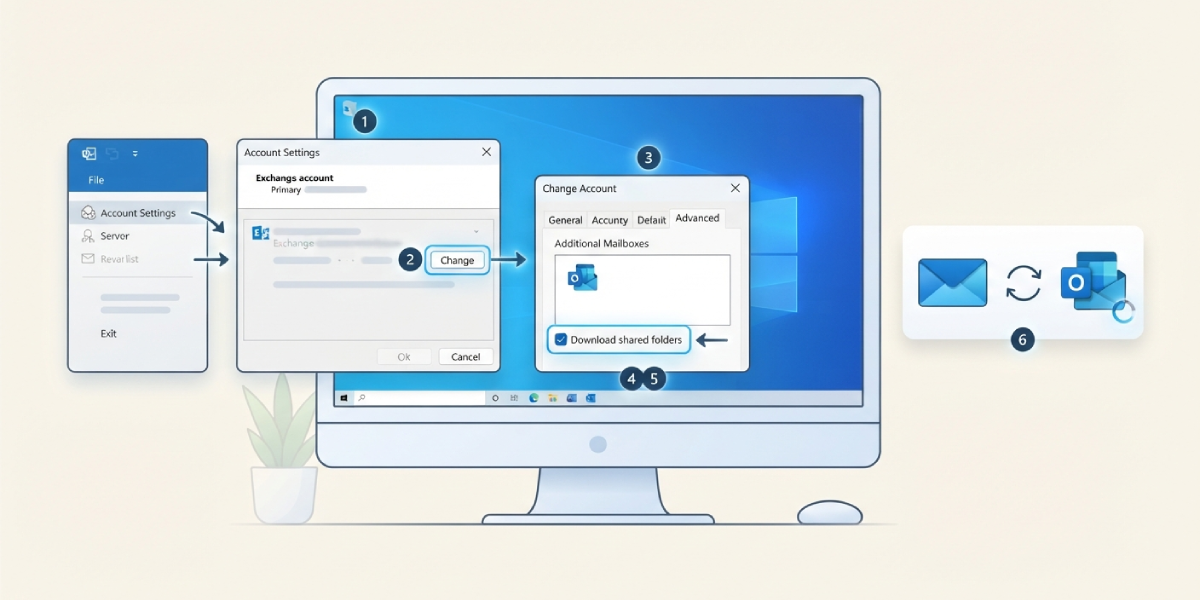
Tip: A shared mailbox added recently often needs a full sync cycle before search results are complete. Give it time rather than assuming search itself is broken.
Common Problems and Fixes
- Search returns results from the personal mailbox but nothing from the shared mailbox: The scope is set to the wrong mailbox. Switch it to ‘All Mailboxes’ as shown above.
- Search worked before but stopped recently: The index likely became corrupted or fell behind. Rebuild the index using Indexing Options.
- Only older messages show up, not recent ones: Indexing hasn’t caught up yet. This is common right after adding a large shared mailbox or after a rebuild, and it resolves once indexing finishes.
- Shared mailbox doesn’t appear in the search scope list at all: The mailbox isn’t set to download shared folders locally in Cached Exchange Mode. Enable that setting under Account Settings.
- Search is extremely slow on the shared mailbox: This typically points to an oversized OST file or an index still catching up on a large volume of mail. Let indexing complete before running further searches.
Frequently Asked Questions
Why does searching a shared mailbox in Outlook return no results?
The most common cause is the search scope being limited to the current folder or the personal mailbox instead of ‘All Mailboxes’. Indexing gaps are the second most common cause.
How long does it take to rebuild the Outlook search index?
It depends on total mailbox size across all connected accounts, but it commonly takes anywhere from 20 minutes to a few hours. Outlook remains usable during this time, though search results may be incomplete until the rebuild finishes.
Does the shared mailbox need to be added to Outlook before it can be searched?
Yes. The shared mailbox has to appear under ‘Additional Mailboxes’ in Account Settings, and Cached Exchange Mode should be set to download its shared folders for full search coverage.
Why do only some folders in the shared mailbox show up in search?
This usually means those specific folders haven’t finished indexing yet, or ‘Download shared folders’ wasn’t enabled when the mailbox was added.
Can search scope settings be changed permanently instead of every time?
Outlook remembers the last scope used per search session, but it’s worth checking the scope dropdown each time a shared mailbox search is run, since it can reset after Outlook restarts.
Is there a limit to how much of a shared mailbox Outlook can index?
Very large shared mailboxes can take considerably longer to fully index, and search may return partial results until that process completes.
Does restarting Outlook help fix shared mailbox search issues?
Sometimes. A restart can resolve minor sync glitches, but if the underlying cause is an incomplete index or incorrect scope, restarting alone won’t fix it.
Why did shared mailbox search work fine and then suddenly stop?
This pattern usually points to a corrupted or outdated search index rather than a permissions issue. Rebuilding the index resolves it in most cases.
Does this apply to both desktop Outlook and Outlook on the web?
The scope and indexing steps above are specific to desktop Outlook. Outlook on the web uses server-side search and doesn’t rely on a local index, so these particular fixes don’t apply there.
