
Setting up to add a GoDaddy email account in Outlook for Mac takes just a few minutes once the right server settings are on hand. This guide walks through every screen involved, from opening Outlook to sending that first test message, so the inbox is ready to use without guesswork.
Key Takeaways
- Outlook for Mac can connect to a GoDaddy email account using IMAP, which keeps mail synced across devices.
- GoDaddy’s incoming server is imap.secureserver.net and the outgoing server is smtpout.secureserver.net.
- Automatic setup often works, but manual server entry is the reliable fallback if it does not.
- The full email address doubles as the username during setup, not just the part before the @ symbol.
- A quick test email confirms the account is sending and receiving correctly before closing the setup window.
How to Add a GoDaddy Email Account in Outlook for Mac
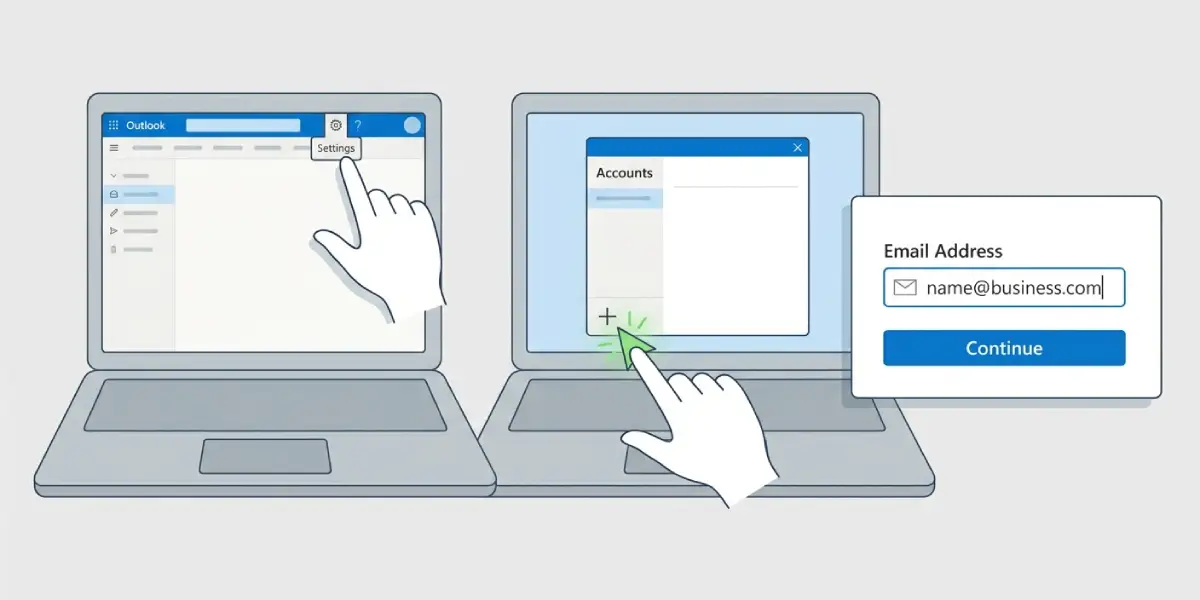
- Step 1: Open Outlook for Mac and click the ‘Outlook’ menu in the top menu bar, then select ‘Settings’ (in older versions this appears as ‘Preferences’).
- Step 2: Click ‘Accounts’ under the Personal Settings section. This opens the account management window.
- Step 3: Click the plus sign (+) in the lower-left corner of the Accounts window and choose ‘New Account’.
- Step 4: Type the full GoDaddy email address (for example, name@yourbusiness.com) and click ‘Continue’.
- Step 5: Outlook will attempt to detect the account type automatically. If it prompts for a password, enter the GoDaddy email password and click ‘Add Account’.
- Step 6: If automatic detection fails or the wrong provider is selected, choose ‘IMAP/POP’ manually from the account type screen.
- Step 7: Under Incoming Server, enter imap.secureserver.net, port 993, and make sure SSL is enabled.
- Step 8: Under Outgoing Server, enter smtpout.secureserver.net, port 465, enable SSL, and confirm ‘Use same settings as incoming server’ is checked so authentication is turned on.
- Step 9: Enter the full email address as the username, type the password, and click ‘Add Account’ to finish.
- Step 10: Wait for Outlook to sync the mailbox, then send a short test email to confirm both sending and receiving work properly.
Tip for Faster Setup
Tip: Have the GoDaddy email password ready before starting, since repeated failed login attempts can temporarily lock the account and delay the whole process.
Common Problems and Fixes
- Outlook says the password is incorrect: Double-check for extra spaces when pasting the password, and confirm caps lock is off. Resetting the password through the GoDaddy email portal usually resolves persistent login failures.
- Account adds but no mail appears: This is usually a sync delay rather than a real error. Give Outlook a few minutes, then click ‘Send/Receive’ manually to force a refresh.
- Outgoing mail gets stuck or bounces: Revisit the outgoing server settings and confirm port 465 with SSL is selected, and that ‘Use same settings as incoming server’ is checked so SMTP authentication is active.
- Outlook cannot verify the certificate: This typically points to a mistyped server name. Retype imap.secureserver.net and smtpout.secureserver.net carefully rather than copying from an old note.
- Duplicate account appears after a failed attempt: Remove the incomplete entry from the Accounts window before trying again, since leaving it in place can cause sync conflicts.
Frequently Asked Questions
What server settings does GoDaddy email use for Outlook for Mac?
The incoming IMAP server is imap.secureserver.net on port 993 with SSL, and the outgoing SMTP server is smtpout.secureserver.net on port 465 with SSL and authentication enabled.
Should IMAP or POP be used when adding a GoDaddy email account?
IMAP is the recommended choice because it keeps messages synced across Outlook for Mac, webmail, and mobile devices instead of storing mail on a single computer.
Is the GoDaddy email password the same as the GoDaddy account password?
No. The email account password is set separately in the GoDaddy email portal and is distinct from the password used to log into the main GoDaddy account.
Why does Outlook keep asking for the password after it was entered correctly?
This usually happens when ‘Save password’ was not selected during setup, or when the account was recently locked after several failed attempts. Resetting the password often fixes it.
Can automatic setup be used instead of entering server details manually?
Yes, Outlook for Mac often detects GoDaddy settings automatically after the email address and password are entered. Manual entry is only needed if that detection fails.
How long does it take for a new GoDaddy account to finish syncing in Outlook?
Most accounts sync within a few minutes, though mailboxes with a large volume of existing mail may take longer to fully download.
What port should be used if port 465 does not work for outgoing mail?
Port 587 with SSL or STARTTLS can be used as an alternative outgoing port if 465 is blocked by a network or firewall.
Does adding the account in Outlook for Mac affect mail on other devices?
No. Since IMAP keeps everything synced with the mail server, adding the account in Outlook for Mac does not remove or change mail already set up on a phone or another computer.
Can a GoDaddy Microsoft 365 email account be added the same way?
GoDaddy accounts bundled with Microsoft 365 typically connect through Exchange rather than IMAP, so Outlook usually detects them automatically without needing the secureserver.net settings.
