
Outlook error 0x80040600 usually shows up as ‘An unknown error has occurred’ right when someone tries to send, receive, or delete a message. It almost always traces back to a damaged or oversized PST file, and clearing it takes a specific repair sequence rather than guesswork.
Key Takeaways
- Outlook error 0x80040600 is triggered by a corrupt, oversized, or locked PST data file.
- The built-in Inbox Repair Tool (scanpst.exe) fixes most cases without losing data.
- Closing Outlook completely before running any repair is required, not optional.
- Large PST files near the storage limit are a common repeat cause and need trimming.
- If the error keeps returning, creating a fresh Outlook profile usually clears it for good.
How to Fix Outlook Error 0x80040600 Step by Step
This method locates the damaged PST file, runs Microsoft’s repair utility on it, and reconnects it to Outlook. Most people find the whole process takes fifteen to thirty minutes, depending on how large the mailbox file has grown.
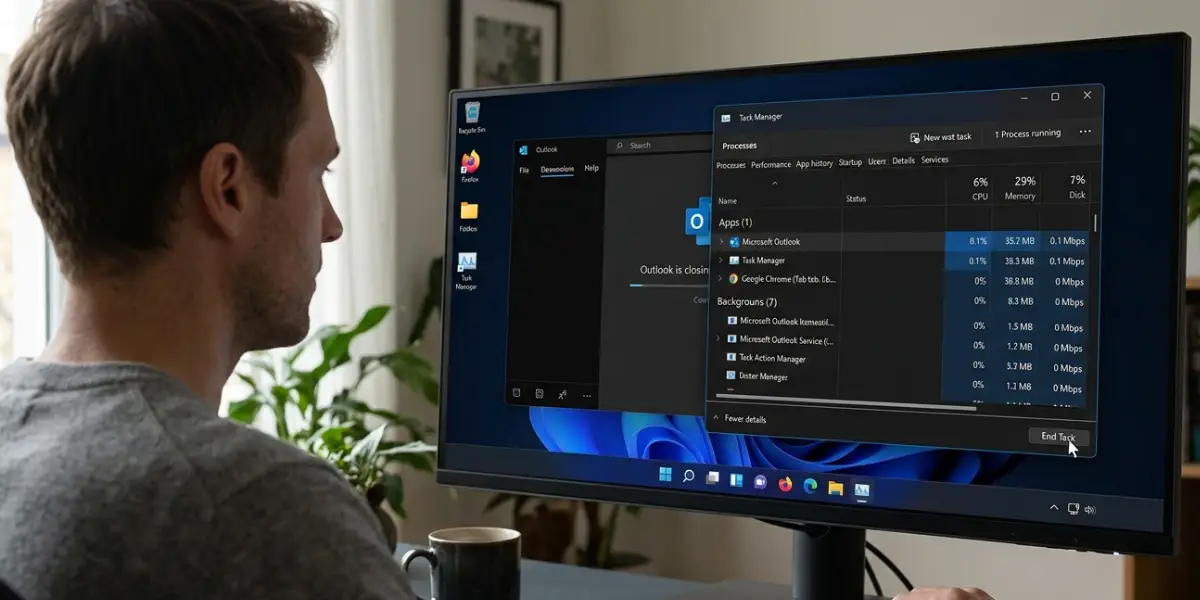
Step 1: Close Outlook Completely
- Exit Outlook fully, then check Task Manager to confirm no OUTLOOK.EXE process is still running in the background. A repair attempt on an open PST file will fail every time.
Step 2: Locate the PST File
- Open Control Panel, select Mail, then click Data Files. Double-click the PST file currently in use and copy the full file path shown in the properties window.
Step 3: Find and Launch Scanpst.exe
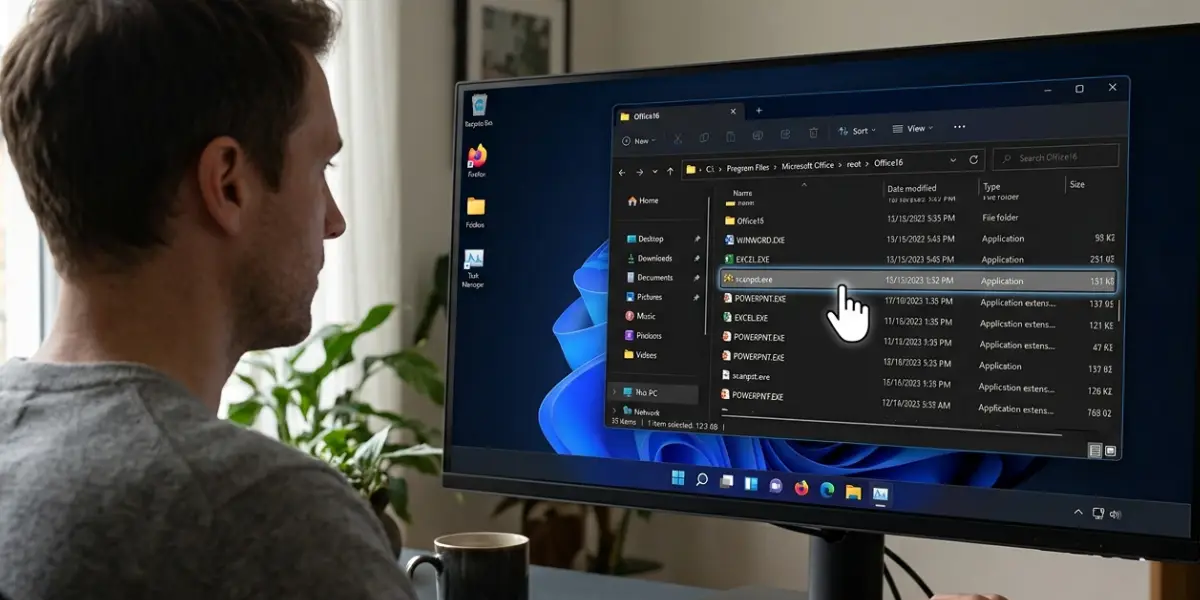
- Search the computer for scanpst.exe, which is Outlook’s Inbox Repair Tool. It typically sits inside a folder such as C:\Program Files\Microsoft Office\root\OfficeXX. Double-click it to launch the utility.
Step 4: Scan and Repair the File
- Paste the PST file path into the scan field and click Start. Once the scan finishes and lists any errors, click Repair to fix them. This is the step that resolves the underlying cause behind error 0x80040600 in most cases.
Step 5: Reopen Outlook and Verify
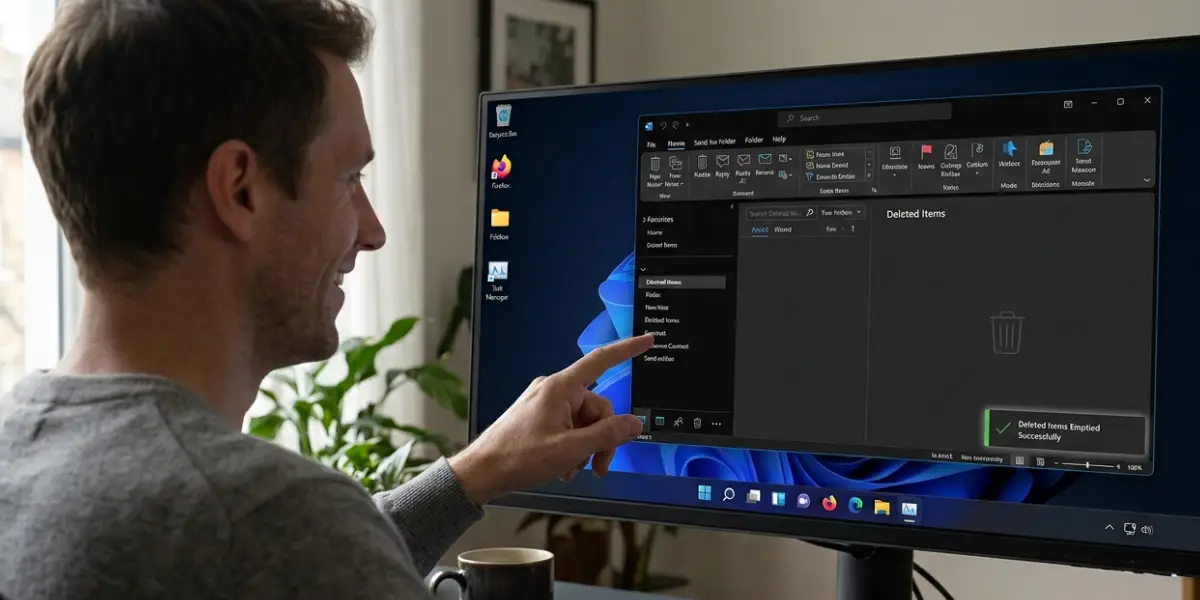
- Launch Outlook again and try the action that originally triggered the error, whether that was sending a message or emptying the Deleted Items folder. Confirm the error no longer appears.
Tip: Back up the PST file before running scanpst.exe. The tool creates a .bak copy automatically, but keeping a separate manual backup on an external drive means nothing gets lost even if the repair hits a snag.
Common Problems and Fixes
- Scanpst.exe finds the file but the scan never finishes: This usually happens with very large PST files. Let the scan run uninterrupted rather than closing the window; on a multi-gigabyte file it can genuinely take an hour or more.
- The repair completes but error 0x80040600 comes back within days: The PST file is likely still near its storage ceiling. Archive older items into a separate PST or move mail to an Exchange or Microsoft 365 mailbox to relieve the pressure.
- Scanpst.exe cannot be found on the system: The Inbox Repair Tool installs alongside Office, so searching by the exact filename scanpst.exe rather than a general term like ‘repair tool’ usually turns it up in the Office installation folder.
- Outlook still reports the error after a successful repair: Create a new Outlook profile through Control Panel > Mail > Show Profiles, then add the repaired PST to that fresh profile instead of reusing the old one.
- The PST file is locked and won’t open in scanpst.exe: Confirm Outlook is fully closed and check Task Manager for any lingering OUTLOOK.EXE process, since a locked file blocks the repair tool from accessing it.
Frequently Asked Questions
What causes Outlook error 0x80040600?
It is caused by a corrupt or damaged PST file, often made worse when the file grows close to its storage limit or gets interrupted by a crash, power loss, or improper shutdown.
Can Outlook error 0x80040600 cause data loss?
It can if the underlying PST corruption is left unaddressed for too long. Running the Inbox Repair Tool promptly and keeping a backup copy of the PST file keeps data loss unlikely.
Where is scanpst.exe located?
It installs with Microsoft Office, typically under a path like C:\Program Files\Microsoft Office\root\OfficeXX, where XX corresponds to the installed Office version number.
Does deleting the PST file fix the error?
Deleting it removes the error along with all stored mail, contacts, and calendar items, so it should only be considered as a last resort after a repair attempt has already failed.
How long does the PST repair process take?
Small files finish in a few minutes. Larger files, especially those over several gigabytes, can take an hour or longer, so letting the scan run without interruption matters.
Is it safe to run scanpst.exe on a work email account?
Yes, the tool only repairs the local PST data file and does not alter anything on the mail server, so running it is safe for both personal and work accounts.
Why does the error keep returning after a repair?
A recurring appearance usually points to an oversized PST file nearing its limit. Archiving older mail into a second PST file, or moving data to the mail server, prevents it from coming back.
What if scanpst.exe can’t repair the file at all?
In rare cases of severe corruption, creating a brand new Outlook profile and starting a fresh PST file is the most reliable path forward, though older items may need to be recovered from a backup.
Does this error only affect one Outlook version?
No, it has appeared across multiple Outlook versions over the years, since it relates to how PST files are structured rather than any single release.
