
Anyone who stores sensitive emails, contacts, or attachments locally should password-protect an Outlook PST file before leaving a laptop unattended or sharing a shared computer. Outlook makes this possible through a built-in data file password, and setting it up takes only a few minutes.
Key Takeaways
- Outlook lets users add a password directly to a PST data file through Account Settings.
- The password only protects the file from being opened inside Outlook, not from being copied or deleted.
- There is no password recovery option, so the password needs to be stored somewhere safe.
- Changing or removing the password later takes the same number of steps as setting it.
- This method works for Outlook desktop on Windows; it does not apply to Outlook for Mac or Outlook.com.
How to Password-Protect an Outlook PST File
The steps below walk through the entire process from start to finish. Most users get through this in under five minutes, even on the first try.
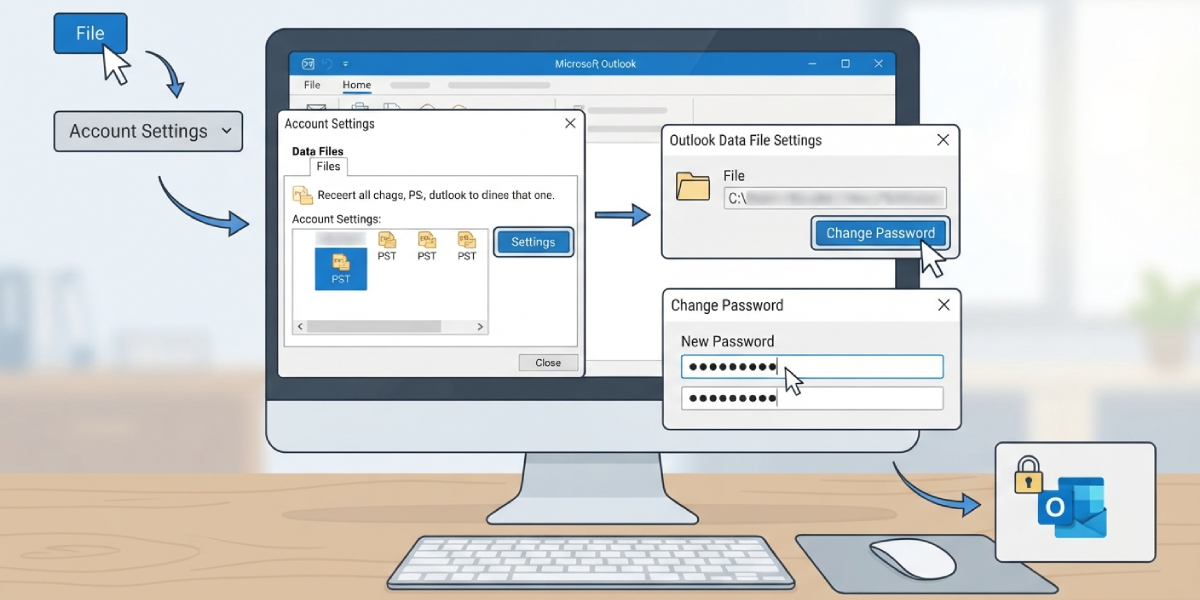
- Step 1: Open Outlook and click on the ‘File’ tab in the top-left corner.
- Step 2: Select ‘Account Settings’, then choose ‘Account Settings’ again from the dropdown menu.
- Step 3: In the window that opens, click the ‘Data Files’ tab. This shows a list of every PST or OST file connected to the Outlook profile.
- Step 4: Select the PST file that needs protection, then click ‘Settings’.
- Step 5: A dialog box will appear showing the file’s name and path. Click the ‘Change Password’ button.
- Step 6: In the ‘New Password’ field, type the desired password. Retype it in the ‘Verify Password’ field to confirm it matches.
- Step 7: Click ‘OK’ to save the password, then click ‘OK’ again to close the remaining dialog boxes.
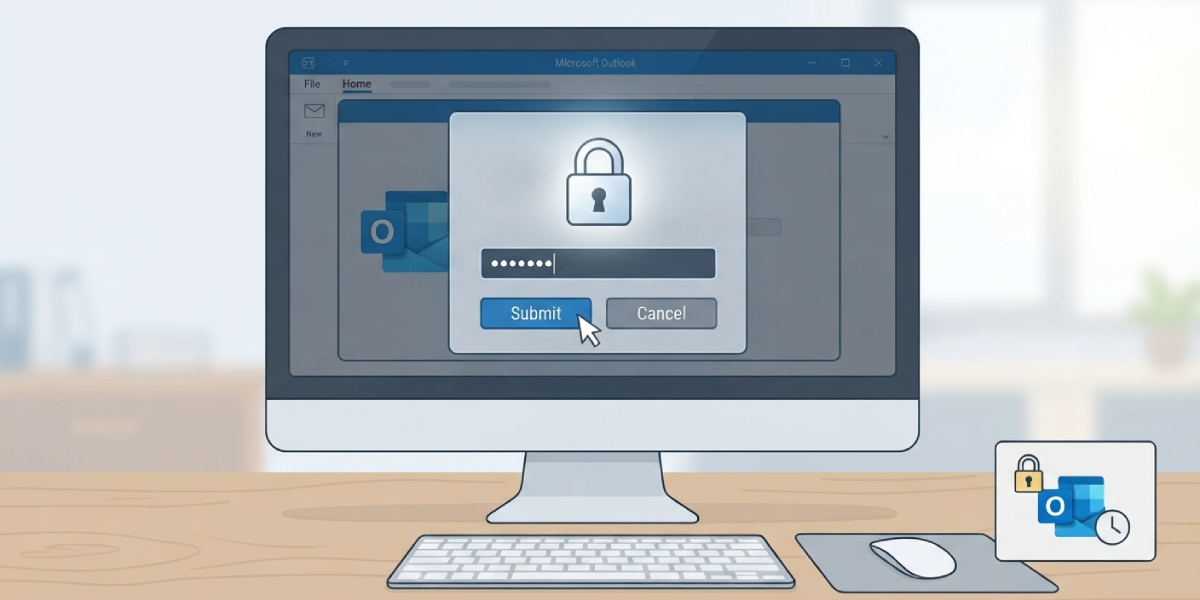
- Step 8: Close and reopen Outlook to confirm the password prompt appears when the file loads.
Tip: Choose a password that is easy to remember but hard to guess, since Outlook does not offer a ‘forgot password’ option for PST files. Writing it down in a secure password manager saves a lot of frustration later.
What Happens After the Password Is Set
Once the password is active, Outlook will ask for it every time that specific PST file is opened, whether that happens automatically at startup or manually later. Typing the password once per Outlook session is usually enough, since Outlook keeps the file unlocked until the program closes.
Common Problems and Fixes
- The ‘Change Password’ button is greyed out: This usually happens when the PST file is still syncing or is an OST file instead of a PST. Only PST files support this feature, so check the file type under ‘Data Files’ first.
- Outlook does not prompt for the password after restart: Outlook often remembers the password for the current Windows session. Restarting the computer, not just Outlook, will confirm the prompt is working correctly.
- The password was forgotten: There is no built-in recovery tool. Third-party PST password recovery software exists, but results vary and are not guaranteed, which makes storing the password safely the far better option from the start.
- An error appears saying the file is already in use: Close any other Outlook windows or background sync tools like OneDrive that may be accessing the same PST file, then try again.
Frequently Asked Questions
Does password-protecting a PST file encrypt the data inside it?
No. The password blocks access through Outlook, but it does not encrypt the underlying file. Someone with technical tools could still access the raw data outside of Outlook.
Can the PST password be removed later?
Yes. Follow the same steps used to set it, but leave the ‘New Password’ and ‘Verify Password’ fields blank, then click ‘OK’ to remove protection.
Is a PST password the same as a Windows account password?
No, they are completely separate. The PST password only controls access to that specific data file inside Outlook.
What is the maximum password length Outlook allows for a PST file?
Outlook allows up to 15 characters for a PST file password.
Will this method work on Outlook for Mac?
No. PST file password protection is a Windows-only feature, since Outlook for Mac does not use the PST format.
Does adding a password slow down Outlook?
No noticeable performance change occurs from adding a password. It only affects the initial access prompt, not day-to-day speed.
Can a password-protected PST file still be backed up normally?
Yes. The password does not interfere with copying, moving, or backing up the file, since it only restricts opening the file inside Outlook.
What happens if the wrong password is entered multiple times?
Outlook simply denies access and allows another attempt. There is no lockout feature, so repeated attempts will not damage the file.
