
Outlook search returning no results is one of the most frustrating problems in daily email use, especially when a message needed right now seems to have vanished. The good news is that this almost always comes down to a broken or incomplete search index rather than lost data. The steps below walk through the exact fix, in order, so search works normally again.
Key Takeaways
- Most cases of Outlook search returning no results are caused by an outdated or corrupted Windows Search index, not missing emails.
- Rebuilding the search index is the primary fix and typically resolves the issue within a few hours.
- Indexing Options in Windows must include Outlook as a searchable location.
- Search scope settings inside Outlook itself (Current Mailbox vs. All Mailboxes) are a common overlooked cause.
- A quick repair of the Outlook profile can resolve deeper issues when rebuilding the index does not help.
Step-by-Step Guide to Fix Outlook Search Returning No Results
This sequence starts with the simplest checks and moves toward deeper fixes. Most people find that the problem resolves before reaching the final steps, so work through them in order rather than skipping ahead.
Check the Search Scope First
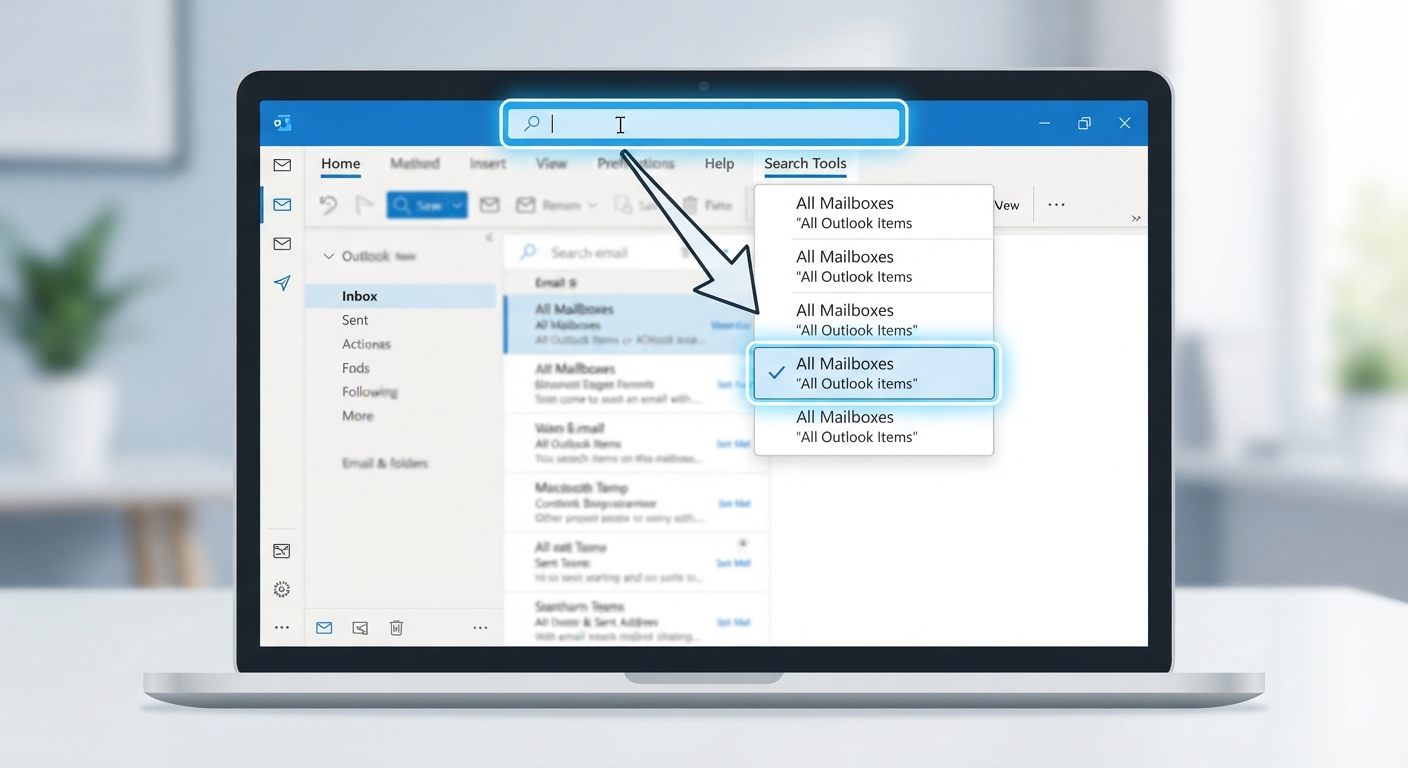
- Step 1: Open Outlook and click into the search bar at the top of the window.
- Step 2: Look for the ‘Search Tools’ tab that appears, then select ‘Search Scope’.
- Step 3: Choose ‘All Mailboxes’ or ‘All Outlook Items’ instead of ‘Current Folder’. A search set to a single folder is a very common reason results seem to disappear even though the email is sitting in another folder.
Confirm Outlook Is Included in Windows Indexing
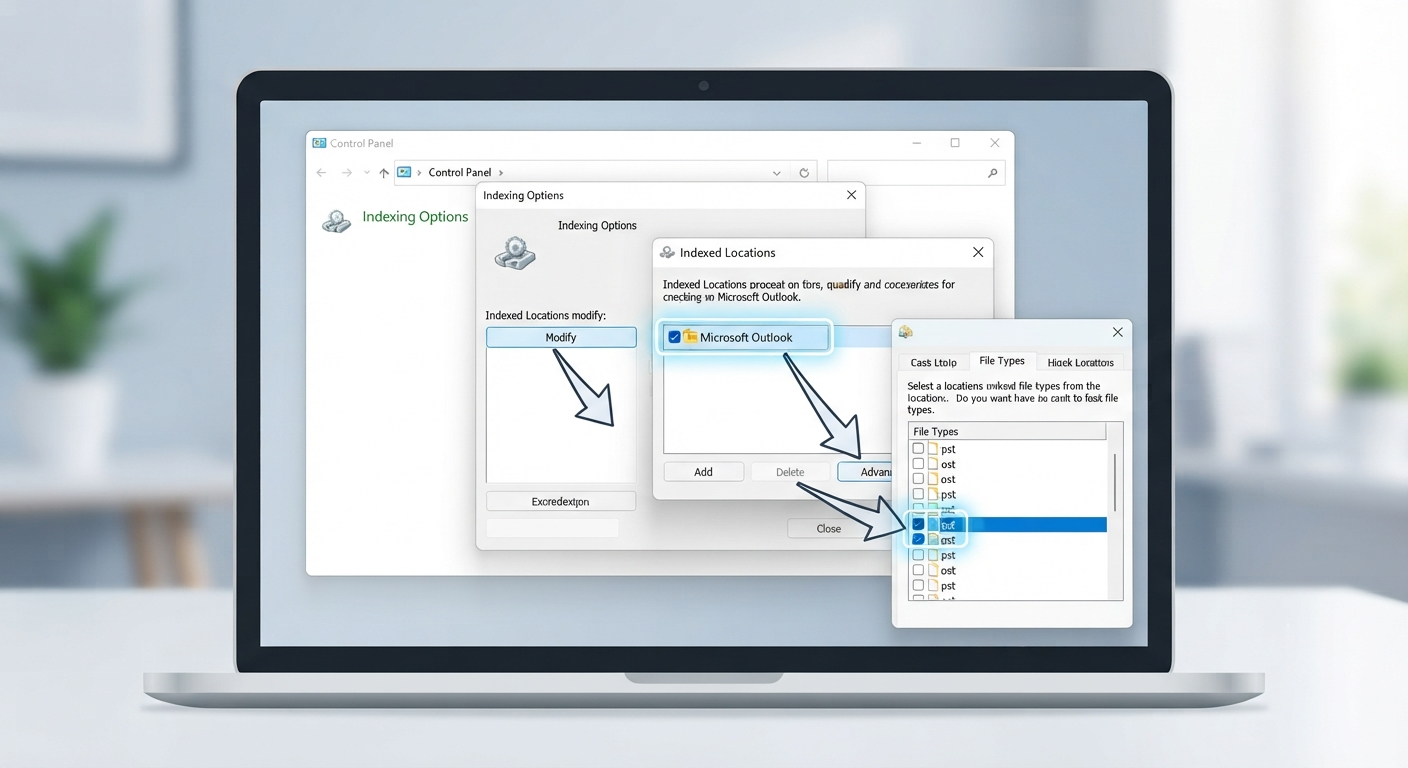
- Step 4: Close Outlook, then open the Windows Control Panel and search for ‘Indexing Options’.
- Step 5: Click ‘Modify’ and check that ‘Microsoft Outlook’ is ticked in the list of indexed locations. If it is missing, tick the box and click ‘OK’.
- Step 6: Click ‘Advanced’, then select the ‘File Types’ tab and confirm the box for indexing Outlook data files is enabled.
Rebuild the Search Index
- Step 7: Still inside ‘Indexing Options’, click ‘Advanced’, then under the ‘Index Settings’ tab select ‘Rebuild’.
- Step 8: Confirm the prompt. Windows will begin reindexing all included locations, including the Outlook data file.
- Step 9: Allow the index to finish rebuilding before testing search again. This can take anywhere from twenty minutes to several hours depending on mailbox size, so leave the computer on and connected to power in the meantime.
Tip: A quick way to check progress is to reopen ‘Indexing Options’ and read the status line near the top, which reports how many items remain to be indexed.
Repair the Outlook Data File
- Step 10: If search is still returning nothing once the index finishes rebuilding, close Outlook and open the Control Panel again.
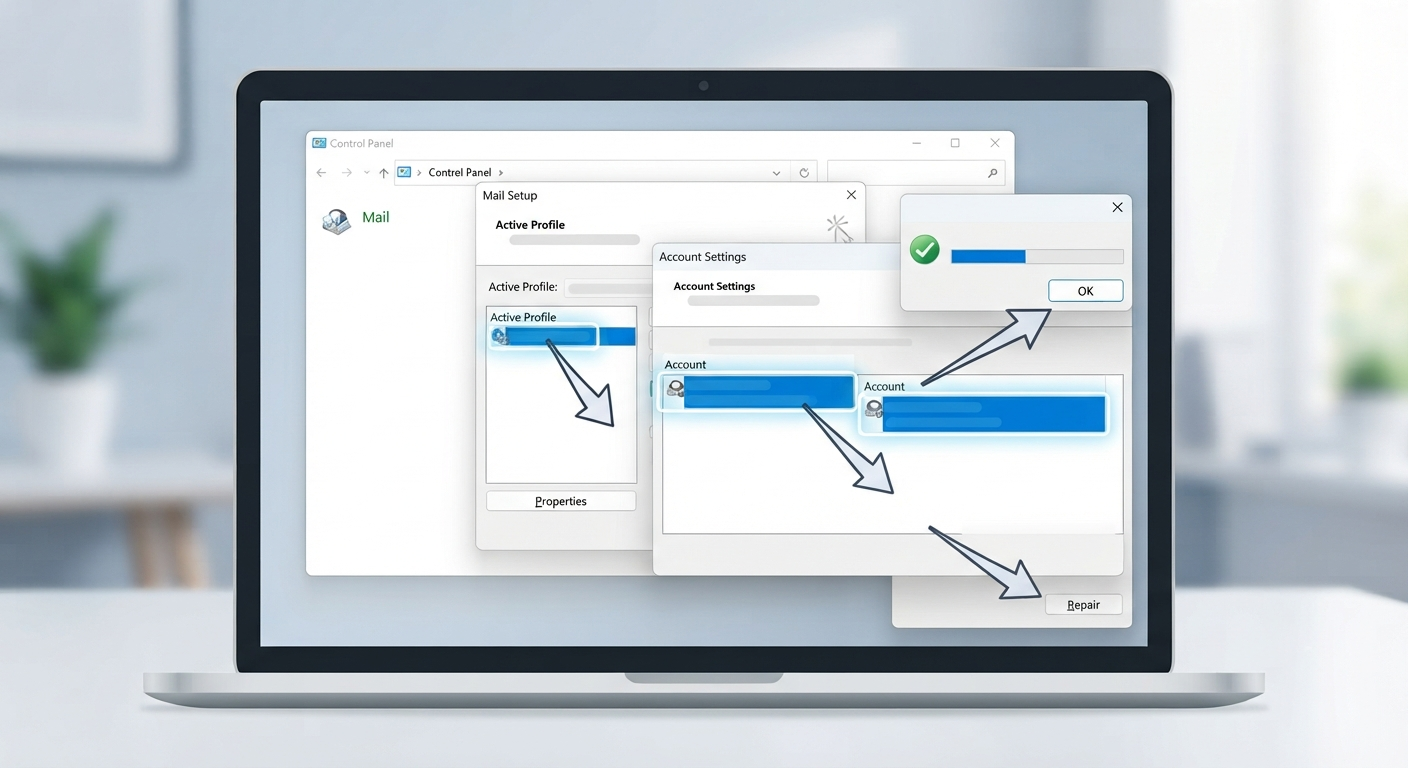
- Step 11: Select ‘Mail’, then click ‘Show Profiles’, choose the active profile, and click ‘Properties’, followed by ‘Email Accounts’.
- Step 12: Highlight the account and click ‘Repair’. Follow the prompts, then restart Outlook once the repair completes.
Common Problems and Fixes
- Search works for old email but not recent messages: This usually means the index has fallen behind. Rebuilding the index, as covered in Step 7, catches it back up.
- Rebuild option is greyed out: This typically happens when Outlook is still open in the background. Close it completely, including any process still running in Task Manager, before trying again.
- Search works on one device but not another: Each device keeps its own local index, so this points to a device-specific indexing issue rather than a server-side problem. Repeat the indexing steps on the affected device only.
- Instant Search shows ‘Search Results May Be Incomplete’: This message appears while the index is still catching up after a rebuild. Waiting for indexing to finish resolves it on its own.
- Search still fails after a rebuild: A larger mailbox, particularly one connected to a slow network or an over-quota Outlook data file, can stall indexing. Reducing mailbox size or archiving older folders often gets search running smoothly again.
Frequently Asked Questions
Why is Outlook search returning no results even for recent emails?
This almost always points to an outdated Windows Search index. Rebuilding the index, as described above, brings the index current and restores accurate results.
How long does rebuilding the Outlook search index take?
It depends on mailbox size, but most rebuilds finish within a few hours. Larger mailboxes with years of stored email can take longer, especially on the first pass.
Does rebuilding the index delete any emails?
No. Rebuilding the index only affects how Windows catalogs items for search. It does not touch, move, or delete any email content.
Can Outlook be used while the index is rebuilding?
Yes, though search results may stay incomplete until the process finishes. Sending and receiving email is unaffected.
Why does search only return results from the current folder?
This happens when the search scope is set to ‘Current Folder’ instead of ‘All Mailboxes’ or ‘All Outlook Items’. Changing the scope in the Search Tools tab fixes this immediately.
Is this issue different for Outlook on Microsoft 365 versus Outlook 2019 or 2021?
The core fix is the same across recent versions, since all of them rely on the Windows Search index for local search. Menu names may shift slightly, but the Indexing Options steps apply the same way.
What if Outlook data files are marked as excluded from indexing?
Check ‘Indexing Options,’ then ‘Advanced,’ then the ‘File Types’ tab to confirm Outlook data file types are enabled for indexing. If they are unchecked, enabling them and rebuilding the index resolves the problem.
Does a slow or unstable internet connection cause search problems in Outlook?
For accounts using cached Exchange mode, a weak connection can slow down how quickly new mail gets indexed, but it does not usually cause search to return nothing entirely. A local indexing issue is the more likely cause in that case.
What should be tried if rebuilding the index does not fix search?
Repairing the Outlook data file through the account repair option, as outlined in Step 10 through Step 12, resolves most remaining cases.
