
Managing two inboxes separately wastes time, and that’s exactly why so many people want to add an Outlook.com account in Outlook on the web instead of switching between browser tabs all day. The good news is that Outlook lets a connected account sit right inside the same mailbox view, so new messages, replies, and even sending can happen from one place.
Key Takeaways
- Adding a second Outlook.com account is done through Settings, not through the account switcher at the top of the page.
- The feature is called ‘Connected accounts’ and lives inside Mail settings.
- Once connected, messages from the second account can appear in the main inbox or a separate folder, depending on preference.
- Sending mail ‘as’ the connected account is optional and can be turned on during setup.
- Sync happens on a schedule, not instantly, so a short delay after sending or receiving is normal.
Step-by-Step Guide to Add an Outlook.com Account in Outlook on the Web
This process takes just a few minutes once the right menu is found. Follow these steps in order.
- Step 1: Sign in to the primary Outlook.com account at outlook.com using a web browser.
- Step 2: Select the gear icon in the top right corner to open Settings, then choose ‘View all Outlook settings’ at the bottom of the panel that appears.
- Step 3: In the Settings window, select ‘Mail’ from the left menu, then select ‘Sync email’.
- Step 4: Under the ‘Connected accounts’ section, select ‘Add a connected account’.
- Step 5: Type the full email address of the Outlook.com account to be added, then select ‘Continue’.
- Step 6: Enter the password for that account when prompted, and complete any verification step Outlook.com asks for, such as a security code.
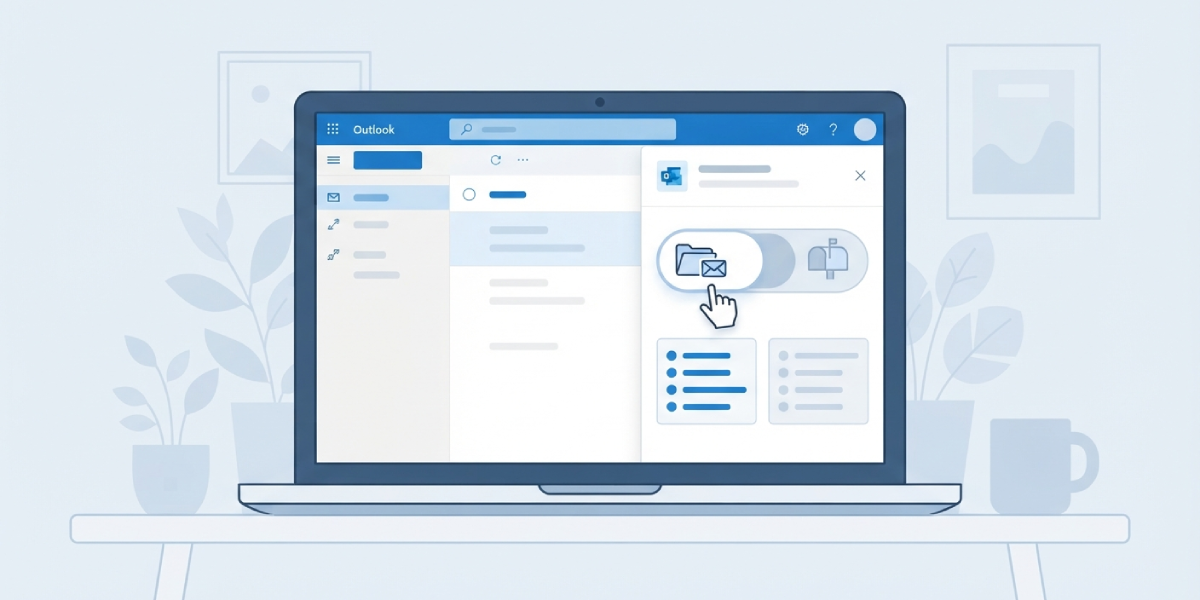
- Step 7: Choose whether incoming mail from the connected account should land in the main inbox or a dedicated folder, and decide whether replies should be sent from that account’s own address.
- Step 8: Select ‘OK’ or ‘Save’ to finish. The first sync usually begins within a few minutes.
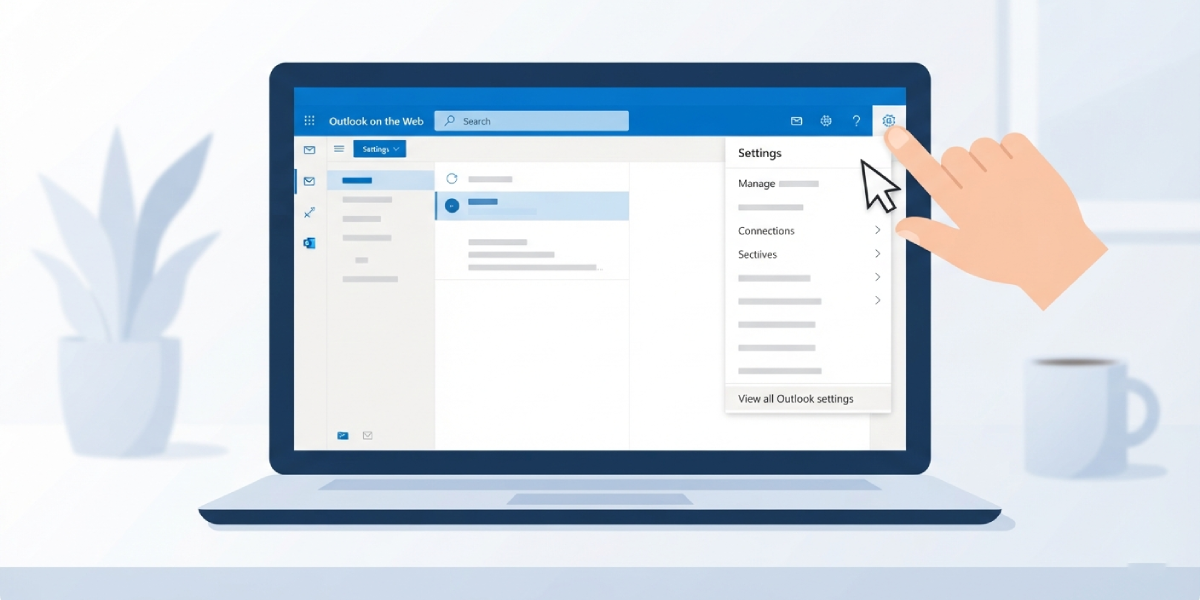
Tip: Naming the sync folder something specific, like the account’s first name, makes it far easier to tell which inbox a message came from once mail starts flowing in.
Choosing How Mail Appears
During setup, Outlook offers a choice between filing incoming messages into a separate folder or blending them straight into the main inbox. Most people juggling a work and personal Outlook.com account prefer the separate folder option, since it keeps the two streams easy to scan at a glance rather than mixed together.
Turning On Send-As
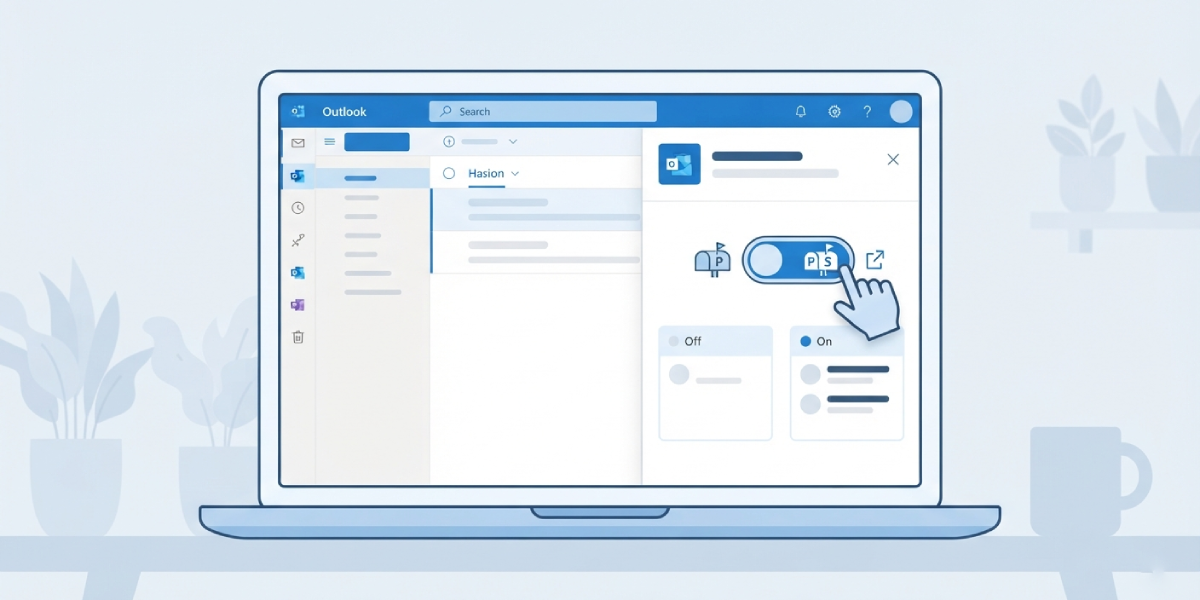
If replies need to go out looking like they came from the second account, that option sits in the same connected account setup screen. Leaving it off simply means all outgoing mail still uses the primary account’s address, even when replying to something the connected account received.
Common Problems and Fixes
- The account won’t connect: Double-check the password was typed correctly, and confirm the second account doesn’t have extra security steps, like a login approval, blocking the request. Trying again after a minute usually resolves a temporary hiccup.
- An error message appears saying the account can’t be added: This is often temporary on Microsoft’s end. Signing out, waiting a few minutes, then repeating Steps 2 through 6 usually clears it.
- New messages aren’t showing up: Connected accounts sync on a schedule rather than instantly, so mail can take a little while to appear. Refreshing the browser tab often speeds this up.
- Replies are going out from the wrong address: Revisit the connected account settings under Sync email and confirm the send-as option matches what’s expected.
- The connected account keeps disconnecting: This typically happens after a password change on the second account. Removing the connection and re-adding it with the updated password fixes it.
Frequently Asked Questions
Can more than one Outlook.com account be connected at the same time?
Yes, several accounts can be added as connected accounts under the same Sync email settings, and each one can have its own folder or send-as preference.
Is there a cost to adding a connected account?
No, connecting another Outlook.com account through this feature is free and doesn’t require a premium subscription.
Will the calendar and contacts from the second account sync too?
No, the connected accounts feature under Sync email only handles mail. Calendar and contacts from a second Outlook.com account stay separate and need to be checked by signing in to that account directly.
How long does the first sync usually take?
Most connected accounts start pulling in mail within a few minutes, though a larger mailbox with years of history can take longer to fully catch up.
Does the connected account share the same Sent folder?
Messages sent through the send-as option typically appear in the primary account’s Sent folder, not the connected account’s own Sent folder.
Can this be set up from the Outlook mobile app instead?
The steps above are specific to Outlook on the web. The mobile app uses a different menu path for adding accounts, so settings made on the web won’t automatically mirror the app until it’s set up there too.
How is a connected account removed later?
Returning to Settings, then Mail, then Sync email shows a list of connected accounts with a remove option next to each one.
Does adding a connected account change the main sign-in email?
No, the sign-in email for Outlook.com stays exactly the same. The connected account simply feeds mail into the existing mailbox.
Why does Outlook ask for a security code when connecting the account?
That step confirms ownership of the account being added, which protects against someone connecting an inbox that isn’t actually theirs.
