
Setting up a cPanel/webmail account in New Outlook for Windows takes just a few minutes once the correct mail server details are on hand. This guide walks through the exact steps, from entering the email address to confirming the connection, so mail starts flowing into Outlook without guesswork.
Key Takeaways
- New Outlook needs IMAP (not POP) settings pulled directly from the cPanel hosting account.
- The ‘Advanced setup’ screen is where manual server details get entered – it only appears after Outlook fails to auto-detect the account.
- Incoming mail typically uses port 993 with SSL/TLS, and outgoing mail uses port 465 (SSL/TLS) or 587 (STARTTLS).
- The username for both incoming and outgoing servers is always the full email address, not just the prefix.
- cPanel’s ‘Connect Devices’ page inside webmail lists the exact hostnames to copy, avoiding typos.
Step-by-Step Guide to Add a cPanel/Webmail Account in New Outlook
This works best when the mail server details are gathered before opening Outlook. Log into cPanel, open Webmail, select the mailbox, and click ‘Connect Devices’ to see the recommended settings. With that information ready, the setup itself is quick.
Gather the Mail Server Details
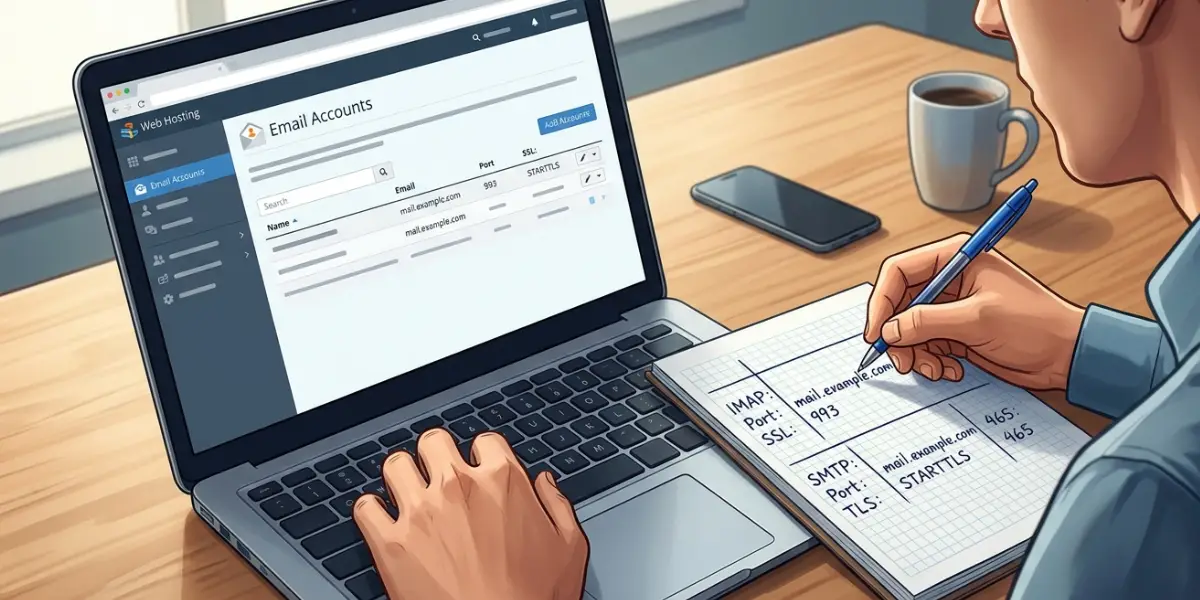
- Step 1: Log into cPanel and open ‘Email Accounts’.
- Step 2: Click ‘Connect Devices’ next to the mailbox that needs to be added.
- Step 3: Note the incoming (IMAP) server name, port, and encryption type, along with the outgoing (SMTP) server name, port, and encryption type. These are usually mail.yourdomain.com, though some hosts use a secure server address instead.
Add the Account in New Outlook
- Step 4: Open New Outlook, click the gear icon, and select ‘Accounts’ > ‘Email accounts’ > ‘Add account’. First-time users will see this screen automatically at launch.
- Step 5: Type the full cPanel email address and click ‘Continue’. If a suggested Outlook.com or Gmail account appears in the box, clear it first and type the address manually.
- Step 6: Enter the mailbox password when prompted, then wait for Outlook to attempt an automatic connection.
- Step 7: When automatic detection fails (which is expected for most cPanel accounts), the ‘Advanced setup’ option appears. Click it, then choose ‘IMAP’ from the list of account types.
- Step 8: Enter the IMAP incoming server, port 993, and set the security type to SSL/TLS.
- Step 9: Enter the SMTP outgoing server, using port 465 with SSL/TLS or port 587 with STARTTLS, depending on what the host specified.
- Step 10: Confirm the username field shows the full email address for both incoming and outgoing settings, then click ‘Continue’ or ‘Connect’.
- Step 11: Once Outlook confirms the connection, click ‘Done’. The account now appears in the folder pane, and mail should begin syncing within a minute or two.
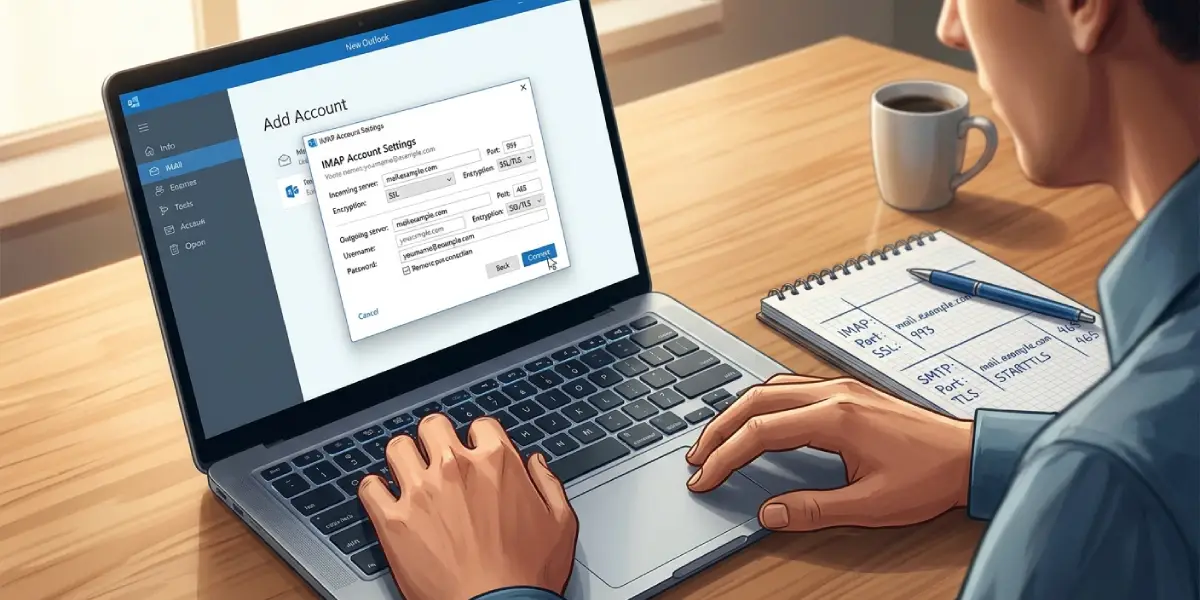
Tip: Save the incoming and outgoing server names from the ‘Connect Devices’ page somewhere safe. Reinstalling Outlook or setting up a second device later goes much faster with those details already written down.
Common Problems and Fixes
- Outlook only offers Gmail or Outlook.com as suggestions: Clear the suggested entry in the email field completely before typing the cPanel address. Outlook sometimes auto-fills a recognized provider based on browsing history.
- ‘Advanced setup’ never appears: This usually means Outlook is still trying auto-detection. Give it a moment to fail, or re-enter the email address and try again; the manual option shows up once detection times out.
- Authentication error after entering the password: Double-check for autocorrect or extra spaces in the password field, and confirm the same password logs into cPanel webmail directly first.
- Emails send but never arrive, or vice versa: This points to mismatched ports. Revisit ‘Connect Devices’ in cPanel and confirm the outgoing port matches the encryption type selected in Outlook – 465 pairs with SSL/TLS, 587 pairs with STARTTLS.
- Security warning about an unrecognized certificate: Shared hosting servers sometimes use a certificate issued for a different domain. Proceeding is usually safe for a personal setup, but for a business account, ask the hosting provider to confirm a valid SSL certificate is installed.
- Account connects but folders stay empty: Give initial sync a few minutes for large mailboxes, and check that no firewall or antivirus software on the machine is blocking port 993 or 465.
Frequently Asked Questions
Does New Outlook support cPanel email accounts directly?
Yes. New Outlook supports any IMAP-based mailbox, including cPanel/webmail accounts, through the ‘Advanced setup’ option once automatic detection is skipped.
Should IMAP or POP be used for a cPanel account in New Outlook?
IMAP is the recommended choice because it keeps mail synced across the mail server, webmail, and any other device. POP downloads and often removes messages from the server, which can cause mismatched inboxes.
Where can the exact mail server settings for a cPanel mailbox be found?
Inside cPanel, open ‘Email Accounts’, find the mailbox, and click ‘Connect Devices’. That page lists the correct incoming and outgoing server names, ports, and encryption settings for the hosting account.
What port should be used for the incoming IMAP server?
Port 993 with SSL/TLS encryption is standard for secure IMAP on most cPanel-based hosting.
What port should be used for the outgoing SMTP server?
Port 465 with SSL/TLS or port 587 with STARTTLS both work, depending on what the hosting provider recommends on the ‘Connect Devices’ page.
Why does New Outlook keep suggesting a Gmail or Outlook.com account instead of allowing manual entry?
This happens when a previously typed or cached suggestion appears in the email field. Clearing that field completely before typing the cPanel address resolves it.
Can more than one cPanel email account be added to New Outlook?
Yes. Repeat the same ‘Add account’ process from Settings for each additional mailbox; New Outlook supports multiple accounts side by side in the folder pane.
What username should be entered for incoming and outgoing servers?
The full email address, such as name@yourdomain.com, is required for both incoming and outgoing authentication – not just the portion before the @ symbol.
Why does Outlook show a certificate warning during setup?
Shared hosting servers sometimes present a certificate registered to a shared hostname rather than the specific domain. This is common and usually safe to proceed through, though confirming with the hosting provider is a good practice for business mailboxes.
