
Outlook working offline is one of the most confusing status messages a user can run into, mainly because nothing about the mailbox looks broken. Emails stop syncing, the status bar quietly says ‘Working Offline’, and no obvious error explains why. This guide walks through the exact steps to get Outlook back online and stop it from happening again.
Key Takeaways
- The ‘Work Offline’ toggle in Outlook can be switched on by accident, by an add-in, or by a network hiccup.
- Checking Send/Receive settings is usually the fastest fix.
- Cached Exchange Mode and network connection issues are common hidden causes.
- Outlook add-ins and antivirus software occasionally force offline mode without warning.
- A corrupted Outlook profile can also cause the issue to keep coming back.
How to Fix Outlook Working Offline in a Few Steps
This is the core fix most people need. Start here before trying anything more advanced.
- Step 1: Open Outlook and click the ‘Send/Receive’ tab on the ribbon.
- Step 2: Look for the ‘Work Offline’ button. If it appears highlighted or pressed in, click it once to toggle it off.
- Step 3: Watch the status bar at the bottom of the Outlook window. It should now show ‘Connected to: Microsoft Exchange’ or a similar online status instead of ‘Working Offline’.
- Step 4: Give Outlook a moment to reconnect, then send or receive a test email to confirm sync is working again.
- Step 5: If the button will not stay toggled off, close Outlook completely and reopen it, then repeat Step 2.
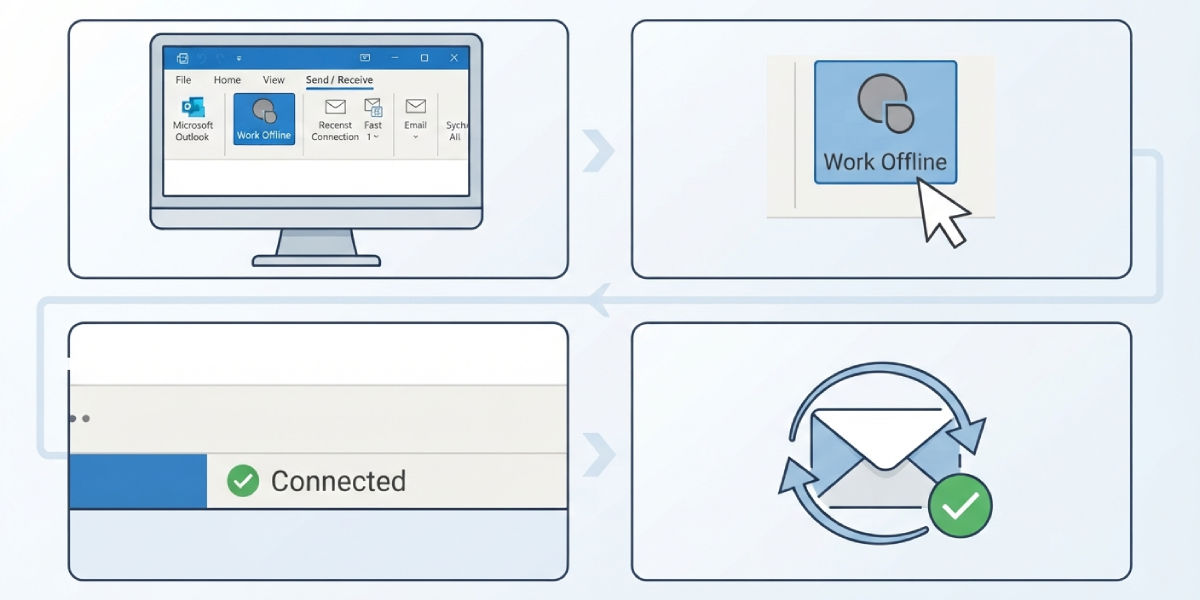
Tip: If the ‘Work Offline’ button looks greyed out or unclickable, that usually means Outlook cannot detect a network connection at all, which points to a Windows networking issue rather than an Outlook setting.
Checking Network and Exchange Connection Status
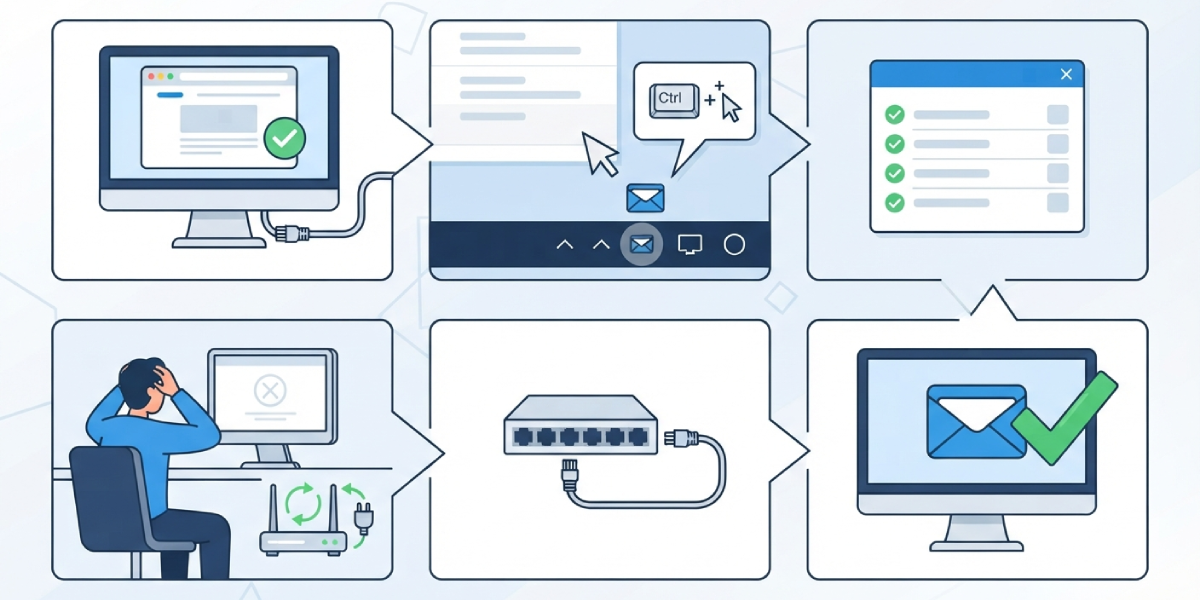
- Step 1: Confirm the device has an active internet connection by opening a web browser and loading any site.
- Step 2: In Outlook, hold Ctrl and click the Outlook icon in the system tray, then choose ‘Connection Status’ to see the live connection to the mail server.
- Step 3: Look for any lines showing errors or a ‘Disconnected’ state. If the server connection shows a problem, restart the router or switch to a different network to rule out a local connectivity issue.
- Step 4: Return to Outlook and check the ‘Work Offline’ button again, since a restored connection often clears the offline status automatically.
Turning Off Cached Exchange Mode Issues
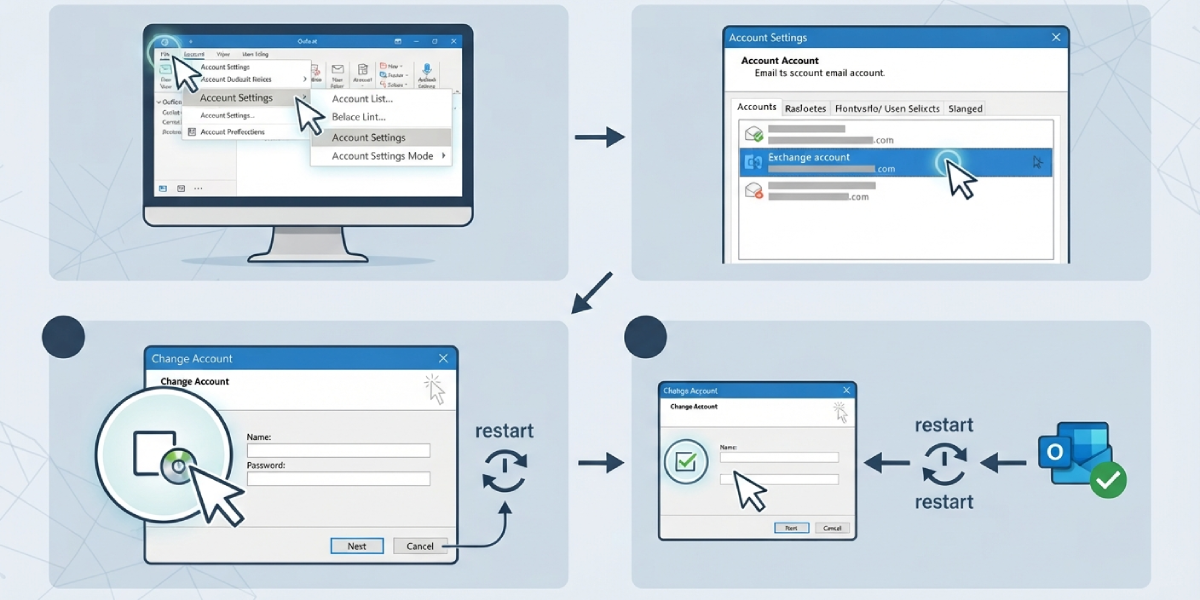
- Step 1: Go to ‘File’, then ‘Account Settings’, then select ‘Account Settings’ again from the dropdown.
- Step 2: Double-click the Exchange account in the list to open its settings.
- Step 3: Check the ‘Use Cached Exchange Mode’ box. If it is unchecked, check it and click ‘Next’, then restart Outlook.
- Step 4: If it is already checked and the issue persists, uncheck it, restart Outlook, then check it again to force a fresh sync of the setting.
Tip: Cached Exchange Mode getting stuck in a bad state is a common trigger for Outlook working offline, especially after a large mailbox sync or a recent Windows update.
Disabling Add-ins That Force Offline Mode
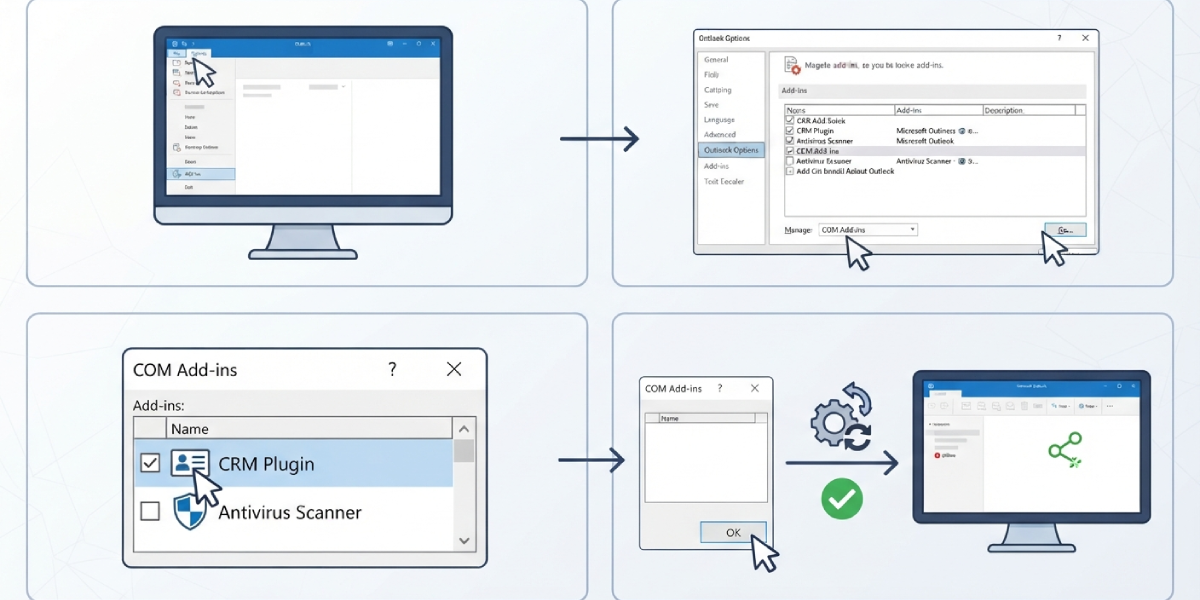
- Step 1: Click ‘File’, then ‘Options’, then select ‘Add-ins’ from the left menu.
- Step 2: At the bottom, next to ‘Manage’, select ‘COM Add-ins’ and click ‘Go’.
- Step 3: Uncheck any recently installed or unfamiliar add-ins, particularly antivirus email scanners or CRM plugins.
- Step 4: Click ‘OK’ and restart Outlook to see if the offline status clears.
Common Problems and Fixes
- The ‘Work Offline’ toggle keeps re-enabling itself: This is often caused by a conflicting add-in. Start Outlook in safe mode by holding Ctrl while opening Outlook, then check if the problem still happens.
- Outlook shows online but still will not sync: Check Connection Status for stuck items in the send queue, and try removing any oversized attachments jamming the outbox.
- The offline status appears only on one device: This usually points to a local Outlook profile problem rather than a server issue. Creating a new Outlook profile through Control Panel’s Mail settings often resolves it.
- VPN connections trigger offline mode: Some VPN configurations interrupt the connection to the Exchange server. Reconnecting the VPN before opening Outlook, rather than after, usually prevents this.
- Offline mode returns after every restart: This can happen when Outlook closed improperly last time. Closing Outlook fully through File then Exit, instead of just closing the window, helps the setting save correctly.
Frequently Asked Questions
Why does Outlook say working offline when connected to the internet?
This typically happens because the ‘Work Offline’ setting was toggled on accidentally, an add-in changed it, or Outlook lost its connection to the Exchange server even though the internet itself is fine.
How can the working offline status be turned off quickly?
Click the ‘Send/Receive’ tab and select ‘Work Offline’ to toggle it back to online mode. The status bar should update within a few seconds.
Does restarting the computer fix Outlook working offline?
Sometimes, especially if the issue is caused by a temporary network glitch. If the offline status returns after restarting, the cause is more likely a setting or add-in rather than a one-time system hiccup.
Can antivirus software cause Outlook to work offline?
Yes. Email scanning add-ins bundled with antivirus programs occasionally interfere with the connection to the mail server, which can trigger offline mode.
Is Cached Exchange Mode related to the offline issue?
It can be. A corrupted or outdated cache sometimes causes Outlook to behave as though it cannot reach the server, even when the connection is active.
Why does the Work Offline button appear greyed out?
A greyed-out button usually means Outlook cannot detect any network connection at all, which points to a Windows or router-level connectivity problem rather than an Outlook setting.
Does creating a new Outlook profile help with this issue?
Yes, particularly if the offline status only happens on one device and other fixes have not worked. A fresh profile often clears out corrupted settings tied to the old one.
Can a VPN cause Outlook to work offline?
Yes. Some VPN setups interrupt the path between Outlook and the Exchange server, especially if the VPN connects after Outlook is already open.
How long does it take for Outlook to reconnect after fixing this?
Reconnection is usually immediate, though a full mailbox sync can take a few minutes depending on mailbox size and connection speed.
