
Learning how to set battery charge limit on a laptop is one of the simplest ways to slow down long-term battery wear, especially on machines that stay plugged in most of the day. Lithium-ion batteries degrade faster when they sit at a full charge for extended periods, so capping the charge somewhere below 100 percent takes real pressure off the cells. This guide covers the built-in tools, manufacturer software, and BIOS settings that make this possible, along with what to do if the option is not showing up.
Key Takeaways
- Most modern laptops offer a battery charge limit feature through manufacturer software, BIOS settings, or built-in OS controls.
- A common and widely recommended range is capping charge somewhere between 60 and 80 percent for laptops that stay plugged in constantly.
- Windows does not have a native, universal charge limit toggle, so the setting almost always comes from the laptop manufacturer’s own utility or BIOS.
- MacBooks running recent macOS versions include an adaptive charging feature plus an optional charge limit toggle.
- Setting a charge limit is reversible at any time and does not damage the battery or void the warranty.
Before You Start
This is a software adjustment, not a hardware task, so there is no need to open the laptop or handle any internal components. A few quick checks make the process smoother.
- Confirm the laptop brand and model, since the charge limit tool and its exact location vary between manufacturers.
- Make sure the laptop’s software and BIOS are updated to the latest version, since older versions sometimes lack this feature entirely.
- Have the laptop plugged in and powered on before diving into BIOS or software menus.
How to Set Battery Charge Limit by Method
The exact steps depend on whether the laptop uses manufacturer software, a BIOS toggle, or a macOS setting. Find the section that matches the device below.
Using Manufacturer Software (Windows Laptops)
Most major laptop brands, including Lenovo, Dell, HP, and Asus, bundle a power or system management app that includes a battery charge threshold option. Most people find that this is the easiest and most reliable route since it usually offers more flexibility than the BIOS.
- Step 1: Open the manufacturer’s control app, such as Lenovo Vantage, Dell Power Manager, HP Support Assistant, or Asus MyASUS.
- Step 2: Navigate to the section labeled ‘Power,’ ‘Battery,’ or ‘Battery Health.’
- Step 3: Look for a setting called ‘Battery Charge Threshold,’ ‘Charge Limit,’ or ‘Battery Longevity Mode.’
- Step 4: Select a custom limit or choose a preset mode, often labeled something like ‘Balanced’ or ‘Longevity,’ which typically caps charging in the 60 to 80 percent range.
- Step 5: Save the setting and unplug, then reconnect the charger to confirm charging stops at the chosen threshold.
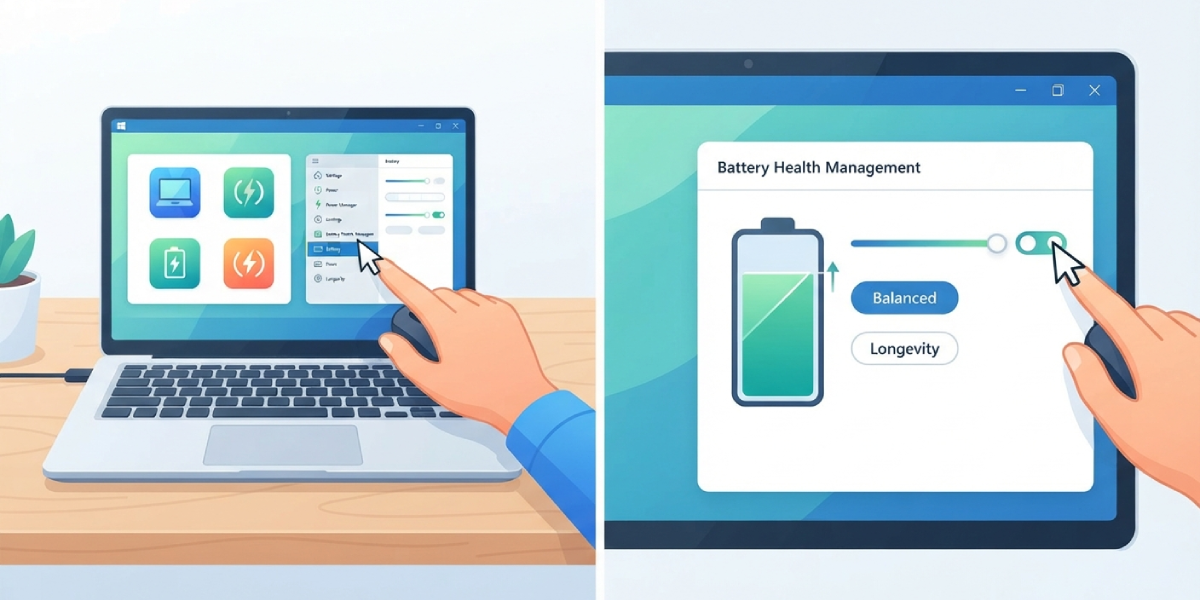
Tip: If the charge limit setting is missing from the app entirely, check for a pending software or driver update first, since this feature is sometimes added or restored in later releases.
Using BIOS or UEFI Settings
Some brands, particularly Lenovo ThinkPads and certain Dell and Asus models, place the battery charge limit inside the BIOS instead of, or in addition to, the software app. This works best when the manufacturer app is unavailable or the setting needs to persist independent of the operating system.
- Step 1: Restart the laptop and press the BIOS entry key repeatedly during boot, commonly F2, F10, F12, or Delete depending on the brand.
- Step 2: Locate the ‘Power’ or ‘Config’ tab inside the BIOS menu.
- Step 3: Find the option named something close to ‘Battery Charge Mode’ or ‘Start/Stop Charge Threshold.’
- Step 4: Enter the desired start and stop percentages, or select a predefined conservation mode.
- Step 5: Save changes and exit, usually with the F10 key, then let the laptop reboot normally.
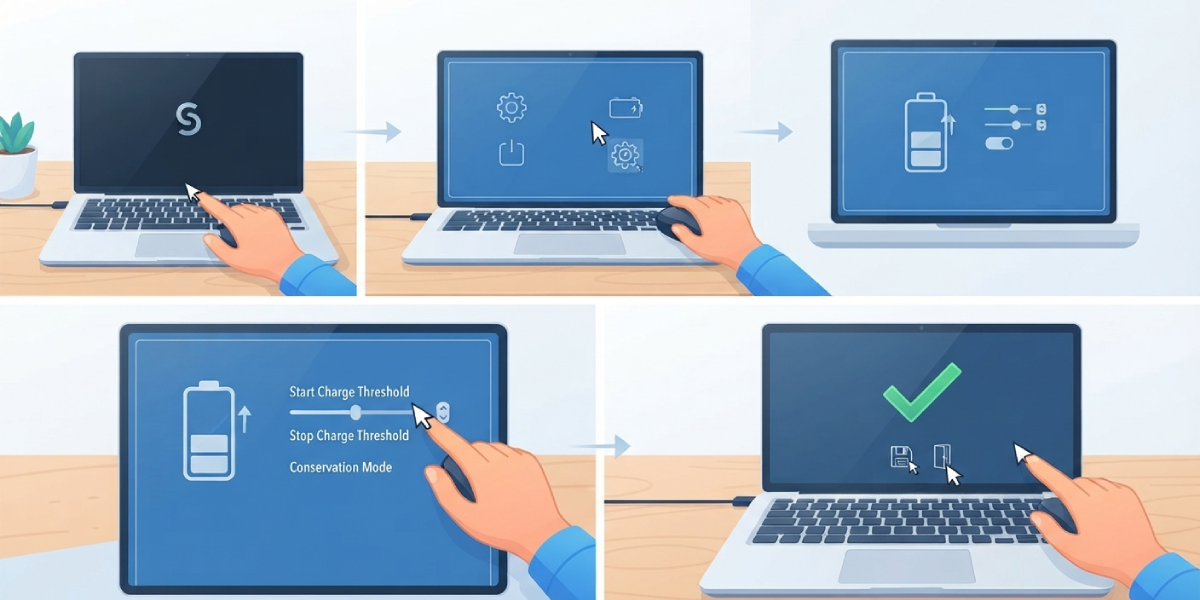
Using macOS Battery Settings
MacBooks handle this a little differently. Recent versions of macOS include Optimized Battery Charging, which learns daily usage patterns and holds charge below 100 percent until it is needed, plus a manual charge limit option on newer models.
- Step 1: Open System Settings and select ‘Battery’ from the sidebar.
- Step 2: Click ‘Battery Health’ or the details button near the battery percentage.
- Step 3: Enable ‘Optimized Battery Charging’ to let macOS manage the ceiling automatically.
- Step 4: On supported models, choose the ‘80% Limit’ option if a strict manual cap is preferred over the adaptive setting.
- Step 5: Close the settings window, since changes apply immediately without a restart.
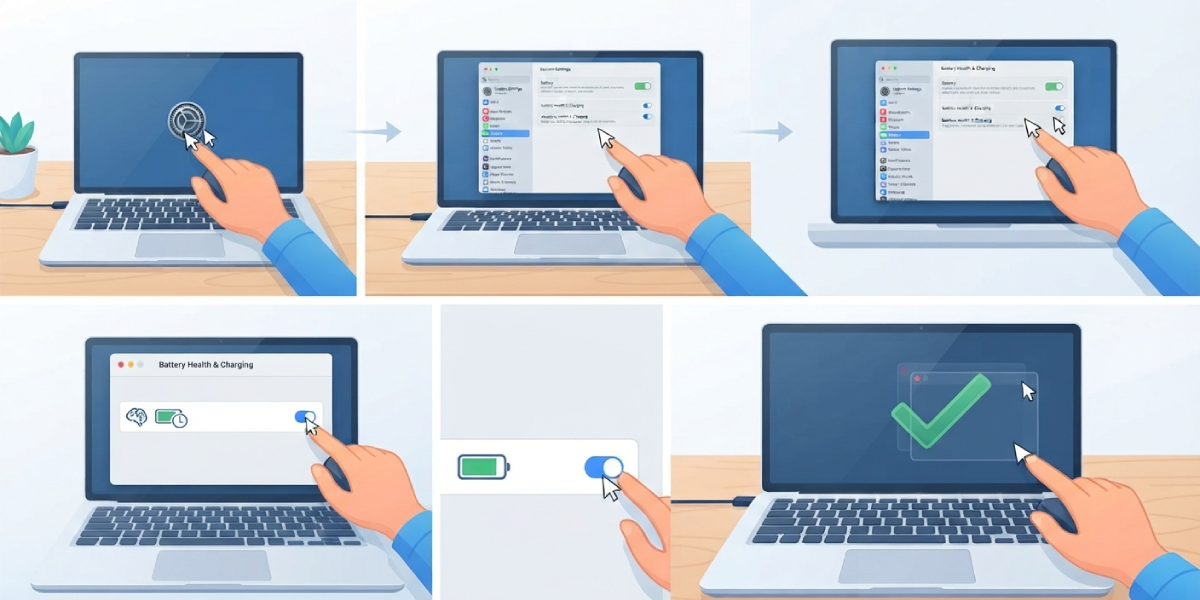
Tip: Optimized Battery Charging pauses at around 80 percent and finishes the last stretch closer to when the laptop is actually needed, so a full charge is still available when it matters, like right before unplugging for travel.
Common Problems and Fixes
- The charge limit option is missing from the software: Update the manufacturer utility and the system BIOS to the latest version, since this feature is often added in a later release rather than present from day one.
- The laptop still charges to 100 percent despite a limit being set: Confirm the setting actually saved by reopening the app or BIOS menu, and check that no separate power plan or third-party battery tool is overriding it.
- The battery percentage reads oddly after enabling a limit: This is normal in the first day or two, since the system needs a charge cycle to recalibrate its reporting against the new ceiling.
- BIOS menu has no battery or power tab at all: Some budget or older models simply do not support this feature at the firmware level, which means the manufacturer’s software is the only possible path, if one exists.
- Charge limit resets after a BIOS update: BIOS updates sometimes restore default settings, so it is worth rechecking the threshold after any firmware update.
Frequently Asked Questions
What percentage should a battery charge limit be set to?
A range between 60 and 80 percent is a widely used starting point for laptops that stay plugged in most of the time, since it keeps the battery away from both full charge and deep discharge, the two states that accelerate wear the fastest.
Does setting a charge limit reduce battery capacity right away?
No. A charge limit does not reduce capacity itself. It simply slows down the rate of long-term degradation by avoiding extended time at a full charge.
Can the charge limit be turned off later?
Yes. The setting can be adjusted or disabled at any time through the same software or BIOS menu it was set in, with no lasting effect on the battery or the device.
Does every laptop have a battery charge limit feature?
Not every model includes it. It is common on business laptops and many premium consumer lines, but budget models sometimes leave it out entirely at the firmware level.
Is it better to use software or BIOS for the charge limit?
Either works well when available. Software tools tend to offer more granular control, like custom percentage ranges, while BIOS settings persist even if the operating system is reinstalled.
Will a charge limit void the laptop’s warranty?
No. Charge limit settings are a standard manufacturer feature designed for battery longevity and have no effect on warranty coverage.
Should a charge limit be used on a laptop that travels often?
Not necessarily at all times. Switching to full charge before a trip and back to a limited mode afterward gets the best of both worlds, full runtime when needed and less wear the rest of the time.
How is a charge limit different from battery calibration?
A charge limit controls the maximum percentage the battery charges to going forward, while calibration is a one-time process of a full discharge and recharge cycle used to correct inaccurate battery percentage readings.
Does a charge limit affect how long the laptop runs on battery that day?
Yes, slightly. Since the battery is not filling to 100 percent, runtime on any given charge will be somewhat shorter, which is the tradeoff for the longevity benefit.
Can third-party apps set a battery charge limit if the manufacturer software does not offer it?
On Windows, this depends entirely on whether the laptop’s embedded controller supports the feature at the hardware level. Third-party tools generally cannot add the capability if the manufacturer never built in the underlying support.
