
Read and unread status not updating across Outlook devices is a common sync issue that leaves messages marked unread on a phone or tablet even after they have been opened on a desktop. This happens because each device relies on a sync connection to the mail server, and when that connection lags or breaks, the read status on one device never reaches the others. The steps below fix the sync so every device shows the same read and unread status.
Key Takeaways
- Sync delays, cached data, and outdated apps are the most common causes of read status mismatches.
- Forcing a manual sync on each device is usually the fastest fix.
- Signing out and back into the Outlook mobile app resets the sync connection completely.
- Rebuilding the Outlook desktop data file solves persistent status issues on Windows.
- Checking for mailbox rules that move or archive mail helps rule out false ‘unread’ triggers.
Step-by-Step Guide to Fix Read and Unread Status Not Updating Across Outlook Devices
Work through these steps in order. Most people find that the problem clears up within the first two or three steps, so there is no need to jump straight to the more advanced fixes.
- Step 1: Confirm every device is connected to the same account type. Read and unread sync across devices only works reliably with an Exchange, Microsoft 365, or Outlook.com account. A POP account downloads mail independently to each device and never syncs status, so check Account Settings on desktop and the account list in the mobile app to make sure the account type matches everywhere.
- Step 2: Force a manual sync on the desktop app. In Outlook for Windows, select the Send/Receive tab and choose Send/Receive All Folders. On Mac, use the Send/Receive button in the toolbar. This pushes any pending status changes to the server instead of waiting for the automatic sync cycle.
- Step 3: Refresh the mobile app manually. Open Outlook for iOS or Android, pull down on the inbox to trigger a refresh, and wait a few seconds for the sync icon to disappear. This confirms the app is actually talking to the server rather than showing a stale, locally cached view.
- Step 4: Update the Outlook app on every device. Outdated versions sometimes contain sync bugs that were already patched. Check for updates in the Microsoft Store, the App Store, or Google Play, and restart the app after installing.
- Step 5: Sign out and back into the Outlook mobile app. On the account experiencing the issue, go to Settings, tap the account, and choose Delete Account (this only removes it from the app, not the mailbox itself). Re-add the account and let it fully re-sync. This rebuilds the sync token from scratch and clears out any corrupted status data.
- Step 6: Rebuild the Outlook data file on Windows if the issue is limited to desktop. Close Outlook, open Control Panel, select Mail, then Show Profiles, and remove and re-create the profile so a fresh .ost file downloads. This forces every read and unread flag to be pulled fresh from the server.
- Step 7: Check Cached Exchange Mode settings on desktop. Go to File, Account Settings, double-click the account, and confirm Cached Exchange Mode is enabled with a reasonable mail-to-keep-offline range. A setting that is too restrictive can cause older messages to fall out of sync entirely.
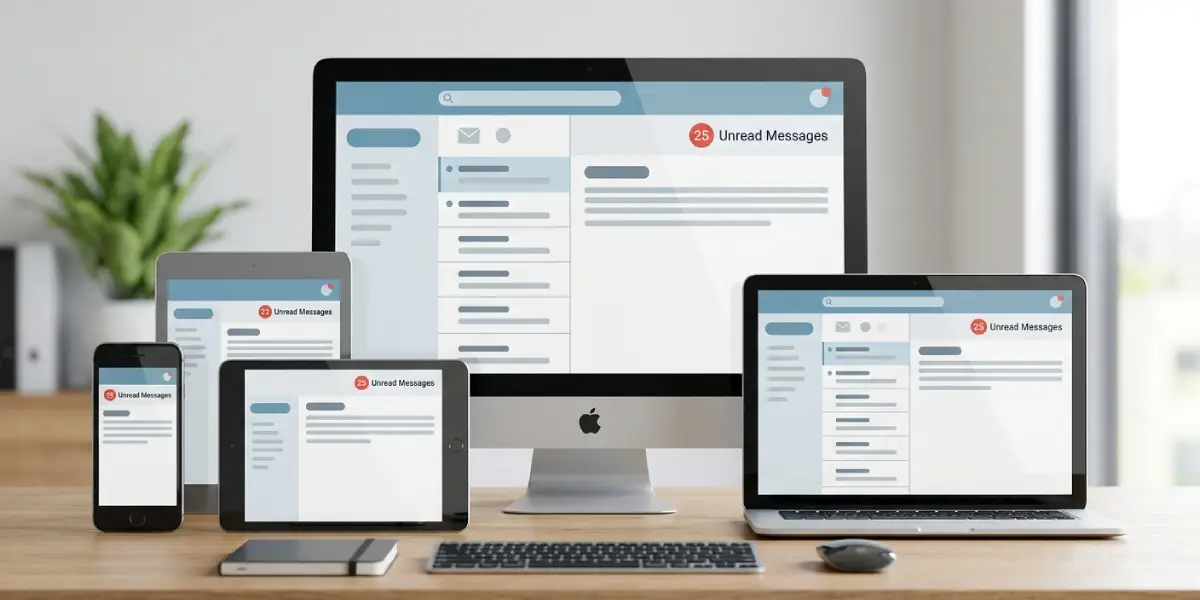
Tip: After re-adding an account on mobile, leave the app open and connected to Wi-Fi for a few minutes before checking status again. A full resync of a large mailbox can take longer than expected, and closing the app too soon interrupts the process.
Common Problems and Fixes
Status updates on some devices but not others
This usually points to one device still running an outdated app version or sitting on a weak connection during sync. Update the app on the lagging device and force a manual refresh before assuming the account itself is broken.
Read status reverts to unread after a few minutes
A mailbox rule or a shared inbox permission set to ‘mark as unread on move’ can override the change right after it syncs. Check Rules in desktop Outlook under File, Manage Rules and Alerts, and disable any rule that moves or flags messages automatically.
Mobile app shows a spinning sync icon indefinitely
This typically signals a stuck sync connection rather than a true status mismatch. Force-close the app completely, reopen it, and if the icon keeps spinning, remove and re-add the account as described in Step 5.
Shared or delegated mailboxes never sync status correctly
Shared mailboxes sync read status separately from a primary account in some configurations. Confirm the shared mailbox is added as a full account rather than just an additional folder, since folder-only access can limit status syncing.
Frequently Asked Questions
Why does Outlook show a message as unread on one device but read on another?
This happens when the sync connection on one device has not yet received the latest status update from the server. Forcing a manual sync on both devices usually resolves it within a minute.
Does this issue affect Outlook.com in a web browser too?
Yes, the browser version pulls from the same server data as the desktop and mobile apps, so if status is not updating there either, the fix steps above still apply since they target the server-side sync rather than one specific app.
Will rebuilding the Outlook data file delete any emails?
No, rebuilding the .ost file only removes the local cached copy. Every email is stored on the mail server and re-downloads automatically once the new profile is created.
Is there a setting to turn off automatic read status changes?
Yes, under File, Options, Mail, the Reading Pane settings control whether messages are marked read automatically when selected or previewed. Adjusting this does not fix cross-device sync, but it does control how status changes in the first place.
Why does removing and re-adding an account fix sync problems?
Re-adding an account generates a fresh sync token and forces the app to download current status data from the server instead of relying on a potentially corrupted local cache.
Can a slow internet connection cause this issue?
Yes, a weak or interrupted connection can delay sync long enough that status changes appear inconsistent between devices, even though every device is configured correctly.
Does this fix work the same way on both iPhone and Android versions of Outlook?
Yes, the Outlook mobile app uses the same sync architecture on both platforms, so the steps for updating, refreshing, and re-adding the account apply equally to iOS and Android.
How long should a full resync take after re-adding an account?
For most mailboxes it takes a few minutes, though larger mailboxes with years of mail history can take longer. Keeping the app open and connected to Wi-Fi speeds up the process.
Should Cached Exchange Mode always stay enabled?
For most users, yes. It keeps a local copy of recent mail for faster access and reliable syncing, and disabling it can actually make read and unread status less consistent across devices.
