
If you type in more than one language or use a different layout for work, knowing how to switch between keyboard layouts quickly in Windows 11 saves a lot of frustration. The feature is built in, works on Home, Pro, and Enterprise, and does not need administrator rights. The only requirement is that at least two keyboard layouts are installed on the PC.
Key Takeaways
- Add extra layouts at Settings > Time & language > Language & region, then open the language options.
- Press Windows + Spacebar to cycle through installed layouts from anywhere.
- Press Left Alt + Shift for a second shortcut, and change it at Settings > Time & language > Typing > Advanced keyboard settings > Input language hot keys.
- Click the language indicator in the taskbar to pick a layout with the mouse or touch screen.
Step-by-Step Guide to Switch Between Keyboard Layouts in Windows 11
Method 1: Use the Settings App
This method installs the layouts and sets the shortcut that makes switching fast. It only needs to be done once.
- Press Windows + I to open Settings.
- Select Time & language from the left pane.
- Click Language & region.
- Find the language you type in, click the three dots next to it, and select Language options.
- Under Keyboards, click Add a keyboard and choose the layout you need.
- Go back to Time & language and click Typing.
- Click Advanced keyboard settings.
- Click Input language hot keys. The Text Services and Input Languages window opens on the Advanced Key Settings tab.
- Select Between input languages, then click Change Key Sequence.
- Choose the shortcut you prefer, such as Ctrl+Shift or Left Alt+Shift, then click OK twice.
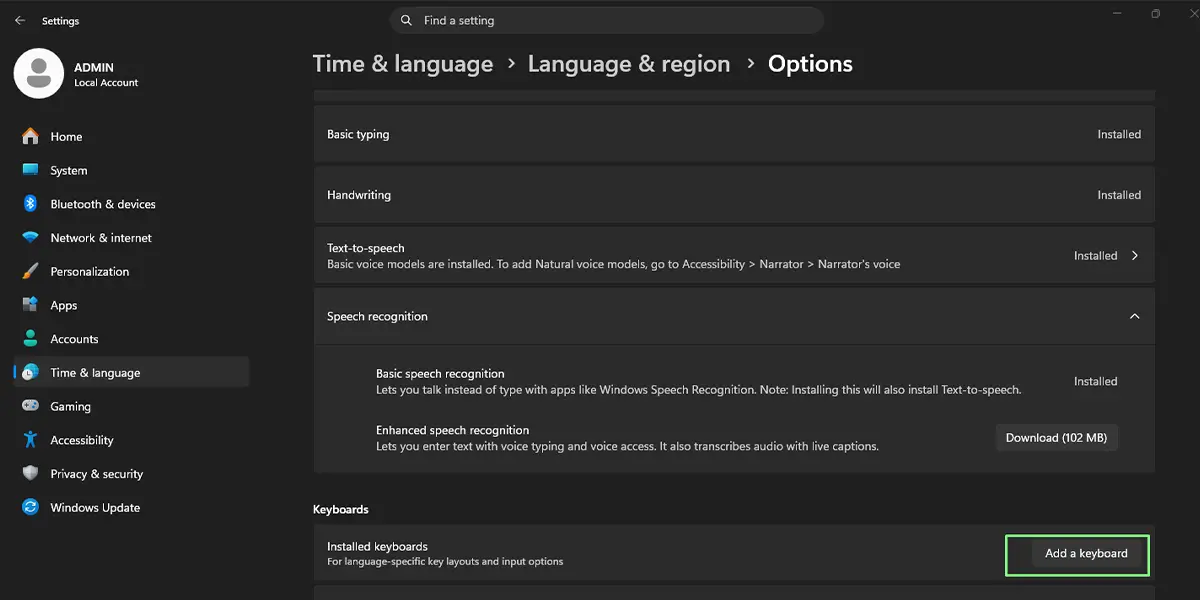
The new layout appears in the list right away, and the shortcut works as soon as the window closes. No restart is needed.
Tip: If layouts of the same language are being swapped (for example US and US International), the Switch Keyboard Layout option in the same dialog controls that shortcut separately from the language one.
Method 2: Use the Taskbar Language Indicator
This is the easiest option on a touch screen or when the shortcut is hard to remember.
- Look at the right side of the taskbar, near the clock, for the language indicator, which shows letters such as ENG.
- Click the indicator.
- Select the keyboard layout you want from the list.
The indicator updates immediately, and the next key press uses the new layout. The indicator only appears when two or more layouts are installed.
Method 3: Use a Keyboard Shortcut
This is the fastest way for most people, because the hands never leave the keyboard.
- Click into the document, browser, or text box where typing will happen.
- Hold down the Windows key and press Spacebar. A small panel listing the installed layouts appears.
- Keep holding the Windows key and tap Spacebar again to move to the next layout.
- Release both keys to confirm the choice.
Many setups also respond to Left Alt + Shift, which switches layouts without showing the panel. Tip: Windows + Spacebar is handy on a shared family computer, because it works even if someone has changed the other shortcut.
How to Undo or Reverse This Change
To restore the original shortcut, return to Settings > Time & language > Typing > Advanced keyboard settings > Input language hot keys, click Change Key Sequence, and pick the previous combination. To remove a layout, open Settings > Time & language > Language & region, click the three dots next to the language, select Language options, and click the three dots beside the layout under Keyboards, then choose Remove.
Common Problems and Fixes
The Language Indicator Is Missing from the Taskbar
The indicator only shows when at least two layouts are installed. Add another layout using Method 1, and the indicator appears. If it still does not show, check the hidden icons area near the clock.
The Keyboard Shortcut Does Nothing
The shortcut may be set to Not Assigned. Open Settings > Time & language > Typing > Advanced keyboard settings > Input language hot keys and assign a combination. If Ctrl + Shift clashes with a shortcut inside a program, choose Left Alt + Shift instead.
The Layout Keeps Changing When Switching Between Apps
Windows can remember a separate layout for each app window. To control this, open Settings > Time & language > Typing > Advanced keyboard settings and turn the Let me use a different input method for each app window option on or off to suit the way you work.
Language Settings Are Greyed Out or Locked
On a work or school laptop, an administrator may restrict language and keyboard changes. In that case, the options can only be changed by the organization that manages the device.
Frequently Asked Questions
Does switching keyboard layouts work on Windows 11 Home?
Yes. Adding layouts and switching between them is available on Home, Pro, and Enterprise editions.
Do I need to restart the PC after adding a keyboard layout?
No. A newly added layout shows up in the taskbar indicator and in the Windows + Spacebar panel right away.
What is the fastest shortcut to switch keyboard layouts in Windows 11?
Windows + Spacebar is the quickest option for most users, since it works from any app. Left Alt + Shift is another common choice.
Can the keyboard layout shortcut be changed?
Yes. Go to Settings > Time & language > Typing > Advanced keyboard settings > Input language hot keys, then click Change Key Sequence and select the combination you prefer.
Why is the language indicator not showing on the taskbar?
Windows hides it when only one layout is installed. Install a second layout at Settings > Time & language > Language & region, and the indicator appears.
Does switching layouts affect battery life or performance?
No. Changing layouts has no noticeable effect on battery life or speed on a laptop or desktop.
Can a different layout be used for each app?
Yes. Turn on the option that lets each app window use its own input method under Advanced keyboard settings, and Windows remembers the layout per window.
How can the active keyboard layout be checked?
Look at the language indicator near the clock on the taskbar. The letters shown there match the layout that is currently active.
