
A USB device not recognized error usually means Windows detected a connection but could not identify the device properly, and it almost always has a fixable cause behind it. Whether it happens with a flash drive, external hard drive, keyboard, or printer, the fixes below work through the issue from the simplest cause to the more technical ones.
Key Takeaways
- The error is most often caused by a driver conflict, a faulty port, a bad cable, or a power delivery problem.
- Restarting the PC and testing a different port solves the issue more often than people expect.
- Outdated or corrupted USB drivers are the next most common culprit and are easy to fix through Device Manager.
- Power management settings on laptops can cause USB ports to shut down unexpectedly, triggering this error.
- A device that fails on every port and every PC likely has a hardware fault rather than a software one.
Common Causes of the USB Device Not Recognized Error
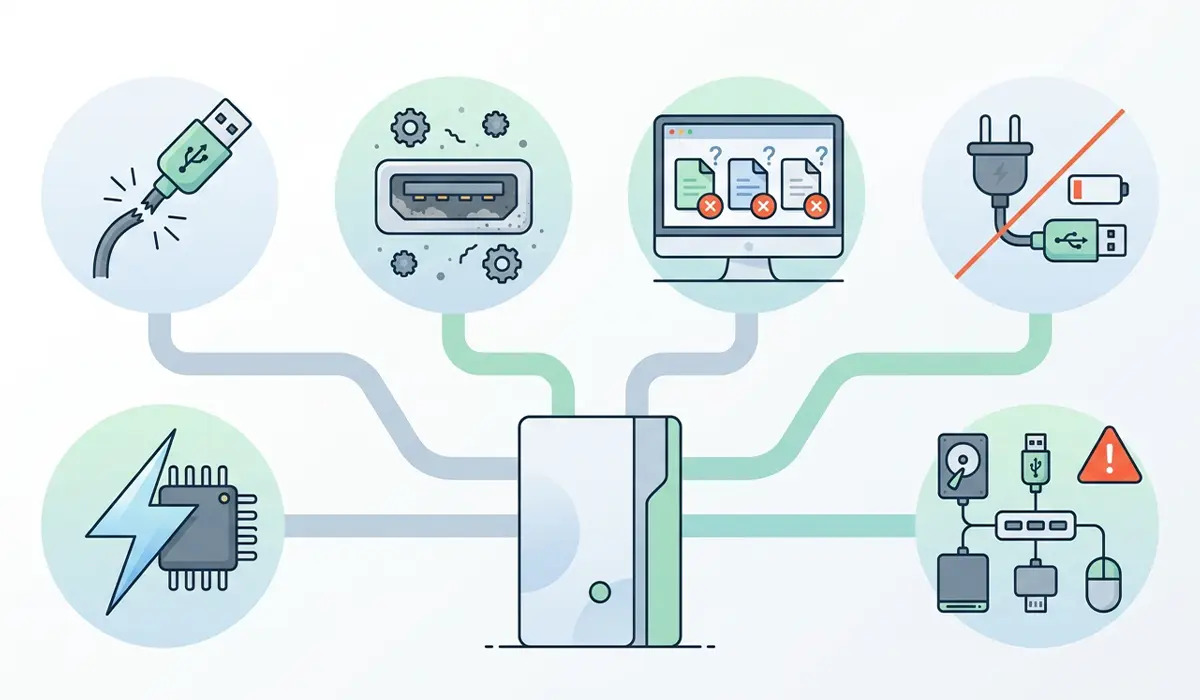
Before jumping into fixes, it helps to understand what typically triggers this message. Most cases fall into one of these categories.
- A loose or damaged USB cable that cannot maintain a stable connection.
- A worn out or debris filled USB port on the computer or the device itself.
- Outdated, missing, or corrupted USB controller drivers in Windows.
- Aggressive USB selective suspend or power management settings cutting power to the port.
- A device drawing more power than the port can supply, common with external hard drives plugged into a hub.
- Static buildup or a temporary glitch in the USB controller itself.
How to Fix the USB Device Not Recognized Error
Work through these steps in order. Most people resolve the error within the first three or four steps, so there is rarely a need to go further.
Step-by-Step Fixes
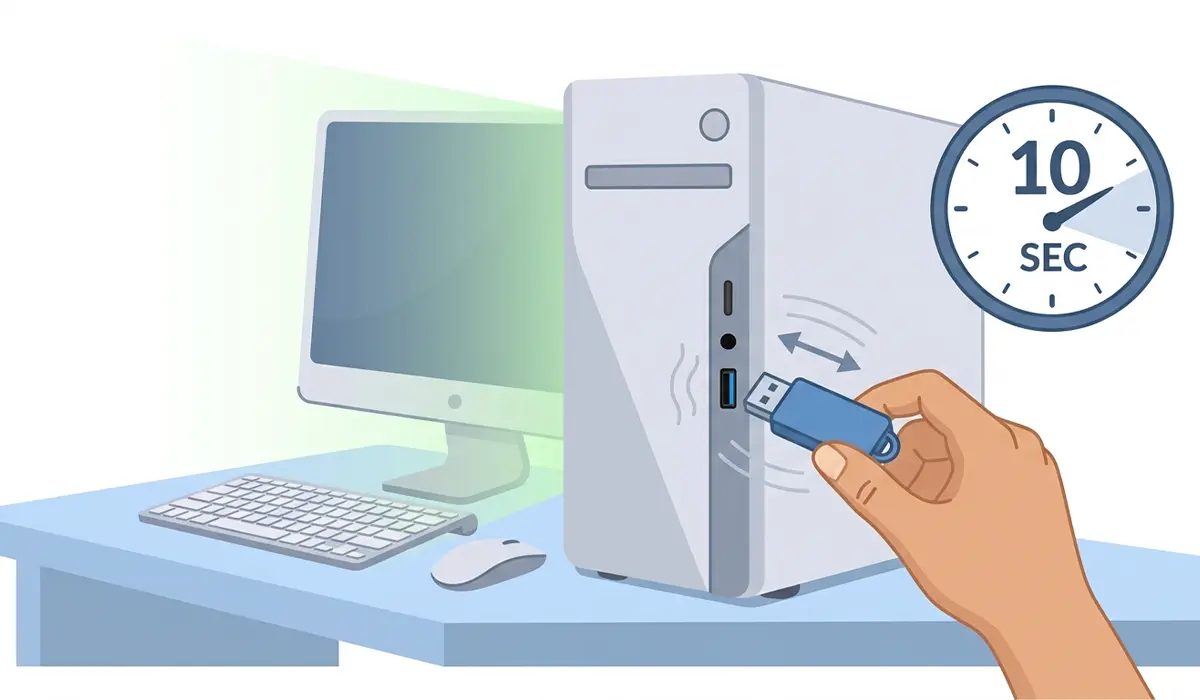
- Step 1: Unplug the device, wait about ten seconds, and plug it back into the same port. This clears a lot of minor connection glitches on its own.
- Step 2: Try a different USB port, ideally one connected directly to the motherboard rather than a front panel port or a hub. Front panel headers and cheap hubs are frequent sources of this error.
- Step 3: Test the device on another computer if one is available. If it still fails to show up, the device itself is likely the problem rather than the PC.
- Step 4: Restart the computer fully rather than using sleep mode. A full restart clears the USB controller state in a way that sleep mode does not.
- Step 5: Open Device Manager, expand ‘Universal Serial Bus controllers’, and look for any entry with a yellow warning icon. Right click it and select ‘Uninstall device’, then restart the PC to let Windows reinstall the driver automatically.
- Step 6: While still in Device Manager, right click each ‘USB Root Hub’ entry, open Properties, go to the ‘Power Management’ tab, and uncheck ‘Allow the computer to turn off this device to save power’. This single setting resolves a surprising number of intermittent recognition errors on laptops.
- Step 7: Update the chipset and USB drivers directly from the computer manufacturer’s support page rather than relying only on Windows Update, since manufacturer drivers are often more current for USB controllers.
- Step 8: Check the Windows version is fully up to date, since Microsoft periodically patches known USB controller bugs through cumulative updates.
- Step 9: Inspect the USB port with a flashlight for bent pins, dust, or debris. Compressed air in short bursts clears most buildup without needing to touch the connector.
- Step 10: If the device is external storage, test it with its own separate power adapter if one is available, since insufficient power delivery is a common reason drives are not recognized.
Tip: Keep a second known-working USB cable on hand for testing. A damaged cable looks identical to a healthy one but is one of the most common reasons devices fail to register.
Common Problems and Fixes
Device Still Not Recognized After a Driver Reinstall
This usually points to a corrupted USB controller driver package rather than a single bad entry. Open Device Manager, uninstall every device under ‘Universal Serial Bus controllers’, check the box for ‘Delete the driver software for this device’ where available, then restart. Windows rebuilds the entire USB driver stack from scratch on boot.
Error Appears Only With One Specific Device
When every other USB device works fine but one consistently fails, the fault almost always sits with that device or its cable. Test the device on a different computer to confirm before assuming a PC-side issue.
Error Appears on Every Device Plugged Into One Port
This points to a damaged or worn out physical port. Ports can loosen over time from repeated plugging and unplugging, especially on older laptops. Switching to a different port confirms whether the issue is isolated to that connector.
External Hard Drive Recognized Then Disconnects Repeatedly
This pattern almost always traces back to insufficient power. Drives pulled through a bus-powered hub or a worn cable draw more current than the connection can reliably supply. Plugging directly into the computer, or using a powered hub, usually resolves it.
Error Returns After a Windows Update
Occasionally an update reinstalls a generic driver over a manufacturer-specific one. Reinstalling the chipset and USB drivers from the manufacturer’s support page after any major Windows update fixes this.
Frequently Asked Questions
Why does Windows say USB device not recognized?
Windows shows this message when it detects a device is connected electrically but cannot complete the identification process needed to load the correct driver, usually due to a port, cable, power, or driver issue.
Can a bad USB cable cause this error?
Yes. A cable with internal wire damage or a loose connector is one of the most common causes, since it can break the data connection while still allowing partial power flow.
Does restarting the computer actually help fix this?
It does more often than expected. A full restart clears the USB controller’s current state and forces Windows to reinitialize every connected port from scratch.
Why does this error only happen on laptops and not desktops?
Laptops use aggressive power management by default to extend battery life, and USB selective suspend can cut power to ports unexpectedly. Desktops typically do not apply the same restrictions.
Is it safe to uninstall USB drivers in Device Manager?
Yes. Uninstalling a USB driver through Device Manager only removes the software, not the hardware. Windows reinstalls the driver automatically on the next restart.
Why does an external hard drive keep disconnecting after being recognized?
This is almost always a power delivery issue. The drive draws more current than the port or hub can consistently provide, causing it to drop the connection intermittently.
Can dust inside a USB port cause this error?
Yes. Dust and debris can prevent the connector pins from making full contact, which interrupts the identification process. A few short bursts of compressed air usually clears it.
Should the device be tested on another computer before troubleshooting further?
Yes, this step saves time. If the device fails to register on a second computer as well, the problem lies with the device itself rather than the original PC.
Does updating Windows fix USB recognition issues?
It can. Microsoft periodically releases patches addressing known USB controller bugs, so keeping Windows current is a reasonable step alongside driver updates.
When does a USB port need professional repair instead of troubleshooting?
If every device fails in one specific port while working fine elsewhere, and cleaning does not help, the port connector itself may be physically damaged and is best handled by a repair technician rather than attempted as a DIY fix.
