
Quick Answer: Open Settings, click Personalization, then Lock screen. Pick Picture for one image, Slideshow for a rotating folder, or Windows Spotlight to let Microsoft handle it automatically. The new background shows up right away.
That same stock photo on the lock screen stops being charming somewhere around the hundredth time the laptop wakes up. Here’s the thing: changing it isn’t complicated, Microsoft just buried the setting somewhere most people never think to check. Below is every method for swapping it out, starting with the one that takes the least effort.
One thing worth knowing upfront: the lock screen background and the desktop wallpaper are two separate settings in Windows 11. Changing one will not touch the other.
Open Lock Screen Settings
Every method below starts at the same place.
- Press Windows + I to open Settings.
- Click Personalization in the sidebar, then select Lock screen.
A dropdown menu near the top of the page controls which mode is active: Picture, Slideshow, or Windows Spotlight.
Method 1: Windows Spotlight (Easiest Option)
This one barely counts as setup. Microsoft sends a new high-resolution photo to the lock screen on a regular basis, with no folders or file browsing involved.
- Open the dropdown menu and select Windows Spotlight.
- Give it a moment to download the first image.
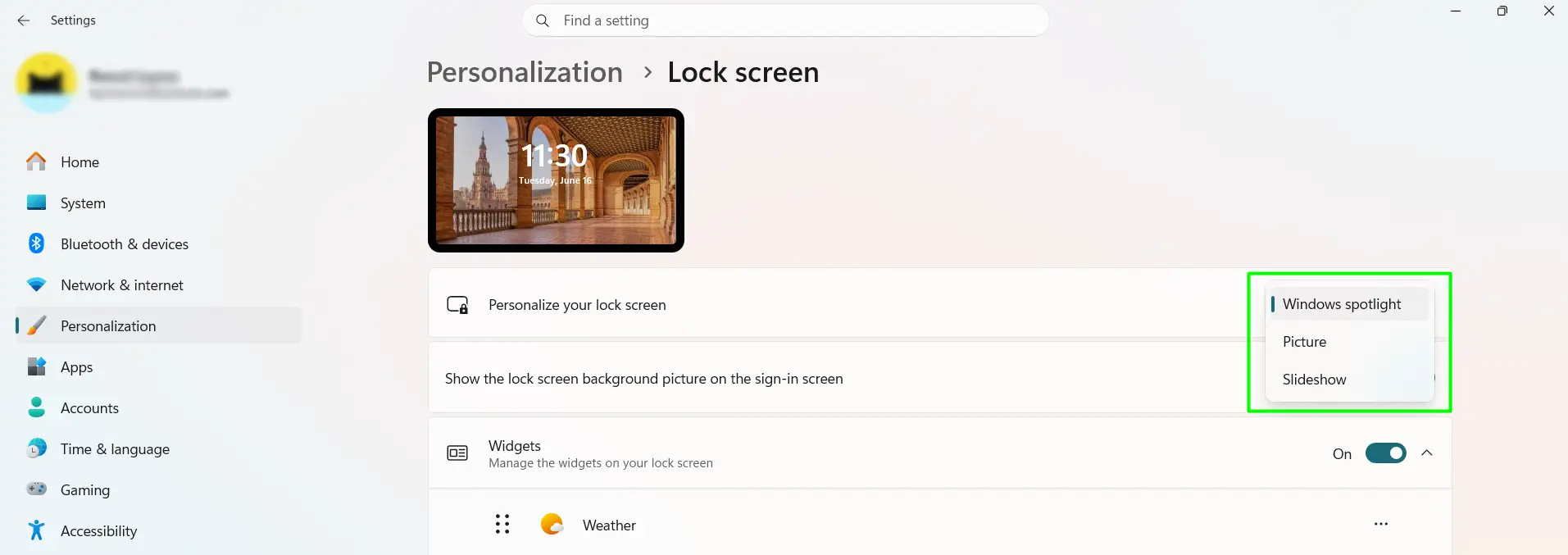
An internet connection is the only real requirement here. Most people find that once this is turned on, there’s nothing left to manage.
Method 2: Set a Single Picture
Good for a favorite photo, a downloaded wallpaper, or one of the images already built into Windows.
- Open the dropdown menu and select Picture.
- Choose one of the preset thumbnails, or click Browse photos to use a personal image.
- Select the image file and click Choose picture.
The change applies instantly. Lock the screen with Windows + L to see it.
Method 3: Build a Slideshow
A slideshow cycles through a folder of images automatically. The key is having that folder ready before starting, since this method takes a few more clicks than the other two.
- Open the dropdown menu and select Slideshow.
- Click Browse under “Choose albums for your slideshow.”
- Select a folder of images, then click Choose this folder.
- Repeat to add more folders, if needed.
Adding or removing photos from that folder later updates the rotation automatically. There’s no need to go back into Settings.
Tips for a Better Lock Screen
- Match the image to the screen’s resolution. 1920×1080 works for most laptops and monitors; 4K and ultrawide screens need a larger file to avoid blur.
- Stick to JPG, JPEG, PNG, or BMP files. These are the only formats Windows 11 accepts for lock screen images.
- Keep slideshow photos in their own folder, separate from a main photo library. It makes the rotation easier to manage and keeps random photos from sneaking in.
- Keep the lock screen status feature minimal. Anyone glancing at an unattended laptop in a public space doesn’t need a read on the calendar or unread email subject lines.
- For battery life on laptops, check the advanced slideshow settings for an option to turn the display off after a set period of inactivity.
Frequently Asked Questions
How do you change the lock screen picture on Windows 11?
Open Settings, then go to Personalization, then Lock screen. Select Picture from the dropdown, choose an image, and the new background takes effect immediately, no restart needed.
Why is the Windows 11 lock screen option greyed out?
This usually points to a managed device, such as a work or school laptop where an administrator controls personalization through Group Policy. On a personal computer, a recent Windows update can sometimes reset local settings; reopening Lock screen settings and reselecting the mode typically fixes it.
Does changing the lock screen also change the desktop wallpaper?
No. These are two separate settings in Windows 11. The lock screen is controlled under Personalization, then Lock screen, while the desktop wallpaper is controlled under Personalization, then Background. Updating one has no effect on the other.
Can different user accounts on the same PC have different lock screens?
Yes. Lock screen settings are saved per user profile. Each account on a shared computer can run its own picture, slideshow, or Windows Spotlight setting without affecting anyone else who logs in.
Why does Windows Spotlight keep showing the same photo?
A cached image usually gets stuck. Switching the dropdown to Picture and back to Windows Spotlight, then restarting the computer, forces a new download. An incorrect system clock can also block fresh images from loading.
How do you turn off the tips and facts on the Windows Spotlight lock screen?
In Lock screen settings, turn off the option for getting fun facts, tips, and other suggestions on the lock screen. The photo itself stays active, while only the text overlay disappears.
What image size works best for a Windows 11 lock screen?
Match the screen’s native resolution. 1920×1080 covers most displays, while 4K or ultrawide monitors need a larger image to avoid a blurry or stretched look.
