
A disk read error on startup usually means the computer cannot locate or communicate with the drive holding the operating system, and it stops the boot process cold. This guide walks through the most reliable ways to fix disk read error on startup, starting with the quickest checks and moving into deeper repairs. Most cases trace back to a loose cable, a corrupted boot file, or a drive that is starting to fail.
Key Takeaways
- A disk read error on startup is most often caused by a loose connection, a damaged boot sector, or a failing drive.
- Cheap fixes like reseating cables and checking BIOS boot order solve a large share of cases.
- Built-in repair tools can rebuild the boot files without wiping the drive.
- A drive that keeps failing after software fixes usually needs to be replaced, not repaired again.
- Backing up data before attempting any fix protects against total data loss.
Common Causes of a Disk Read Error on Startup
Before jumping into fixes, it helps to understand what typically triggers this error. Narrowing down the cause saves time and avoids unnecessary steps.
Loose or Failing Connections
Desktop drives connect through a SATA data cable and a power cable, and either one can work loose after moving the case or during a dusty cleaning session. Laptops with removable drives can suffer the same issue if the drive was reseated recently.
Corrupted Boot Sector or Boot Files
The master boot record or the boot configuration data can become damaged by a sudden power loss, a failed update, or malware. When this happens, the drive itself is fine, but the system cannot find the instructions needed to load Windows or another operating system.
Incorrect BIOS or UEFI Boot Order
Sometimes the boot drive is simply not listed first, especially after a BIOS update, a battery replacement on the motherboard, or connecting a new external drive.
Drive Hardware Failure
Hard disk drives with spinning platters can develop bad sectors over time, and solid state drives can wear out or suffer controller failures. A drive nearing the end of its life will often throw this error intermittently before failing completely.
Outdated or Corrupted Storage Drivers
On some systems, a driver conflict introduced by a recent update can prevent the operating system from recognizing the boot drive correctly, mimicking a hardware fault.
Before You Start
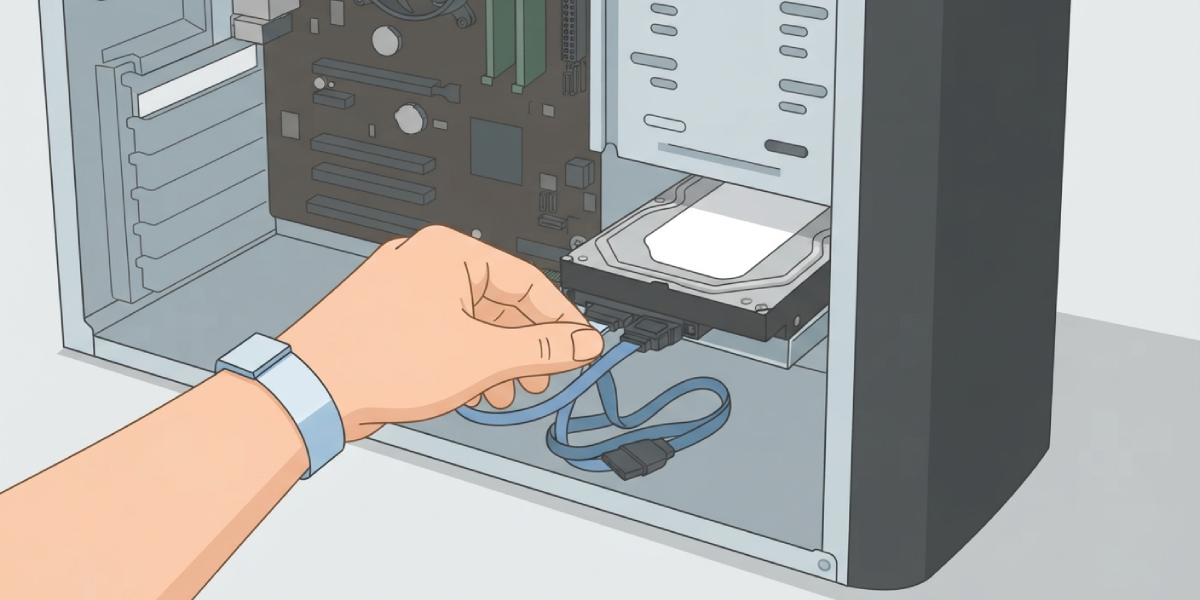
Power the machine off completely and unplug it from the wall before opening the case or touching any internal cables. Let the system sit for a minute so any residual charge in the components dissipates. Touch a bare metal part of the case or use an anti-static wrist strap before handling the drive or cables, since static discharge can damage sensitive components. If the error appears on a laptop, remove the battery where it is user-replaceable, or use the manufacturer’s shutdown procedure if the battery is internal.
Tools and materials needed: a Phillips screwdriver, an anti-static wrist strap or grounded surface, a bootable Windows installation USB drive, and an external drive or cloud storage for backing up files if the drive is still readable. If cracking open a laptop feels risky or the warranty is still active, it is worth pausing here and having a professional technician handle the physical inspection instead.
Step-by-Step Fixes for a Disk Read Error on Startup
- Step 1: Restart the computer once before doing anything else. A one-time glitch during boot sometimes triggers this error even when the drive and cables are perfectly fine.
- Step 2: Disconnect any USB drives, external hard drives, or memory cards, then restart. The BIOS can sometimes try to boot from one of these devices instead of the main drive, producing the same error message.
- Step 3: Enter the BIOS or UEFI setup screen, usually by pressing a key such as Delete or F2 during the very first moment the logo appears, and confirm the correct drive is set as the first boot option.
- Step 4: Power down, unplug, and open the case to check the SATA data cable and power cable connections on desktop drives. Reseat both ends firmly, and swap the SATA cable for a spare if one is available, since cables do fail.
- Step 5: Boot from a Windows installation USB drive and select the repair option rather than a fresh install. Choose ‘Troubleshoot,’ then ‘Advanced options,’ then ‘Command Prompt’ to reach the repair tools.
- Step 6: Run bootrec /fixmbr, followed by bootrec /fixboot, and then bootrec /rebuildbcd from the command prompt to rebuild the boot sector and boot configuration data without touching personal files.
- Step 7: Run chkdsk /f /r on the affected drive letter to scan for and attempt to repair bad sectors or file system errors. This step can take a while on larger drives, so patience matters here.
- Step 8: If the drive still fails to boot correctly, back up any accessible data immediately and run a manufacturer diagnostic tool for the specific drive brand to check its health status.
- Step 9: Replace the drive if diagnostics report failing health, reallocated sectors, or repeated read errors, then reinstall the operating system on the new drive from a clean installation image.
Tip: Running the manufacturer’s own diagnostic utility gives a much clearer picture of drive health than relying on chkdsk alone, since it reads the drive’s internal error logs directly.
Common Problems and Fixes
Error Returns After Rebuilding the Boot Files
This usually points to a physically failing drive rather than a software issue. Running a full diagnostic scan from the drive manufacturer will confirm whether reallocated sectors or other warning signs are present, and a drive showing these signs should be replaced rather than repaired again.
Computer Does Not Recognize the Boot USB
Check that the USB drive was created correctly with a tool designed for bootable media, and confirm that the BIOS is set to boot from USB, since some systems disable USB boot by default for security reasons.
Chkdsk Gets Stuck at a Certain Percentage
A scan that appears frozen for a very long stretch on a drive with a large number of bad sectors is often still working in the background. Give it extra time before assuming it has crashed, since interrupting the scan can make matters worse.
New Replacement Drive Still Shows a Boot Error
This points to a connection or BIOS setting issue rather than the drive itself. Recheck the cable seating and the boot order, and confirm the drive was formatted and partitioned correctly during the operating system installation.
Frequently Asked Questions
What does a disk read error on startup actually mean?
It means the system’s firmware cannot successfully read the data it needs from the boot drive, whether that data is missing, corrupted, or physically unreachable.
Can a disk read error be fixed without losing data?
Yes, in many cases. Boot repair commands and chkdsk work on the existing file system without erasing personal files, though backing up data first is still recommended whenever the drive is accessible.
Is this error always caused by a failing hard drive?
No. Loose cables, incorrect BIOS settings, and corrupted boot files are common causes that have nothing to do with the physical health of the drive.
How long does chkdsk take to repair a drive?
It depends on drive size and the number of errors found, ranging from a few minutes to several hours on larger or more damaged drives.
Why does the error only appear sometimes?
Intermittent appearances often point to a loose connection or an early-stage drive failure, since both can cause the system to fail communication with the drive only under certain conditions.
Does reseating the RAM help with this error?
Not directly, since RAM issues typically produce different symptoms such as failure to power on or random restarts rather than a disk read error specifically.
Can a BIOS update cause this error?
Yes, an update can sometimes reset the boot order or storage mode settings, which can make a perfectly healthy drive appear unreachable until the settings are corrected.
What is the difference between a boot sector repair and a full reinstall?
A boot sector repair rebuilds the small set of files needed to start the operating system while leaving personal files untouched, while a full reinstall wipes the drive and starts from scratch.
Should an external drive be tested the same way?
External drives used as boot media follow the same troubleshooting logic, though the connection point to check is the USB or Thunderbolt cable and port rather than an internal SATA cable.
When is it time to just replace the drive?
Once diagnostic tools show reallocated sectors, failing health status, or repeated read errors that return after repair attempts, replacing the drive is the more reliable long-term fix.
